If amspcore.dll is missing, Windows is usually trying to start an older E-MU audio application whose installation is incomplete or damaged. The amspcore.dll file is associated with EMU AMSPluginCore, not with Windows itself.
The safest fix is to identify the E-MU program that is failing and repair or reinstall that program from its original Creative or E-MU installer. Do not begin by downloading a loose DLL and copying it into System32.
Start with this diagnostic checklist
Before changing anything, record these details:
-
Which program fails?
Look for PatchMix DSP, E-MU Digital Audio System software, Emulator X, Proteus X, or another E-MU audio application in the error message or shortcut. -
What is the exact error?
Common reported variants include:The Tool Desk
Outbyte Driver Updater FREEScan for outdated or missing drivers - takes under a minuteDriver Scan →Outbyte PC Repair FREEClear out junk files and repair common Windows errorsFree Scan →Special offer. See more information about Outbyte and uninstall instructions. Please review EULA and Privacy policy.#1 Best Overall
 Focusrite Scarlett Solo 3rd Gen USB-C Audio Interface
- Pro performance with great pre-amps - Achieve a brighter recording thanks to the high performing mic pre-amps of the Scarlett 3rd Gen. A switchable Air mode will add extra clarity to your acoustic instruments when recording with your Solo 3rd Gen
- Get the perfect guitar and vocal take with - With two high-headroom instrument inputs to plug in your guitar or bass so that they shine through. Capture your voice and instruments without any unwanted clipping or distortion thanks to our Gain Halos
- Studio quality recording for your music & podcasts - Achieve pro sounding recordings with Scarlett 3rd Gen’s high-performance converters enabling you to record and mix at up to 24-bit/192kHz. Your recordings will retain all of their sonic qualities
- Low-noise for crystal clear listening - 2 low-noise balanced outputs provide clean audio playback with 3rd Gen. Hear all the nuances of your tracks or music from Spotify, Apple & Amazon Music. Plug-in headphones for private listening in high-fidelity
- Everything in the box: Includes Pro Tools Intro+, Ableton Live Lite, Cubase LE, and Hitmaker Expansion: a suite of essential effects, powerful software instruments, and easy-to-use mastering tools
-
“This application failed to start because amspcore.dll was not found.”
- “The file amspcore.dll is missing or corrupted.”
- “A required component is missing: amspcore.dll.”
- “Error loading amspcore.dll. The specified module could not be found.”
- “The program can’t start because amspcore.dll is missing from your computer.”
-
“Failed to load amspcore.dll.”
-
When did the failure begin?
Note whether it followed an E-MU uninstall, Windows upgrade, antivirus alert, disk cleanup, application move, or failed update. -
What architecture does the application use?
Do not assume that 64-bit Windows requires a 64-bit E-MU component. Older E-MU applications may be 32-bit and can require a matching 32-bit library. -
Does the file exist somewhere already?
Search the E-MU installation folder, but do not move or replace the file yet.Free tools Windows power users keep installed
One-click scans. No signup required.
Special offer. See more information about Outbyte and uninstall instructions. Please review EULA and Privacy policy.
The name of the failing executable is more useful than the DLL name alone. If an unrelated program requests amspcore.dll, investigate that program before restoring anything.
Fix 1: Repair or reinstall the E-MU application
This is the most likely solution because amspcore.dll belongs to third-party E-MU software rather than Windows.
Creative’s archived E-MU software family includes products associated with the E-MU 0404, 1212M, 1616, 1616M, 1820, and 1820M Digital Audio Systems, along with PatchMix DSP, Emulator X, and Proteus X. The correct installer depends on the exact hardware and application.
If the E-MU program is listed in Windows
- Press Windows + I to open Settings.
- Select Apps.
- Select Installed apps on Windows 11, or Apps & features on Windows 10.
- Search for the E-MU or Creative application.
- Select the three-dot menu beside it and choose Uninstall if no repair option is available.
- Restart Windows.
- Run the original E-MU or Creative installer.
- Right-click the installer and select Run as administrator.
- Follow the setup wizard for your exact E-MU model.
- Restart again before testing the application.
Some older installers offer Repair, Modify, or Reinstall instead of requiring removal. Choose repair first when it is available.
If you still have the original installer
Check its file name and documentation before running it. Creative’s legacy packages include separate application and driver packages, including PatchMix application packages and E-MU driver packages. A driver package is not necessarily a replacement for the application that supplies amspcore.dll.
Install the application package that matches the failing program. Install the driver package only when it matches your E-MU hardware and Windows version.
If reinstalling does not work
Confirm that the installer actually completed. Then:
Rank #2
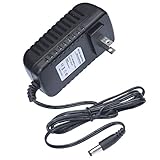
- This 5V replacement power supply is compatible with Creative E-MU 0404 USB Audio/MIDI Interface
- The factory-fitted integrated plug fits a US 2-pin wall power socket.
- Both the power specification and the tip size of this power adaptor make it fully compatible with the E-MU 0404 USB Audio/MIDI Interface - it is the correct voltage, amperage and connector diameter.
- It includes electrical noise reduction, heat reduction and over-voltage protection, keeping your Audio/MIDI Interface powered and safe
- This is a modern power supply designed with low-loss delivery of power to your devices in mind, which reduces the cost of energy consumption to you
- Open the E-MU installation directory.
- Look for
amspcore.dll. - Right-click the file, select Properties, and open the Details tab.
- Check the description and product information.
- Compare the file location with the location used by the failing executable.
- Start the E-MU application again.
If the file appears in one E-MU folder but the failing program uses another installation, the program may be pointing to an obsolete or partially removed installation. Repair the parent application rather than copying the file between folders.
Do these 3 things before closing this tab:
1Clear out junk files and repair common Windows errors2Scan for outdated or missing drivers - takes under a minute3Repair Windows errors before they cause bigger problemsFix 2: Check antivirus quarantine
Security software can quarantine an old application component, particularly after a definition update or a cleanup operation.
Windows Security steps
- Open the Start menu.
- Type Windows Security and open it.
- Select Virus & threat protection.
- Select Protection history.
- Review recent actions involving the E-MU installation directory or executable.
- If
amspcore.dllwas quarantined, verify that it belongs to the trusted E-MU installation before taking action. - Restore it only when the parent application and installer are known to be legitimate.
- Reinstall the E-MU application from the official Creative package afterward.
- Run a full scan from Virus & threat protection.
Do not disable antivirus protection simply to copy an unknown DLL. If the file was removed because its parent executable is suspicious, restoring it can make the security problem worse.
If no E-MU software or hardware has ever been installed on the computer, do not restore amspcore.dll just because the filename appears in an alert. Identify the program requesting it, scan the computer, and remove the unwanted parent application.
Fix 3: Match the application and file architecture
Public file listings disagree about whether every build of amspcore.dll is 32-bit or 64-bit. That means you should not choose an installer based only on whether Windows is 32-bit or 64-bit.
A 64-bit edition of Windows can run many 32-bit applications, but the application, its DLLs, its drivers, and its dependencies must still be compatible with one another.
Check the installed file
- Find the copy of
amspcore.dllin the E-MU application folder. - Right-click it and select Properties.
- Open Details.
- Record the description, product name, and version information shown there.
- Check the same details for the E-MU executable that requests the file.
Windows Explorer does not always display the bitness of a DLL directly. If the Details tab does not answer the question, use the original installer documentation or a trusted dependency-analysis utility cautiously. Do not use a random DLL download as an architecture test.
Check Windows architecture
- Open Settings.
- Select System.
- Select About.
- Read System type.
This tells you whether Windows itself is 32-bit or 64-bit, but it does not prove that the E-MU application uses the same architecture.
When installing an archived package, match all of these:
Quick wins for a faster PC:
Fix the driver behind crashes, sound loss and screen glitchesFind Drivers →Clear out junk files and repair common Windows errorsFree Scan →Scan for outdated or missing drivers - takes under a minuteDriver Scan →- E-MU hardware model
- Application name
- Windows edition and architecture
- Application or driver package type
- Any operating-system requirements listed by Creative
A similar-looking E-MU installer can leave the application unusable if it targets different hardware or a different generation of Windows.
Fix 4: Check whether another dependency is missing
The message “The specified module could not be found” does not always mean that amspcore.dll itself is absent. Windows may have found amspcore.dll but failed to load one of the DLLs it depends on.
Rank #3

- PIYONE Plug-and-Play USB C Audio Interface. Experience seamless connectivity with this class-compliant audio interface for Mac and PC. The modern audio interface USB C port handles both high-speed data transfer and bus power, eliminating bulky external power supplies. No drivers are required—simply plug into your laptop and start creating with this portable xlr audio interface.
- Studio-Grade 24-bit/192kHz Fidelity. Capture every nuance with professional resolution and a wide dynamic range. This 2 channel audio interface features high-performance converters that ensure crystal-clear, low-noise recordings. Whether you need an audio interface for PC or mobile, the Q28 delivers the high-fidelity sound required for professional music production.
- Elegant Design with Illuminated Control. Enhance your interface for recording music with signature fixed LED light rings on each gain knob. This premium aesthetic ensures easy visibility in dimly lit studios while adding a modern, professional look to your setup. It’s the perfect blend of style and function for your home recording audio interface.
- Versatile 2 Channel XLR USB Interface. Connect any source with maximum flexibility via two combo jacks. This 2 input audio interface is perfect for recording vocals with a condenser mic or using the Hi-Z input as a guitar interface for PC. With integrated 48V phantom power supply audio interface capabilities, it provides clean, ample gain for even the most demanding microphones.
- Zero-Latency Monitoring & 3.5mm Connectivity. This home recording audio interface is built for performance. The Direct Monitor feature allows for silent, zero-latency tracking, while the built-in 3.5mm headphone jack ensures compatibility with standard headsets without needing adapters. Powerful, portable, and ready to perform, it’s the ultimate xlr interface for laptop users and mobile creators.
This commonly occurs after moving an application folder, removing shared software, or installing an incomplete legacy package.
First reinstall the parent application
Reinstalling the E-MU application is safer than guessing which dependency is missing. It restores the expected files and registry entries together.
Check Visual C++ requirements
Some Windows applications require a matching Microsoft Visual C++ runtime. Microsoft maintains the supported Visual C++ Redistributable information here.
Before installing anything:
- Open Settings.
- Select Apps.
- Search for installed entries containing Microsoft Visual C++ Redistributable.
- Note whether both 32-bit and 64-bit packages are present.
- Review the E-MU installer documentation for the runtime it expects.
- Install only the Microsoft package appropriate for that application.
Installing the newest runtime does not guarantee compatibility with every old E-MU program. There is also no evidence that Visual C++ is the primary fix for every amspcore.dll error.
DirectX, .NET, and Windows Features should not be installed at random. Use them only when the E-MU installer or a separate error clearly identifies them as requirements.
Fix 5: Verify or repair the application through its launcher
If the E-MU program is managed by a launcher that offers Verify, Repair, or Verify integrity of files, use that feature before replacing files manually.
The general process is:
- Open the application’s launcher.
- Open its settings or library page.
- Select the affected E-MU application.
- Choose Verify, Repair, or Verify integrity of files.
- Allow the scan and replacement process to finish.
- Restart the launcher and test the application.
If the launcher reports that files were repaired but the error remains, check which executable actually displays the message. A separate shortcut, plug-in host, service, or old installation may be requesting the file.
Fix 6: Update or reinstall the E-MU driver
A missing application DLL and a missing audio driver are different problems, but an incomplete E-MU installation can affect both.
Use the official Creative legacy support pages for the package that matches your E-MU hardware. Do not install a driver intended for another model merely because the product names look similar.
Reinstall through Device Manager
- Right-click the Start button.
- Select Device Manager.
- Expand Sound, video and game controllers.
- Locate the E-MU device.
- Right-click it and choose Properties.
- Open the Driver tab and record the provider and version.
- If you are reinstalling, choose Uninstall Device.
- Select the option to remove the driver package only when you have the correct replacement installer ready.
- Restart Windows.
- Run the matching Creative or E-MU driver installer as administrator.
- Restart again.
- Open Device Manager and confirm that the device has no warning icon.
Do not remove the device if you do not have a compatible driver or a way to restore it. Older E-MU hardware may require legacy drivers that are not available for every current Windows configuration.
Recommended Free Tools
Manually hunting through old driver versions can be difficult, especially when the application package and hardware driver must match. Outbyte Driver Updater can scan for outdated drivers, while the full version performs the driver installation; it is optional, and reinstalling the exact E-MU package remains the definitive fix for this application-specific DLL.
Fix 7: Repair Windows components with DISM and SFC
Windows repair tools are useful when system components are damaged, but they normally do not recreate a third-party E-MU DLL. Run them after repairing the E-MU installation, not instead of repairing it.
Rank #4

- Podcast, Record, Live Stream, This Portable Audio Interface Covers it All - USB sound card for Mac or PC delivers 48kHz audio resolution for pristine recording every time
- Be ready for anything with this versatile M-AUDIO interface - Record guitar, vocals or line input signals with two combo XLR / Line / Instrument Inputs with phantom power
- Everything you Demand from an Audio Interface for Fuss-Free Monitoring - 1/4" headphone output and stereo 1/4" outputs for total monitoring flexibility; USB/Direct switch for zero latency monitoring
- Get the best out of your Microphones - M-Track Duo’s transparent Crystal Preamps guarantee optimal sound from all your microphones including condenser mics
- The MPC Production Experience - Includes MPC Beats Software complete with the essential production tools from Akai Professional
First install pending updates:
- Open Settings.
- Select Windows Update.
- Select Check for updates.
- Install available updates.
- Restart Windows.
Microsoft documents the repair sequence and commands in its System File Checker instructions.
Run DISM
- Open Start.
- Type Command Prompt.
- Right-click Command Prompt.
- Select Run as administrator.
- Select Yes at the permission prompt.
- Enter:
DISM.exe /Online /Cleanup-Image /RestoreHealth
- Wait for the operation to finish.
- Restart Windows.
Run SFC
Open an elevated Command Prompt again and enter:
sfc /scannow
Wait until the scan reaches 100 percent, then restart Windows and test the E-MU application.
Crashes, No Sound, or Screen Glitches?
Random freezes, missing sound and display glitches usually trace back to one bad driver. Find and replace yours safely.Free scan · under a minuteWindows Errors? Fix Them Before They Spread
Repair common Windows errors and clear accumulated junk for a smoother, more stable PC - no reinstall needed.Free scan · no reinstallIf repeated DISM and SFC scans report no problems while amspcore.dll is still missing, stop repeating them. They repair protected Windows files, not normally the files installed by E-MU.
If manually checking Windows components and interpreting repeated repair results is becoming time-consuming, Outbyte PC Repair can scan for issues and show what it found; repairs are performed by the full version, and reinstalling the E-MU application remains the definitive fix for this DLL.
Fix 8: Use System Restore after a recent system change
System Restore can help when the file disappeared immediately after an update, uninstall, cleanup, or driver change.
- Press Windows + R.
- Type
rstrui.exe. - Press Enter.
- Select Choose a different restore point if that option appears.
- Select a restore point dated before the failure.
- Select Scan for affected programs.
- Review the list.
- Select Next, then Finish.
- Let Windows restart and complete the restoration.
System Restore does not replace personal documents, but it can remove applications or drivers installed after the selected restore point. If the failure followed a specific Windows update, record the date and review Windows Update history before removing anything.
What’s actually slowing this PC down?
Pick the symptom - the matching free tool is one click away.
Why copying amspcore.dll is usually the wrong fix
Do not copy amspcore.dll into:
C:WindowsSystem32C:WindowsSysWOW64- Another application’s folder
- A directory suggested by a generic DLL error page
The correct location is normally the E-MU application’s own installation directory or another directory defined by that installer. Copying a file into a Windows system folder can create architecture conflicts, hide the real installation problem, and leave the required dependencies missing.
Manual copying is reasonable only when all of these are true:
- The file came from the same trusted E-MU installer.
- It matches the product and application version.
- Its architecture is correct.
- Its authenticity can be verified.
- The installer documentation identifies the destination folder.
Random DLL download sites are risky because the file may contain malware, belong to the wrong application, use the wrong architecture, or fail to match the dependencies expected by the E-MU program. A matching filename does not prove that a file is safe.
Why regsvr32 usually does not apply
regsvr32 is used for DLLs that provide a COM registration entry point, commonly called DllRegisterServer. An ordinary runtime or application-support DLL does not necessarily expose that function.
Free tools Windows power users keep installed
One-click scans. No signup required.
Running a command such as this is therefore not a general repair:
regsvr32 amspcore.dll
If the DLL is not self-registering, Windows may report that the entry point is missing or that the module could not be loaded. Microsoft explains regsvr32 behavior and common errors in its support documentation.
Best Value

- 【Studio-Grade 24-Bit/192kHz Audio】 Experience superior sound clarity with high-fidelity conversion. Whether you're recording crystal-clear vocals, acoustic guitars, or podcasts, our 192kHz sample rate ensures every nuance is captured. Professional results for musicians and producers without the studio price tag.
- 【Zero-Latency Direct Monitoring】 Record with confidence. The intuitive "Direct Monitor" switch allows you to hear your performance in real-time without any distracting delay. USB-powered for ultimate portability—no wall outlet or complex driver setup required.
- 【XLR/Line Combo Inputs & +48V Phantom】 Connect anything from pro condenser mics to electric guitars. Features dual versatile inputs with independent gain control and LED Peak indicators to prevent clipping. The built-in 48V phantom power supports all professional studio microphones.
- 【Seamless Plug & Play Compatibility】 Works out of the box with Windows, macOS, and iOS/Android devices. Fully compatible with mainstream DAWs like Audacity, Ableton, and Pro Tools. Driver-free design means you can start creating in seconds—just plug into your USB port.
- 【Rugged Metal Build & Full Connectivity】 Built to last with a sturdy metal housing that shielding against interference. Includes dedicated headphone monitoring, stereo line-outs for studio monitors, and both USB-C/USB-A cables. Compact enough for your desktop or mobile recording rig.
Use regsvr32 only if the E-MU installer or vendor documentation specifically instructs you to register that particular DLL.
If the original E-MU installer is unavailable
E-MU software is legacy software, and a working file alone may not make it usable on a modern Windows installation. Older programs can depend on obsolete drivers, particular hardware, 32-bit hosts, or older Windows behavior.
PC Slower Than It Used to Be?
A free scan shows the junk files, broken settings and background clutter dragging Windows down - then fixes them in one click.Free scan · Windows 10 & 11Outdated Drivers Are Slowing You Down
One free scan finds every outdated or missing driver and matches the right update for your exact hardware.Free scan · exact hardware matchUse this escalation path:
- Identify the exact E-MU hardware and application.
- Search Creative’s official legacy support pages for that model.
- Match the application and driver packages rather than downloading a loose DLL.
- Preserve the installer and record its compatibility requirements.
- Try the installer’s compatibility settings only after confirming that the package is genuine.
- Run the installer as administrator.
- Check Event Viewer if the application still fails.
- Inspect the application directory for missing dependencies.
- Use a dependency-analysis tool cautiously to identify the module that actually fails.
- Consider a supported older Windows environment if the hardware driver cannot operate on the current system.
If no compatible official package exists, do not substitute a DLL from an archive. The practical solution may require restoring an older system image or running the legacy E-MU software in an environment that supports its hardware and drivers.
Frequently asked questions
Is amspcore.dll a Windows system file?
No. Available evidence identifies it as a component of EMU AMSPluginCore, associated with E-MU audio software. It should not normally be expected in System32 or SysWOW64.
Which E-MU applications may use it?
The surrounding software family includes PatchMix DSP, E-MU Digital Audio Systems, Emulator X, and Proteus X. The exact application depends on the installed product and package.
Is amspcore.dll 32-bit or 64-bit?
Do not assume. Public metadata is inconsistent. Check the affected application, the file’s Properties and Details information, and the original trusted installer.
Recommended Free Tools
Can SFC restore the file?
Usually not. SFC repairs protected Windows components. It does not normally reinstall a third-party E-MU application file.
Will installing Visual C++ fix the error?
It may help if a Visual C++ dependency is missing, but it is not a guaranteed or primary fix. Repair the E-MU application first.
Should I use DirectX or Windows Features?
Only when the E-MU installer or a separate diagnostic message identifies a required component. Installing unrelated Windows features rarely restores an application-specific DLL.
Why does the error say “specified module could not be found” when the DLL exists?
The DLL may depend on another missing or incompatible module. Reinstall the parent E-MU application, then inspect dependencies if the error continues.
Do these 3 things before closing this tab:
1Fix the driver behind crashes, sound loss and screen glitches2Clear out junk files and repair common Windows errors3Scan for outdated or missing drivers - takes under a minuteWhat if the error appears in a program I do not recognize?
Do not download or restore the DLL immediately. Identify the executable, check its file location and digital signature, and run a security scan. The request may come from an unwanted or damaged program rather than legitimate E-MU software.
Does registering the DLL fix it?
Normally no. regsvr32 applies to self-registering COM/OLE DLLs, not every application-support DLL. Reinstall the E-MU software instead.
What is the safest fix?
Use the correct official Creative or E-MU application installer for the exact hardware and program, then reinstall the matching driver if necessary. The goal is to restore the complete application, not just place a file in a Windows folder.
Quick Recap
Product prices and availability are accurate as of the date/time indicated and are subject to change. Any price and availability information displayed on Amazon at the time of purchase will apply.
What’s actually slowing this PC down?
Pick the symptom - the matching free tool is one click away.



