There is no single best Android emulator for every PC. For most Windows users, BlueStacks 5 is the strongest all-round choice. LDPlayer 9 is a better starting point for gaming-focused users who want detailed performance controls and multi-instance play. GameLoop makes more sense for supported Tencent games, while Android Studio Emulator is the correct tool for app development and QA—not casual gaming.
Editorial note: This guide preserves the 2025 recommendation frame. Software builds, Android images, game catalogs, requirements, installer offers, and regional availability can change, so verify details on the linked official pages before installing.


Quick recommendations
| Best for | Pick | Why | Main limitation |
|---|---|---|---|
| Most users | BlueStacks 5 | Broad app and game compatibility, Google Play, keymapping, controller support, and multi-instance tools | Feature-heavy, with promotions and optional services to review |
| Competitive mobile gaming | LDPlayer 9 | Gaming-oriented controls, resource settings, and multi-instance support | Compatibility and performance vary by game and PC |
| Supported Tencent games | GameLoop | Specialized support and PC-oriented controls for selected titles | Not a general Android environment |
| Selected high-FPS or NetEase games | MuMu Player | Gaming-focused controls, multi-instance features, and relevance for some NetEase titles | Edition, region, Android version, and compatibility require checking |
| Development and testing | Android Studio Emulator | Configurable virtual devices, API levels, sensors, location, network controls, and ADB | More setup and overhead than a consumer game player |
| Supported games without a third-party app player | Google Play Games on PC | First-party Google software, supported-game filtering, synchronization, and PC controls | Cannot run arbitrary Android apps or be treated as a universal APK emulator |
| Macros and customization | NoxPlayer or MEmu Play | Keymapping, multi-instance tools, and advanced configuration | Review security, privacy, installer behavior, and current maintenance carefully |
If the game has a native Windows client, install that first. A native client usually avoids emulator detection, translation overhead, awkward touch-to-keyboard mapping, and account-policy problems.
Which emulator should you choose?
- You want most Android games and apps: Start with BlueStacks 5, then test the exact app. No emulator supports every application.
- You care most about gaming controls and multiple instances: Compare LDPlayer 9, BlueStacks 5, and MEmu Play on your hardware.
- You only need games in Google’s catalog: Try Google Play Games on PC before installing a general-purpose emulator.
- You play a supported Tencent title: GameLoop may be preferable because it is specialized for particular games. “Official” applies to the relevant game or publisher, not to Android gaming generally.
- You play a selected NetEase or high-frame-rate title: Check MuMu Player’s current game and regional support.
- You need arbitrary apps, sensors, API testing, or ADB: Use Android Studio Emulator.
- You use WSL2, Docker, Windows Sandbox, or Core Isolation: Do not blindly disable Hyper-V or Windows security features. First determine which virtualization engine your emulator build supports.
- You have an older PC: Use one lightweight instance, reduce resolution and FPS, install on an SSD, and avoid assuming that a listed launch minimum means smooth gameplay.
What an Android emulator actually is
An Android emulator creates a virtual Android device inside Windows or another desktop operating system. Depending on the product and instance, it can provide Android storage, Google Play services, virtual sensors, location simulation, device profiles, keyboard and mouse input, controller input, and—in developer tools—ADB access.
Recommended Free Tools
#1 Best Overall
![DeskFX Free Audio Effects & Audio Enhancer Software [PC Download]](https://m.media-amazon.com/images/I/41fXbDohyuS._SL160_.jpg)
- Transform audio playing via your speakers and headphones
- Improve sound quality by adjusting it with effects
- Take control over the sound playing through audio hardware
The category includes several different products that should not be ranked as though they were interchangeable:
- Consumer app players: BlueStacks, LDPlayer, MuMu Player, NoxPlayer, and MEmu Play.
- Game-specific clients: GameLoop and Google Play Games on PC.
- Developer emulators: Android Studio’s Android Emulator.
- Operating-system alternatives: Android-x86, Bliss OS, PrimeOS, or Linux-based Waydroid. These use a different operating-system approach rather than behaving like a conventional Windows app.
- Cloud Android services: These move the virtual device to a remote server, trading local hardware demands for bandwidth, latency, subscription, and account considerations.
Installing an app is not proof that it will work correctly. API level, 32-bit or 64-bit support, ARM-only binaries, Google Play licensing, Play Integrity, DRM, sensors, region restrictions, root detection, emulator detection, and publisher policies can all affect the result.
The best Android emulators for PC
1. BlueStacks 5 — best overall for most users
BlueStacks 5 is the most balanced recommendation for ordinary Windows users who want both Android games and apps. Its broad feature set includes Google Play access, APK installation, keyboard-and-mouse mapping, controller support, multi-instance management, and game-specific resource and performance controls.
It is a good default because it does not force you into one narrow game catalog. You can normally install supported apps through Google Play, while sideloading remains available for trustworthy APK sources. Different instance types and Android versions can behave differently, so check the exact instance offered by the current build rather than assuming every BlueStacks installation has identical compatibility.
Do these 3 things before closing this tab:
1Repair Windows errors before they cause bigger problems2Scan for outdated or missing drivers - takes under a minute3Clear out junk files and repair common Windows errorsBlueStacks should not be described as universally the fastest or lightest emulator. Results depend on the game, Android instance, graphics renderer, virtualization mode, GPU driver, Windows background tasks, and the number of instances running.
Choose it if: you want one general-purpose app player with mature input and multi-instance features.
Think twice if: you want a minimal launcher, object to promotions or optional services, or need strict enterprise privacy controls. Review the installer and current privacy terms at the official BlueStacks site.
2. LDPlayer 9 — best gaming-focused alternative
LDPlayer 9 is aimed primarily at Windows gaming. Its appeal is the combination of keymapping, game controls, resource allocation, and multi-instance operation. It is a sensible candidate for players who want several accounts or who prefer to tune an emulator around particular games.
Quick wins for a faster PC:
Scan for outdated or missing drivers - takes under a minuteDriver Scan →Repair Windows errors before they cause bigger problemsFix Now →Performance remains game- and hardware-dependent. Positive impressions from comparison coverage are not the same as a reproducible benchmark, so treat “fastest” claims cautiously. Check whether your selected release can use your preferred Windows virtualization configuration, including Hyper-V-related features, and inspect setup screens for optional offers or bundled software.
LDPlayer can support APK or XAPK-style installation workflows depending on the app and release, but a successful import does not guarantee login, multiplayer, anti-cheat, or controller compatibility.
Choose it if: gaming controls and multi-instance play matter more than developer tooling.
Think twice if: you need a conservative enterprise software stack or cannot verify the current installer and privacy documentation. Use the official LDPlayer download page.
PC Slower Than It Used to Be?
A free scan shows the junk files, broken settings and background clutter dragging Windows down - then fixes them in one click.Free scan · Windows 10 & 11Crashes, No Sound, or Screen Glitches?
Random freezes, missing sound and display glitches usually trace back to one bad driver. Find and replace yours safely.Free scan · under a minute3. MuMu Player — best for selected high-FPS and NetEase-oriented games
MuMu Player is a gaming-oriented option worth checking for selected NetEase games and high-frame-rate use cases. It offers gaming controls, controller and keymapping tools, and multi-instance features in relevant editions.
High-FPS support is conditional: the game must expose the frame-rate option, the emulator must support it, the display must refresh at that rate, and the CPU, GPU, renderer, and drivers must sustain it. Do not transfer claims about a Chinese or regional build to the global edition without verification. Windows and macOS availability, pricing, Android version, language, and regional download options may differ.
Choose it if: your exact game is listed as compatible and you want to compare its frame-rate or control behavior with general-purpose players.
Think twice if: the game is unsupported in your region or you need broad app compatibility. Start at the official MuMu Player site.
The Tool Desk
Outbyte PC Repair FREERepair Windows errors before they cause bigger problemsFix Now →Outbyte Driver Updater FREEFix the driver behind crashes, sound loss and screen glitchesFind Drivers →4. GameLoop — best for supported Tencent games
GameLoop is best understood as a specialized game client, not a universal Android emulator. Its value comes from game-specific optimization and keyboard-and-mouse configuration for selected Tencent-supported titles and other games in its catalog.
That specialization is also its main limitation. The catalog may not cover the app or game you want, and you should not assume arbitrary Play Store apps or APKs are supported in every release. When a particular publisher identifies GameLoop as an official or supported PC route, that status applies to that title—not to every Android game.
Choose it if: the exact Tencent game you play is supported and you want a dedicated PC-oriented experience.
Think twice if: you want general Android app access, multiple Android images, or unrestricted APK installation. Check the current catalog at the official GameLoop site.
Free tools Windows power users keep installed
One-click scans. No signup required.
5. NoxPlayer — feature-rich customization option
NoxPlayer targets users who want keymapping, macro recording, multi-instance operation, Google Play access, APK installation, and customization. Depending on the exact release, advanced settings such as root-related options may be available, but those features must be verified before publication or installation because they can change across builds.
Root and macro features can also reduce compatibility. Some games use root or automation detection, and enabling advanced access may affect Google Play services or multiplayer eligibility.
Security concerns should be evidence-based rather than absolute. A 2021 academic study examined weaknesses in several Android-on-PC emulators, including NoxPlayer; that historical research is useful context but does not by itself prove the condition of every current build. Review the current installer, update practices, privacy disclosures, and download source before use.
Choose it if: customization and multi-instance tools are central to your workflow.
Think twice if: you handle sensitive accounts or prefer software with the smallest possible third-party footprint. Download only from NoxPlayer’s official site.
6. MEmu Play — multi-instance and customization alternative
MEmu Play is a Windows-focused alternative with multiple Android instance configurations, keymapping, controller support, APK and Google Play workflows, and CPU, RAM, resolution, and graphics settings.
Rank #3
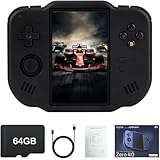
- 【Immersive 4.0-Inch IPS Display & Portable Design】Experience crystal-clear retro gaming console on a 4.0-inch IPS full-view screen with zero-distance OCA lamination (480*800 resolution). Designed for on-the-go play, handheld game console has ultra-slim profile (136x105x17mm) and lightweight body (182g) slip effortlessly into your pocket – the ultimate portable Android handheld for commute or travel.
- 【Retro System Emulation & Preloaded Classics】Gaming consoles can supports multiple simulators! You can download other emulators to play by yourself. It is a true all-in-one emulator machine.Emulator console supports TF card expansion, up to 512GB.Ample space also speeds up game loading, slashing wait times and upping playtime.
- 【 5-7 Hour Battery & Enhanced Flexibility】Retro game console powered by a 4,300mAh polymer battery for marathon 5-7 hour gaming sessions. Runs a 64-bit Android system, letting you install Google Play games, streaming apps, and custom emulators – beyond just retro titles. Perfect for modern indie games too!
- 【Vibration Feedback & HD Stereo Sound】Feel every hit and explosion with built-in vibration motors – a rare feature in handheld emulators. Gaming handheld's dual stereo speakers deliver immersive audio for arcade brawlers and RPGs. The fingerprint-resistant touchscreen ensures smudge-free controls during intense sessions.
- 【Expandable 512GB Storage & 2.4G WiFi Connectivity】Never delete games again! Expand storage via TF card (up to 512GB) – ideal for massive ROM libraries. The game boy seamlessly transfer files or download titles using 2.4G WiFi and Bluetooth 4.2. The DDR4 2GB RAM + AllWinner 1.8GHz CPU handles even demanding games smoothly.
It can suit users who want to compare Android configurations or separate accounts, but multi-instance support is not the same as smooth multi-instance performance. Every additional virtual device consumes memory, processor time, storage bandwidth, and often GPU capacity.
Check compatibility with your virtualization setup, Hyper-V-related features, current installer terms, and privacy documentation. It should not be ranked above BlueStacks or LDPlayer without a controlled test using the same PC, game, Android image, renderer, resolution, frame cap, and measurement method.
Choose it if: you want a configurable Windows player and multi-instance operation.
Think twice if: you use macOS or prioritize Google’s official developer tooling. See the official MEmu Play site.
7. Android Studio Emulator — best for developers and QA
Android Studio’s Android Emulator is the correct choice for app development, automated testing, device-behavior checks, and API-level validation. It supports Android Virtual Devices through Device Manager, selectable system images, Google Play images, ADB, snapshots, and extended controls for calls, SMS, location, rotation, sensors, and network conditions. Google documents these capabilities in its Android Emulator guide.
A system image with the Google Play logo includes the Play Store and Google Play services. An AOSP image does not include Google apps and can be useful when testing a more minimal environment or when elevated privileges are required. The distinction is documented in Google’s AVD documentation.
For Android Studio plus Emulator on Windows, Google lists 64-bit Windows 10 or newer, at least 16 GB RAM, at least 16 GB free disk space, firmware virtualization through Intel VT-x or AMD-V, and a GPU with 4 GB VRAM for the minimum Studio-plus-Emulator configuration. Windows ARM-based CPUs are currently unsupported by the cited Android Studio Windows requirements. Higher API levels and larger virtual devices may need more resources; see Google’s Windows requirements.
Choose it if: you need repeatable virtual devices, API control, ADB, sensors, location, or test automation.
Think twice if: your goal is casual gaming. It has more setup overhead and fewer gaming-oriented control conveniences than consumer players.
8. Google Play Games on PC — best official option for supported games
Google Play Games on PC is often a better solution than a third-party emulator when the game you want appears in Google’s supported catalog. It provides first-party distribution, PC-oriented controls, supported-device progress synchronization, and Play Points in supported experiences. Google provides the current product information and catalog through its support documentation.
What’s actually slowing this PC down?
Pick the symptom - the matching free tool is one click away.
It is not a general Android app player. You cannot assume that arbitrary Android apps, random APKs, or every Google Play game can be installed. Google’s compatibility labels are useful filters, not guarantees for every GPU, driver, Windows configuration, account, or future game update. Review the compatibility guidance before installing.
Google lists Windows 10 version 2004 or newer, an SSD with at least 10 GB available, 8 GB RAM, four physical CPU cores, and Intel UHD Graphics 630 or comparable graphics as requirements. Google recommends a gaming-class GPU such as an Nvidia GeForce MX450 for better gameplay. These are Google Play Games requirements, not universal requirements for every emulator.
Choose it if: your target game is supported and you want a PC-native, first-party route.
Rank #4
![MixPad Multitrack Recording Software for Sound Mixing and Music Production Free [Mac Download]](https://m.media-amazon.com/images/I/51kaO82jYOL._SL160_.jpg)
- Mix an audio, music and voice tracks
- Record single or multiple tracks simultaneously
- Intuitive tools to split, trim, join, and many other editing features
- Loaded with audio effects including EQ, compression, reverb, and more.
- Load an audio file and export to all popular audio formats from studio quality wav to high compression formats
Think twice if: you need arbitrary Android apps, APK sideloading, developer AVDs, or unsupported games.
Comparison by capability
| Product | Google Play | APK installation | Multi-instance | Keymapping | Developer testing | Platform note |
|---|---|---|---|---|---|---|
| BlueStacks 5 | Generally available; verify instance | Yes, subject to app compatibility | Yes | Yes | Limited compared with Android Studio | Check current Windows and macOS support |
| LDPlayer 9 | Verify current build | APK/XAPK workflows may vary | Yes | Yes | Not its primary purpose | Windows-focused |
| MuMu Player | Varies by edition and region | Verify format and release | Yes | Yes | Not its primary purpose | Windows/macOS offerings may differ |
| GameLoop | Catalog-specific | Do not assume arbitrary APK support | Catalog/build dependent | Yes for supported games | No | Dedicated game client |
| NoxPlayer | Generally available; verify release | Yes, subject to compatibility | Yes | Yes | Limited | Windows and macOS support should be checked |
| MEmu Play | Verify current build | Yes, subject to compatibility | Yes | Yes | Limited | Windows-focused |
| Android Studio | Only with Google Play system images | Yes, including ADB | AVD-based rather than gaming multi-instance | Basic testing input | Excellent | Official Google developer tool |
| Google Play Games on PC | Supported catalog only | Do not assume arbitrary APK sideloading | Not the core feature | PC controls for supported games | No | First-party limited-catalog client |
“Varies by build” is intentional. Android versions, system images, renderer options, Hyper-V compatibility, and supported catalogs can differ by release channel, edition, region, and date.
Hardware and Windows requirements
A practical baseline
- 8 GB RAM: Can be enough for Google Play Games on PC or light, single-instance use, but multitasking may be poor. Google lists 8 GB as the minimum for Google Play Games on PC.
- 16 GB RAM: A more realistic target for one consumer emulator alongside normal Windows applications, and the official best-experience guidance for Android Studio’s emulator.
- SSD: Strongly preferred for faster startup, game loading, and virtual-disk responsiveness.
- Modern 64-bit CPU: Multiple cores and current Intel VT-x or AMD-V support are more important than a product’s generic “low-end PC” marketing.
- Dedicated GPU: Helpful for demanding 3D games, high resolutions, and high frame rates, but not mandatory for every app.
- Free storage: Leave space for the emulator, virtual disks, game updates, snapshots, and temporary files. A nearly full drive can cause failures even when the emulator technically starts.
Vendor minimums are not comparable. One company may define “minimum” as launching the emulator; another may mean playable performance. Treat launch minimum, comfortable single-instance use, gaming configuration, and multi-instance configuration as separate targets.
Virtualization and Hyper-V
Hardware virtualization is a major performance requirement. Intel systems generally expose VT-x and AMD systems AMD-V. If it is disabled, enable virtualization in BIOS or UEFI, then confirm the emulator recognizes it.
Do not follow old advice that universally says to disable Hyper-V. Depending on the product and build, Windows Hypervisor Platform may be supported or required. Disabling virtualization-based security can also reduce protection and disrupt WSL2, Docker, Windows Sandbox, Core Isolation, and other workloads.
Crashes, No Sound, or Screen Glitches?
Random freezes, missing sound and display glitches usually trace back to one bad driver. Find and replace yours safely.Free scan · under a minutePC Slower Than It Used to Be?
A free scan shows the junk files, broken settings and background clutter dragging Windows down - then fixes them in one click.Free scan · Windows 10 & 11Identify the exact emulator, release, and engine first. Google documents hardware acceleration and Windows Hypervisor Platform in its emulator acceleration guidance. Google also publishes separate installation guidance for Google Play Games on PC, including virtualization-related requirements.
Graphics settings and performance tuning
Some products expose DirectX, OpenGL, Vulkan, or compatibility modes. There is no universally superior renderer: one may perform well in a particular game while another avoids graphical corruption.
- Update the emulator to a stable current release.
- Update the GPU driver from the appropriate hardware vendor.
- Test the alternate renderer if the game is slow, black-screened, or visually corrupted.
- Reduce resolution, texture settings, and FPS cap before increasing resource allocations.
- Disable overlays, screen recorders, and unnecessary background tools.
- Test a fresh instance to rule out damaged settings or virtual-disk data.
- Check firmware virtualization and Hyper-V or Windows security-virtualization status.
- Reinstall only after preserving account recovery information and important game data.
High FPS requires more than an emulator setting. The game, display, graphics API, driver, renderer, and physical hardware must all support the target frame rate. Multiple instances multiply resource use; “supports 10 instances” does not mean a typical PC will run 10 demanding games smoothly.
Independent reader supportYour contribution helps us test, update, and keep practical guides available for everyone.How to install a consumer emulator
- Check your Windows version, RAM, free storage, GPU driver, and virtualization status.
- Download the installer from the vendor’s official domain, not a search-ad mirror or random APK site.
- Inspect the installer for optional offers, bundled software, permissions, and the proposed installation path.
- Launch the emulator and create or select an Android instance.
- Sign in to Google Play only if the app or game requires it. Consider using a separate Google account if you do not fully trust the environment.
- Install the app through Google Play where possible.
- Use APK sideloading only when the source is trustworthy and the app permits it.
- Set CPU, RAM, resolution, FPS, renderer, controller, keymapping, and shared-folder options.
- Test the target app before importing data or creating additional instances.
A game that installs may still crash, reject login, block multiplayer, disable keyboard input, or detect the emulator. Test the exact game version before committing accounts or purchases.
How to set up Android Studio Emulator
- Install Android Studio from Google’s official site.
- Enable Intel VT-x or AMD-V in firmware and install the Android SDK and Emulator components through the Setup Wizard or SDK Manager.
- Open Android Studio’s Device Manager.
- Select Create device, then choose an appropriate hardware profile.
- Select a system image and API level. Choose an image carrying the Google Play logo when you need the Play Store and Google Play services.
- Use an AOSP image when testing without Google apps or when the test requires a more permissive development environment.
- Start the AVD, then use the emulator’s extended controls for location, rotation, sensors, calls, SMS, and network behavior.
- Install your app from Google Play or use ADB to sideload and automate tests.
Snapshots can reduce repeated startup time, but a cold boot is useful when you need to reproduce a clean-start condition. For exact AVD, system-image, and ADB workflows, follow Google’s official emulator documentation.
Troubleshooting common problems
The emulator is extremely slow
Check, in order: firmware virtualization, available RAM, SSD versus HDD, GPU drivers, graphics renderer, excessive instances, Hyper-V or security-virtualization conflicts, antivirus scanning, overlays, and recording software. Lower resolution and FPS before simply assigning more RAM; over-allocation can make Windows and the emulator compete for resources.
The game will not install
Possible causes include an incompatible Android image, 32-bit/64-bit or ABI mismatch, region restrictions, incompatible Google Play services, a game-specific emulator block, a damaged APK or XAPK, or insufficient virtual storage. Try a supported Google Play image or the vendor’s recommended instance rather than forcing a random APK.
The game opens but keyboard or mouse input does not work
Check for a keymapping profile, remap touch gestures manually, and confirm the game did not change its controls after an update. Some games detect emulator input or require a dedicated PC client. A native client or supported Google Play Games installation may be the better route.
The Tool Desk
Outbyte PC Repair FREERepair Windows errors before they cause bigger problemsFix Now →Outbyte Driver Updater FREEFix the driver behind crashes, sound loss and screen glitchesFind Drivers →Google Play reports an uncertified device
Some virtual devices are not Play Protect certified. Google’s Android Emulator troubleshooting documentation specifically notes certification problems that can affect some newer API-level virtual devices; see the official troubleshooting page.
Try a Google Play system image, update Google Play services, create a clean AVD, test on a physical Android device, or use the consumer emulator instance officially supported for the app. Do not assume that entering a Google account makes an emulator certified.
Windows virtualization conflicts with the emulator
First identify whether you are using a consumer emulator, Android Studio, Google Play Games on PC, WSL2, Docker, Sandbox, or Core Isolation. Check whether the exact emulator build supports Windows Hypervisor Platform. Only then consider changing Windows virtualization features—and understand that doing so may affect other software and system protection.
Security and privacy checklist
- Download only from the vendor’s official domain.
- Scan installers and keep Windows security tools enabled.
- Decline optional bundled software and read setup screens instead of clicking through.
- Use a separate Google account when an environment is not fully trusted.
- Avoid banking, primary-password, work-admin, and other highly sensitive credentials in unfamiliar emulators.
- Review permissions, telemetry disclosures, advertising behavior, and privacy policies.
- Keep both Windows and the emulator patched.
- Avoid random APK mirrors, modified APKs, cracked games, and unknown XAPK bundles.
- Do not confuse Google Play access with Play Protect certification.
A 2021 academic paper studied security weaknesses in Android-on-PC emulators, including NoxPlayer. It is historical research and should not be presented as proof that every current 2025 or 2026 build is unsafe. It does support taking installer provenance, account separation, permissions, updates, and sensitive-data exposure seriously. Read the research paper for its scope and methodology.
When an emulator is the wrong choice
- A native PC client exists: Prefer it when available and supported. It generally offers better desktop input, graphics integration, anti-cheat compatibility, and update handling.
- Google Play Games supports the game: Use Google’s client if you only need catalog games and want to avoid a general-purpose third-party player.
- You need accurate device and API testing: Use Android Studio Emulator or a physical device rather than a gaming-oriented app player.
- You need sensors, DRM, biometrics, or Play Integrity: Test on physical hardware when the virtual result could be misleading.
- Your PC is too constrained: A physical Android phone may be more responsive and less frustrating than running a virtual device.
- Local virtualization is unsuitable: Cloud Android or remote device testing can help, but latency, bandwidth, recurring cost, data handling, and subscription terms become part of the trade-off.
- You want a different operating system: Android-x86, Bliss OS, PrimeOS, or Waydroid may be worth investigating, but they are not drop-in replacements for a Windows consumer emulator and may require different installation and recovery procedures.
How to compare emulators fairly
Do not repeat a “fastest emulator” claim unless it comes from a controlled test. A useful comparison records the PC’s CPU, GPU, RAM, storage, Windows build, emulator version, Android image, game version, resolution, FPS cap, renderer, virtualization mode, number of instances, measurement tool, and test duration.
For most readers, a use-case recommendation is more honest than a numerical ranking. Test the exact game or app, measure stability and input behavior, and check whether the publisher permits emulator use. A high benchmark score is irrelevant if the title blocks emulators, requires an ARM component, detects macros, or insists on an official PC client.
Frequently Asked Questions
What is the best Android emulator for PC in 2025?
BlueStacks 5 is the best general recommendation for most users because it combines broad app and game support with Google Play, keymapping, controller support, and multi-instance tools. It is not universally the fastest, and your exact game may work better elsewhere.
Is Google Play Games on PC a full Android emulator?
No. It is a first-party PC client for a supported catalog of Android games. It does not replace a general-purpose emulator for arbitrary Android apps or APKs.
Which emulator is best for developers?
Android Studio Emulator. It provides configurable Android Virtual Devices, API-level selection, Google Play or AOSP images, ADB, sensors, location, network controls, and other testing features.
Should I disable Hyper-V to run an Android emulator?
Not automatically. Compatibility depends on the exact product and build, and disabling Hyper-V or related security features can affect WSL2, Docker, Windows Sandbox, and system protection. Check the emulator’s current virtualization guidance first.
Can every Android game run on an emulator?
No. Games can fail because of ABI or API mismatches, region limits, Play Integrity, DRM, anti-cheat, emulator detection, root detection, publisher policies, or unsupported input.
The Bottom Line
Final recommendation: Choose BlueStacks 5 for broad everyday use, LDPlayer 9 for a gaming-focused comparison, GameLoop for supported Tencent titles, MuMu Player for selected NetEase or high-FPS games, Android Studio Emulator for development, and Google Play Games on PC when its catalog includes the game you need. Before installing, check the exact title’s support status, your PC’s virtualization and storage, and the emulator’s current privacy and installer terms.
Quick wins for a faster PC:
Repair Windows errors before they cause bigger problemsFix Now →Scan for outdated or missing drivers - takes under a minuteDriver Scan →Clear out junk files and repair common Windows errorsFree Scan →Quick Recap
Product prices and availability are accurate as of the date/time indicated and are subject to change. Any price and availability information displayed on Amazon at the time of purchase will apply.



