Do these 3 things before closing this tab:
1Fix the driver behind crashes, sound loss and screen glitches2Repair Windows errors before they cause bigger problems3Scan for outdated or missing drivers - takes under a minuteSome links on this page are affiliate links: if you buy through them we may earn a commission, at no extra cost to you.
If you broadcast directly from a PS5, buy Sony’s HD Camera (CFI-ZEY series) or the supported PlayStation Camera (CUH-ZEY series). Sony does not document ordinary third-party USB webcams as a native PS5 Broadcast option, and Elgato explicitly lists its Facecam models as unsupported when connected directly to PS5. Logitech, Elgato and Razer webcams become appropriate when your PS5 is connected to a computer through a capture card.
That compatibility distinction matters more than resolution. Choose the workflow first, then the camera.
Quick picks by streaming setup
| Camera | Direct PS5 Broadcast | PC-assisted PS5 streaming | Maximum relevant mode | Focus | Best for | US price signal | Main drawback |
|---|---|---|---|---|---|---|---|
| Sony HD Camera | Yes, Sony-supported | Not its main advantage | Sony does not state a webcam-resolution comparison here | PS5-adjustable camera | Console-only streaming | Not stated; check current retailer pricing | Less useful as a premium PC webcam |
| Logitech C922 Pro | No official native support | Yes | 1080p30 or 720p60 | Autofocus | Budget PC-and-capture-card setup | $119.99, listed in stock on Logitech US on August 18, 2026 | Less capable in difficult lighting |
| Elgato Facecam MK.2 | No; Elgato lists Facecam models as unsupported on PS5 | Yes | 1080p60 | Fixed; 30–120 cm focus range | Creator-focused 1080p image | $139.99 on August 18, 2026 | No autofocus or built-in microphone |
| Elgato Facecam 4K | No direct third-party support | Yes | Up to 2160p60 over USB 3.0 | Fixed | Recording, cropping and long-term PC use | $199.99 on August 18, 2026 | Requires USB 3.0 for 4K and costs more |
| Razer Kiyo Pro Ultra | Not established | Yes, subject to computer/software support | 4K30, 1440p30 or 1080p60 | Autofocus | Dim rooms and flexible framing | Not stated | No current official PS5-direct confirmation |
The prices above are US signals checked on August 18, 2026, not guarantees of current stock or regional pricing.
Best camera for direct PS5 streaming: Sony HD Camera
Sony’s HD Camera is the safest choice when the PS5 itself will handle the broadcast. Sony’s current support documentation identifies the CFI-ZEY HD Camera series and CUH-ZEY PlayStation Camera series for adding camera video to a PS5 broadcast. Sony’s setup instructions do not offer a general USB-webcam compatibility path: camera support and setup.
#1 Best Overall

- Built-in adjustable stand helps you get the perfect shot.
- Stand's compact design allows it to be securely positioned above or below your TV.
- Quickly record or broadcast yourself and your gameplay via your DualSense wireless controller's Create button.
- 1080p capture delivers smooth, sharp Full HD via the camera's dual wide-angle lenses for your most epic gaming moments.
- PS5's background removal tools let you take centre stage in your productions; add yourself to your gameplay videos while broadcasting in picture-in-picture mode, crop the background, or lose it entirely with a green screen.
The HD Camera can provide picture-in-picture video, and Sony says it can crop or remove the background when used with a green screen. Those are PS5 broadcast features, not proof that it is a superior computer webcam: Sony HD Camera product page.
Install and calibrate it
- Connect the HD Camera to a rear USB port on the PS5 with the supplied cable.
- Place it on a stable, level surface facing you.
- Open Settings > Accessories > Other Accessories > Adjust HD Camera and set the angle and framing.
Sony specifically directs users to the rear USB connection for this setup: PS5 HD Camera support.
Start a native broadcast
- Press the Create button.
- Select Broadcast, then choose Twitch or YouTube.
- Enter the broadcast details.
- Open Broadcast Options and enable or configure camera video.
- Select Go Live.
Menu labels and broadcast behavior can change with PS5 firmware or streaming-service updates; Sony’s current workflow is documented at PS5 broadcast support.
Free tools Windows power users keep installed
One-click scans. No signup required.
If the camera image is poor
- Confirm that the camera is a Sony-supported HD Camera or PlayStation Camera family.
- Reconnect it to a rear USB port using the supplied cable.
- Recheck the angle and seating position in Adjust HD Camera.
- Clean the lens with a clean, dry microfiber cloth.
- Move closer if your face is unclear.
- After framing is set, avoid moving the camera, which can destabilize the composition.
Do not confuse these cameras with PS VR requirements. Sony says the HD Camera is not compatible with PS VR; PS VR on PS5 uses the PlayStation Camera with the required PlayStation Camera adaptor.
Best webcams for a PC-assisted PS5 stream
In this setup, the webcam connects to the computer, not as a native PS5 Broadcast camera. The PS5’s HDMI output goes to a capture card, while OBS or another streaming application combines gameplay, webcam, audio and graphics.
Rank #2
- HD camera Add yourself to your gameplay videos and broadcasts with smooth, sharp, full-HD capture. Internet and account for PlayStation Network required. Account holders must be 7+, under 18s require parental consent. HD camera.
Best budget entry: Logitech C922 Pro Stream Webcam
The C922 is a practical starting point if you already plan to use a capture card and want one camera for streaming, calls and recordings. Logitech lists 1080p at 30 frames per second or 720p at 60 frames per second, autofocus, automatic light correction and a 78-degree diagonal field of view. Its technical specification page lists USB 2.0 and those same video modes: C922 specifications.
Its 720p60 mode can look smoother during face movement than 1080p30, while autofocus is useful if you lean toward or away from the desk. Logitech’s US store showed $119.99 and in-stock status on August 18, 2026: C922 buying page.
What’s actually slowing this PC down?
Pick the symptom - the matching free tool is one click away.
This is not a direct-PS5 recommendation. Budget for the capture card, computer, software, cables and audio separately.
Best 1080p creator option: Elgato Facecam MK.2
The Facecam MK.2 targets a PC-based creator setup with 1080p60, a fixed-focus lens covering 30–120 cm, an 84-degree field of view, a 1/2.5-inch Sony STARVIS sensor, USB-C and UVC 1.5 support. Elgato listed it at $139.99 in the US on August 18, 2026: Facecam MK.2.
Its 60-frame-per-second mode suits a smooth face-cam layer, and the wider view can include some of your desk or setup. Fixed focus is predictable at a stationary desk but less forgiving if you regularly change distance. It has no built-in microphone, which suits a headset or dedicated microphone.
Rank #3
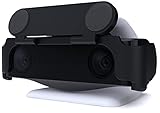
- MAINTAIN YOUR PRIVACY: The ideal solution for users seeking privacy **PLEASE NOTE: PS5 CAMERA IS NOT INCLUDED**
- PROTECT YOUR LENSES: The Foamy Lizard Privacy Shield has foam to protect your PS5 Camera lenses from scratches, dust accumulation and UV
- DESIGNED FOR THE PS5 CAM: The sleek design blends in seamlessly with the styling of your PS camera
- SMART DESIGN: Easy swivel up/down shield is padded to ensure no damage to your camera lenses
- NO ADHESIVE EASY INSTALL: The Foamy Lizard privacy shield easily snaps into place within seconds, no tools or tape necessary for installation
Elgato explicitly says Facecam, Facecam Pro, Facecam MK.2, Facecam Neo and Facecam 4K do not support direct connection to PlayStation 5: Elgato console compatibility. The MK.2 also behaves differently over USB 2.0 than USB 3.0, so check the computer port and cable before buying: MK.2 technical specifications.
Quick wins for a faster PC:
Fix the driver behind crashes, sound loss and screen glitchesFind Drivers →Clear out junk files and repair common Windows errorsFree Scan →Best premium PC option: Elgato Facecam 4K
Facecam 4K supports up to 2160p60 through USB 3.0. Over USB 2.0, it is limited to up to 1080p60. It uses a fixed-focus lens, a 90-degree field of view, a 1/1.8-inch Sony STARVIS 2 sensor and USB-C. Elgato listed a US price of $199.99 on August 18, 2026: Facecam 4K product page.
Choose it when you will also record locally, crop into footage, make videos or keep the camera for future PC work. A 4K webcam does not promise a 4K face-cam feed in the PS5’s native Broadcast mode, and it is unnecessary if you only need a small console overlay. Elgato recommends professional-quality lighting for best results, and the camera has no microphone.
USB 3.0 bandwidth, a capable computer and software that accepts the selected mode are all required for 4K60. It remains a PC-assisted camera, not a direct-PS5 third-party solution.
Best autofocus and low-light alternative: Razer Kiyo Pro Ultra
Razer’s support documentation lists 4K30, 1440p30 and 1080p up to 60fps, autofocus and built-in microphones for the Kiyo Pro Ultra: Razer specifications.
Rank #4
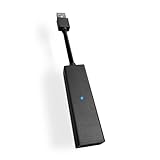
- 1st. Plug the PS Camera Adapter to the USB port of the PS5 console
- 2nd. Connect the PS Camera to the PS Camera Adapter's AUX port
- 3rd. Connect your PSVR to your PS5 console and play
- This adapter is not used with the PS4 console
- Must-Have: If you want to experience great PSVR games like Iron Man VR on PS5 or use VR in games like No Man's Sky after the substantial next-gen update, you'll need an adaptor for your camera
Autofocus and its large-sensor, wide-aperture design make it a sensible candidate for a dim gaming room or a streamer who changes position. Those are specification and manufacturer-positioning advantages, not independent low-light test results. Current US pricing was not established here, and no official source in this material confirms direct PS5 compatibility, so use it through a PC and capture card.
How the PC-assisted workflow works
Signal path: PS5 HDMI output → capture card → streaming PC; USB webcam → streaming PC; microphone or headset → streaming PC; OBS or comparable software → Twitch or YouTube.
- Connect the PS5 to a capture card by HDMI.
- Connect the capture card to the streaming computer.
- Connect the webcam to the computer, checking USB-A/USB-C and bandwidth requirements.
- In OBS or another application, add the capture card and webcam as separate sources.
- Add the microphone, overlays, alerts, scenes and chat elements you need.
- Stream from the computer rather than using the PS5’s native Broadcast command.
Elgato documents PS5 capture support for devices including the 4K60 Pro MK.2 and explains how to choose among capture devices: 4K60 Pro MK.2 specifications and capture-device guide.
A webcam alone does not create this setup. You may also need a capture card, compatible computer, HDMI and USB cables, streaming software and a separate microphone.
Specifications that matter more than a 4K label
Compatibility comes first
For native PS5 broadcasting, use Sony’s supported cameras. For PC-assisted streaming, confirm that the computer and software support the webcam’s resolution, frame rate and USB mode. “Works with Twitch” does not mean “plugs directly into PS5.”
Best Value

- Compatible with PS5, PS5 Slim, and PS5 Pro consoles, this adapter allows seamless use of your PS4 Camera for PSVR gaming on PS5.
- Easy plug-and-play setup: just connect the adapter to your PS5 USB port, attach your PS4 Camera, and start enjoying supported PSVR games instantly.
- Compact and lightweight design measuring approximately 17.5 x 2.5 x 1.7 cm — perfect for gaming on the go.
- The PS Camera adaptor cannot be used with the PS4 console
- Tip:If you experience the camera going dark while using the adapter, please first check whether the indicator light is on and confirm the camera is receiving power. If both are normal but the issue continues, try unplugging and reconnecting the adapter, or restarting your PS5 console. If the problem still persists after these steps, please contact us directly for further assistance.
Lighting usually beats extra resolution
A soft light placed in front of you can improve exposure, skin tones and noise more than moving from 1080p to 4K. A premium camera in a dark room can look worse than a cheaper camera with good, even illumination.
Frame rate and final stream output are different
1080p60 can make a face-cam feed look smoother, but the camera’s maximum mode is not the same as the livestream output. The capture-card input, streaming software settings, service limits and viewer playback resolution all affect the final result.
Focus, field of view and mounting
- Autofocus: More forgiving when you move toward or away from the camera.
- Fixed focus: Predictable at a stable desk position, but less flexible if the camera moves.
- Field of view: Narrower views emphasize your face; wider views fit more desk, background or people.
- Mounting: A monitor clip, tripod thread or arm matters because camera height and distance determine framing.
Audio and USB
Built-in webcam microphones are useful backups but sit farther from your mouth than a headset or dedicated microphone. Check USB-A versus USB-C, supplied cables and USB 2.0/3.0 limits before ordering. Facecam 4K requires USB 3.0 for 4K modes, while USB 2.0 supports up to 1080p60.
Which webcam should you buy?
- Buy the Sony HD Camera if you want to press Create on the PS5 and go live without a computer.
- Buy the Logitech C922 if you want an affordable autofocus camera for a PC-and-capture-card setup and value 720p60 as an option.
- Buy the Facecam MK.2 if you want a creator-oriented 1080p60 image and already have separate audio.
- Buy the Facecam 4K only if you will use a PC for recording, cropping or other high-resolution creator work and have USB 3.0 available.
- Choose the Razer Kiyo Pro Ultra if autofocus and a dim-room PC setup matter more than a confirmed console-direct connection.
Pre-purchase checklist
- Are you broadcasting natively from PS5 or using a PC and capture card?
- If using a PC, do you have the capture card, compatible computer, software and HDMI cables?
- Does the webcam’s connector and required USB bandwidth match your computer?
- Do you have a headset or dedicated microphone?
- Can you add a soft, front-facing light?
- Is the camera mount stable and at a flattering height?
- Are your Twitch or YouTube accounts linked to the chosen workflow?
- Have you checked current regional price and stock before ordering?
The central buying rule is simple: Sony’s camera is the direct-PS5 choice; Logitech, Elgato and Razer options belong in a computer-based capture workflow. Once that is settled, lighting, audio, focus and USB requirements determine which model fits your stream.
Quick Recap
Product prices and availability are accurate as of the date/time indicated and are subject to change. Any price and availability information displayed on Amazon at the time of purchase will apply.

