Start with this diagnostic checklist
Before changing Windows files, record:
- Which DAW or VST host reports the problem
- When the error appears: during startup, plug-in scanning, project loading, or when inserting BlueGate
- Whether the DAW is 32-bit or 64-bit
- The full message, such as “Plug-in could not be loaded,” “The plug-in was not found,” or a message naming
bluegate vst.dll - The VST2 folders currently scanned by the DAW
- Whether BlueGate recently disappeared after an antivirus cleanup, software uninstall, or disk move
What’s actually slowing this PC down?
Pick the symptom - the matching free tool is one click away.
bluegate vst.dll appears to be the Windows VST2 plug-in file for BlueGate, a noise-gate effect in Digilogue’s BlueLine suite. If a DAW cannot load it, the problem is normally with the BlueLine installation, the DAW’s plug-in path, antivirus quarantine, or compatibility between an old plug-in and a newer host.
This is not a Windows component. It does not belong in C:WindowsSystem32, C:WindowsSysWOW64, or a DirectX, .NET, or Visual C++ system folder.
The most likely fix: restore BlueLine and rescan the VST folder
BlueGate shipped as part of BlueLine, a suite of ten DirectX/VST audio effects. The package included BlueGate, BlueFilter, BlueFlanger, BlueReverb, BlueParamEQ, BlueCompressor, BlueDelay, BlueChorus, BlueMultitap, and BluePhaser.
Recover the complete BlueLine installation rather than searching for a replacement DLL.
#1 Best Overall

- Music Production and Beat Maker Essential -USB powered MIDI controller with 25 mini MIDI keyboard velocity-sensitive keys for studio production, virtual synthesizer control and beat production
- Total Control of your Production - Innovative 4-way thumbstick for dynamic pitch and modulation control, plus a built-in arpeggiator with adjustable resolution, range and modes
- Native Kontrol Standard (NKS) Integration - Akai Professional and Native Instruments have partnered to bring NKS support to the MPK Controller series, get ready to Kontrol straight from your MPK
- Choose Your Exclusive Complimentary NKS Bundle - Browse and control Native Instruments presets and sound libraries; select one of three curated Komplete 15 Select bundles: Beats, Band, or Electronic
- The MPC Experience - 8 backlit velocity-sensitive MPC-style MIDI beat pads with Note Repeat and Full Level for programming drums, triggering samples and controlling virtual synthesizer / DAW controls
1. Find an authentic BlueLine installer or backup
Check these locations:
- Your Downloads folder and external backup drives
- Old DAW or plug-in backup folders
- A previous computer that still has the plug-in installed
- Software installation media or an archived installer obtained from the software owner
The original Digilogue download page is not reliably available today. Current search results commonly lead to third-party DLL index pages, but those pages are not a safe substitute for the original BlueLine package.
Do not download a standalone bluegate vst.dll from a random DLL website. A replacement may contain malware, may be the wrong architecture, may be damaged, or may omit other files that BlueGate needs. It also leaves the underlying installation problem unresolved.
2. Install BlueLine
Run the original installer normally. If Windows prevents it from writing to its destination:
- Right-click the installer.
- Select Properties.
- Select the Compatibility tab.
- Enable Run this program as an administrator.
- Select Apply, then OK.
- Run the installer again.
Use the installer’s VST destination if it offers one. If it asks for a custom VST folder, choose a folder that your DAW can scan, such as an existing VST2 directory used by your other plug-ins.
Avoid creating several new VST folders unless necessary. Multiple copies make it harder to determine which BlueGate file the host is loading.
3. Add the folder to the DAW
Open the DAW’s plug-in settings. The exact label varies, but look for:
- Plug-in locations
- VST paths
- VST2 folders
- Plug-in manager
- Rescan plug-ins
Add the folder containing bluegate vst.dll. Remove stale paths pointing to old drives or duplicate BlueLine installations if the DAW allows it.
Then run a full scan, not only a quick scan. Some hosts provide a command such as Rescan failed plug-ins, Clear plug-in cache, or Reset and rescan. Use that option if BlueGate was previously blacklisted.
How to confirm this fix worked
The repair succeeded if:
- BlueGate appears in the DAW’s plug-in browser
- The DAW can insert it on an audio track
- A saved project containing BlueGate opens without a missing-plug-in warning
- The host completes its scan without crashing or blacklisting the file
If the DLL exists but the DAW still reports that the plug-in is missing, continue with the path check below.
Check whether the DAW is scanning the wrong folder
A file can be present on disk while the host cannot see it.
Locate the file
In File Explorer:
- Select This PC.
- Search for
bluegate vst.dll. - Wait for the search to finish.
- Right-click the result and select Open file location.
- Copy or note the complete folder path.
If no result appears, BlueLine is probably missing, was moved, or was quarantined. Restore it from the original installer or backup.
Rank #2

- Button Bonanza- Let your music production soar with the Vangoa Wireless Midi Controller Mixer Mute and its 43 backlit buttons. Each button is a gateway to a world of creativity, allowing you to trigger beats, melodies, and effects with the touch of a finger.
- Fader Finesse- Glide through your tracks like a pro with the 8 customized diamond-shaped faders adorned with LED indicators. Feel the music come alive as you slide, twist, and tweak your sound to perfection, adding depth and emotion to every note.
- Knob-tastic Customization- Take control of your sound with the 8 assignable knobs that put the power of customization in your hands. From tweaking EQ settings to adding effects, these knobs are your ticket to creating music that is uniquely yours.
- On-the-Go Grooves- Whether you're in the studio or on stage, the midi fader controller's portable design ensures that your music goes wherever you go. Don't be tied down by bulky equipment - with this midi controller knobs midi controller keyboard, you can unleash your creativity anytime, anywhere.
- Innovation Amplified- One year satisfactory service for beignner. Step into a world of musical possibilities with the Vangoa Mixer Mute. Its cutting-edge features and user-friendly design make it a must-have for musicians looking to elevate their sound. Get ready to turn up the volume on your music production journey!
If several results appear, note every path. Multiple copies can cause the DAW to load an obsolete or damaged copy.
The Tool Desk
Outbyte PC Repair FREERepair Windows errors before they cause bigger problemsFix Now →Outbyte Driver Updater FREEScan for outdated or missing drivers - takes under a minuteDriver Scan →Correct the VST2 path
In the DAW:
- Open Preferences, Settings, or Options.
- Open the plug-in or VST section.
- Add the folder that actually contains
bluegate vst.dll. - Remove paths for disconnected drives or obsolete BlueLine folders.
- Clear the plug-in cache if that option is available.
- Run a full rescan.
- Restart the DAW.
Do not copy the file into System32 just because it has a .dll extension. VST2 plug-ins are normally discovered by the host from their plug-in directory, not from a Windows system directory.
Check 32-bit and 64-bit compatibility
BlueLine is legacy software, and no reliable public source confirms the architecture of this exact file. Its age and VST2 format mean that 32-bit compatibility should be investigated.
A 64-bit version of Windows can run 32-bit software, but a 64-bit DAW cannot automatically load every 32-bit VST.
Determine the DAW architecture
Check the DAW’s About window or installation information. It may identify itself as:
Quick wins for a faster PC:
Repair Windows errors before they cause bigger problemsFix Now →Scan for outdated or missing drivers - takes under a minuteDriver Scan →Clear out junk files and repair common Windows errorsFree Scan →- 32-bit or x86
- 64-bit or x64
The Windows architecture can be checked under Settings → System → About, but the DAW’s architecture is the important one here.
If the plug-in is 32-bit
Use one of these supported paths:
- Load BlueGate in a 32-bit version of the DAW.
- Use a reputable VST bridge that explicitly supports your DAW.
- Replace BlueGate with a current plug-in if the old effect cannot be used safely.
Installing both x86 and x64 Visual C++ packages does not convert a 32-bit VST into a 64-bit plug-in.
Signs of a bitness problem
Bitness is likely when:
- The DLL is present in the correct VST folder
- The DAW sees the file during scanning but rejects it
- The host reports only “could not load plug-in”
- A 32-bit host loads BlueGate but a 64-bit host does not
- The plug-in scan stops or crashes specifically at BlueGate
If the host crashes during scanning, remove BlueGate temporarily from the scanned folder, restart the DAW, and use its plug-in reset or blacklist controls. Then test it only in a compatible host.
Check Windows Security quarantine
Old plug-ins may be unsigned or use legacy installer behavior. Windows Security or another antivirus product may quarantine the file.
Do these 3 things before closing this tab:
1Scan for outdated or missing drivers - takes under a minute2Clear out junk files and repair common Windows errors3Fix the driver behind crashes, sound loss and screen glitches- Open Windows Security from the Start menu.
- Select Virus & threat protection.
- Select Protection history.
- Review recent detections.
- Expand any entry that identifies BlueLine or
bluegate vst.dll. - Confirm the file’s source before restoring it.
Restore or allow the file only when it came from a verified original installer or backup. Microsoft warns that allowing a file can expose the device if the file is actually malicious.
If you restore it:
- Rescan the installer or backup with Windows Security.
- Confirm that the restored file is in the intended VST folder.
- Add the folder to the DAW’s plug-in path.
- Run a full rescan.
- Check whether the DAW still blocks or blacklists it.
If the file came from an unknown DLL site, do not create an antivirus exception for it. Delete it and recover BlueLine from a trustworthy source instead.
Rank #3

- Wireless Connectivity: Please watch our videos first or check our manual to learn about how to use it. You can ask questions on Amazon to reach out to us. This BT MIDI foot controller allows for wireless operation and control of music apps via BT wireless connectivity.Can be used on multiple platforms including WINDOWS, MAC, IOS, and ANDROID.Can use the foot switch to switch the preset control effect switch and other light functions.MIDI support information: PC, CC, NOTE ON/OFF, SYSEX. GP-5 ,our product is compatible and can be connected. If you have any question,please tell us.
- Compact Design: Featuring a sleek and portable design with 4 assignable buttons, this pedal is perfect for stage performances or home studio use.Step on the button to control the fast rewind, fast forward, play/pause, loop playback functions of online videos, etc.
- Rechargeable Battery: Equipped with a built-in rechargeable battery, providing extended usage without the need for frequent battery replacements. Charge for 2.5 hours and can be used for 12 hours.
- APP Control: Compatible with various music apps, enabling seamless integration and control over your digital audio workstation or virtual instruments.The mobile phone APP allows you to view detailed settings and perform firmware upgrades without connecting to the network. Now you can search cubesuite in Google play store by your android mobile phone to download APP.
- Durable Construction: Constructed with high-quality materials, ensuring long-lasting durability and reliable performance.Support BLE connection to mobile phone/tablet or computer to control music scores for forward and backward page turning operations.If you have any questions about the product, please ask us and we will help you resolve it!
Check for a missing dependency
Sometimes the error names the plug-in even though Windows cannot load a library that BlueGate depends on.
The safest first step is still to reinstall the complete BlueLine package. If the original installer identifies a Microsoft runtime dependency, install the matching package from Microsoft’s official Visual C++ Redistributable downloads page.
Do not guess a runtime from the name of a DLL found on a download site. Install the architecture required by the plug-in and host, then restart Windows and rescan the VST folder.
Visual C++, DirectX, and .NET are not the normal first fix for a missing BlueGate plug-in. Installing them will not recreate bluegate vst.dll if BlueLine itself has been deleted.
How to tell whether a dependency is the real problem
The dependency explanation is more likely when:
bluegate vst.dllis present- The DAW finds the file but fails during loading
- The host reports an initialization error rather than a missing path
- A plug-in scanner identifies a missing imported library
- Reinstalling BlueLine changes the error but does not make the plug-in load
A scan log from the DAW is useful. Record the exact file path and the failure text. That information is more valuable than copying additional DLLs into Windows folders.
Repair Windows components only if other programs are also failing
Because BlueGate is third-party, Windows component corruption is not the leading explanation. Consider system repair if several unrelated applications are failing, Windows features are damaged, or the problem began alongside broader system errors.
Recommended Free Tools
First install pending updates:
- Open Settings.
- Select Windows Update.
- Select Check for updates.
- Install available updates.
- Restart Windows.
Then open an elevated Command Prompt:
- Open Start.
- Type
Command Prompt. - Right-click Command Prompt.
- Select Run as administrator.
- Select Yes at the User Account Control prompt.
- Run:
DISM.exe /Online /Cleanup-Image /RestoreHealth
Wait for it to finish. Then run:
sfc /scannow
Restart Windows after both commands complete and test the DAW again.
DISM repairs the Windows image, and SFC repairs protected Windows files. Neither command can recreate a missing third-party BlueLine plug-in. If the commands report that Windows is healthy but BlueGate remains unavailable, return to the BlueLine installer, VST path, quarantine, and architecture checks.
Repeatedly running SFC and DISM without knowing what changed can make troubleshooting slower. Outbyte PC Repair can show what it identifies during its free scan, while repairs are performed by the full version; it is optional, and reinstalling BlueLine remains the definitive fix for this app-specific file.
Do not use regsvr32 for a normal VST2 plug-in
Do not run:
regsvr32 "bluegate vst.dll"
A VST2 plug-in is normally loaded by the DAW from its file location. regsvr32 is intended for DLLs that expose Windows registration entry points such as DllRegisterServer, generally for COM components. It is not a general-purpose repair command.
Free tools Windows power users keep installed
One-click scans. No signup required.
Registering BlueGate can produce an error without fixing the DAW’s plug-in scan. It can also distract from the actual issue, which is usually a missing package, wrong folder, incompatible host, quarantine event, or failed dependency load.
Manual copying is acceptable only when you are recovering the exact file from a verified BlueLine installer or backup. Place it in the VST folder expected by the host. Do not copy it into both System32 and SysWOW64.
Rank #4

- Full Creative Control - A dynamic 37-Key MPK Mini keybed for 3 full octaves of melodic and harmonic performance; Easily connect to your DAW or studio equipment with the USB-powered MIDI Controller
- Advanced Connectivity - Connect to different sound sources with CV/Gate and MIDI I/O; Control modular gear, sound modules, synthesizers, and more to bring new sound sources into your music production
- Native Kontrol Standard (NKS) Integration - Akai Professional and Native Instruments have partnered to bring NKS support to the MPK Controller series, get ready to Kontrol straight from your MPK
- Choose Your Exclusive Complimentary NKS Bundle - Browse and control Native Instruments presets and sound libraries; select one of three curated Komplete 15 Select bundles: Beats, Band, or Electronic
- Record and Compose Without a Computer - Connect to your production station and use the built-in 64-step sequencer featuring one track for drums and one for melodies or chords, with up to 8 notes each
Driver checks are secondary, not a BlueGate repair
BlueGate is an audio effect plug-in, not a Windows hardware driver. Device Manager will not normally restore it.
Check drivers only if the DAW also loses your audio interface or refuses to open its audio device:
- Right-click Start.
- Select Device Manager.
- Expand Sound, video and game controllers.
- Right-click the affected audio interface.
- Select Update driver.
- Select Search automatically for drivers.
- Restart Windows if a driver is installed.
For a manufacturer-specific audio interface, obtain the driver from that hardware manufacturer. Do not expect a driver update to recreate bluegate vst.dll.
Manually hunting versions across several hardware vendors is tedious when the DAW’s audio device is also stale. Outbyte Driver Updater can show detected driver issues in its free scan, while driver installation is handled by the full version; it is optional and does not replace restoring the BlueLine plug-in.
Independent reader supportYour contribution helps us test, update, and keep practical guides available for everyone.Check whether Windows has blocked the file
If the file came from a trusted installer or backup, Windows may have marked it as downloaded from another computer.
- Open the folder containing
bluegate vst.dll. - Right-click the file and select Properties.
- On the General tab, look for an Unblock checkbox or button.
- If present, select Unblock.
- Select Apply, then OK.
- Rescan the VST folder in the DAW.
Only unblock a file whose provenance you understand. Do not use this step to make an unknown DLL download load.
Windows Errors? Fix Them Before They Spread
Repair common Windows errors and clear accumulated junk for a smoother, more stable PC - no reinstall needed.Free scan · no reinstallOutdated Drivers Are Slowing You Down
One free scan finds every outdated or missing driver and matches the right update for your exact hardware.Free scan · exact hardware matchRepair or reinstall the host application
If the DAW itself is damaged, repair it before testing BlueGate again.
- Open Settings.
- Select Apps.
- Select Installed apps.
- Find the DAW.
- Select the three-dot menu.
- Choose Advanced options, if available.
- Select Repair.
- Test the DAW.
- If Repair does not help, use Reset only if you understand that it may remove application settings.
Many desktop DAWs do not provide these Windows repair controls. In that case, use the DAW’s original installer and back up presets, projects, templates, and custom plug-in paths first.
Repairing the host will not replace BlueLine, but it can clear a damaged plug-in cache or restore host-side scanning behavior.
Use System Restore only for a recent disappearance
System Restore may help if BlueGate worked recently and vanished after a software cleanup or system change.
- Open Start.
- Search for Create a restore point.
- Open it.
- Select System Restore.
- Choose a restore point from before the problem.
- Review the affected programs.
- Start the restore if the result is acceptable.
System Restore rolls back system files and settings rather than personal files. It is not a substitute for recovering the original BlueLine installer, and it may not restore a plug-in that was deleted outside the restore scope.
What the error actually tells you
The wording matters:
- “The plug-in was not found” usually points to a missing file or wrong VST path.
- “Cannot load VST plug-in” can indicate bitness, dependency, permissions, or a damaged file.
- A crash during scanning suggests incompatibility, corruption, or a plug-in blacklist event.
- A message naming another DLL means BlueGate may be present while its dependency is missing.
- An unavailable or blacklisted entry means the DAW found the plug-in previously but rejected it.
Record the DAW name, Windows version, host architecture, full error text, exact plug-in path, and scan-log entry. That combination distinguishes a missing file from an unsupported legacy plug-in.
Best Value
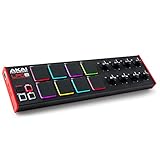
- Beat Maker Essential - 13" pad controller for music production with 8 RGB-backlit responsive MPC drum pads for triggering samples, loops, virtual instruments, and more
- Hands-On Control - 8 assignable Q-Link knobs for seamless mapping to DAW parameters, software instruments, and insert effect plugins for tactile control and precise mixing
- Customized Production - 4 programmable preset slots for instant recall of mappings for DAWs, virtual instruments, effects and more; Create, edit, load and manage all your presets from the computer
- Portable Design, Robust Build - Lightweight beat maker that adopts the sturdy build of standalone MPCs; The slim-line design stows easily in a laptop bag for hands-on production capability everywhere
- Versatile Performance - The Laptop Pad Controller is perfect for musicians, producers, DJs and other music creators on the go; The sleek design fits right in alongside your studio equipment
Verified and unverified details
The reliable product identification is that BlueGate was part of Digilogue’s BlueLine suite of DirectX/VST audio effects and functioned as a noise gate.
Public DLL index listings repeat the filename and the description “BlueLine VST Audio Filter,” but their version, size, checksum, and error-string metadata is not authoritative. No reliable public source confirms the exact bitness of this file, so treat 32-bit compatibility as an investigation point rather than a proven specification.
The practical conclusion is straightforward: restore the complete BlueLine package from a trusted original source, point the DAW at the correct VST2 folder, and test it in a compatible host. Do not treat bluegate vst.dll as a Windows system file.
FAQ
Is bluegate vst.dll a Windows DLL?
It is a third-party VST plug-in file associated with BlueLine and Digilogue. It is not a Windows component and should not be installed in System32 or SysWOW64.
Which DAWs can load BlueGate?
Any compatible VST host may be able to load it, but compatibility depends on the DAW’s VST2 support, host architecture, dependencies, and handling of old plug-ins. A 64-bit DAW may reject an older 32-bit plug-in.
Should I install DirectX, .NET, or Visual C++ first?
No. Reinstall BlueLine first. Install a Microsoft Visual C++ Redistributable only if the original installer or a trustworthy scan identifies it as a required dependency.
Free tools Windows power users keep installed
One-click scans. No signup required.
Can I fix it with regsvr32?
Normally, no. VST2 plug-ins are discovered by the host from their file path and generally do not require Windows DLL registration.
Why does the DAW still fail when the file exists?
The DAW may be scanning a different folder, loading another copy, rejecting the plug-in’s architecture, blocking it after a crash, or failing to load a dependency.
Is a DLL download website safe?
It is not a safe recovery method for this file. The download may be malicious, mismatched, incomplete, or incompatible. Use the original BlueLine installer, a verified backup, or a source provided by the software owner.
What if every fix fails?
Try the plug-in in a compatible 32-bit host or reputable bridge, review the DAW’s scan log, and consider replacing the legacy effect if the current host no longer supports it. A missing-file message can ultimately mean that the plug-in is unsupported rather than that Windows needs another system DLL.
Do these 3 things before closing this tab:
1Fix the driver behind crashes, sound loss and screen glitches2Clear out junk files and repair common Windows errors3Scan for outdated or missing drivers - takes under a minuteQuick Recap
Product prices and availability are accurate as of the date/time indicated and are subject to change. Any price and availability information displayed on Amazon at the time of purchase will apply.



