Some links on this page are affiliate links: if you buy through them we may earn a commission, at no extra cost to you.
Yes—but mainly in older, lighter, or competitive games, and often with reduced settings. A GTX 1070 Ti can send a 4K signal to a compatible display; that is not the same as rendering modern games at native 4K and 60 frames per second. For demanding newer games, 1440p or a lower internal resolution upscaled to 4K is usually the more practical target.
What to expect from a GTX 1070 Ti at 4K
| Use | How it fits |
|---|---|
| 4K desktop or video output | Yes, subject to the exact card, display input, and connection. |
| Older games at 4K/60 | Often achievable, with settings depending on the game. |
| Esports and lighter games | Often playable at 4K; competitive settings can help. |
| Modern AAA at native 4K/60 | Usually unrealistic. Expect lower settings, lower resolution, or a lower frame-rate target. |
| 4K with ray tracing | Not a sensible target for this card. |
| Best general target for newer games | Usually 1440p/60, or 1440p rendered and upscaled to a 4K display. |
The card is based on NVIDIA’s Pascal generation and has 2,432 CUDA cores, 8 GB of GDDR5, a 256-bit memory interface, and roughly 180 W board power. Common models offer HDMI 2.0 and DisplayPort-class outputs, but ports and supported display modes vary by board. Check the exact model’s specifications and your monitor’s input capabilities before expecting a particular 4K refresh rate. NVIDIA’s GTX 1070 Ti guide and manufacturers’ specifications, such as MSI’s card listing, document the hardware and output details.
| # | Preview | Product | Price | |
|---|---|---|---|---|
| 1 |

|
Nvidia GeForce GTX 1070 Founders Edition (Renewed) | $174.99 | Buy on Amazon |
| 2 |
|
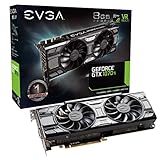
EVGA GeForce GTX 1070 Ti SC GAMING ACX 3.0 Black Edition 8GB GDDR5 Graphics Card (08G-P4-5671-KR) | $320.00 | Buy on Amazon |
A typical manufacturer PSU recommendation is 500 W, but treat that as guidance rather than a guarantee: the rest of the system, PSU quality and age, and the card’s power connectors matter.
Do these 3 things before closing this tab:
1Scan for outdated or missing drivers - takes under a minute2Clear out junk files and repair common Windows errors3Fix the driver behind crashes, sound loss and screen glitchesNative 4K is different from 4K output
Native 4K means the game renders each frame at 3840×2160. That is four times the pixel count of 1920×1080 and substantially more work for the GPU. A monitor can still receive a 4K signal when the game renders at a lower resolution and scales the image up. That may run much faster, but it is not native 4K detail.
#1 Best Overall
- Powered by the NVIDIA GeForce GTX 1070 graphics processing unit (GPU)
- 8GB GDDR5 (256-bit) on-board memory
- PCI Express 3.0 x16 interface
- NVIDIA CUDA technology
- VR-ready
- Native 4K: Sharpest result, highest workload.
- Dynamic resolution: The game reduces internal resolution in demanding moments to help maintain performance.
- 1440p upscaled to 4K: Often a good quality/performance compromise, especially on a television viewed from a distance.
- 1080p upscaled to 4K: More practical for demanding games, but visibly softer on a monitor used close up.
The GTX 1070 Ti cannot use NVIDIA DLSS. Where a game supports them, try AMD FSR, Intel XeSS modes compatible with the card, the game’s temporal upscaler (often called TAAU), dynamic resolution, or its render-scale control. Support and image quality depend on the particular game and implementation; FSR is not a feature every game provides. See AMD’s FSR overview and NVIDIA’s feature comparison.
Game-by-game expectations without misleading FPS promises
There is no single reliable frame-rate number for every GTX 1070 Ti. Results depend on the game version, graphics settings, CPU, memory, driver, cooling, card clocks, and whether the game is using upscaling or ray tracing. Average FPS also hides dips: 50 fps with frequent stutter can feel worse than a stable 30 fps. Treat any figure as useful only alongside its test setup and settings.
| Game category | Reasonable expectation | Likely compromises |
|---|---|---|
| Competitive and lighter games | 4K can be viable, sometimes at 60 fps or higher. | Adjust quality for consistency; competitive players may prefer 1440p or lower for higher frame rates. |
| Older AAA games | Many are playable at 4K, often around a 60 fps target depending on title. | High rather than Ultra settings; disable newer ray-tracing modes where present. |
| Demanding modern AAA games | Native 4K/60 is generally not realistic. | Lower internal resolution, reduce settings, use supported upscaling, or accept 30–40 fps. |
| Ray-tracing-heavy games | Poor fit. | Turn ray tracing off; the 1070 Ti lacks dedicated ray-tracing hardware. |
Games such as Counter-Strike 2, Valorant, and lighter indie titles are more plausible 4K candidates than the latest graphically demanding releases, but do not assume a fixed frame rate from the game’s name alone. Older titles such as Grand Theft Auto V or Shadow of the Tomb Raider may be workable with sensible settings; the exact result still depends on the version and configuration.
Crashes, No Sound, or Screen Glitches?
Random freezes, missing sound and display glitches usually trace back to one bad driver. Find and replace yours safely.Free scan · under a minutePC Slower Than It Used to Be?
A free scan shows the junk files, broken settings and background clutter dragging Windows down - then fixes them in one click.Free scan · Windows 10 & 11As a scale reference, one third-party estimate puts the GTX 1070 Ti near 12 fps in Cyberpunk 2077 at native 4K Ultra. That estimate is directional, not a reproducible promise for every system. It illustrates why native 4K Ultra is not a useful expectation; lower settings and reduced render resolution are essential for playability. See the estimate and its context.
8 GB of VRAM: workable, but not generous at 4K
Eight gigabytes remains enough for many older, competitive, and well-optimized games. At 4K, however, high-resolution textures and newer engines can make that capacity restrictive. GPU rendering speed is often the first limitation, so more than 8 GB of reported allocation does not automatically mean the card is out of usable memory. Allocation, actual use, and the game’s streaming behavior are different things.
Signs that memory pressure may be contributing include texture pop-in, low-resolution or missing textures, pauses as assets load, and unusually poor 1% lows or hitching when entering new areas. Try reducing texture quality or texture-streaming settings if those symptoms appear. TechSpot’s VRAM testing discusses why 8 GB can become limiting in some modern and 4K scenarios, while also showing why a blanket claim that every game needs 16 GB would be wrong.
Settings to try first
Start by choosing a frame-rate target that matches the game. A stable 30–40 fps can suit a slower single-player game; shooters, racing games, and competitive titles generally benefit more from 60 fps or above. If you prefer a responsive image, 1440p/60 is a more realistic general target for newer games than insisting on native 4K.
Rank #2
- Real Base Clock: 1607+ MHz/Real Boost Clock: 1683+ MHz; Memory Detail: 8192MB GDDR5
- With the click of one button, EVGA Precision XOC will detect, scan and apply your optimal overclock!
- DX12 OSD support with EVGA Precision XOC
- Revolutionary new 360-degree image capture
- Disable ray tracing. It is not a practical feature to pursue on this card.
- Reduce volumetric effects and global illumination. Fog, clouds, and similar effects can be expensive.
- Lower reflections and shadows. Screen-space reflections and high shadow settings can cost performance.
- Reduce crowd density or view distance if the game is demanding or CPU-limited.
- Adjust ambient occlusion, hair, and fur effects if frame rates remain low.
- Try a supported upscaler or lower render scale. Start with a quality-oriented mode, then move toward balanced if needed.
- Lower textures if you see memory-related symptoms. Texture quality can have a large visual benefit, so do not automatically set it to Low before checking for actual pressure.
Ultra is not a requirement for a good-looking game. A High/Medium mix often preserves the details players notice while avoiding expensive effects with smaller visual returns. If a game offers a 4K Quality upscaling mode, try it first; use Balanced or Performance only if the result still misses your target. A native 1440p image can look cleaner than aggressively upscaled 4K, particularly on a desktop monitor.
Independent reader supportYour contribution helps us test, update, and keep practical guides available for everyone.When performance is poor, identify the cause
- Low average FPS: Usually points to GPU workload at the chosen resolution and settings. Lower settings or internal resolution.
- Hitching and bad 1% lows: Could come from VRAM pressure, shader compilation, storage or streaming behavior, or background tasks—not only average GPU speed.
- Low GPU utilization with weak frame rates: Check for a CPU bottleneck, especially in simulation-heavy games or when pursuing very high frame rates.
- Clocks falling under load: Monitor GPU temperature, clock speed, utilization, and frametime consistency. Dust, worn fans, or dried thermal paste in an older card can contribute to throttling.
- Stutter on the first run or after a patch: Shader compilation and game updates can affect smoothness. Check for patches and allow shader building to complete before judging the card.
- Artifacts, crashes, or missing features: These may indicate card condition, driver, or game compatibility issues rather than simply insufficient FPS. Check the game’s current requirements and the driver branch available for your operating system.
If your display supports variable refresh rate and the card/driver connection supports it, a suitable frame cap within the display’s VRR range can make uneven performance feel smoother. Do not expect overclocking to solve the core limitations: a modest overclock may add a little performance, but it cannot add VRAM, DLSS, ray-tracing hardware, or enough rendering power to guarantee modern native 4K/60.
Should you keep, buy, or replace a GTX 1070 Ti?
If you already own one
Keep it if your games run well at 1440p, reduced settings, or upscaled 4K and the card is stable, cool, and quiet enough for you. A 4K monitor by itself is not a reason to upgrade. Try the games and settings you actually use before spending money.
If you are considering one used
It is a poor choice specifically for modern native-4K gaming. It may make sense only at a substantially lower cost than newer alternatives and if you mainly play older or competitive games at 1080p/1440p or with upscaled 4K. Check for artifacting, fan noise, overheating, and stability under load; used-card condition varies considerably.
If you want dependable modern 4K
Upgrade if your goal is native 4K at high settings, consistent 60 fps in demanding new games, ray tracing, or modern upscaling features. Compare current cards using independent benchmarks for the particular games you play, and consider VRAM capacity as well as raw speed. A 1440p high-refresh display can be a better match for the 1070 Ti if an immediate GPU replacement is not worthwhile.
Before deciding, verify the display’s supported refresh rate and input, the exact GPU model’s ports, the system’s CPU and PSU, and the condition of the card. A cable can affect whether a desired signal mode works, but changing to a more expensive cable does not increase rendering FPS.
Quick Recap
Product prices and availability are accurate as of the date/time indicated and are subject to change. Any price and availability information displayed on Amazon at the time of purchase will apply.

