Yes—but not with Sony’s current PS Remote Play app. For most PS3 owners, the dependable way to send gameplay to a Windows PC is a capture device connected to the console’s analog video output, then OBS Studio on the computer. Direct HDMI capture often fails because the PS3’s HDMI output always uses HDCP.
“Stream PS3 to PC” can mean three different things: remotely controlling the physical console, capturing its video for recording or livestreaming, or emulating PS3 games on the computer. The right setup depends on which result you want.
Choose the method that matches your goal
| Goal | Best route | Main limitation |
|---|---|---|
| Play the physical PS3 while viewing it on a PC | Capture hardware, or a rare legacy VAIO Remote Play setup | Modern official PS3 Remote Play support is unavailable |
| Record or livestream PS3 gameplay | Analog-compatible capture device plus OBS Studio | Requires extra hardware and may offer lower quality than HDMI |
| Play PS3 games on a computer | RPCS3 emulation | This does not use or mirror the physical PS3; compatibility varies by game |
Does the current PS Remote Play app support PS3?
No. Sony’s current PS Remote Play software for PC and Mac supports PS5 and PS4, not PS3. Sony also lists current Windows requirements such as Windows 10 64-bit or Windows 11, at least 2 GB of RAM, 100 MB of storage, a 1024×768 display, a USB port and a sound card—but those requirements apply to PS4 and PS5 Remote Play, not PS3.
Sony did document an official PS3 Remote Play solution for certain Fall 2010 VAIO computers and most Windows 7 VAIO systems. That was a specialized, era-specific setup rather than a general Windows application. Sony’s current app has not brought that PS3 support forward.
#1 Best Overall

- 【Full HD Video Capture Card】The capture card captures video and audio simultaneously, transmits the signal to your computer for preview or storage, and shares the video output to the screen. The capture card supports up to 4K30Hz input and Full HD 1080p60fps video capture, high-speed transmission without delay. Suitable for streaming media, video conferencing, game live streaming and other use scenarios
- 【3.5MM Microphone Input and Headphone Output】You can connect the capture card for streaming to a headphone connection with a 3.5.mm audio output port, and you can also connect the capture card to a 3.5mm microphone so you can easily stream sound and record your voice through the port. You can also use it to freely add external commentary while playing games. Note: Do not use a hub or USB extension cable, the USB port of the product must be connected to the USB 3.0 port of your computer for use
- 【HD 1080P 60fps Signal Loop-Out】The Hi-Speed USB 3.0 port of the capturadora de video para streaming provides 1080P60FPS video signal and excellent low-latency technology, allowing you to transmit live streams to Switch/Potplayer/VLC/Twitter/OBS more easily.The output port can provide up to 1080P60Hz output resolution, outputting a clean and clear image quality with no latency. image quality with no latency. Note: Maximum output is 1080P60Hz only
- 【Wide range of compatibility】This game capture card utilizes an advanced chip for compatibility with PC, PS5, PS4, X-box, Switch, DVD, DSLR, camcorder, webcam and more. Suitable for operating systems such as Windows, Linux and Ma-c OS. High-speed transmission without delay, record wonderful moments and enjoy good times. No need to install driver or external power supply, the device will automatically recognize as webcam when plugged in, detect the input and adjust the output automatically
- 【Our Service】After purchasing the switch capture card capturadora, you will receive: 1 x Capture Card, 1 x USB 3.0 Cable, 1 x User Manual. Service: 1. One year warranty service; 2. Professional technical assistance
The best modern method: analog capture and OBS
For recording or livestreaming, use the PS3’s component-video or composite-video output with a capture device that explicitly accepts the relevant analog input. Connect that device to the PC, then add it to OBS as a video-capture source.
What you need
- A PS3 console and controller.
- A PS3 component-video cable or composite-video cable.
- A capture device with the matching analog input, or a documented analog capture workflow.
- A Windows PC with a USB or PCIe connection for the capture hardware.
- OBS Studio for recording or livestreaming.
- Optionally, a television or monitor connected through compatible passthrough hardware for lower-latency gameplay.
Component video generally provides a better picture than composite, but neither is automatically guaranteed to work with every capture card. Check the capture device’s input specifications, supported resolutions and regional cable requirements before buying. An HDMI-only card is not automatically suitable for a PS3.
Why PS3 HDMI capture often gives a black screen
The PS3’s HDMI output is HDCP-protected. Elgato states that HDCP must be disabled for its capture devices, while the PS3 always has HDCP enabled and cannot turn it off. Elgato also specifically says its older HD60 cannot connect directly to a PS3 over HDMI because of HDCP and has no analog video input.
That means a well-known modern HDMI capture card can still be the wrong purchase for this console. Compatibility differs by model and input type, so look for official manufacturer documentation that confirms the required PS3 workflow. Do not assume that any card advertised for “console capture” will accept PS3 HDMI.
Do these 3 things before closing this tab:
1Fix the driver behind crashes, sound loss and screen glitches2Clear out junk files and repair common Windows errors3Scan for outdated or missing drivers - takes under a minuteRank #2

- 【1080P 60FPS Video Capture Card】 This HDMI game capture card is based on USB3.0 high speed transmission port, input resolution up to 4K@30HZ, output resolution up to 2K@30Hz or 1920×1080@60Hz. Type c and USB interface can meet most of the devices in daily life. Easily meet the online capture, real-time recording, online meetings, live gaming and other functions, so you have a better visual enjoyment. Note: For capture use only; requires capture software to function and is not intended for direct screen casting to a monitor or TV
- 【Ultra Low Latency Screen Sharing】 HDMI capture card is made of good quality aluminum alloy with strong heat dissipation, allowing you to enjoy ultra low latency while live gaming or video recording or live streaming, avoiding blue screens and lag. This HDMI to USBC capture card supports easy recording of good quality audio or HD video and transferring it to your computer or streaming platform, allowing you to record 60 fps HD video directly on your hard drive and real-time preview
- 【Plug and Play, Easy to Carry】 This HDMI 1080P video capture card does not require any additional drivers or external power supply, just plug and play for fast capture. The capture card is small and lightweight, so you can put it in your bag for emergencies, making it very portable for outdoor live streaming. It's also a great way to share content in game recording, video conference, video recorder and online teaching
- 【Wide Compatibility USB Capture Card】 Easily streams to Facebook, Youtube or Twitch. With the connection, this HDMI to USB C/3.0 video capture devices can be working on several Operating Systems and various software: Windows 7/ 8/ 10, Mac OS or above, Linux, Android, Laptop, Xbox One, PS3/PS4/PS5, Camera, DVDs, Set Top Box, Webcame, DSLR, Switch/Switch 2, TV BOX, HDTV, Potplayer/VLC, ZOOM, OBS Studio etc.
- 【Package Content & Note】 1x HD Audio Capture Card , 1x USB 3.0 to USB C Adapter (A-side 3.0, B-side 2.0), 1x user manual. Please note that you need to restart the OBS Studio software after the audio setup is complete, otherwise it will result in no sound output. When using an adapter, if the device is recognized as USB 2.0, try using the other side with the USB-C port. Simply flip the capture card and reconnect it to be recognized as USB 3.0
Some users report success with splitters that alter an HDMI handshake, but results are inconsistent and may raise legal or terms-of-service concerns depending on the use and jurisdiction. An analog-output setup is the clearer recommendation. Do not buy a splitter expecting a guaranteed HDCP solution.
How to capture PS3 gameplay in OBS
- Install OBS Studio from the official OBS website.
- Connect the PS3 to the capture device using the component or composite cable required by that device. Make sure the cable carries audio if the capture hardware expects audio through the same connection.
- Connect the capture device to the PC over USB or install it in the appropriate PCIe slot.
- Open OBS and find the Sources panel.
- Select Add > Video Capture Device, then choose the capture device.
- Set the resolution and frame rate to values the capture hardware actually supports. If the preview is blank, test a lower supported output mode.
- Confirm that the PS3 picture appears in the OBS preview.
- Check the OBS audio mixer. If the game audio is missing, select the capture device’s audio endpoint or configure the device’s separate stereo input.
- Add a microphone, webcam, overlays or alerts if required.
- Select Start Recording for a local video, or configure the streaming service and select Start Streaming.
OBS documents a physical capture device as a Video Capture Source suitable for console recording and streaming. The capture feed does not automatically give the PC control of the PS3: you still play with a controller connected to the console.
Avoid playing from the OBS preview when possible
USB capture and OBS preview can introduce delay. For timing-sensitive games, play from the television or monitor connected through low-latency passthrough, while OBS handles the recording or broadcast. Use OBS monitoring only when necessary, and keep audio and video on the same capture path where possible to reduce synchronization problems.
If you have a compatible old VAIO
The historical Sony method may work only if you already have a genuinely compatible VAIO and supported Windows 7 installation. It is not a practical purchase recommendation for an ordinary Windows 10 or Windows 11 computer.
The Tool Desk
Outbyte PC Repair FREERepair Windows errors before they cause bigger problemsFix Now →Outbyte Driver Updater FREEFix the driver behind crashes, sound loss and screen glitchesFind Drivers →Rank #3

- 【1080P HD High Quality】Capture resolution up to 1080p for video source and it is ideal for all HDMI devices such as PS4, PS3, Xbox One, Xbox 360, Wii U, DVDs, DSLR, Camera, Security Camera and set top box.
- 【Plug and Play】No driver or external power supply required, true PnP. Once plugged in, the device is identified automatically as a webcam. Detect input and adjust output automatically. Won't occupy CPU, optional audio capture. No freeze with correct setting.
- 【Compatible with Multiple Systems】suitable for Windows and Mac OS. High speed USB 3.0 technology and superior low latency technology makes it easier for you to transmit live streaming to Twitch, Youtube, Facebook, Twitter, OBS, Potplayer and VLC.
- 【HDMI LOOP-OUT】Based on the high-speed USB 3.0 technology, it can capture one single channel HD HDMI video signal. There is no delay when you are playing game live.
- 【Support Mic-in for Commentary】Kedok capture card has microphone input and you can use it to add external commentary when playing a game. Please note: it only accepts 3.5mm TRS standard microphone headset.
Sony’s archived procedure requires the PS3 and computer to be networked and the user to be signed into PlayStation Network. On the PS3:
- Open Settings > Remote Play Settings > Register Device.
- Choose PC as the device type.
- Use the eight-digit registration number shown by the PS3 within its five-minute validity period.
- Complete registration in the old Remote Play with PlayStation 3 software on the VAIO.
- Start the session from Network > Remote Play on the PS3.
If the application is absent, the computer may not be an eligible VAIO system. Do not treat modified Sony software from an unknown download site as an official modern solution.
RPCS3: playing PS3 games on the PC instead
RPCS3 is an open-source PS3 emulator for Windows and Linux. It runs compatible PS3 software on the computer; it does not stream the image from your physical console.
RPCS3 requires an x64 CPU and recommends a modern Vulkan-capable GPU, but actual performance depends heavily on the game. Consult the project’s official FAQ and compatibility information for the specific title. Compatibility and recommended hardware can change as the emulator develops.
Windows Errors? Fix Them Before They Spread
Repair common Windows errors and clear accumulated junk for a smoother, more stable PC - no reinstall needed.Free scan · no reinstallOutdated Drivers Are Slowing You Down
One free scan finds every outdated or missing driver and matches the right update for your exact hardware.Free scan · exact hardware matchRank #4

- 【4K Clarity, 1080P Performance】Enjoy stunning clarity with our USB 3.0 Video Capture Card—featuring 4K input and smooth 1080P@60Hz output. Featuring YUY2 technology, it delivers richer colors than MJPEG for lifelike live streaming and recording. Plus, it delivers high-quality video with minimal latency, making it perfect for gamers and content creators.
- 【Mic-in for Easy Commentary】Plug in a headset or mic directly to stream/record voice easily—no extra adapters. Great for real-time gaming commentary, online classes, or vlog dubbing. Paired with its low-latency tech, it keeps voice synced perfectly with video, eliminating post-editing hassle from mismatched audio-visuals. Fits most 3.5mm devices—ideal for gamers, teachers, creators.
- 【Plug and Play, no Extra-Drivers】No extra drivers or external power—just plug in and start capturing instantly. Small and lightweight, it fits easily in your bag for outdoor live streams, on-the-go recordings, or emergencies. Ideal for game capture, video conferences, and online teaching, it saves hassle while delivering smooth results.
- 【Wide Compatibility: Apps & Devices】No extra adapters—works flawlessly with your go-to platforms and gear. It pairs with streaming/recording apps like Twitter, YouTube, Facebook, OBS, XSplit, and VLC, plus devices including Switch/Switch2, PS5/PS4, Xbox, DSLR cameras, PC, macOS, and Android. Whether gaming, streaming, or hosting video calls, it keeps HD quality intact, eliminating "compatibility headaches".
- 【Worry-Free After-Sales Support】We are committed to delivering exceptional quality products that combine sophisticated design with affordable pricing, offering you the best solutions for seamlessly connecting your work and life. Whether you're a newcomer or a seasoned user, feel free to reach out anytime with any questions—your satisfaction is our top priority.
Use only game data and system software obtained through lawful means. RPCS3 is not a way to bypass ownership requirements or guarantee that every PS3 game will run.
Independent reader supportYour contribution helps us test, update, and keep practical guides available for everyone.Troubleshooting PS3 capture
No signal or black screen
- Confirm that the capture card is not HDMI-only when you are using analog output.
- Check that the cable matches the capture device’s input and regional connector requirements.
- Verify that OBS is using the correct device and a supported resolution or refresh rate.
- Test the PS3 directly on a television to separate a console-output problem from a capture-device problem.
- If the problem began after changing display settings, use the PS3’s documented video-output reset procedure for your console model, then reconnect using the intended analog setup.
With HDMI, HDCP is the most likely explanation when the capture device reports no signal. The PS3 cannot disable its HDMI HDCP protection.
Video works but audio does not
- Check whether the chosen cable actually carries stereo audio.
- Review the PS3’s audio-output settings and whether sound is being routed through HDMI or optical output instead.
- Select the capture device’s audio endpoint in OBS.
- Check whether the capture hardware needs a separate analog audio connection.
- Confirm that OBS has not muted the source or disabled monitoring.
The picture is delayed
Use a television or capture-card passthrough for gameplay rather than the OBS preview. USB capture latency, preview processing and separate audio paths can all add delay.
Protected video behaves differently
This guide is for gameplay capture, not copying protected films. Sony’s PS3 video documentation notes HDCP requirements for protected Blu-ray output at 1080p. Protected video can therefore behave differently from game footage.
Free tools Windows power users keep installed
One-click scans. No signup required.
Best Value
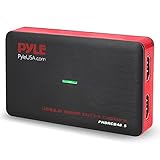
- Record and convert: a capture card that has the ability to record videos or Audio files. Records full HD 1080p video quality with an HDMI pass through support. After recording, It also converts the file into digital format
- Stream live: This video game capture device has the ability to instantly stream live on social media and YouTube while playing. It can play and record simultaneously for a hassle free media file creation
- Hot button recording: manage recorded media easily and post to social media like YouTube. It has an on-board hot button for One-Click recording and Screenshot capture ability
- Plug and play: no installation needed, simply plug and play This device to start recording, It also has a built-in software that supports voice commentary and multi language support
- Compatible Devices: This capture card can record videos from any devices with HDMI output like Xbox 360, Xbox one, PS4, PS3, Wii U, PC computers, PS3, PS4, Blu-ray DVD player, set-top box, and DVR
What should you buy?
Start with the PS3’s available outputs and the capture device’s documented inputs—not with the brand name. A generic modern HDMI card such as an Elgato HD60 X may be useful for other consoles, but it should not be presented as a plug-and-play direct PS3 HDMI solution when HDCP remains enabled. Likewise, consider an AVerMedia or other manufacturer model only after confirming its exact input and PS3 compatibility.
The safest buying path is an analog-compatible PS3 cable and capture device, plus free OBS Studio. Component is preferable when supported; composite is a fallback with lower image quality. Keep a separate display in the setup if low-latency play matters.
Finally, keep the PS3 system software current through Settings > System Update using Sony’s PS3 support instructions, and identify your console model before ordering cables.
Quick Recap
Product prices and availability are accurate as of the date/time indicated and are subject to change. Any price and availability information displayed on Amazon at the time of purchase will apply.



