Quick wins for a faster PC:
Scan for outdated or missing drivers - takes under a minuteDriver Scan →Clear out junk files and repair common Windows errorsFree Scan →Fix the driver behind crashes, sound loss and screen glitchesFind Drivers →Usually, no—not as a plug-and-play device. Xbox USB ports do not guarantee support for an arbitrary PC USB DAC. Some Xbox-specific headsets and base stations do use USB, but they rely on product-specific compatibility. If you already own a conventional DAC, the controller’s 3.5 mm jack, an Xbox One optical output, or an HDMI/display audio route may be better options, depending on your console and whether you need chat.
What “USB DAC” means—and why the distinction matters
A USB DAC converts digital audio into an analog signal for headphones or speakers. The label can describe several different products: a small USB-to-headphone adapter, a headphone amplifier with a built-in DAC, a USB sound card, or a gaming headset base station with mixing and chat controls. A proprietary wireless headset transmitter or an HDMI audio extractor is different again.
These devices may look similar, but they do not necessarily use the same connection method. A gaming base station might take game sound over optical while using USB for power or another function; an Xbox-specific headset may use a console-compatible USB connection. Neither case proves that a generic PC USB DAC will work. Microsoft describes Xbox audio settings and supported formats, while its Designed for Xbox program covers accessories made for the platform; neither amounts to universal USB DAC support. See Microsoft’s Xbox spatial-audio documentation and the Designed for Xbox program.
Does Xbox recognize a generic USB DAC?
Assume it will not unless the maker explicitly lists your exact Xbox model and explains which functions work. A USB port can supply power and data without the console routing game audio to every USB audio device. On a PC, a DAC may rely on broadly supported USB audio standards or Windows drivers; on Xbox, accessory support is controlled by the console platform and can depend on product design, firmware, and Xbox-specific integration.
#1 Best Overall

- 2 in 1 USB Audio Adapter: UGREEN USB to 3.5mm jack audio adapter supports both listening and talking. In-line control and microphone function allows you to chat while gaming. This USB Aux adapter enables you to connect headphones, headset, speakers with 3.5mm jack to your PC through the USB A port. [*Note: The 3.5mm adapter can support the connection of a single microphone for use. Please note that the 3.5mm male microphone's attribute requirement is TRRS]
- 24bit 96KHz High Quality Sound: Built-in advanced smart chip, USB sound card supports CTIA and OMIP standard headsets. The USB to Aux adapter facilitates high-resolution audio output and noise reduction up to 24bit/96kHz (others are 16bit/48kHz)to enhance the original sound quality of your PC devices. Note: Microphone does not support 24bit 96KHz, only headphones can
- Built to Last: With aluminium alloy shell, the Aux to USB adapter is more durable and portable than other plastic USB audio adapter. Nylon braided design of USB to audio jack adapter ensures stable audio transmission. 10000+ bend tests prove that USB headset adapter can prevent damage caused by tangling and scratching
- Broad Compatibility: This USB external sound card is compatible with Windows 11/10/98SE/ME/2000/XP/Server 2003/Vista/7/8, Linux//Raspberry Pi, MacBook Pro 2019, MacBook Air 2018, PS5/ PS4, Switch 2, Google Chromebook, Windows Surface Pro 3. *Note: Does not support Apple headphone line control
- Plug and Play: No driver is required, just plug and play. USB bus-powered, no external power is required for this convenient sound card. *Note:Supports regular headphones with a resistance of less than 50 ohms, but does not support high-resistance headphones
If you already have a DAC, you can try it, but treat the test as a compatibility check—not as proof that all USB DACs are supported or unsupported:
- Connect the DAC directly to an Xbox USB port, without a hub, and connect headphones to the DAC’s headphone output.
- Open Settings → General → Volume & audio output and check the available audio and headset options. The exact labels can change with system updates.
- Test game audio, microphone transmission, chat reception, and game/chat balance separately. A device may support one function without supporting the others.
- If it powers on but produces no sound, check the manufacturer’s Xbox compatibility list, input mode, firmware requirements, and connection instructions. Do not infer compatibility from the power light alone.
The absence of a selectable device name is not, by itself, a universal compatibility test: some supported accessories integrate differently. The decisive evidence is the manufacturer’s documentation for the exact product and Xbox model.
Xbox One and Xbox Series X|S: what differs
| Connection path | Xbox One | Xbox Series X|S | What to check |
|---|---|---|---|
| Generic USB DAC | Do not assume it works | Do not assume it works | Exact Xbox model, firmware, and separate game-audio and chat support |
| Controller 3.5 mm jack | Available with a compatible controller | Available with a compatible controller | Headphone drive level and headset microphone compatibility |
| Console optical audio | Available on supported Xbox One models | No optical output on the console | Exact console model and the receiving device’s format requirements |
| Xbox-specific USB headset or base station | Select products | Select products | Buy the Xbox-compatible edition and follow its port and mode instructions |
| HDMI or display audio route | Possible with compatible equipment | Possible with compatible equipment | Video features, audio formats, latency, and chat needs |
Xbox Series X|S specifications list USB ports and supported audio formats, but those specifications do not mean every USB DAC is an audio endpoint. The Series S specifications are at Xbox.com. Microsoft’s audio documentation distinguishes older consoles’ optical option from Series X|S, which has no console optical output: Microsoft spatial-audio documentation.
Ways to connect headphones and audio gear to Xbox Series X|S
Use the controller’s 3.5 mm jack
For a simple wired setup, connect compatible headphones or a headset to the controller. This is usually the least complicated route when you need microphone and chat support. Microsoft’s Xbox Stereo Headset, for example, connects through the controller’s 3.5 mm jack and lists Windows Sonic, Dolby Atmos, and DTS Headphone:X support on compatible Xbox consoles.
Rank #2

- Power source type: Corded Electric
- Easy Headphone connectivity -- Compatible with all analog headsets, from standard mobile phone earbuds to gaming and studio-grade headphones; Connect your headsets with single or split stereo/mic connector easily without the use of a Y-splitter cable
- Powerful downloadable software -- control panel software gives powerful Audio Enhancements and unprecedented control; Also includes optimized profiles for multiple earphone brands
- No drivers needed -- works straight out of the box
The trade-offs are practical: the controller is part of the audio chain, its output may not provide enough level for demanding headphones, and a cable can limit movement. This route also does not give you the input switching or desktop controls of a separate DAC.
Choose a headset or base station made for Xbox
Some gaming products use USB on Xbox because they were designed for the console, not because Xbox accepts any USB DAC. Features may include a dedicated Xbox port, console-specific firmware, game/chat channels, or ChatMix. Check the exact edition: a product family may have separate Xbox, PlayStation, and PC versions.
For example, SteelSeries lists the Xbox version of its Arctis Nova Pro for Xbox One and Series X|S and identifies USB ChatMix and a dedicated Xbox port. That is evidence for that product and edition, not a general rule for USB audio accessories.
Another route is a headset that connects to Xbox Wireless rather than using a USB audio dongle. Microsoft’s Xbox Wireless Headset pairs directly with the console. Its connection method is not the same as plugging a conventional DAC into USB.
Free tools Windows power users keep installed
One-click scans. No signup required.
Rank #3
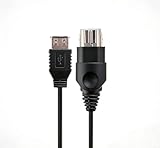
- 【Multi-device compatibility】: Compatible with Xbox devices with USB interfaces. With the USB adapter cable, you can connect various USB peripherals to the original host to expand usage scenarios.Compatible with original Xbox (not compatible with Xbox 360 or Xbox One)
- 【 Applicable scenarios 】: USB adapter cable can convert the host interface into a USB female port, suitable for developers and programmers (Linux installation and other scenarios), easily connecting various USB peripherals such as keyboards.
- 【Durable Material】The USB adapter cable is made of PC + metal high-quality materials, which ensures a stable connection and no signal loss.
- 【Product Features】: Equipped with a USB Type-A female port, which can connect compatible USB hardware to the original Xbox console; does not support SNES and NES USB controllers.
- 【Package Included】1*Xbox USB Adapter Cable and our friendly customer service. If you have any questions, you can contact us at any time and we will serve you 24 hours a day online
Route HDMI audio to a DAC
If you already own a desktop DAC, a typical route is Xbox → HDMI audio extractor or compatible display → optical or analog output → DAC or headphone amplifier. This can make sense when you prioritize listening through your own headphones and do not need the DAC to handle Xbox microphone input or game/chat mixing.
Before buying an extractor, check its published support for your entire video chain: resolution, HDR or Dolby Vision, 120 Hz, variable refresh rate (VRR), auto low-latency mode (ALLM), and HDCP as relevant. An extractor can affect HDMI handshakes or prevent a feature from working. Optical also cannot carry every HDMI audio format, and a DAC fed an extractor’s analog output is receiving an already-converted signal rather than the original digital feed.
Use optical output from a TV or monitor
A display with optical output can feed a compatible DAC without a separate extractor. Its behavior depends on the display: it may downmix to stereo, add delay, constrain the available format, or apply its own volume behavior. Check the display’s audio-format settings and whether optical output is fixed or adjustable. This path is generally for listening; do not assume it carries microphone audio or Xbox chat to your headset.
Using optical audio with Xbox One
Some Xbox One models have optical S/PDIF output, unlike Xbox Series X|S. Confirm the port on your exact console before choosing an optical-only accessory. For one specific example, SteelSeries documents using optical for Xbox One game audio with the Arctis Pro GameDAC and says Xbox does not support standard USB audio in that setup. Its instructions are product-specific, not a universal recipe for other DACs.
Rank #4

- [Hi-Res Audio Excellence] - Equipped with a high-performance DAC that supports audio resolutions up to 384KHz/32-bit. This adapter delivers studio-grade sound quality with accurate reproduction, ensuring every detail of your music or podcasts is crystal clear.
- [TRRS Microphone & Headset Support]- Designed for versatility, it works seamlessly with 4-pole TRRS headphones and microphones. Perfect for Zoom meetings, Skype and voice recordings. (Note: Not compatible with TS/TRS microphones).
- [1Vrms High-Power Output] - The built-in amplifier provides a 1Vrms output voltage, offering enough juice to drive headphones with impedance up to 100 ohms. Experience fuller, louder, and more dynamic sound compared to standard built-in computer audio ports.
- [Rugged CNC Aluminum Build] - Constructed from premium CNC-machined aluminum alloy, this dongle offers superior durability and heat dissipation. The textured surface provides a secure grip, while its ultra-compact design fits easily into any laptop bag or pocket.
- [UAC 2.0 & System Compatibility] This is a UAC 2.0 compliant adapter designed for modern systems. Plug-and-play for Windows 11/10, macOS, and Linux. (Important note: Not support PS5, PS4, Xbox, Nintendo Switch due to lack of UAC 2.0 support; Not support for Windows 8, 7, Vista, XP, or Car USB ports.)
- Connect the Xbox One’s optical output to the GameDAC’s optical input.
- On the console, open Settings → Display & sound → Audio output.
- Set Optical audio to Bitstream out and Bitstream format to Dolby Digital, as SteelSeries specifies for this setup.
- Connect USB and select the GameDAC input mode as directed by SteelSeries for the particular model and firmware.
SteelSeries describes Xbox-app workarounds for chat in this configuration; optical game audio should not be mistaken for direct USB microphone and chat support. Read the full GameDAC Xbox One setup instructions before connecting it.
Set Xbox headphone and spatial-audio options
On current Xbox menus, open Settings → General → Volume & audio output. Microsoft documents HDMI audio choices, headphone formats, and the older-console optical option on its spatial-sound page. Available options depend on console, connected equipment, and content.
- Start with stereo uncompressed or the accessory maker’s recommended mode. This gives you a baseline before adding virtual processing.
- Test Windows Sonic, Dolby Atmos for Headphones, or DTS Headphone:X individually. These are headphone spatial-audio options; support and availability depend on the setup.
- Avoid stacking surround processing by default. If Xbox or Dolby is processing spatial audio, disable the DAC or headset’s own virtual-surround effect unless its maker specifically recommends combining them.
- Compare at the same volume and with the same game and headphones. Spatial processing is a listening preference, not a guaranteed improvement for every game or listener.
Dolby Access offers a free trial of Dolby Atmos for Headphones; check the Xbox Store in your region for current purchase terms rather than assuming a price. See Dolby’s Xbox page.
Choose a connection by what you need
| Your priority | Most suitable route to consider | Main limitation |
|---|---|---|
| Simple wired headset with voice chat | Controller 3.5 mm connection | Controller output may not adequately drive demanding headphones |
| Wireless play and game/chat controls | Xbox Wireless headset or Xbox-specific wireless accessory | Does not let you use a separate wired headphone amp as the audio source |
| ChatMix or console-specific base-station features | Exact Xbox edition of a compatible headset/base station | Similar PC or PlayStation editions may lack Xbox functions |
| Use an existing desktop DAC and difficult-to-drive headphones | Compatible optical or HDMI/display audio route into the DAC | More setup; microphone and chat may need a separate route |
| Spatial headphone audio without a hardware DAC purchase | Xbox headphone-format setting, such as Windows Sonic or Dolby Atmos for Headphones | Does not add amplifier power, analog controls, or input switching |
| Use a PC USB DAC directly | Only if its maker explicitly supports the exact Xbox model and functions you need | Power or partial operation does not establish game audio and chat compatibility |
Troubleshoot by symptom
The DAC powers on, but there is no sound
- Confirm that the headphones are connected to the DAC’s headphone output and that the device is in the correct input mode.
- Connect the DAC directly to the console and follow its Xbox-specific instructions; a hub or port change is worth testing, but cannot make an unsupported device compatible.
- Check whether the maker requires firmware updates or a PC control application, and whether that firmware explicitly supports your Xbox model.
- Test the headphones through the controller. If they work there but not through the DAC, the issue is likely the DAC’s Xbox audio path rather than the headphones.
Game audio works, but chat or the microphone does not
Game sound, chat reception, microphone transmission, and game/chat balance are separate functions. The accessory may carry game audio but lack Xbox microphone routing, require a dedicated Xbox port or mode, or use a separate PC/mobile chat path. Check the product’s Xbox instructions and the console’s communication settings; do not assume an optical or audio-only DAC can transmit your voice.
Outdated Drivers Are Slowing You Down
One free scan finds every outdated or missing driver and matches the right update for your exact hardware.Free scan · exact hardware matchWindows Errors? Fix Them Before They Spread
Repair common Windows errors and clear accumulated junk for a smoother, more stable PC - no reinstall needed.Free scan · no reinstallBest Value

- 【Compatible With Xbox Series Consoles】This 5 ports usb hub is designed specifically for the Xbox series S/X console , with 4 USB 2.0 ports and 1 Type C port to expand your Xbox series console with more peripheral devices (Not for Xbox One and Xbox 360 console )
- 【Plug and Play】 No Extra Driver Needed. Just tear the tape and insert it into the console to use directly, and it is stable and does not shake after installation. Suggest reducing adapter plugging and unplugging to extend the service life of the tape
- 【High-Speed Transmission】Without Delay. The xbox series hub has a maximum output current of 1000mAh and a transfer speed of 480M bps, which meets different needs with no lag and no latency
- 【Expand Multiple Devices】The 5 port USB extender for various USB and USB C devices, such as Xbox Series controller, wired keyboard, wired mouse, racing steering wheel,U disk, 2.4G dongle Wireless headset or Bluetooth Headset meet your different needs to the greatest extent.(Does not support wired headphones)
- 【Please Note】(1). This xbox series usb Hub does not support external drive; (2). It is not supported to connect wired headset to the Xbox Series hub. (3) Please contact us if you have any questions
Chat works, but game audio is missing
Check the base station’s input mode, whether it is using a voice-only USB channel, and whether it expects game sound over a separate optical or HDMI source. Confirm the console’s headset level and the accessory’s game/chat balance, then check firmware instructions for the exact Xbox edition.
Headphones are too quiet
A headphone amplifier can help only if it receives audio through a route Xbox supports. A powerful PC USB DAC that the console cannot address does not solve a low-volume problem. Consider controller-compatible headphones, an amplifier fed from a compatible analog output, or an optical/HDMI path into a suitable DAC, while accounting for chat limitations.
Spatial audio sounds wrong or worse
- Return the headset or DAC to its neutral or flat profile.
- Listen to unprocessed stereo as a baseline.
- Test one Xbox headphone spatial format at a time.
- Turn off other virtual-surround effects unless the accessory maker advises otherwise.
Double processing, an unsuitable EQ preset, or a game’s own mix can change the result. A stereo DAC is not itself a surround decoder.
An HDMI extractor disrupts the picture
Check the extractor’s stated compatibility against the console and display settings you actually use, especially 4K, HDR or Dolby Vision, 120 Hz, VRR, and ALLM. If a feature stops working, remove the extractor and test the direct HDMI chain to isolate the cause.
The Tool Desk
Outbyte PC Repair FREEClear out junk files and repair common Windows errorsFree Scan →Outbyte Driver Updater FREEFix the driver behind crashes, sound loss and screen glitchesFind Drivers →When is buying a DAC worthwhile?
A DAC or amplifier can be useful if your existing output is genuinely the bottleneck—for example, headphones are too quiet, you need more clean amplification, or you want analog volume controls or a device shared between a PC and other sources. It will not automatically improve game mixing, microphone quality, chat balance, spatial positioning, or the source signal. Headphone fit and tuning, EQ, game mix, and correct console settings may matter more than the converter’s specifications.
- Need reliable chat? Favor the controller connection or a headset/base station documented for Xbox chat.
- Need more power for wired headphones? First identify a compatible analog, optical, or HDMI route that can feed the amplifier.
- Already own a PC USB DAC? Treat direct Xbox support as unproven until the manufacturer confirms the exact model and functions.
- On Xbox One? Check whether your exact console has optical output before planning around it.
- On Series X|S? Plan for controller audio, an Xbox-compatible accessory, or HDMI/display extraction rather than a console optical port.
- Want positional headphone audio? Try the Xbox headphone-format options before buying a DAC solely for spatial processing.
Alternatives to a generic USB DAC
- Controller-connected headset: The straightforward wired choice when you need chat. Microsoft’s Xbox Stereo Headset uses the controller’s 3.5 mm jack.
- Xbox Wireless headset: A route that connects to the console without a USB audio dongle; Microsoft’s Xbox Wireless Headset uses Xbox Wireless.
- Xbox-specific gaming base station: Consider this when chat mixing or console controls matter, and verify the exact Xbox edition. The Xbox Arctis Nova Pro is one documented example.
- HDMI extractor or display optical output into an existing DAC: Useful when you prioritize your own headphones and can accommodate format, video, and chat trade-offs.
- Xbox spatial-audio software: Try a supported headphone format through Xbox settings; a DAC is not required just to enable spatial headphone processing.
Verdict
A conventional USB DAC is not a safe plug-and-play Xbox purchase. The workable path depends on the exact console, the device’s Xbox support, and whether you need only game audio or also microphone and chat mixing. For chat, start with the controller or an Xbox-specific headset; for an existing desktop DAC, plan a compatible optical or HDMI/display route—and on Series X|S, remember that optical must come from elsewhere in the chain.
Quick Recap
Product prices and availability are accurate as of the date/time indicated and are subject to change. Any price and availability information displayed on Amazon at the time of purchase will apply.




