The Tool Desk
Outbyte Driver Updater FREEScan for outdated or missing drivers - takes under a minuteDriver Scan →Outbyte PC Repair FREEClear out junk files and repair common Windows errorsFree Scan →“cnhw500.dll is missing from your computer” means the application cannot load a Canon imaging component. The cnhw500.dll error usually points to an incomplete, damaged, incompatible, or removed Canon Inkjet WIA driver, not a missing Windows runtime.
The safest repair is to identify the Canon printer or scanner involved and reinstall its complete driver package. Do not download the DLL by itself and copy it into System32.
Which fix applies to you
- The error names a Canon printer or scanner utility: reinstall the exact Canon driver and software package for that model.
- The error appeared after a Windows upgrade or driver update: check the model’s Windows 10 or Windows 11 compatibility and roll back or reinstall the driver.
- Only one scanning application fails: repair or reinstall that application after repairing the Canon driver.
- Windows Security quarantined the file: inspect the quarantine entry, then reinstall the Canon package rather than extracting the DLL manually.
- The message says “specified module could not be found”: a dependency may be missing even if
cnhw500.dllexists. - The message says “entry point not found” or “not designed to run on Windows”: suspect a mismatched, incompatible, or corrupted Canon component.
- Several Windows features are failing: use DISM and SFC after repairing the Canon installation.
- The Canon model has no current driver: use Canon’s documented compatibility option if available, or consider replacing the device.
What cnhw500.dll belongs to
cnhw500.dll is associated with an older Canon Inkjet Windows Image Acquisition, or WIA, driver. WIA is Microsoft’s framework for letting imaging applications communicate with scanners and cameras through vendor-supplied drivers. Microsoft describes this architecture in its WIA architecture overview.
It is not normally:
- A Windows system component
- A Visual C++ Redistributable file
- A DirectX file
- A .NET file
- A general-purpose application DLL
The file has been reported in historical Canon driver packages, including DriverStore locations on older Windows installations. Public file records associate it with Canon’s Inkjet WIA Driver and report older file metadata, but they do not establish which exact Canon models or current installer packages contain it.
#1 Best Overall

- Color, Wireless, Duplex 4-in-1: Print, scan, copy, fax.
That distinction matters. A file located under a Windows directory is not automatically a Microsoft file, and replacing it with a similarly named DLL from another Canon model can create a second problem.
Fix 1: Reinstall the exact Canon driver
This is the most likely solution.
Identify the device and application
Before removing anything, write down:
- The Canon printer or scanner model.
- The name of the program showing the error.
- Whether the error appears when Windows starts, when scanning begins, or when printing starts.
- Whether the affected program is 32-bit or 64-bit, if that information is available.
If the error appears in a dialog, check its title and the path shown in the message. A path inside a Canon installation directory points toward the Canon utility. A path inside another application’s directory may mean that application has stored an outdated copy or is loading the wrong driver.
Remove the damaged Canon software
- Press Windows + I.
- Select Apps.
- Open Installed apps.
- Search for Canon software, including the printer driver, scanner utility, or model-specific package.
- Select the relevant entry and choose Uninstall.
- Follow the removal wizard.
- Restart Windows.
On older Windows versions, open Control Panel > Programs and Features, select the Canon package, and choose Uninstall.
Install the correct package
- Open Canon’s official support portal in your browser.
- Search for the exact model printed on the device.
- Select the installed Windows version.
- Choose the correct architecture when Canon provides that choice.
- Download the current compatible printer and scanner driver or the complete device software package.
- Disconnect or power off the device if the installer requests it.
- Right-click the installer and choose Run as administrator.
- Complete the installation.
- Restart Windows.
- Reconnect or power on the Canon device.
Test the device with the Canon scanning utility, Windows Scan, or another WIA-compatible application. A successful repair means the application opens without the cnhw500.dll message and the device appears as an available scanner or printer.
What’s actually slowing this PC down?
Pick the symptom - the matching free tool is one click away.
A 64-bit version of Windows can still use a 32-bit Canon WIA component when the scanning program is 32-bit. Match the driver and application requirements rather than assuming that every component must be 64-bit.
Manually hunting through old packages and guessing which of several Canon drivers is stale can take longer than the repair itself. Outbyte Driver Updater can scan for driver problems and identify available driver updates; its full version performs the driver installation, but it is not required and the exact Canon model package remains the preferred source.
Fix 2: Repair the device in Device Manager
Use this when Windows shows the Canon device but the driver is damaged or an update caused the problem.
- Right-click Start.
- Select Device Manager.
- Expand Imaging devices, Printers, Cameras, or Universal Serial Bus controllers.
- Find the Canon device.
- Right-click it and choose Properties.
- Read the Device status message on the General tab.
- Open the Driver tab.
If the problem began after a recent update and Roll Back Driver is available, select it and restart Windows.
Quick wins for a faster PC:
Scan for outdated or missing drivers - takes under a minuteDriver Scan →Repair Windows errors before they cause bigger problemsFix Now →Fix the driver behind crashes, sound loss and screen glitchesFind Drivers →Rank #2

- Monochrome Wireless, Duplex 4-in-1: Print, Scan, Copy, Fax
- Print up to 42 ppm
- Easy Wireless Setup
- 5-inch Touchscreen
- Mobile Device Printing
Otherwise:
- Close the Canon application.
- Right-click the device in Device Manager.
- Select Uninstall device.
- If Windows offers to remove the driver package, select that option only when you intend to reinstall Canon’s package immediately.
- Confirm the removal.
- Restart Windows.
- Allow Windows to redetect the device, or run the Canon installer manually.
Microsoft recommends obtaining drivers through Windows Update or the hardware manufacturer. Its Device Manager driver guidance explains the rollback and uninstall process.
If Windows installs a generic printer driver but scanning still fails, install Canon’s model-specific software. A generic print driver may not include the Canon WIA scanning functions.
Fix 3: Check the WIA service and application
A missing or stopped WIA service can prevent scanning even after the driver is installed.
- Press Windows + R.
- Type
services.msc. - Press Enter.
- Find Windows Image Acquisition (WIA).
- Double-click it.
- Set Startup type to Automatic or Automatic (Delayed Start) if appropriate for your Windows version.
- If the service is stopped, select Start.
- Select Apply, then OK.
- Restart the Canon application.
If WIA will not start, note the exact error. Also check whether related services are disabled by security software or system-tuning utilities.
Recommended Free Tools
If only one Canon utility fails, uninstall and reinstall that utility after repairing the device driver. If Windows Scan works but the Canon application does not, the driver is probably present and the application installation or its per-user configuration may be damaged. Test another Windows user profile to check for that possibility.
Fix 4: Check antivirus quarantine and the file location
Security software may quarantine a driver component, but restoring a DLL blindly is unsafe.
- Open Windows Security.
- Select Virus & threat protection.
- Choose Protection history.
- Look for an entry involving
cnhw500.dllor the Canon installation. - Review the detected path and detection details.
- Do not restore the file merely because the filename looks familiar.
- If the file was removed from a legitimate Canon installation, reinstall the complete Canon package instead.
A trustworthy copy should come from a verified Canon installation source, be located where the Canon installer placed it, and have a valid Canon digital signature when one is supplied. To inspect a file:
Rank #3

- Wireless 3-in-1: Print | Copy | Scan
- Print up to 30 Pages Per Minute (BW, Letter)
- First Print Out in Approximately 5.3 Seconds (Letter)
- Auto 2-sided Printing
- Uses Toner 071 / 071 High-Capacity Toner
- Right-click the DLL.
- Select Properties.
- Open the Digital Signatures tab, if present.
- Select the signer and choose Details.
- Confirm that Windows reports a valid signature.
An unsigned file in a temporary folder, a user-writable folder, or an unexpected application directory deserves further investigation. Run a scan with Windows Security. An “invalid signature” result does not by itself prove malware, but it is a reason to remove the file and reinstall from Canon rather than trusting it.
Fix 5: Resolve dependency and architecture errors
“The specified module could not be found” does not always mean that cnhw500.dll itself is absent. Windows may be unable to load a dependency required by the DLL.
Check these points:
- The Canon package matches the exact device model.
- The driver matches the Windows release supported by Canon.
- The scanning application’s architecture is compatible with the installed Canon component.
- No older Canon package is being loaded from another application directory.
- Windows Security has not removed a related file.
- The application is not pointing to an obsolete installation path.
Do not install Visual C++, DirectX, or .NET merely because a DLL error appears. There is no evidence that those runtimes are the normal repair for this Canon WIA component. Install a runtime only when the affected application or its official documentation specifically requires it.
Fix 6: Repair broader Windows corruption with DISM and SFC
DISM and SFC repair protected Windows components. They do not normally reinstall a missing Canon driver, so use them as secondary repairs when Windows itself is showing other corruption.
- Right-click Start.
- Select Terminal (Admin) or Command Prompt (Admin).
- Select Yes at the User Account Control prompt.
- Run this command:
DISM /Online /Cleanup-Image /RestoreHealth
- Wait for it to finish.
- Then run:
sfc /scannow
- Restart Windows.
- Test the Canon application again.
Microsoft recommends running DISM before SFC in its system file repair guidance.
Repeating these commands without repairing the Canon package will not recreate a vendor driver that was uninstalled. If Windows reports that it repaired files but the Canon error remains, return to the model-specific driver reinstall.
Manual system repair can involve repeated scans without making clear which driver changed. Outbyte PC Repair can scan for broader Windows issues and show what it identifies; repair is performed by the full version, and it is optional rather than a requirement for this Canon-specific problem.
Do not use regsvr32 as a general fix
regsvr32 registers DLLs that expose the appropriate registration entry point, commonly DllRegisterServer. Microsoft documents its behavior in the regsvr32 command reference.
Rank #4

- Never run out of ink. Connect your printer to Alexa and receive notifications when you’re running low. Alexa can even place a smart reorder from Amazon on your behalf, if you enroll in smart reorders
- Enrolling in Smart Reorders with Alexa ensures that you never have too much or too little ink supplies. No subscription needed.
- Wireless 4-in-1 (Print | Copy | Scan | Fax)
- 15 / 10 ipm Print Speed
- 200 Sheet Capacity (100 Cassette, 100 Rear Feed)
There is no reliable public evidence that every cnhw500.dll build is a self-registering COM DLL. A Canon WIA component may instead expose driver functions used by the WIA architecture. Running this command is therefore not the normal repair:
Do these 3 things before closing this tab:
1Fix the driver behind crashes, sound loss and screen glitches2Repair Windows errors before they cause bigger problems3Scan for outdated or missing drivers - takes under a minuteregsvr32 cnhw500.dll
Do not copy the file into both C:WindowsSystem32 and C:WindowsSysWOW64, and do not overwrite files in DriverStore manually. If an official Canon installer fails, remove the failed package and reinstall it, or use Canon’s compatibility instructions.
If the Canon model is obsolete
Some older devices have no driver for the current Windows release. Check Canon’s support page for the exact model and operating system. If Canon lists no compatible package, do not substitute a driver from a similar model.
Possible next steps are:
- Use Canon’s documented compatibility option, if one is provided.
- Install the device on a supported older Windows computer.
- Use a supported third-party scanning method only if it works with that hardware.
- Replace the device when no supported driver path remains.
System Restore is reasonable when the failure began immediately after a known driver or software change and no current Canon package is available:
- Press Windows + R.
- Type
rstrui.exe. - Press Enter.
- Choose a restore point dated before the change.
- Review the affected programs.
- Start the restore.
A full Windows reset or reinstall is not justified by an isolated cnhw500.dll error. Reserve it for broader system failures after the driver, application, security, and repair steps have been exhausted.
Why random DLL downloads are a bad repair
Downloading cnhw500.dll from an unknown DLL archive can provide:
- Malware or a tampered file
- The wrong Canon model’s component
- The wrong architecture
- An incompatible historical build
- A file with no valid publisher signature
- A replacement that leaves the underlying WIA installation broken
Even if the message disappears temporarily, the scanner may still fail because the package registration, dependencies, services, or related Canon files are missing. Use Canon’s official model support page and Microsoft’s official repair guidance instead.
Best Value
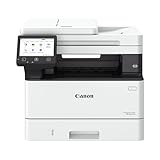
- Monochrome, Wireless, Duplex 4-in-1: Print, scan, copy, fax.
- Fast Print Speeds: Print up to 37 pages per minute and spend less time waiting with a quick first print time of approximately 5 seconds.
- Easy Wireless Setup: Setup your wireless connection and get up and running in just a few steps2
- 5-inch Color Touchscreen: Get the job done quickly with Application Library - an intuitive and easy to use customizable access to the features you use most.
- Mobile Device Printing: Print from your compatible mobile devices using the free Canon PRINT app, Apple AirPrint and Mopria Print Service.
FAQ
Is cnhw500.dll a Windows file?
No. It is associated with an older Canon Inkjet WIA driver. A copy under a Windows directory is not proof that Microsoft supplied it.
Which Canon model uses cnhw500.dll?
The exact Canon models associated with this filename are not publicly verified. Identify the device from the error context and install the package for that exact model.
Crashes, No Sound, or Screen Glitches?
Random freezes, missing sound and display glitches usually trace back to one bad driver. Find and replace yours safely.Free scan · under a minuteWindows Errors? Fix Them Before They Spread
Repair common Windows errors and clear accumulated junk for a smoother, more stable PC - no reinstall needed.Free scan · no reinstallShould I reinstall Windows?
No. Reinstall the Canon driver and affected Canon application first. Windows reinstallation is an extreme last resort.
Will installing Visual C++ fix the error?
Usually not. This is a Canon WIA driver issue, not an identified Visual C++ runtime problem.
What if the file exists but the error remains?
Check the file’s location, digital signature, dependencies, application architecture, and Canon package version. “Module not found” can refer to a dependency rather than the named DLL.
Can I register the file with regsvr32?
Do not use regsvr32 unless Canon’s installer documentation specifically requires it for that exact package. It is not a general DLL repair command.
Free tools Windows power users keep installed
One-click scans. No signup required.
What prevents the error from returning?
Keep the Canon package matched to the device and Windows version, avoid deleting DriverStore files manually, review antivirus quarantine before restoring anything, and create a restore point before major driver changes.
Quick Recap
Product prices and availability are accurate as of the date/time indicated and are subject to change. Any price and availability information displayed on Amazon at the time of purchase will apply.



