Do these 3 things before closing this tab:
1Fix the driver behind crashes, sound loss and screen glitches2Clear out junk files and repair common Windows errors3Scan for outdated or missing drivers - takes under a minutectp2wres.dll is an old Creative Technology file used by Creative PlayCenter 2, not a Windows system DLL. The safest fix is to identify the program requesting it, then repair or reinstall the complete Creative installation instead of downloading a loose DLL into System32.
What this file actually does
The filename is associated with Creative PlayCenter 2 Configuration Wizard Resource Dll, a component developed by Creative Technology Ltd. PlayCenter 2 was Creative music software distributed for Sound Blaster and NOMAD products.

This is an application resource DLL. It is not a general-purpose Windows runtime, and there is no verified reason to place it in either C:WindowsSystem32 or C:WindowsSysWOW64.
Public file catalogues describe it as a Win32 DLL and report an old Creative copyright and file metadata. Those details can help identify the expected component, but they do not authenticate a copy downloaded from an unrelated DLL website. A filename, reported version, or matching file size is not proof that a replacement is safe.
#1 Best Overall

- HIGH-RESOLUTION AUDIO - Delivers ultra-clear playback with 32-bit / 384 kHz and up to 120 dB SNR
- SURROUND SOUND - Supports discrete 7.1-channel analog output for immersive multi-channel audio on your PC
- VERSATILE CONNECTIVITY - Connects effortlessly to multi-channel PC speaker systems, SPDIF output and headset outputs, mic-in, as well as line-in sources
- ALL-NEW CREATIVE NEXUS APP - AutoEq customization that allows users to simulate the frequency response of various headphones for a tailored listening experience
- COMPACT LOW-PROFILE DESIGN - The card is 10.5 cm in length and comes with a half-height bracket to ensure compatibility with smaller cases and different build needs
Because PlayCenter 2 belongs to the Windows 98, Me, 2000, and XP era, restoring the file may not make the entire application work on Windows 10 or Windows 11. The missing DLL and the application’s broader compatibility problem are separate issues.
Causes and symptoms at a glance
| What you observe | Most likely cause | Best next step |
|---|---|---|
| The message appears when opening PlayCenter or a Creative configuration utility | Incomplete or damaged PlayCenter installation | Repair or reinstall the complete Creative package |
| The problem began after antivirus activity | The DLL was quarantined or deleted | Review protection history, then scan and reinstall from trusted media |
| A Creative installer or uninstaller reports the file | Partial removal or failed installation | Remove the damaged entry and reinstall the matching package |
| The error appears at every startup, but PlayCenter is no longer installed | An obsolete startup entry remains | Remove the old Creative software or disable its startup entry |
| The file exists, but Windows says it cannot load it | Wrong package, damaged file, permissions issue, or legacy incompatibility | Reinstall the application and test compatibility |
| Several unrelated applications report missing files | Wider Windows or disk corruption | Run Windows Update, DISM, and SFC |
| The file is in an unexpected folder or has suspicious behavior | Possible counterfeit or malicious file | Do not restore it; scan the system and investigate the calling program |
Possible dialogs include “Ctp2wres.dll not found,” “The file Ctp2wres.dll is missing,” “Cannot find Ctp2wres.dll,” and “This application failed to start because Ctp2wres.dll was not found.” You may also see a generic “could not be loaded,” “not designed to run on Windows,” access violation, or registration error.
These messages do not identify the correct repair by themselves. First determine which executable, installer, or startup item requested the file.
Fix 1: Identify the program that is calling the DLL
Do not start by searching for a replacement file. Establish whether PlayCenter 2 is still installed.
Quick wins for a faster PC:
Fix the driver behind crashes, sound loss and screen glitchesFind Drivers →Clear out junk files and repair common Windows errorsFree Scan →Check the error dialog
Read the title bar and surrounding text carefully. Look for references to:
- Creative PlayCenter
- Sound Blaster software
- NOMAD software
- A Creative configuration wizard
- An installer or uninstaller
- A startup utility with a Creative-related name
If the dialog names an executable, record it. That executable is more useful than the DLL filename when deciding what to repair.
Check installed applications
- Press Windows key + R.
- Type
appwiz.cpl. - Press Enter.
- Look for Creative PlayCenter, Creative PlayCenter 2, or a related Creative audio or NOMAD entry.
- Select the entry and note whether Change, Repair, or Uninstall is available.
On newer Windows versions, also check:
- Open Settings.
- Select Apps.
- Select Installed apps.
- Search for
Creative,PlayCenter,Sound Blaster, orNOMAD.
If PlayCenter is listed, continue with the repair or reinstall steps below. If it is not listed, the error may come from an abandoned startup entry or a partially removed installation.
Check the application folder
If the installed-program entry provides a location, open it and look for ctp2wres.dll in the same application folder or one of its subfolders. Do not copy a DLL into that folder from an unknown source.
A missing file in the application directory supports the conclusion that the installation is incomplete. A file with the right name in an unrelated directory does not prove that PlayCenter can use it.
Rank #2

- REFERENCE-GRADE HI-RES AUDIO – Powered by the ESS ES9039Q2M DAC with up to 130 dB SNR, supporting 32-bit / 384 kHz playback for exceptional clarity and detail, far beyond typical onboard audio
- POWER FOR DEMANDING HEADPHONES – Built-in high-performance headphone amplifier delivers up to 350mW @ 32Ω. Easily drives studio-grade headphones
- LOW-LATENCY PERFORMANCE – Supports DSD256 and ASIO 2.3 for high-resolution playback and low-latency audio, ideal for music, gaming, and PC audio workflows.
- PRECISION SOUND PERSONALISATION – 10-band parametric EQ + AutoEq in Creative Nexus add meaningful personalization and offers advanced audio tuning and control
- FLEXIBLE CONNECTIVITY – Coaxial output and optical input for seamless integration with desktop audio setups.
Fix 2: Repair or reinstall Creative PlayCenter 2
This is the most likely solution when the error appears while launching PlayCenter or its configuration wizard.
Try Windows’ built-in repair option
Some applications expose a repair function:
- Open Start > Settings > Apps > Installed apps.
- Find the Creative PlayCenter entry.
- Select the three dots beside it.
- Choose Advanced options, if available.
- Select Repair.
- Restart Windows.
- Launch the Creative application again.
Not every traditional desktop application provides Advanced options, Repair, or Reset. If those controls are absent, use the original installer or the legacy program’s Change option in Control Panel.
Use Programs and Features
- Press Windows key + R.
- Enter
appwiz.cpl. - Press Enter.
- Select the Creative PlayCenter entry.
- Choose Change or Repair, if offered.
- Follow the installer prompts.
- Restart the computer.
- Test PlayCenter from its Start menu shortcut.
If the repair option fails, uninstall the damaged PlayCenter entry and restart before reinstalling. Save any PlayCenter playlists or user data first if they matter to you.
Reinstall the complete matching package
Creative’s historical PlayCenter 2 packages were tied to particular Sound Blaster or NOMAD products and regional releases. Some archived packages were upgrades that required an existing PlayCenter installation. Do not assume that a package intended for a NOMAD device is suitable for every Sound Blaster installation.
Use, in this order:
- Original Creative installation media supplied with the hardware.
- A Creative package specifically matching the product and operating system.
- A known-good backup of the complete installer.
- An archived Creative package only when its device requirements are clear.
Run the installer from a local folder rather than a removable drive that may disconnect during setup:
- Copy the complete installer to the Desktop or another local folder.
- Right-click the installer.
- Select Properties and check for an Unblock option.
- If present, select Unblock, then Apply.
- Right-click the installer again.
- Select Run as administrator.
- Complete the installation.
- Restart Windows.
- Launch PlayCenter and its configuration wizard.
If setup reports that the operating system is unsupported, do not force random DLL files into Windows folders. The installer itself may be incompatible with the current Windows release.
Remove an abandoned installation instead
If you no longer use the Creative hardware or PlayCenter, removal is safer than replacing one missing file.
- Open Settings > Apps > Installed apps.
- Remove Creative PlayCenter and related obsolete Creative components.
- If it is not listed there, open
appwiz.cpland remove it from Programs and Features. - Restart Windows.
- Check whether the startup error has disappeared.
If the program is not listed but a startup message remains, open Task Manager with Ctrl + Shift + Esc, select Startup apps, and disable only the clearly identified obsolete Creative entry. Do not disable an unknown item solely because its name looks technical.
Fix 3: Check antivirus quarantine and protection history
Security software can remove an old application file because legacy installers and binaries may have unusual characteristics. That does not automatically mean the file was malicious.
Rank #3
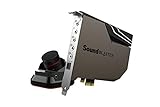
- PRISTINE AUDIO OUTPUT | Supreme audio fidelity with 127 dB DNR hi-res 32-bit / 384 kHz playback via ESS SABRE-class 9018 DAC and DSD64 playback support that satisfies even the most demanding needs of audiophiles for incredibly clean audio
- MASSIVELY POWERFUL HEADPHONE AUDIO | Custom Xamp discrete headphone bi-amp powers each earcup separately with 1Ω output impedance and drives studio-grade headphones of up to 600Ω, including high-end planar-magnetic headphones. And with the Audio Control Module, gain quick access to the Volume Control Knob, as well as the ¼” and ⅛” mic and headphones I/O connectors – all within your fingertips
- THEATRICAL-GRADE DISCREET AND VIRTUAL SURROUND | Supports discrete 5.1 on speakers with Dolby Digital Live / DTS Connect Encoding, and up to 7.1 virtual surround on headphones and speakers. To top it off, we have also integrated Sound Blaster’s Surround Virtualization technology onto AE-7 so that you can conveniently enjoy surround sound on most form of media
- TRUE HARDWARE ACCELERATED AUDIO | Dedicated quad-core processor designed to deliver incredibly pristine and enhanced sound on your PC without overstressing your CPU. Sound Blaster manages audio processing on the card itself, freeing your CPU to handle other tasks
- NEW AND IMPROVED SOFTWARE CUSTOMIZATION SUITE | Sound Blaster Command software interface provides hardware processed sound enhancements and complete control of audio output via the Sound Blaster Acoustic Engine for a full, customized audio experience that delivers clearer vocals, accurate cues, and bass boost
Check Windows Security
- Open Start and search for Windows Security.
- Select Virus & threat protection.
- Select Protection history.
- Review entries around the time the error began.
- Expand any entry referring to PlayCenter, Creative, or
ctp2wres.dll.
Restore the file only when all of these are true:
- The detection clearly appears to be a false positive.
- The Creative installation and installer came from trusted original media or a legitimate Creative source.
- The file belongs in the known PlayCenter installation directory.
- A full security scan does not identify additional threats.
Do not turn off antivirus protection merely to download or copy a standalone DLL. If the file was quarantined, reinstalling the complete application from trusted media is preferable to restoring an isolated binary.
After any restore:
- Run Virus & threat protection.
- Select Scan options.
- Choose Full scan.
- Select Scan now.
- Restart Windows and test the application.
If the security product repeatedly removes the file, leave it quarantined until the installer and the entire application have been checked.
What’s actually slowing this PC down?
Pick the symptom - the matching free tool is one click away.
Fix 4: Check 32-bit and 64-bit compatibility
Public metadata identifies ctp2wres.dll as a Win32 file. That is consistent with PlayCenter 2’s age. A 32-bit application can sometimes run on 64-bit Windows through Windows’ compatibility layer, but that does not make a 64-bit replacement appropriate.
Use these rules:
- Install the DLL supplied by the matching 32-bit Creative application package.
- Do not download a 64-bit DLL as a substitute.
- Do not place the file manually in
System32orSysWOW64. - Do not mix files from different Creative products or installers.
- Do not assume that copying a file beside a different executable will solve the problem.
If the application starts after reinstalling but immediately closes, displays an incompatibility warning, or fails when accessing the hardware, the remaining issue is probably PlayCenter’s age, its driver, or its dependence on unsupported Creative hardware.
Fix 5: Run the application compatibility troubleshooter
Windows 10 and Windows 11 may be able to adjust settings for an older program, although this cannot repair a missing file or guarantee hardware support.
- Open Settings > System > Troubleshoot > Other troubleshooters.
- Find Program Compatibility Troubleshooter.
- Select Run.
- Choose the Creative PlayCenter executable or browse to it.
- Select the symptoms that match the failure.
- Allow Windows to test compatibility settings.
- Select Test the program when offered.
- If it works, save the settings.
You can also try the executable directly:
- Open the PlayCenter installation folder.
- Right-click the main executable.
- Select Properties.
- Open the Compatibility tab.
- Select Run this program in compatibility mode for.
- Test an older Windows mode.
- Select Run this program as an administrator only if the application requires it.
- Select Apply, then OK.
Compatibility mode cannot turn an unsupported device driver into a supported one. If the application needs hardware that current Windows no longer supports, use the original media in an appropriately isolated older Windows environment instead.
Fix 6: Update or reinstall the related Creative driver
A driver will not normally recreate ctp2wres.dll, but a damaged Creative installation can involve both the application and the device software. Use Device Manager only for the actual Creative hardware, not for the missing resource DLL.
- Right-click Start.
- Select Device Manager.
- Expand Sound, video and game controllers.
- Look for the Sound Blaster device.
- Right-click the device and select Properties.
- Read the Device status on the General tab.
- Open the Driver tab to review the installed driver details.
- Use Update Driver only with a driver intended for that exact Creative device and Windows version.
- If the device is clearly damaged and you have the correct installer, select Uninstall device, restart, and reinstall the matching package.
Do not remove a working audio device merely because PlayCenter reports a missing resource file. The application package remains the definitive fix for ctp2wres.dll.
Manually hunting through hardware pages and comparing old driver packages can be difficult, especially when several Creative devices appear similar. Outbyte Driver Updater can perform a free scan to show outdated drivers, while driver installation is handled by the full version; it is optional, and the exact Creative PlayCenter package is still the definitive fix for this DLL.
Fix 7: Repair Windows components only when other files are affected
DISM and System File Checker repair Windows components and protected Microsoft system files. They are unlikely to recreate a third-party Creative DLL, so do not use them as the primary PlayCenter repair.
Free tools Windows power users keep installed
One-click scans. No signup required.
Rank #4
Run them when several unrelated programs are failing, Windows itself is unstable, or the problem began after broader system corruption.
First install pending updates:
- Open Start > Settings > Windows Update.
- Select Check for updates.
- Install available updates.
- Restart Windows.
Then open an elevated Command Prompt:
- Open Start.
- Type
Command Prompt. - Right-click Command Prompt.
- Select Run as administrator.
- Select Yes at the User Account Control prompt.
- Run:
DISM.exe /Online /Cleanup-image /Restorehealth
Wait for it to finish. Then run:
sfc /scannow
Restart Windows after both commands complete and test the affected application.
Microsoft documents this DISM-then-SFC order in its System File Checker guidance.
Repeating these commands will not supply a missing Creative installer file. If Windows reports that it repaired system files but PlayCenter still cannot find ctp2wres.dll, return to the complete application reinstall.
PC Slower Than It Used to Be?
A free scan shows the junk files, broken settings and background clutter dragging Windows down - then fixes them in one click.Free scan · Windows 10 & 11Crashes, No Sound, or Screen Glitches?
Random freezes, missing sound and display glitches usually trace back to one bad driver. Find and replace yours safely.Free scan · under a minuteRunning DISM and SFC repeatedly while guessing what changed can waste time. Outbyte PC Repair offers a free scan that identifies reported system problems, while repair is performed by the full version; it is optional, and reinstalling Creative PlayCenter remains the definitive fix for this application DLL.
Independent reader supportYour contribution helps us test, update, and keep practical guides available for everyone.Fix 8: Use System Restore for a recent system-wide change
If the error appeared immediately after a driver, cleanup utility, or software installation, System Restore may reverse the related system changes.
- Press Windows key + R.
- Type
rstrui.exe. - Press Enter.
- Select Next.
- Choose a restore point from before the problem began.
- Select Scan for affected programs if available.
- Review the result.
- Select Next, then Finish.
- Allow Windows to restart.
System Restore normally targets system files and settings rather than personal documents. It is not a substitute for reinstalling PlayCenter, and it cannot restore files that were never included in the selected restore point.
Why regsvr32 is not the fix
Do not routinely run:
regsvr32 ctp2wres.dll
regsvr32 is for DLLs that provide registration entry points such as DllRegisterServer. Microsoft explains its behavior and syntax in the regsvr32 documentation.
Recommended Free Tools
ctp2wres.dll appears to be a resource DLL loaded privately by PlayCenter. There is no reliable evidence that it is a COM or ActiveX server. An entry-point or registration error from regsvr32 would not restore a damaged application installation.
Why standalone DLL downloads are unsafe
Avoid generic DLL download sites and copies supplied in forum replies. A downloaded replacement can have the wrong architecture, belong to a different release, be damaged, or contain unwanted code. It can also hide the real problem: a missing group of PlayCenter files, a broken installer, an antivirus quarantine, or an application that cannot run on the current Windows version.
Best Value

- PRISTINE AUDIO CLARITY – With up to 116 dB SNR at an amazing bit rate of up to 24-bit / 192 kHz, enjoy impressive audio quality for your every need. The sound card also features gold-plated connectors, speaker optimization technology, and digital content encoding capability for the best digital audio performance. Coupled with Audio Stream Input / Output (ASIO) support, Sound Blaster Z SE delivers low-latency and high-fidelity audio, even for your recordings
- SBX GAMING EQ PROFILES – Emerge as the last man standing with our updated SBX Gaming Profiles for hot titles such as Apex Legends, Fortnite, Overwatch, PUBG, and more. In-house tuned and optimized to sound the best for the respective games, you can get started right away or further tweak the EQs, instead of having to create the profiles from scratch. Simply select the respective game from our latest Sound Blaster Command software’s menu, and be battle-ready instantly
- IMMERSIVE SURROUND SOUND – Get fully immersed and stay focused on your games with our surround sound. The Sound Blaster Z SE now supports 7.1 virtual on headphones and speakers alongside discrete 5.1 for speakers. You can even switch between headphones and your speakers via the software for those times you want to pump the bass, or go stealthier with your headphones. For extra delivery options to your external devices, the Z SE also supports Dolby Digital Live and DTS Encoding
- CRYSTAL CLEAR COMMUNICATION – Comes with a list of Microphone EQ Presets that compensates for your headset’s built-in mic so you can be heard clearly–whether it is to reduce the harshness of your tonality, sound more natural, or to increase the mids for vocal clarity. Together with our Sound Blaster Command Software’s CrystalVoice technology that helps remove echoes and ambient noises, the Z SE is perfect for games and even video conferences while working from home for better communications
Use original Creative media, a legitimate Creative package matching the hardware, or a known-good organizational backup. If no trustworthy installer remains and the software is no longer needed, remove the obsolete component rather than placing an unverified DLL in a Windows directory.
Frequently asked questions
Is ctp2wres.dll a Windows file?
No. Available evidence associates it with Creative PlayCenter 2’s Configuration Wizard. It should not be treated as a standard Windows component.
The Tool Desk
Outbyte PC Repair FREEClear out junk files and repair common Windows errorsFree Scan →Outbyte Driver Updater FREEFix the driver behind crashes, sound loss and screen glitchesFind Drivers →Should I copy it into System32?
No. There is no verified evidence that this file belongs in System32, SysWOW64, or the Windows component store. Restore it through the matching Creative application package.
Is the file 32-bit or 64-bit?
Public metadata identifies it as a Win32 DLL. Use the complete 32-bit PlayCenter package that matches the Creative device. A 64-bit Windows installation does not call for a random 64-bit replacement.
Will Visual C++, DirectX, or .NET fix it?
Not normally. Those runtimes do not recreate a Creative PlayCenter resource DLL. Install a runtime only if another error explicitly identifies that dependency.
Why did the error start after PlayCenter was removed?
The application may have been only partially removed, leaving a startup entry or configuration utility behind. Remove the remaining Creative component or disable the clearly identified obsolete startup item.
Do these 3 things before closing this tab:
1Scan for outdated or missing drivers - takes under a minute2Clear out junk files and repair common Windows errors3Fix the driver behind crashes, sound loss and screen glitchesCan I use regsvr32?
Not as a routine repair. A resource DLL does not necessarily support registration, and there is no reliable evidence that this file should be registered.
What if reinstalling PlayCenter does not work?
Check the exact executable named by the error, antivirus history, Event Viewer, application-folder permissions, and whether the Creative hardware is still supported. If the package targets Windows 98, Me, 2000, or XP, test it only in a suitable legacy environment rather than weakening current Windows security.
Is a clean Windows installation necessary?
Almost never for an isolated ctp2wres.dll error. Reserve major recovery actions for wider system problems, and back up personal data before using them. Microsoft outlines broader options in its Windows recovery guidance.
Quick Recap
Product prices and availability are accurate as of the date/time indicated and are subject to change. Any price and availability information displayed on Amazon at the time of purchase will apply.



