What’s actually slowing this PC down?
Pick the symptom - the matching free tool is one click away.
Yes. Use Dolphin for the original GameCube version of The Legend of Zelda: The Wind Waker, or Cemu for the Wii U remaster, The Wind Waker HD. For most first-time PC players, Dolphin is the simpler option. Neither emulator includes the game: you must supply legally obtained game files, and copyright and circumvention rules vary by country.
Nintendo has not released a native PC version. Its official listing identifies the original as a GameCube game and The Wind Waker HD as a Wii U title. See Nintendo’s official Wind Waker HD page for the remaster’s features.
Choose the right version and emulator
“Wind Waker” can mean two different releases, and they require different emulators:
| What you want | Game version | Emulator |
|---|---|---|
| Original presentation and the easiest setup | GameCube | Dolphin |
| Native HD artwork, faster sailing, Hero Mode and Wii U features | Wii U | Cemu |
The GameCube release in Dolphin is usually the best starting point. Dolphin supports modern controllers, resolution scaling, save states and other optional enhancements. The Wii U version is the better choice if you specifically want the remaster, but Cemu introduces additional Wii U file-format and GamePad considerations.
#1 Best Overall

- 【Wide Compatibility & Plug and Play】Fiotok GameCube controllers are compatible with GameCube and Nintendo Wii. Note: Wii support is limited to GameCube games only, and plug and play requires a built-in GameCube port on your Wii console. Just plug in and play, no extra drivers or complicated setup required
- 【Upgraded Analog Stick & Rumble Feedback】Fiotok wired gamecube controller retains smooth performance of original controller. It features refined analog joystick design that minimizes stick drift and button sticking, paired with upgraded dual analog joysticks and responsive D-pad. Built-in vibration feedback provides automatic vibration adjusted according to games to enhance your gaming experience. Perfect for Melee and Smash series games
- 【4-Player Multiplayer Ready】GameCube controllers are designed for Nintendo GameCube/Wii and fully support Super Smash Bros. Equipped with fully analog pressure-sensitive action buttons & D-Pad for precise in-game inputs. With a controller adapter, Fiotok game cube wired controllers work with Switch, PC and Wii U. Up to 4 controllers can be connected to the console at once, ideal for multiplayer party games to enjoy game time with your friends (Note: Adapter is not included)
- 【Christmas Gift For Family】The gamecube controller is a nice holiday gift for kids to boost parent-child interaction. This game cubes controller fits all ages to unwind and escape daily pressure, bringing relaxing and joyful gaming time for family and friends
- 【Durability Support】We've worked hard to improve product quality and customer service. If you have any questions about our Fiotok brand products, please let us know. We will reply to you within 24 hours and provide support for you.
Dolphin is a GameCube and Wii emulator. Cemu is a Wii U emulator and is not the correct program for the original GameCube release.
What you need
- A reasonably modern Windows, macOS, Linux or Steam Deck system.
- The matching emulator: Dolphin for GameCube or Cemu for Wii U.
- A legally obtained dump or image of the corresponding game.
- A USB or Bluetooth controller.
- Current graphics drivers and enough storage for the game, shader data and optional texture packs.
- A writable folder outside protected locations such as
Program Files, particularly if you plan to use mods.
There is no universal PC specification that guarantees a particular resolution or frame rate. Emulation translates console hardware behaviour through the operating system, emulator and drivers, so CPU performance, graphics backend, resolution, shader cache and modifications all matter. Dolphin explains this in its FAQ.
How to play the GameCube version with Dolphin
1. Download Dolphin from the official site
Download the current recommended build from Dolphin’s official download page. Do not use third-party emulator bundles or sites that package an emulator with downloaded games. The available build names and release numbers can change, so use the version currently shown there.
- Windows: install or extract Dolphin to a normal user-writable folder.
- macOS: use the current official macOS build.
- Linux: use the official Flatpak route or your distribution’s package. Distribution packages may lag behind Dolphin’s own releases.
- Steam Deck: switch to Desktop Mode and install Dolphin through a supported package or a maintained front-end such as EmuDeck. A front-end manages emulators; it is not Dolphin itself.
2. Add your game file
Open Dolphin and add the folder containing your legally obtained GameCube game image to its game-directory list. Dolphin will scan that folder and show the game in its library. The exact menu wording can vary slightly between builds, but the game-directory option is available from Dolphin’s configuration interface.
Quick wins for a faster PC:
Repair Windows errors before they cause bigger problemsFix Now →Scan for outdated or missing drivers - takes under a minuteDriver Scan →Clear out junk files and repair common Windows errorsFree Scan →If the title does not appear, make sure you selected the folder containing the actual game file rather than an unrelated parent folder. Also test an unmodified, complete image before adding patches or texture packs.
3. Configure a controller
Open Options → Controller Settings, or select the Controllers button in Dolphin’s main window. For GameCube controller Port 1, choose Standard Controller, select your device and save a profile. Dolphin documents this process in its controller configuration guide.
Rank #2
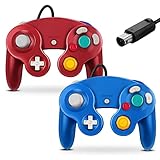
- 【Wide Compatibility & Plug and Play】Fiotok GameCube controllers are compatible with GameCube and Nintendo Wii. Note: Wii support is limited to GameCube games only, and plug and play requires a built-in GameCube port on your Wii console. Just plug in and play, no extra drivers or complicated setup required
- 【Upgraded Analog Stick & Rumble Feedback】Fiotok wired gamecube controller retains smooth performance of original controller. It features refined analog joystick design that minimizes stick drift and button sticking, paired with upgraded dual analog joysticks and responsive D-pad. Built-in vibration feedback provides automatic vibration adjusted according to games to enhance your gaming experience. Perfect for Melee and Smash series games
- 【4-Player Multiplayer Ready】GameCube controllers are designed for Nintendo GameCube/Wii and fully support Super Smash Bros. Equipped with fully analog pressure-sensitive action buttons & D-Pad for precise in-game inputs. With a controller adapter, Fiotok game cube wired controllers work with Switch, PC and Wii U. Up to 4 controllers can be connected to the console at once, ideal for multiplayer party games to enjoy game time with your friends (Note: Adapter is not included)
- 【Christmas Gift For Family】The gamecube controller is a nice holiday gift for kids to boost parent-child interaction. This game cubes controller fits all ages to unwind and escape daily pressure, bringing relaxing and joyful gaming time for family and friends
- 【Durability Support】We've worked hard to improve product quality and customer service. If you have any questions about our Fiotok brand products, please let us know. We will reply to you within 24 hours and provide support for you.
A sensible baseline mapping is:
- Left stick: movement
- Right stick: camera
- Face buttons: GameCube A, B, X and Y
- Shoulder controls: L and R, including their analogue range where supported
- Z: an additional shoulder or trigger button
- D-pad: D-pad
- Start: Start/Menu
Save the profile with a clear name such as Wind Waker - Xbox Controller. Xbox-style controllers work well, but their button labels do not match Nintendo’s layout. A GameCube-style USB controller feels more natural, while a real GameCube controller requires a compatible PC adapter.
Remember that operating-system controller order and Dolphin’s GameCube port order are not always the same. If the wrong device is active, check the selected profile and Port 1 rather than assuming the controller is defective.
PC Slower Than It Used to Be?
A free scan shows the junk files, broken settings and background clutter dragging Windows down - then fixes them in one click.Free scan · Windows 10 & 11Outdated Drivers Are Slowing You Down
One free scan finds every outdated or missing driver and matches the right update for your exact hardware.Free scan · exact hardware match4. Start with conservative graphics settings
Launch the unmodified game first. Then use these as starting points:
- Backend: Vulkan or Direct3D on Windows, choosing whichever is more stable with your driver. OpenGL is a useful fallback for troubleshooting.
- Internal resolution: 2× native for modest hardware; 3× or higher for a stronger desktop system.
- Aspect ratio: Auto, or force 16:9 if that is your preference.
- V-Sync: enable it if you see tearing.
- Shader compilation: leave Dolphin’s default asynchronous or hybrid approach enabled when available.
Dolphin supports HD output, controller configuration and other enhancements, but none is required. Add anti-aliasing, widescreen changes or texture packs only after the standard game works correctly. Upscaling the original does not turn it into The Wind Waker HD; community texture packs can change artwork, but they do not reproduce the remaster’s complete lighting, interface and gameplay changes.
5. Verify saves before modifying anything
Start a new game, confirm the controls, create an in-game save, close Dolphin and reload it. Use normal in-game saves as your primary recovery method. Save states are convenient, but they should not be your only backup.
How to play The Wind Waker HD with Cemu
1. Confirm that you want the Wii U remaster
The Wind Waker HD is a Wii U game. Nintendo describes its 1080p presentation, GamePad functionality, Swift Sail and Hero Mode on its official product page. These are not features you get simply by running the GameCube version at a higher resolution.
Rank #3

- Features intuitive Play Control
- Analog C Stick
- Control Stick and Shoulder Buttons
- Plus A built-in Rumble Feature
2. Download Cemu from the official project
Use Cemu’s official website and avoid unofficial installers, “preconfigured” packages and downloads that include keys, firmware or games. Do not publish or seek out title keys, decryption instructions or unauthorized game archives.
Do not rely on a fixed Cemu version number in an evergreen guide. Cemu releases and recommended settings can change; use the current official build and consult the game’s current Cemu compatibility entry.
3. Add the Wii U title in the format Cemu expects
Depending on how your lawful game files were created, you may have an extracted game directory, an installable title, a Wii U archive/container or separate update and DLC data. Cemu’s workflow differs from Dolphin’s:
- Use Cemu’s game-install function for an installable title.
- Point Cemu at the correct game directory when using extracted files.
- Keep the base game, update and DLC organized separately.
- Make sure the update matches the game’s region and title identifier.
USA and European releases can use different title identifiers, and a configuration, graphics pack or mod made for one region may not work with another. The Cemu wiki documents these regional distinctions. If an update is not detected, verify the region, title ID and directory structure before changing graphics settings.
4. Select the input style
For a simple starting point, use a modern XInput controller. Cemu can emulate a virtual Wii U GamePad or use a Pro Controller-style profile:
- Virtual GamePad: appropriate when you need GamePad-related input, touch or motion functions.
- Pro Controller style: simpler when you only need ordinary buttons and sticks.
A standard controller does not automatically provide the Wii U GamePad’s touch screen or motion sensors. Some actions may require custom mappings, a second display arrangement or motion-capable hardware. Nintendo’s manual documents GamePad and motion-related controls, including motion input used while conducting the Wind Waker.
Rank #4

- Dual analog joysticks
- Fully analog pressure-sensitive action buttons & D-Pad
- Vibration feedback
- Compatible with Wii and GameCube
- Wii support limited to GameCube games
5. Use default graphics first
Begin with Cemu’s default settings and a stable graphics backend, commonly Vulkan where your system supports it reliably. Use 1080p as a starting target, then add resolution scaling or graphics packs after confirming that the unmodified game launches and plays correctly.
The Cemu compatibility wiki reports The Wind Waker HD as compatible with default settings and lists graphics packs as optional enhancements. Compatibility notes can change between Cemu versions. The wiki also records version-dependent visual differences, including historical reports concerning the sun lens-flare effect, so treat such reports as troubleshooting clues rather than universal current problems.
The Tool Desk
Outbyte Driver Updater FREEScan for outdated or missing drivers - takes under a minuteDriver Scan →Outbyte PC Repair FREEClear out junk files and repair common Windows errorsFree Scan →Steam Deck setup
GameCube version
- Switch to Desktop Mode.
- Install Dolphin directly or through a maintained game-management tool.
- Import your legally obtained GameCube game file.
- Use a profile designed for the Deck controls.
- Start at the Deck’s native display resolution or around 720p, then adjust for battery life and frame pacing.
Per-game settings can help if shader stutter, battery use or frame pacing becomes distracting. Community reports show that users run both versions on Steam Deck, but those reports are anecdotal rather than a guarantee for every Deck, Cemu build or configuration.
Wii U version
Cemu is the relevant emulator for The Wind Waker HD. Basic play is possible with a standard controller, but GamePad display, touch and motion features may require a virtual GamePad profile and additional mapping. If you want the least complicated portable setup, Dolphin and the GameCube release are the better choice.
Independent reader supportYour contribution helps us test, update, and keep practical guides available for everyone.Controller recommendations
- Xbox-style controller: the easiest general-purpose option, especially on Windows because of broad XInput support. Expect to remap around Nintendo’s different face-button labels.
- PlayStation-style controller: also usable after mapping, though the displayed labels may be less intuitive during setup.
- GameCube-style USB controller: the best ergonomic match for the original release in Dolphin, particularly if it has reliable analogue triggers.
- Original GameCube controller and adapter: worthwhile if you already own the controller and the adapter supports PC/Dolphin use. Console-only adapters may be inconvenient.
- Steam Deck controls: adequate for Dolphin after a profile is configured, but not an automatic substitute for Wii U GamePad touch and motion input.
For the original version, a GameCube-style controller is the closest fit. For both emulators and other PC games, an XInput controller is the most practical single-controller choice. Controller ranges are available from Xbox, 8BitDo and Mayflash; choose based on compatibility and features rather than an emulator bundle.
Common problems and fixes
The game does not appear in Dolphin
- Open Dolphin’s configuration and add the folder containing the actual game file.
- Check that the image is complete and in a format Dolphin supports.
- Test a clean copy without patches or texture packs.
- If it still fails, check the source image for corruption.
Black screen or crash on launch
- Update the graphics driver.
- Switch between Vulkan, Direct3D and OpenGL.
- Disable texture packs and custom graphics settings.
- Remove per-game overrides.
- Confirm the game’s region and revision.
- Try a clean emulator profile.
- If the image may be damaged, recreate it from your lawful source.
Stutter during the first play session
Emulators may compile shaders when new visual effects appear. That can cause temporary stutter, and replaying an area may be smoother after shader data is cached. Do not judge the whole setup from the first few minutes, but also do not assume all stutter will disappear permanently.
Free tools Windows power users keep installed
One-click scans. No signup required.
Best Value

- ✔ ERGONOMIC - Dual Analog Joysticks, Analog pressure sensitive action buttons & D-Pads, comfort feel & hold operation during long hours of game play.
- ✔ CLASSIC NGC - Relive your favorite GameCube games and experience that feeling on today's games.
- ✔ PERFECT REPLACEMENT - Replace your broken or worn controllers, compatible with the Nintendo Wii and Nintendo GameCube consoles.
- ✔ NOTE - UN-official Third party product, not manufactured or licensed by Nintendo. Compatible with all versions of Wii, GameCube consoles. Works exactly as the Nintendo Gamecube controller.
- ✔ PACKAGE INCLUDES - 2x Gamecube Controllers Compatible for Wii Nintendo GameCube.
The game runs too fast or has poor frame pacing
Check V-Sync, the emulator’s speed limit, turbo mode, display refresh rate and GPU-driver settings. Disable aggressive graphics packs temporarily. Do not leave the speed limit disabled as a permanent “fix,” because the game can run faster than intended.
Controls work in menus but not during play
Check the active controller port and the selected profile. Dolphin needs a Standard Controller for the GameCube release; Cemu needs the intended GamePad or Pro Controller profile. Reconnecting a wireless controller can change its device order, so reselect the device if the operating system now exposes it under a different index.
Wind Waker HD has GamePad problems
Use a virtual GamePad profile if the game expects GamePad input. You may need to hide or reposition the GamePad view in a single-screen setup and map touch or motion manually. If that configuration is more trouble than it is worth, use Dolphin with the GameCube release instead.
Saves are missing
Confirm that you are launching the same emulator profile, game region and revision used to create the save. Avoid moving or renaming emulator data folders while troubleshooting. Test with an ordinary in-game save rather than relying only on a save state, and back up working save data before installing mods.
Recommended Free Tools
Is playing Wind Waker on PC legal?
The emulator and the copyrighted game are separate things. The legal treatment of backups, copying and circumvention differs by jurisdiction and may distinguish between owning original media, making a copy, bypassing technical protection and distributing files. Do not assume that owning a disc or console makes every method automatically lawful everywhere.
Use game files obtained in a manner permitted by the laws that apply to you. Do not download ROMs, ISOs, Wii U archives, keys, firmware or “preconfigured” emulator bundles from unauthorized sources. Those downloads can also expose you to malware. If you need certainty about your specific circumstances, consult a qualified attorney in your jurisdiction.
Bottom line
Choose Dolphin if you want the original GameCube Wind Waker, the simplest setup and straightforward controller support. Choose Cemu if you specifically want The Wind Waker HD and its native remaster features, accepting the extra Wii U file and GamePad configuration. In either case, start with a clean game, conservative graphics settings and a verified in-game save before adding enhancements.
Quick Recap
Product prices and availability are accurate as of the date/time indicated and are subject to change. Any price and availability information displayed on Amazon at the time of purchase will apply.



