If by “enable” you mean connect a KONAMI ID to eFootball, open Extras > Support > Link KONAMI ID (or Shop > eFootball Points), then register or sign in through My KONAMI and complete any email-code and terms prompts. KONAMI confirms success in the game. Creating an ID, accepting terms, and linking it to a game are separate steps, and other games may use different menus. KONAMI’s eFootball linking guide documents this specific flow.
What “enable a KONAMI ID” can mean
There is not one universal activation switch. You may need to create a KONAMI ID, sign in to one you already have, verify your email, accept terms, or link the ID to a particular game. The steps below cover the documented eFootball process; use the relevant game’s own instructions for other titles.

Link a KONAMI ID to eFootball
- Open the linking route. In eFootball, choose Extras > Support > Link KONAMI ID, or open Shop > eFootball Points. If a 2D barcode appears, scan it before it expires.
- Continue on My KONAMI. Read the disclaimers and proceed. Sign in with the email address or KONAMI ID and password for an existing account. To create one, choose Register and complete registration.
- Enter a confirmation code if asked. KONAMI may request two-step verification; the code is sent to the email address registered to the ID.
- Accept the eFootball Point Program terms. Review the terms and accept them to continue. The terms can differ based on the country or region selected when the ID was created.
- Confirm the link. Look for the Linked Successfully alert in eFootball, or check the link status in-game or under Account Information on My KONAMI.
KONAMI says the guide is based on PS5 configurations, so menu names or button displays may differ by device. See KONAMI’s eFootball guide for its illustrated flow.
Fix common account and verification problems
Master Duel says the KONAMI ID service terms have not been agreed to
Sign in to My KONAMI with the ID linked to Master Duel and agree to the service terms. If you have more than one KONAMI ID, make sure you are using the correct one. KONAMI says the agreement screen should no longer appear on the next login after consent is recorded. KONAMI’s Master Duel terms-consent guidance addresses this error.
Do these 3 things before closing this tab:
1Fix the driver behind crashes, sound loss and screen glitches2Repair Windows errors before they cause bigger problems3Scan for outdated or missing drivers - takes under a minuteA Master Duel confirmation email does not arrive
KONAMI’s Japanese Master Duel support article directs players to the My KONAMI inquiry form and the category for a confirmation code that has not arrived. Support may ask for screenshots and account details to verify ownership; if it cannot verify identity, it may not be able to identify or provide the account. Because this guidance is specific to a Japanese support article, use the support route for your title and account region. Open the My KONAMI inquiry route.
You cannot access the registered email address
KONAMI’s standard email-change procedure is in My KONAMI under Personal Information > Email Address. It verifies a code sent to the current address and then verifies the new one. If you cannot use the current address, contact support through the linked form. KONAMI notes that eFootball and some other apps may also allow email changes in-game. Go to My KONAMI.
Rank #2

- With broad game support, the Logitech Gamepad F310 works with old standbys to today's biggest titles, so it's easy to set up and use with your favorite games.
- Profiler software allows the gamepad to be programmed to perform keyboard and mouse commands for games without gamepad support.* * Requires software installation.
- A familiar control layout that doesn't require a learning curve to be able to use, with all the same buttons as on an Xbox 360.
- The unique floating D-pad rests on four switches-instead of a single pivot point-making it responsive to quick changes in direction.
- The six-foot cord lets you lean back and play a comfortable distance from your PC monitor.
Choose the support route for your game and region
Support channels vary by game, platform, and release region. For eFootball, KONAMI says mobile inquiries should be sent from the game app rather than its console/PC inquiry form. Its Asia support page directs Master Duel players to in-game customer service and limits that support to products officially distributed in Asia. Use the route that applies to your game release and region: eFootball inquiry form or KONAMI Asia support.
Quick Recap
Best Value

- Pretend video game controller learning toy for babies and toddlers with 2 musical play modes: Learning and Play
- Realistic design: Press the ABCD shape buttons and number pad, or move the joystick, to activate lights and music
- Educational fun: Introduces shapes, colors, the alphabet, numbers & more with sing-along songs, sounds and phrases
- Fine-motor play: Move the clicker disc and toggle the top switch for added hands-on fun
- Helps foster fine motor skills and encourage early pretend play for babies and toddlers ages 6 months to 3 years old
Rank #4
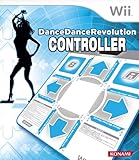
- Specially designed controller for DanceDanceRevolution turns you into a dancing machine
- For use with compatible software on the Wii system
- ANTI-SLIP surface on bottom
- DanceDanceRevolution combines fun, excitement and a great workout
Rank #3

- 1.【Widely compatible】:2.4G wireless game controller is compatible with Playstation 3 and PC Windows 7/8/10 wireless controllers. Plug and play. No installation required. To use on PC, You need to insert the USB into the USB port of your computer. One USB port can connect two game controllers and use them at the same time.
- 2.【connection method】NOTE:First, Press the power button on the controller, connect the USB receiver to the computer, and press the game controller "MODE" button. The game controller LED will begin to flash quickly. Once the first controller is connected, the LED will begin to flash slowly. Once the LED changes from flashing to stable, the second controller will be successfully connected.
- 3.【With vibration function】:The wireless controller has built-in dual motors and supports dual vibration function. In supported games, the handle will vibrate when driving a car, hitting, shooting, falling, etc., bringing you more fun and a more immersive gaming experience.
- 4.【6-axis gyroscope】:The wireless game remote controller supports 6-axis motion sensing function, and you can freely control the game by moving and adjusting the horizontal direction of the handle. Bring you a different gaming experience,
- 5. 【Built-in high-performance battery】:The wireless game remote is equipped with a large 400mAh battery capacity, which can provide 4~6 hours of ultra-long gaming time, and the game controller can be fully charged in 1.5 hours. When not playing games, the controller will automatically enter sleep mode to save power.
Product prices and availability are accurate as of the date/time indicated and are subject to change. Any price and availability information displayed on Amazon at the time of purchase will apply.



