Windows Errors? Fix Them Before They Spread
Repair common Windows errors and clear accumulated junk for a smoother, more stable PC - no reinstall needed.Free scan · no reinstallCrashes, No Sound, or Screen Glitches?
Random freezes, missing sound and display glitches usually trace back to one bad driver. Find and replace yours safely.Free scan · under a minuteSome links on this page are affiliate links: if you buy through them we may earn a commission, at no extra cost to you.
Charge the Razer Basilisk Ultimate either by connecting its included cable to the front of the mouse or by seating it on a powered Razer Mouse Dock. Razer says a depleted battery takes approximately four hours to fully charge. The dock is optional: cable charging also lets you use the mouse in wired mode.
What you need
- Your Razer Basilisk Ultimate (model RZ01-03170).
- Its charging cable and a powered USB port.
- Optionally, a compatible Razer Mouse Dock, such as the Razer Mouse Dock Chroma.
- Optionally, Razer Synapse to check the reported battery level.
The wireless USB receiver connects the mouse to your computer; it does not charge it. Use the cable or dock for charging. Package contents vary, so some owners may not have received a dock.
Method 1: Charge it with the cable
- Find the charging port at the front of the mouse.
- Insert the charging cable firmly into the port.
- Connect the other end to a powered USB port. If you are unsure whether a port supplies power, use a direct port on your computer rather than a passive hub, keyboard, or other peripheral.
- Leave the mouse connected while it charges. You can turn it on and use it as a wired mouse in the meantime.
This is the simplest method if the dock is missing, the battery is nearly empty, or you need to keep working. Razer’s Basilisk Ultimate user guide describes the cable connection as both charging and wired operation.
Method 2: Charge it on the Razer Mouse Dock
- Connect the dock to a powered USB port using the dock’s power cable.
- Turn the mouse over and locate the charging contacts on its underside.
- Set the mouse onto the dock so its contacts meet the dock’s contacts. Lower it straight onto a stable, level surface and make sure it sits securely.
- Check the dock’s lighting or Synapse for a charging indication, then leave the mouse on the dock.
If the mouse appears to rest on the dock but does not charge, lift it off and reseat it. Check that it is not sitting too far forward or back and that dirt or debris is not blocking the contacts. The dock product page lists the Basilisk Ultimate as compatible and describes its lighting as a broad progression from red at a critical level, through yellow at a mid-level, to green when full. Treat those colors as an indication, not an exact percentage chart.
#1 Best Overall
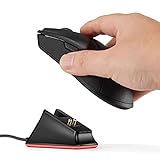
- Soarking thirdparty charging dock:Compatible with Razer Mice DeathAdder V2 Pro,Naga Pro,Viper Ultimate,and Basilisk Ultimate,Not the OEM original stock charger dock.
- Convenient home base:Just put the razer mouse on the dock,always charged and ready to rock any adventure.
- Replacement charging dock for home and travel.Take up very little space,Only 2.5 inchsX2.5 inchsX1.5inchs size.
- The razer powerplay charging dock won’t fall off easily from desk or nightstand, non-slip feature which won’t stuck with one position and leave residue.
- Always ready.The powerplay continuous charging technology charging dock makes Razer Mouse DeathAdder V2 Pro,Naga Pro,Viper Ultimate,and Basilisk Ultimate Wireless Gaming Mice charging easier than ever. After a day at the beach or a big night out, just place your mouse on the charging dock when you get home or travel and have it ready to go.
How to check whether it is charging
Open Razer Synapse, select the Basilisk Ultimate, and check its battery indicator. Razer’s current guidance for checking battery status while charging on the dock refers to connecting the mouse to Synapse 4. The product’s support page also identifies it as Synapse 3-enabled, so the software references differ. Synapse is useful for checking status, but it is not necessary for the physical charging connection.
The mouse’s scroll wheel repeatedly blinking red means the battery is below 5%, according to Razer’s product information. That warning indicates a critically low battery; red by itself does not prove charging has failed. Lighting can also be customized in Razer software, so the absence of a particular animation alone is not conclusive.
Rank #2
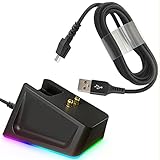
- Charger Dock Set: Magnetic charger dock with 4.9Ft USB Fast Charger Cord,practical design with the charge status indicator (RGB means Charging/Red means Full)and resuable self-adhesive sticker on the bottom ,Great replace choice for your damage or broken charger dock came with the orginal .
- Widely Fit:Compabible with the most love mouses by the gaming fans- Razer Viper Ultimate /Naga Pro 20000 DPI / DeathAdder V2 pro / Razer Basilisk,provide the stable and continus charging experiences for the gaming mouse .
- Sleek Design: The steam line shape with the anti-slip groove on the charging dock design ,allow the easy grip when charging , the resuable sticker on the bottom secure the charger dock on the place where you want and no easy to move,worry free from dropping, keep your desk neat .
- Quality Insured: Charger dock made by the prime ABS and charger by the the powerful magnetic pins , nylon braided charger cable design with premium aluminum housing and sturdy nylon fiber cover ,Reinforced stress points with a 10000+ bend lifespan make it more durable than anything else on the market.
- Safety Charging :Robust USB connector clicks into the charger dock for a snug and secure connection,allow a stable charging experience for your gaming mouse,extend the gaming mice life
How long does a full charge take?
Razer’s guide gives approximately four hours to fully charge a depleted Basilisk Ultimate. This is an estimate, not a guaranteed time: the USB port, cable condition, battery age, and whether the mouse is in use can affect the result. A completely empty battery may not show a percentage increase immediately.
Quick wins for a faster PC:
Scan for outdated or missing drivers - takes under a minuteDriver Scan →Repair Windows errors before they cause bigger problemsFix Now →Can you use the mouse while it charges?
Yes. Connect the cable and use the Basilisk Ultimate in wired mode while it charges. A dock is more convenient for topping it up between sessions at a desk, but the cable is the better choice when you need immediate wired use or want to rule out a dock-contact problem.
Rank #3

- The #1 Best-Selling Gaming Peripherals Manufacturer in the US: Source - The NPD Group, Inc., U.S. Retail Tracking Service, Gaming Designed: Keyboards, Mice, PC Headsets, and PC Microphones, Based on dollar sales, Jan. 2017- June 2020 combined.
- Magnetic Dock with Charge Status RGB Lighting: Provides visual indication of charge status, such as red for low battery and green for charging
- Anti-Slip Gecko Feet: Ensures better adhesion to surfaces for safe, long-term placement
- Powered by Razer Chroma: Offers effortless, full integration with popular game titles and syncs with Razer hardware, Philips HUE, and gear from 30+ partners
- Compatibility: Designed to work with DeathAdder V2 Pro, Naga Pro, Viper Ultimate, and Basilisk Ultimate
Razer Basilisk Ultimate not charging? Try these fixes
- Start with the cable. Connect it directly to the mouse and a powered USB port on your computer. This bypasses possible dock alignment and power issues.
- Check the fit. Push the connector fully into the mouse. Try a different powered computer USB port, especially if the first port is on a keyboard, monitor, or hub.
- Inspect the cable and port. Look for fraying, debris, bent contacts, or a connector that will not stay seated. Do not use a damaged cable.
- If using the dock, reseat the mouse. Place it straight onto the dock on a level surface. Check that the contacts meet and are clean, and confirm that the dock itself is connected to power.
- Compare methods. If the mouse charges by cable but not on the dock, the issue is more likely with the dock, its power connection, or contact alignment. If neither method works, continue checking the mouse and cable rather than buying a dock first.
- Check Synapse, then restart. Look for a battery-status change in Synapse. Toggle the mouse’s underside power switch off and back on, then reconnect it. Restarting the computer can also help resolve a software-status issue.
- Use updates only for relevant problems. Razer’s support page lists a Basilisk Ultimate firmware updater and a pairing utility. Firmware or pairing tools may address device software or connection issues, but will not fix a physically damaged cable, port, or battery. Follow the current instructions on the support page.
Contact Razer support if the mouse stays at 0%, will not operate when connected by cable, or still fails after you have tested a known-powered USB port and checked the cable and dock contacts. Stop using it and seek support if it becomes unusually hot, smells unusual, or shows swelling or physical damage. Do not open the mouse to attempt a battery repair.
Independent reader supportYour contribution helps us test, update, and keep practical guides available for everyone.Do you need to buy the charging dock?
No. The cable alone can recharge the Basilisk Ultimate and lets you use it while connected. Consider a dock if you want a convenient place to charge the mouse between sessions and have confirmed that the mouse charges normally by cable. If cable charging works but dock charging does not, troubleshoot the dock and alignment before replacing anything. Check the dock’s listed compatibility and cable requirements before purchasing.
Rank #4

- 【Thirdparty Charging Dock】Compatible with Razer Mice DeathAdder V2 Pro,Naga Pro,Viper Ultimate,and Basilisk Ultimate,Not the OEM original stock charger dock.
- 【Strong Magnetic Charger】The charging base has a magnetic function. When your mouse approaches, it will automatically be attracted and start charging. And Reserve USB Type-C interface for power supply,You will feel very convenient.
- 【Slip-resistant】The bottom of the charging base has a non-slip design, so you don’t have to worry about your mouse sliding while charging.
- 【Stable & Continuous Charging】 You just put the mouse on the dock before going to bed and it will be fully charged the next day. The powerful magnetic force allows you not to worry about the mouse sliding and stop charging.
- 【Unlimited charging and endless playing】Keep your game going with the mouse dock chroma -a wireless mouse charging dock.
Make sure it is the Basilisk Ultimate
These instructions are for the Razer Basilisk Ultimate (RZ01-03170). Other Basilisk models can use different charging arrangements, so confirm the model on the mouse or its product label before following advice intended for another version.
Recommended Free Tools
Quick Recap
Product prices and availability are accurate as of the date/time indicated and are subject to change. Any price and availability information displayed on Amazon at the time of purchase will apply.

