Free tools Windows power users keep installed
One-click scans. No signup required.
For an HDMI-only TV, use a Dreamcast-specific HDMI adapter: remove the console’s existing A/V cable, connect the adapter to the Dreamcast, run an HDMI cable to the TV, then select that HDMI input. If the adapter has a VGA/RGBS switch, set it before powering on. A basic adapter converts the console’s analog output to HDMI; it does not necessarily upscale the image.
Choose the right Dreamcast-to-HDMI option
The Dreamcast can output composite, S-video, 15 kHz RGB, or 31 kHz VGA video. An external adapter converts a signal from the console’s A/V port, while an internal HDMI modification takes a digital signal from inside the console. The best route depends on whether you value an easy setup, broad game compatibility, image processing, or the ability to modify the hardware.
| # | Preview | Product | Price | |
|---|---|---|---|---|
| 1 |

|
Kaico Dreamcast HDMI Adapter, Plug & Play Converter with VGA & RGBS Support | $32.99 | Buy on Amazon |
| 2 |
|
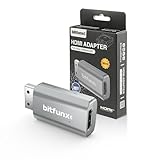
BITFUNX Dreamcast HDMI™ Adapter, for Dreamcast Console All Version (Mini) | $22.99 | Buy on Amazon |
| Option | What it does | Setup and compatibility | Best suited to |
|---|---|---|---|
| External HDMI adapter with VGA/RGBS switch | Connects at the Dreamcast A/V port and sends audio and video over HDMI. | Simple external setup. Set VGA or RGBS before powering on. Kaico says its adapter supports both modes and does not upscale. | Most players who want a straightforward connection and a way to handle games that do not support VGA. |
| Integrated VGA-to-HDMI cable | Combines a VGA connection and HDMI conversion in one cable. | Plug-and-play, but VGA-incompatible games may not work. Pound’s product page showed its HD Link as sold out when checked; availability can change. | Players who want a single cable and mainly play VGA-compatible games. |
| VGA cable plus scaler or converter | Sends the Dreamcast’s VGA output through a separate device that processes it for HDMI. | Requires more equipment and configuration. Check that the device accepts VGA input and converts it to HDMI output; compatibility and results vary by hardware. | Players who want image controls or already own compatible scaler equipment. |
| Internal HDMI modification | Adds HDMI by tapping digital signals inside the console. | Requires advanced surface-mount soldering. The DCDigital overview describes additional output and scaling options; it also warns that 960p may not work with every display. | Experienced modders or owners arranging professional installation who want extra output controls. |
For a basic external adapter, follow the manufacturer’s specifications rather than assuming it improves resolution. Kaico describes its adapter as a connection and conversion device, not an upscaler. Kaico’s product page and updated product article provide its details. Pound says its HD Link passes through the Dreamcast’s native display, with displayed resolution dependent on the game or media and the TV.
Connect an external HDMI adapter
- Turn off the console and remove its existing A/V cable. Connect the Dreamcast-specific adapter to the console’s A/V port.
- Set the adapter’s video mode before switching on. Start with VGA for a game that supports it. If the game is incompatible with VGA and the adapter supports RGBS, select RGBS instead. Kaico’s manual specifically instructs users to set its switch before powering on.
- Connect HDMI. Run an HDMI cable from the adapter to an open HDMI input on the television.
- Power on and select the input. Turn on the Dreamcast and TV, then choose the HDMI input you used.
Kaico says its adapter carries both audio and video without separate power and supports the Dreamcast’s 480i/480p and PAL 576i/576p modes. Those are manufacturer specifications, not independent test results. The manual is dated May 2024.
#1 Best Overall
- First Dreamcast HDMI with VGA & RGBS – The Sega Dreamcast HDMI adapter is the first to support both VGA and RGBS, ensuring full compatibility with all Dreamcast games. Easily switch modes for non-VGA titles and enjoy crisp visuals on modern TVs.
- Highest Quality Video Output – The Sega Dreamcast console VGA signal converts to HDMI with no audio/video loss, delivering crisp visuals and clear sound. Enjoy the best experience on modern TVs with this high-quality Dreamcast HDMI adapter.
- Enhanced Dreamcast Experience – Enjoy crisp graphics and flawless audio with the Sega Dreamcast HDMI adapter. Play your favorite games with improved clarity and sound on any modern TV, no extra converters needed.
- The Best Sega Dreamcast AV Cable – The Sega Dreamcast AV cable delivers a hassle-free HD experience, making it easy to play your Dreamcast on modern TVs with sharp visuals and clear audio—no extra converters required!
- 12-Month Warranty & Support – Buy with confidence! The Sega Dreamcast HDMI adapter includes a 12-month warranty with support, repair, or replacement from Kaico Labs, guaranteeing peace of mind with your purchase.
Understand VGA compatibility and picture quality
Dreamcast VGA outputs 640×480 at 60 Hz in progressive scan (480p), rather than the interlaced 480i signal used by standard-definition TV modes. Progressive output can look sharper, but a small minority of games do not support VGA. SEGA-Dreamcast.com lists 499 of 677 games as supporting VGA; the site does not state a year for that figure, and it is not an official Sega compatibility database.
Kaico names Hydro Thunder and the PAL version of Skies of Arcadia as examples that will not work in VGA mode with its adapter. It says RGBS mode supports such cases. Check the compatibility of a particular game and adapter rather than assuming that every Dreamcast title will display in VGA.
HDMI describes the connection, not an automatic increase in resolution. A basic adapter converts the console’s output for an HDMI input; it does not turn the Dreamcast’s picture into a higher-resolution image. A separate scaler or an internal modification may add processing, but the result depends on the hardware, settings, game, and display.
Rank #2
- Compatibility: Supports all Dreamcast display modes, including NTSC 480i, 480p, and PAL 576i, for a wide range of TVs.
- Advanced Signal Processing: Provides advanced signal processing for precise, high-quality Dreamcast gameplay on HDMI displays.
- Convenience: No additional power supply needed, the Bitfunx DC VGA to HDMI Adapter is plug and play for easy setup.
- Full Digital HDMI Output: Enjoy full digital HDMI output with zero transmission loss, offering vivid colours and resolution.
- Space-Saving Design: The MINI style design is lighter and more compact, taking up less space for your gaming setup.
When to consider a scaler or internal modification
Use a separate scaler for more processing options
A VGA cable and a compatible scaler add another device and setup choices. Before buying or connecting equipment, confirm the signal direction: a device described as VGA-to-HDMI must accept VGA from the Dreamcast and output HDMI to the TV. Product compatibility and image results vary, so do not assume that any generic VGA-to-HDMI converter will work well with every setup.
Choose an internal mod only if the installation is appropriate
The DCDigital/RetroGEM lineage offers an internal route with digital output and additional modes or scaling features. Its installation requires advanced surface-mount soldering, so it is not equivalent to plugging in an adapter. The DCDigital overview also notes that 960p output may not be compatible with every display.
Check availability before buying
Product stock, revisions, naming, and listings can change. Pound’s HD Link page showed the product as sold out when checked, which is not a guarantee of its current status. Confirm availability and the exact features for the product revision you plan to use before purchasing; the sources cited here do not establish current prices.
Quick Recap
Product prices and availability are accurate as of the date/time indicated and are subject to change. Any price and availability information displayed on Amazon at the time of purchase will apply.



