Some links on this page are affiliate links: if you buy through them we may earn a commission, at no extra cost to you.
Short answer: an Xbox One or Xbox Series X|S does not normally send its video directly to a TV over Wi-Fi or Bluetooth. Its standard display output is HDMI. If you want to remove only the long cable between rooms, use a wireless HDMI transmitter and receiver. If you want to avoid the Xbox’s HDMI output, use Xbox Remote Play or Xbox Cloud Gaming. If the TV simply lacks an HDMI input, use a suitable active converter—but expect compromises in audio, resolution, and modern gaming features.
Which solution fits your situation?
| Situation | Best candidates |
|---|---|
| Remove the long cable across the room | Wireless HDMI |
| Your TV has no HDMI input | HDMI-to-DVI, VGA, component, or composite converter |
| The Xbox HDMI port is damaged | Remote Play or cloud gaming as a workaround; repair for a full solution |
| Play on a TV in another room | Remote Play, cloud gaming, or wireless HDMI |
| You do not want the console connected to the TV | Cloud Gaming, if the TV, region, plan, and game are supported |
| Lowest possible latency | Direct HDMI |
| 4K, HDR, VRR, or 120Hz | Direct HDMI; verify every feature carefully for wireless systems |
There is no universal Xbox setting that replaces HDMI with ordinary wireless casting. Microsoft’s current TV and Remote Play support describes streaming through supported apps and devices, not a general “cast the Xbox screen to any smart TV” function. See the official Xbox Remote Play guide and Xbox TV compatibility page.
All practical ways to connect an Xbox without a long HDMI cable
1. Wireless HDMI: the closest replacement for a direct connection
A wireless HDMI kit sends the Xbox’s display signal from a transmitter to a receiver near the TV. It is the closest match to moving the console’s video output wirelessly, but it is not completely cable-free:
#1 Best Overall

- Seamless HSeamless HD Wireless Streaming: immersive visuals with our wireless HDMI display dongle adapter, supporting 4K and delivers an impressive 1080P/60Hz Full HD output.
- Plug & Play: No apps, no Bluetooth, no Wifi required, one-click to mirror the screen of mobile phones or laptops to a big screen, with support for privacy mode and one-click disconnect. You can easily switch between landscape and portrait mode.
- Stable Transmission, Low Latency: Featuring 2.4+5GHz dual-band antennas, the wireless HDMI display adapter ensures stable transmission and video decoding. It boasts a transmission distance of up to 16 feet/5 meters and an low latency of only 100ms.
- Cross-Platform Compatibility: This portable Wireless HDMI Dongle Adapter supports Airplay for Apple IOS and MAC systems and Miracast for Android and Windows systems. Its Integrated chipset ensures compatibility with a range of HDMI output devices.
- App Limitations: Please be aware that certain apps with "HDCP" protocol, such as Netflix, Amazon Prime Videos, Hulu, Comcast TV, Xfinity, Vudu, Sky Go, BT Sport, may not be supported due to copyright protection.
Xbox HDMI output → short HDMI cable → wireless transmitter )))) receiver → short HDMI cable → TVYou still need power for both wireless units and a short HDMI cable at each end. What disappears is the long HDMI run between the Xbox and the TV.
How to set up wireless HDMI
- Connect the transmitter to the Xbox’s HDMI output using a short HDMI cable.
- Connect the transmitter to power.
- Connect the receiver to an HDMI input on the TV with another short HDMI cable.
- Connect the receiver to power.
- Select the receiver’s HDMI input on the TV.
- Pair the transmitter and receiver if the kit requires pairing.
- Set the Xbox to a resolution and refresh rate supported by the kit.
- Test the picture, audio, HDR, refresh rate, and controller response.
What to check before buying
- Whether it supports Xbox Series X|S output modes.
- Maximum resolution and refresh rate, such as 1080p/60Hz or 4K/60Hz.
- HDR10, HDCP, surround audio, and other required formats.
- Claimed latency and whether that figure applies to gaming.
- Range, wall penetration, and line-of-sight requirements.
- The wireless band used and likely interference in your home.
- 4K/120Hz, VRR, and ALLM support if those features matter to you.
- Power requirements, warranty, and return policy.
Do not assume a wireless HDMI kit is equivalent to a direct HDMI 2.1 connection. Many kits support only 1080p/60Hz or 4K/60Hz. A product that does not explicitly support 4K/120Hz, HDR, VRR, and ALLM should not be expected to preserve those features. Wireless HDMI also adds latency; “zero lag” should not be treated as a guarantee.
Wireless HDMI is usually the best choice when you need the Xbox’s actual local output, want to use installed games or physical discs, and can accept hardware at both ends. It still requires a working HDMI output on the console.
Recommended Free Tools
2. Xbox Remote Play: stream your own console
Xbox Remote Play streams the session from your Xbox One or Xbox Series X|S to a compatible phone, tablet, PC, browser, TV, Fire TV device, or other supported endpoint. The Xbox remains the machine running the game; the receiving device displays an interactive video stream.
This makes Remote Play useful for a second-room TV or for a console whose HDMI cable cannot conveniently reach the display. It may also provide a workaround for a damaged HDMI port, but only if the console is already configured, connected to the network, signed in, and remotely reachable.
Remote Play requirements
- Xbox One or Xbox Series X|S.
- Internet-connected console with remote features enabled.
- Microsoft account with an Xbox profile.
- Compatible receiving device and controller.
- Reliable 5GHz Wi-Fi or mobile data.
- Microsoft currently lists 10 Mbps download speed for Remote Play.
Microsoft lists support across compatible phones, tablets, PCs, TVs, and VR headsets. Its current page identifies Android 6.0 or later, iOS 15.1 or later, and Windows 10/11 version 22H2 or later, but supported devices and software can change.
How to enable Remote Play
Xbox menu names can vary by console generation and system update, so treat this as the current general route rather than an immutable menu sequence:
Free tools Windows power users keep installed
One-click scans. No signup required.
- Turn on the Xbox and connect it to your network.
- Open Settings.
- Go to Devices & connections.
- Open Remote features.
- Enable remote features and run the available remote-play test, if shown.
- Choose a power option that keeps the console reachable while it is off or sleeping, according to the current Xbox settings.
- On the receiving device, open the supported Xbox app or browser route.
- Sign in with the same Microsoft account.
- Select the Xbox and start Remote Play.
- Pair a compatible controller with the receiving device.
Remote Play is not the same as cloud gaming. It generally gives you access to the session and games available on your own console, while game-specific and online-multiplayer requirements can still apply. Do not assume that every Remote Play use case universally requires Game Pass; Microsoft notes that requirements can vary by game and online functionality.
Rank #2

- [YPbPr Signal Output] Convert YPbPr component signals of Original Xbox console to HDMI signals, and then transmit them to modern HDTVs and monitors through HDMI cable, without any delay.
- [Clear Image] Use YPbPr component signal conversion and transmission to provide the best image colors and details. (Transfer only, can't improve the video quality.)
- [Plug and Play] This adapter does not require external power supply, just connect the adapter and HDMI cable (Note: Without HDMI cable), and it is ready to use.
Improve Remote Play performance
- Connect the Xbox to the router by Ethernet where practical.
- Use 5GHz Wi-Fi on the receiving device instead of a crowded 2.4GHz network.
- Reduce downloads, video streaming, and other network traffic.
- Place the receiving device closer to the router.
- Test locally before testing from outside the home.
- Try a phone or PC as a diagnostic endpoint if the TV app fails.
Bandwidth is only part of the experience. Latency, packet loss, Wi-Fi congestion, router placement, mesh-network roaming, and the distance to the console can matter more than a headline download-speed number.
3. Xbox Cloud Gaming: play without connecting your Xbox
Xbox Cloud Gaming runs games on Microsoft’s servers and streams them to a supported TV or streaming device. Unlike Remote Play, it does not use your own Xbox. This is the option to consider when you want to play on a TV with no console attached at all.
Supported TV and streaming-device categories
Microsoft’s current Xbox-on-TV page identifies selected devices, including:
What’s actually slowing this PC down?
Pick the symptom - the matching free tool is one click away.
- Selected Amazon Fire TV devices, including specified Fire TV Stick 4K Max, Fire TV Stick 4K, and Fire TV Cube generations.
- Selected Samsung Smart TVs from 2020 onward and selected Samsung monitors from 2022 onward.
- Selected LG TVs using webOS 24 or later, including specified updated 2022 and 2023 models.
- Selected VIDAA OS devices, including compatible Hisense models running VIDAA OS 9.6 or later.
These are not blanket brand-wide guarantees. Model, operating-system version, firmware, region, app-store availability, and controller support all matter. Check the exact model before buying a TV or streaming stick.
How to start cloud gaming
- Confirm that your TV or streaming device is supported in your region.
- Install or open the Xbox app or supported cloud-gaming route.
- Sign in with a Microsoft account.
- Pair a compatible controller over Bluetooth or USB.
- Choose a cloud-playable game and start the session.
- Test input response before committing to a long play session.
Microsoft currently lists at least 10 Mbps download speed for cloud gaming generally and recommends 5GHz Wi-Fi; some devices may perform better with 20 Mbps or more. A wired connection is preferable where supported.
Most cloud titles require a qualifying Game Pass plan, while selected free-to-play games can be available with a free Microsoft account in supported regions. Check the current Xbox game catalog rather than relying on a permanent list: availability varies by game, plan, region, platform, and date.
Cloud Gaming is not a way to play every game you own or every game installed on your Xbox. It can also involve limitations in resolution, audio, saves, companion-app support, accessories, and peripherals. It is convenient, but it is not a full replacement for local console output.
Connecting to a TV that has no HDMI port
If the Xbox HDMI output works but the television has only older inputs, a converter may work. This remains a wired HDMI-based connection at the Xbox end and will normally sacrifice modern display features.
Rank #3

- Manufactured by CIPON: This Wireless Adapter manufactured by a third-party company , not by Microsoft; Our Adapter chip and program is the same as official, and quality as good as official
- Widely Compatibility: For use with X One Wireless Controller on PCs and Tablets running Windows 7/8/8.1/10 with USB 2.0/3.0; Not compatible with Xbox 360 controllers; (Note: You may need to download a driver for the first use)
- Play with Others: Supports up to 8 wireless controllers; Also supports the use of wired chat headsets on the controllerr (Note: The headsets only supported under WIN10 system, and not supports wireless connection headsets)
- Designed for PC: Play your Wireless Controller on Windows/ laptops/ tablets; Simply bind the Adapter to your Wireless Controller to enable the same gaming experience you are used to on Xb One, including in-game chat and high quality stereo audio
- What You Will Get: 1 x Wireless adapter, 1 x User manual, 1 x Elegant packaging
DVI
An HDMI-to-DVI cable or passive adapter may carry video when the formats are compatible. DVI commonly lacks the same audio path as HDMI, so you may need separate audio equipment. Check HDCP compatibility, supported resolution, and refresh rate.
VGA
HDMI-to-VGA normally requires an active digital-to-analog converter. VGA generally carries no audio and is unsuitable for 4K, HDR, VRR, or 120Hz gaming. You may need a separate audio cable or extractor.
Component or composite
These analog inputs require active down-conversion. Component can provide better results than composite, but both are legacy options with substantially lower quality than HDMI. Resolution, HDCP behavior, audio routing, and compatibility vary by converter and TV.
Do not confuse switches with converters
An HDMI switch gives you more HDMI inputs when a TV’s ports are occupied. It does not convert a signal to VGA, DVI, component, or composite, and it does not make the connection wireless. An AV receiver or soundbar with HDMI input and output can also provide input switching, but HDMI remains in the chain.
Converter setup
- Identify the TV’s actual input type.
- Confirm that the converter accepts the Xbox’s digital HDMI output.
- Check HDCP and supported resolutions.
- Determine how audio will reach the TV or external speakers.
- Connect the Xbox to the converter and the converter to the TV.
- Select the correct TV input.
- Use a conservative Xbox output mode such as 720p or 1080p if the display is old.
- Test games and any protected content.
A passive cable is not a substitute for active conversion where digital HDMI must become an analog VGA, component, or composite signal.
What if the Xbox HDMI port is broken?
A wireless HDMI transmitter, converter, and capture card all still need a usable HDMI signal from the Xbox. They cannot repair a damaged output port.
Remote Play may work if remote features were enabled before the failure and the console remains online. Cloud Gaming avoids the console entirely, but it provides only supported cloud-playable games—not necessarily your locally installed games, physical discs, or every title you own.
Do these 3 things before closing this tab:
1Clear out junk files and repair common Windows errors2Scan for outdated or missing drivers - takes under a minute3Repair Windows errors before they cause bigger problemsIf the console powers on but produces no video, or the port has bent pins, looseness, or visible physical damage, test the Xbox with a known-good cable and display. If the fault remains, repair is the dependable route for full local-console functionality.
Best Value
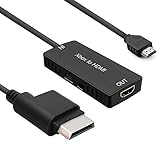
- 🎮 HD Link: Convert the native component signals from Xbox 360 to digital HDMI signals for modern HDTVs/monitors/projectors.
- 🎮Awesome Image: Provide the best signal processing with great precision, colors, resolution and details at this price.
- 🎮HD Ready: maximum possible video quality from our HDMI converter cable. Xbox 360 games that are native 720p will run in their respective resolutions.
- 🎮Compatible with: Microsoft Xbox 360 / XBOX 360 Slim.
- 🎮High Definition Connection; Plug and play; Need External Power Required; Won't affect the sound quality!
Remote Play is not guaranteed for first-time setup
A console that has never been configured, connected to the network, or signed into the relevant account may not be immediately reachable through Remote Play. If possible:
- Connect the Xbox temporarily to a working TV or monitor.
- Complete initial console setup.
- Connect it to the network.
- Sign in to the Microsoft account.
- Enable remote features.
- Confirm that the console appears as available for Remote Play.
- Only then move it away from the display.
Do not promise Remote Play as a recovery method for every Xbox with a dead HDMI port.
Independent reader supportYour contribution helps us test, update, and keep practical guides available for everyone.What will not work as a general solution
- Bluetooth video: Pairing an Xbox directly to a TV by Bluetooth does not normally transmit the console’s game video. Bluetooth may connect a controller or other audio device, but a controller’s wireless connection is not a display connection.
- Generic phone casting: AirPlay, Chromecast, Miracast, and phone screen mirroring are not universal Xbox-to-TV solutions. Do not assume a “cast” button can display an Xbox console session.
- A USB cable: A normal USB connection is not a substitute for the Xbox’s HDMI video output.
- An HDMI switch: A switch adds or shares HDMI inputs; it does not convert or wirelessly transmit the signal.
- A cheap HDMI-to-VGA cable: Many such setups require active conversion and separate audio, so a passive cable may produce no picture.
Troubleshooting flow
- Does the Xbox show video directly on any display? Test a known-good HDMI cable and TV.
- Is the Xbox HDMI port intact? If not, adapters and wireless HDMI are unlikely to help.
- Is the TV input compatible? Identify whether you need a converter, not merely an adapter.
- Is the wireless kit powered and paired? Check both power supplies and the TV input.
- Is the display mode supported? Temporarily set the Xbox to 1080p/60Hz.
- Is Remote Play enabled? If not, use a temporary display to configure it.
- Is the endpoint supported? Verify the exact TV, Fire TV model, app, firmware, and region.
- Is the network stable? Prefer Ethernet for the Xbox and 5GHz Wi-Fi for the receiver.
- Would repair be better? Choose repair when you need full local games, physical media, and reliable low-latency output.
Wireless HDMI shows no picture
- Power-cycle the Xbox, transmitter, receiver, and TV.
- Use short, known-good HDMI cables.
- Set the Xbox temporarily to 1080p/60Hz.
- Move the transmitter and receiver closer together.
- Remove nearby sources of wireless interference.
- Test the Xbox directly on the TV.
- Test the kit with another HDMI source.
Remote Play connects but lags
Use Ethernet for the Xbox, 5GHz Wi-Fi for the receiving device, and pause downloads or streaming on the network. Test on a local connection, then compare a phone, PC, and TV endpoint. If the app or browser offers a quality setting, reducing visual quality may improve responsiveness.
Cloud Gaming has a queue or the game is unavailable
The game may not be cloud-enabled, included in the selected plan, available in your region, or currently offered on that platform. Catalogs and features change, so check Microsoft’s current cloud library and service page.
The TV is smart but cannot run Xbox
“Smart TV” is not a compatibility standard. Check the exact model number, model year, operating system, firmware, region, app availability, and controller support.
A converter produces a black screen
Likely causes include an HDCP mismatch, unsupported resolution or refresh rate, a passive adapter where active conversion is needed, or an unsupported audio path. Start with a direct HDMI test and use a known-compatible display to lower the Xbox output settings.
Which option should you choose?
- “I want no cable across the room.” Choose wireless HDMI if you want the Xbox’s local output and can accept short cables, power supplies, range limits, and possible latency.
- “My TV has only VGA, DVI, component, or composite.” Choose a compatible converter, preferably one with published resolution, HDCP, and audio specifications. Expect lower quality.
- “My Xbox HDMI port is broken.” Try Remote Play only if the console was already configured and remains reachable. Otherwise, seek repair; cloud gaming is a separate alternative, not a repair.
- “I want to play on a bedroom TV.” Use Remote Play for games running on your console, wireless HDMI for the console’s actual output, or cloud gaming if the bedroom TV supports it.
- “I do not own an Xbox.” Cloud Gaming on a supported TV or streaming device may work, subject to region, controller, plan, and game availability.
- “I need 4K/120Hz, HDR, VRR, or the lowest latency.” Use direct HDMI whenever possible. Verify every feature individually before choosing wireless hardware.
For current cloud-device compatibility, consult Microsoft’s Xbox on TVs page. For subscription details, use the official Xbox Game Pass page; plan names, prices, promotions, and eligibility can vary by market, account, and date.
Quick wins for a faster PC:
Repair Windows errors before they cause bigger problemsFix Now →Scan for outdated or missing drivers - takes under a minuteDriver Scan →Clear out junk files and repair common Windows errorsFree Scan →Quick Recap

Product prices and availability are accurate as of the date/time indicated and are subject to change. Any price and availability information displayed on Amazon at the time of purchase will apply.

