Free tools Windows power users keep installed
One-click scans. No signup required.
Some links on this page are affiliate links: if you buy through them we may earn a commission, at no extra cost to you.
If Cyberpunk 2077 looks soft, smeared or fuzzy, first check whether the blur affects the whole game or just the HUD. For a quick PC test, use your display’s native resolution, turn off Dynamic Resolution Scaling, Film Grain, Chromatic Aberration, Motion Blur and Depth of Field, and disable Frame Generation. If you still need an upscaler, start with DLSS, FSR or XeSS Quality. These steps help isolate the cause without assuming there is one universal blur bug.
Menu labels and available graphics options vary by platform, hardware and game version. Update the game through your platform’s launcher before troubleshooting; CD PROJEKT RED’s PC support hub lists current support information.

Try these settings first
On PC, open Settings → Graphics and use this temporary clarity-focused baseline. Change one setting at a time afterward if you want to keep some visual effects.
Recommended Free Tools
- Resolution: Set the game to your monitor’s native resolution.
- Dynamic Resolution Scaling: Turn it off while diagnosing.
- Film Grain, Chromatic Aberration and Motion Blur: Turn them off to check whether post-processing is making the image look soft or ghosted.
- Depth of Field: Turn it off temporarily if distant scenery, menus or other areas look unexpectedly soft.
- Resolution scaling: Compare with scaling off at native resolution. If performance is too low, choose an available upscaler’s Quality mode.
- Frame Generation: Turn it off until the underlying image looks sharp.
Fullscreen and borderless modes can both work; pick one for the comparison rather than switching between them. If a resolution or scaling change appears not to take effect, restart the game and check again.
#1 Best Overall
First identify what looks blurry
The whole scene looks soft
Check output resolution, internal render resolution, Dynamic Resolution Scaling and the upscaler preset first. A game outputting 1080p to a 1440p or 4K display will usually look softer than one rendered at the display’s native resolution. The output resolution shown in settings also does not guarantee that the game is rendering internally at that resolution: scaling can reduce internal resolution to improve performance.
Only the minimap, menus or other HUD elements look fuzzy
This points more toward HUD effects than a problem with the entire 3D image. Open the game’s Accessibility options and try Remove HUD Visual Effects and Remove HUD Lens Distortion. The first removes HUD chromatic-aberration effects; the second disables lens distortion affecting elements such as the settings menu and minimap. CD PROJEKT RED describes these options in its Accessibility features guidance. Menu locations can differ by platform or update.
It looks hazy, gray or washed out
That is not necessarily low resolution. Temporarily turn HDR off and compare, then check the display’s HDR calibration and picture processing. If text and scenery are sharp but highlights, shadows or colors look wrong, concentrate on HDR and display settings rather than lowering the upscaler quality.
Crashes, No Sound, or Screen Glitches?
Random freezes, missing sound and display glitches usually trace back to one bad driver. Find and replace yours safely.Free scan · under a minutePC Slower Than It Used to Be?
A free scan shows the junk files, broken settings and background clutter dragging Windows down - then fixes them in one click.Free scan · Windows 10 & 11Rank #2

- The perfect quick reference tool for Cyberpunk RED.
- Includes all the tables a Gamemaster or Player needs to play the game.
- Four panels of gorgeous art, complete with a great view of Night City.
- Shield your notes from the prying eyes of others at your table
- Made of sturdy thick cardstock
Fix blurry graphics on PC
Check native resolution and scaling
- In Settings → Graphics, confirm the output resolution matches the monitor’s native resolution.
- Turn off Dynamic Resolution Scaling temporarily. It can lower internal resolution when the game tries to maintain a frame rate.
- Turn resolution scaling off for a native-image comparison, if your hardware can run it smoothly enough to make a fair comparison.
- If you need scaling, try DLSS, FSR or XeSS at Quality first. Try Balanced only if you need more performance; Performance and Ultra Performance modes can look softer, especially on fine detail.
Resolution-scaling labels and choices have changed over updates and depend on supported hardware. Update 2.1 changed how the modes are presented and added a toggle among DLSS Super Resolution, AMD FSR 2.1 and Intel XeSS; see the Update 2.1 notes. Use the options actually shown on your system rather than expecting every platform to have identical controls.
Choose an upscaler by testing, not by reputation
DLSS is not automatically blurry, and disabling it is not guaranteed to improve the image. Results depend on output resolution, preset, hardware, scene and display. Compare like with like: stand in the same spot, look at fine details and moving objects, and avoid judging a native-resolution run only during a heavy scene where performance has collapsed.
- NVIDIA RTX: Compare native rendering with DLSS Super Resolution. If you need DLSS, start with Quality. If the option is available, compare the Transformer and CNN models; neither is a guaranteed fix for every scene. Patch 2.21 added the Transformer model for DLSS Super Resolution, Ray Reconstruction and DLAA on RTX cards. Its reported improvements to detail in motion and stability make it worth testing, not assuming. See CD PROJEKT RED’s DLSS 4 guidance.
- AMD or other supported hardware: Compare native rendering with FSR or XeSS where available, starting at Quality or Ultra Quality. Adjust sharpening conservatively if the game offers a control; too much sharpening can create bright outlines without restoring lost detail.
- FSR 3: Upscaling and Frame Generation are separate functions. CD PROJEKT RED says the game retains FSR 2.1 support as well as FSR 3; FSR Frame Generation requires FSR 3 upscaling to be enabled. Its support page recommends a baseline of at least 60 FPS and a 120 Hz-or-higher display for Frame Generation quality and pacing, not for ordinary upscaling. See the FSR 3 support page.
Frame Generation creates additional displayed frames; it does not recover detail lost because the game rendered at a low internal resolution. Leave it off while diagnosing, establish a sharp, stable base image, and then test it if you want smoother motion. Watch the HUD, foliage, neon signs, lights and moving vehicles for ghosting or other artifacts. DLSS 4 Multi Frame Generation is for RTX 50-series cards; single Frame Generation support applies to compatible RTX 40- and 50-series cards, subject to the game’s available options.
Rank #3
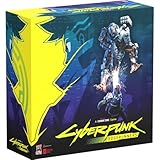
- Command Edgerunners like David, Lucy, and Maine in intense tactical battles against the Arasaka Corporation and Adam Smasher.
- Features a complete 2-player starter set with acrylic StandUpz, double-sided game board, scenery, and essential components for immediate play.
- Utilizes Monster Fight Club’s [RE]action System for fluid, cinematic combat that rewards smart strategy and quick decisions.
- Fully compatible with Cyberpunk RED: Combat Zone, allowing cross-play and expanded tactical possibilities.
- Immerse yourself in a dark futuristic world of rebellion, cybernetic warfare, and street survival.
Test Ray Reconstruction if details smear
If in-game screens, lights or moving details look smeared rather than simply soft, turn DLSS Ray Reconstruction off as a test. Update 2.21 fixed a specific smudging issue on in-game screens when Ray Reconstruction was used, but behavior can still vary by scene, hardware and driver. If disabling it helps, compare the Transformer and CNN models if available, or leave Ray Reconstruction off if the cleaner image is worth its lighting trade-off. The Patch 2.21 notes also document a Chromatic Aberration adjustment issue and a resolution-scaling/Frame Generation reset fix.
Check overlays, mods and drivers
After the settings tests, temporarily disable overlays such as Discord, NVIDIA App or GeForce Experience, AMD software, and MSI Afterburner/RivaTuner. Remove ReShade, graphics mods, DLSS replacement files and upscaling injectors for a clean comparison. Then install the current driver appropriate to your GPU; do not rely on an old, page-specific driver version as a universal requirement. If the problem persists, try a clean driver installation and verify the game files through Steam, GOG or Epic.
Fix blur on PS5 and Xbox
Console graphics controls differ from PC, so start with the game’s own graphics modes rather than looking for PC-only upscaler settings.
Rank #4

- FOR CYBERPUNK 2077 VIDEO GAME FANS: You might lose your sanity in Night City, but at least you won't lose your keys
- QUALITY DESIGN: Molded flat relief design; sturdy metal alloy construction with enamel color finish
- IDEAL SIZE: Keychain design measures approximately 2.75 inches x 0.84 inches
- AUTHENTIC CYBERPUNK 2077 KEY CHAIN: Officially licensed by CD PROJEKT RED; designed and created by JINX
- Update the game, then compare Quality and Performance modes. Quality is often clearer; Performance favors frame rate and may use lower or dynamic rendering resolution.
- Confirm the console is outputting a resolution supported by the TV and that the TV is using the correct HDMI input settings for 4K, if applicable.
- Enable the TV’s Game Mode. Temporarily disable motion smoothing, noise reduction and excessive edge enhancement or sharpening.
- If the picture is hazy or washed out rather than simply soft, compare HDR on and off, then recalibrate HDR and the TV picture settings.
Performance mode is not guaranteed to render at native 4K throughout play. Update 2.0 changed the target upscaling resolution in PS5 and Xbox Series X Performance Mode from dynamic 4K to dynamic 1800p; actual resolution can vary with conditions. Xbox Series S also has different capabilities, and Patch 2.21 fixed a bug that could make its Graphics Mode incorrectly default to Quality instead of Performance. See the Update 2.0 notes and Patch 2.21 notes.
PS5 Pro: Its version has separate Performance, Ray Tracing and Ray Tracing Pro modes and upgraded PlayStation Spectral Super Resolution. Treat it as a separate graphics configuration: compare its available modes rather than assuming standard PS5 behavior. Details are in CD PROJEKT RED’s PS5 Pro update announcement.
Steam Deck: prioritize a stable render resolution
Do not expect the Deck to produce a sharp 1080p-like image in every configuration. Lower internal resolutions and aggressive upscaling can look soft on its handheld display. Try the highest internal resolution the device can sustain steadily, and reduce demanding effects before lowering resolution further. Compare native scaling with FSR or XeSS if available; there is no single choice that will look best in every scene. An SSD is required for the PC version on Steam Deck following Update 2.0; see the Update 2.0 notes.
Best Value

- From the award-winning game Cyberpunk 2077
- The ex-nomad of the Aldecaldo family is recreated with incredible detail
- Stands approximately 9” tall
- Display base included
Tell blur, ghosting and shimmer apart
- Softness everywhere, including still scenes: Check output and internal resolution, dynamic scaling, upscaler preset and display scaling.
- Ghost trails behind moving objects or UI: Disable Frame Generation and compare upscalers; test Ray Reconstruction and HUD visual effects separately.
- Smearing on in-game screens or lights: Update the game and driver, then test Ray Reconstruction off.
- Shimmering on foliage, neon or fine edges: Compare native rendering and upscalers at Quality. Temporal reconstruction can behave differently in motion than in a still screenshot.
- Only distant objects look soft: This can be a reconstruction or depth-of-field effect rather than a faulty display.
- Washed-out or hazy image: Test HDR, TV picture processing and the display’s Game Mode before treating it as a resolution problem.
Check whether the display is the source
Compare Cyberpunk 2077 with the console or PC dashboard, another game, or another input on the same screen. Confirm resolution and refresh rate are supported, use Game Mode, and turn off motion interpolation, noise reduction and aggressive edge enhancement for the test. On a 4K TV, check the HDMI input’s enhanced format setting if the console or PC is connected through HDMI. If the picture is intermittently soft or unstable, try another HDMI port or cable. If every source looks blurry, the problem is more likely in the display, cable or input configuration than in the game.
If the blur returns or none of this works
- Restart the game after changing resolution-scaling options. If settings revert after restart, check scaling and Frame Generation again; Patch 2.21 addressed a reset issue involving these settings.
- Reset Graphics settings to default, then reapply the diagnostic preset.
- Disable overlays and remove graphics mods or injected upscalers. Restore original game files before testing further.
- Verify or repair game files in your platform launcher.
- Install a current GPU driver; if ordinary updating fails, try a clean installation.
- Load an earlier save if the visual problem began after a particular event or location.
- Reinstall only if the prior steps fail. If you contact support, include a short video or screenshot that shows the problem and note your platform, display resolution, graphics mode and relevant scaling settings.
CD PROJEKT RED’s visual-issue guidance also recommends driver updates or a clean installation, verifying the game cache, trying an earlier save and reinstalling if the issue persists.
Quick Recap
Quick troubleshooting path
- Only HUD blurry? Try Remove HUD Visual Effects and Remove HUD Lens Distortion.
- Whole image soft? Check native output resolution, disable Dynamic Resolution Scaling and test scaling off or an upscaler at Quality.
- Blur mainly in motion? Disable Frame Generation and test Ray Reconstruction and the upscaler separately.
- Hazy or washed out? Compare HDR off and on and disable display-side processing for a test.
- Still wrong? Remove mods and overlays, verify files, clean-install the driver and test an earlier save.
Product prices and availability are accurate as of the date/time indicated and are subject to change. Any price and availability information displayed on Amazon at the time of purchase will apply.
Do these 3 things before closing this tab:
1Clear out junk files and repair common Windows errors2Fix the driver behind crashes, sound loss and screen glitches3Repair Windows errors before they cause bigger problems
