To fix a World of Warcraft Lua error, first update addons for the correct game version, then disable all addons and isolate the one causing the error. If it persists, inspect the full error, reset the addon’s saved settings, or reset the affected client’s UI and CVars. A Lua error is a failure in UI scripting: an addon may be responsible, but Blizzard’s UI, saved settings, or corrupted configuration can also be involved.
What a WoW Lua error means
Lua errors report failures in the game’s user interface code. The file named in an error is a useful clue, not proof of the root cause: an addon can taint shared UI behavior and make Blizzard code appear in the stack trace, while Blizzard’s default UI can also produce errors without third-party addons. Blizzard recommends updating addons, disabling all addons, and resetting the UI if the problem continues. See Blizzard’s technical troubleshooting guidance and this Blizzard forum troubleshooting example.
| # | Preview | Product | Price | |
|---|---|---|---|---|
| 1 |

|
World of Warcraft - PC/Mac | $17.39 | Buy on Amazon |
| 2 |

|
Warcraft III Battle Chest - PC/Mac | $37.80 | Buy on Amazon |
| 3 |

|
World Of Warcraft Battle Chest (PC/Mac) | $59.99 | Buy on Amazon |
| 4 |

|
World of Warcraft Battle for Azeroth - PC Standard Edition | $29.99 | Buy on Amazon |
| 5 |
|
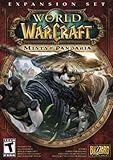
World of Warcraft: Mists of Pandaria - PC/Mac - (Obsolete) | $14.36 | Buy on Amazon |
The steps below apply to Retail, Classic, and Classic Era, but use the files and addons for the client where the error occurs. Current Retail is Midnight on the 12.0.x client series; Blizzard released patch 12.0.5 on April 21, 2026 (Blizzard’s 12.0.5 announcement). Midnight’s 12.0.0 pre-patch introduced major addon API changes. On modern Retail, addons without an interface version of at least 120000 are not allowed to load in 12.0.0-and-later builds, so enabling “Load out of date AddOns” is not a general fix. See the planned 12.0.0 API changes.
WoW keeps each client’s addons in a separate directory. The relevant path is usually one of these:
Do these 3 things before closing this tab:
1Repair Windows errors before they cause bigger problems2Fix the driver behind crashes, sound loss and screen glitches3Clear out junk files and repair common Windows errors#1 Best Overall
- World of Warcraft Game
- Includes Expansion Packs: The Burnings Crusade, Wrath of the Lich King, Cataclysm, and Mists of Pandaria
- 30 days of free game time included
- Includes levels 1 through 90
- Subscription, Internet connection, and Battle.net registration required
World of Warcraft_retail_InterfaceAddOnsWorld of Warcraft_classic_InterfaceAddOnsWorld of Warcraft_classic_era_InterfaceAddOns
Do not use a Retail addon copy in a Classic client or assume that updating one flavor updates another. CurseForge’s WoW addon troubleshooting guide explains how game flavor affects addon installation.
1. Update or reinstall addons for the correct game version
- Exit World of Warcraft.
- Open your addon manager and select the flavor you actually play: Retail, Classic, or Classic Era.
- Update all addons for that flavor.
- If an addon is reported as corrupt, modified, or installed for another flavor, uninstall and reinstall its compatible version rather than merely enabling it.
- Launch the same client and test the same character and activity that produced the error.
An addon manager can update the wrong client: a new Classic copy does not update the Retail copy, even when both addons have the same name. If necessary, check the physical installation path, such as World of Warcraft_retail_InterfaceAddOnsAddonName or World of Warcraft_classic_InterfaceAddOnsAddonName. CurseForge recommends reinstalling when installed files do not match the files on its servers and warns about choosing the wrong game flavor (addon troubleshooting guide).
A successful update does not guarantee that the addon is free of bugs. The error might depend on a particular character, class, zone, combat situation, or Blizzard UI feature.
2. Disable all addons and isolate the culprit
In-game, open Main Menu > Addons > Disable All. This is Blizzard’s recommended first isolation test (Blizzard technical troubleshooting). Reproduce the error on the same character and under the same conditions.
Rank #2
- Warcraft III Battle Chest
If the error stops, use a half-at-a-time test to narrow down the cause:
- Re-enable half of your addons, then reload or log in and reproduce the trigger.
- If the error returns, the responsible addon is in the half you re-enabled. If it does not, it is in the half still disabled.
- Keep dividing the relevant group in half and retesting until you identify an addon or interacting group.
- Update, reinstall, replace, or remove the culprit, then repeat the original test.
This is quicker than enabling every addon individually when you have a large setup. Keep the trigger consistent: addon behavior may differ by character, class or specialization, realm, profile, zone, combat state, group size, or the specific panel, tooltip, map, nameplate, or Edit Mode layout being used.
If the error continues with addons disabled, verify that you disabled addons in the client you launched and that your addon manager did not restore them. A clean addon test does not rule out saved UI data, CVars, or Blizzard UI code; Blizzard notes that a full UI reset may still be needed (technical troubleshooting).
3. Display the complete error and identify its clues
To show errors, enter this in the in-game chat box:
What’s actually slowing this PC down?
Pick the symptom - the matching free tool is one click away.
/console scriptErrors 1
To hide the error windows again, enter /console scriptErrors 0. Blizzard support representatives document both commands (Blizzard forum support reply). The old menu path Interface Options > Help > Display Lua Errors is outdated for modern clients; use the commands instead (current Blizzard forum guidance).
When diagnosing the problem, record the complete message rather than only the first line:
- The error message and file path.
- The line number and stack trace.
- The addon name, if one is shown.
- The action that triggered the error and the character or context where it occurred.
A path under Interface/AddOns/AddonName/... often points to an addon worth testing. Paths under FrameXML, SharedXML, or Blizzard_* do not, by themselves, prove Blizzard’s code is the root cause: addon taint or saved settings may affect that code. A Blizzard UI bug is also possible (Blizzard forum troubleshooting example).
/console scriptErrors 0 only hides the display. It does not stop or repair the underlying code, which may continue producing errors or cause broken functionality or UI failures (Blizzard forum guidance).
Quick wins for a faster PC:
Clear out junk files and repair common Windows errorsFree Scan →Fix the driver behind crashes, sound loss and screen glitchesFind Drivers →Rank #4
- Enter a world divided
- Recruit Allied races
- Plunder Uncharted islands
- Storm the warfronts
- Includes level 110 character Boost
4. Reset the addon’s saved settings
Addon program files and configuration are separate. Reinstalling an addon does not necessarily remove its saved variables, which are primarily stored under the client’s WTF directory. Back up the relevant files before changing them; CurseForge recommends backing up both AddOns and WTF folders (backup guidance).
- Exit WoW completely and back up the affected client’s
WTFfolder. - Look for the suspected addon’s saved-variable files in the appropriate client directory. Account-wide settings are commonly under paths such as
World of Warcraft_retail_WTFAccount<Account>SavedVariables; Classic and Classic Era use their corresponding client folders. - If the error is character-specific, inspect that character’s account, realm, and character folders as well.
- Rename the suspected saved-variable files rather than deleting them, then launch the client and test again.
Authors may use saved-variable names that differ from the addon folder name, so check the relevant addon documentation if the files are not obvious. If a clean configuration fixes the error, restore the backup selectively: restoring the file that recreates the error identifies the setting data involved.
Independent reader supportYour contribution helps us test, update, and keep practical guides available for everyone.5. Reset the affected client’s UI and CVars
Use a full UI reset after the addon and saved-variable checks. Close the game, open the directory for the affected client, and rename these folders rather than deleting them:
CachetoCacheOldInterfacetoInterfaceOldWTFtoWTFOld
For example, work inside the _retail_, _classic_, or _classic_era_ client directory as appropriate. Blizzard’s documented UI reset uses these three folders (Blizzard UI reset search results).
Best Value
- Master the Path of the Monk - Learn the mystic powers of the Monk, World of Warcraft's newest playable class. Destroy foes with the Windwalker's devastating attacks, replenish allies with the Mistweaver's spiritual energies, and shrug off enormous damage with the Brewmaster's unyielding strength.
- Battle to level 90 - Ascend to new heights of power as you explore the verdant reaches of the Jade Forest, war with the terrible Yaungol on Kun-Lai Summit, and unlock the secrets of the Mogu'shan Vaults.
- Unleash the Mighty Pandaren - Set out as a member of the enigmatic Pandaren -- World of Warcraft's first neutral race -- and join the ranks of either the Horde or Alliance as you enter the conflict brewing on Pandaria's shores.
- Discover a Lost Continent - Explore the ancient kingdoms of Pandaria and mount your defense against a newly awakened evil stirring in the continent's dark corners.
- Launch the affected client and log in.
- Test before reinstalling addons. Do not let an addon manager automatically restore the entire addon set during this test.
- If the error is gone, reinstall addons one at a time and test after each addition.
If the problem remains after the folder reset, reset console variables to their coded defaults with:
/console cvar_default
A permission warning for protected CVars can appear; it is expected and does not mean the command failed completely. This command resets CVars to coded defaults. The Defaults button in settings resets only settings exposed through that interface (CVar command reference). Reload the current UI afterward with /reload. That reload saves current settings but does not load newly installed addon files; restart the client to load those (/reload reference).
When only one character has the error
A character-only error can come from character-specific settings, saved variables, Edit Mode data, macros, or synchronized configuration. Back up and reset that character’s data before resetting the whole account. WoW can restore account- or character-specific configuration from server-side values after local files are removed; if /console cvar_default fixes an error that survived the folder reset, a synchronized or server-restored CVar is a likely cause (console variable reference).
Quick Recap
Product prices and availability are accurate as of the date/time indicated and are subject to change. Any price and availability information displayed on Amazon at the time of purchase will apply.
Free tools Windows power users keep installed
One-click scans. No signup required.

