Nintendo Switch error 2618-0502 means the console lost contact with the online service or timed out before matchmaking began. Reconnect to Wi-Fi and restart your modem and router first; then check signal quality and NAT if the error continues. The code alone does not mean the console is broken.
What error 2618-0502 means
Nintendo describes error 2618-0502 as a connection failure that occurs before matchmaking starts, often because the wireless or internet connection dropped or timed out. A Switch can connect to the internet for ordinary browsing or downloads and still fail to join a particular online match: games may rely on network communication that the router, ISP, or another player’s network does not support reliably. NAT can be part of the problem, but it is not the only possible cause. Nintendo’s error-code guidance covers Nintendo Switch, Switch Lite, Switch OLED Model, and Switch 2.
The steps below use the original Switch-family menu labels. On Switch 2, Nintendo’s support instructions may label the settings menu “Settings” rather than “System Settings.”
Try these fixes first
- Reconnect the console to its saved Wi-Fi network and let the connection test finish.
- Restart the modem and router in the correct order, waiting at least 30 seconds while they are unplugged.
- Test near the router, with the Switch temporarily undocked, and try the other Wi-Fi band if one is available.
- Run the Switch’s Test Connection and note the NAT type before changing advanced router settings.
Reconnect to Wi-Fi
- From the HOME Menu, open System Settings > Internet > Internet Settings.
- Select the correct network name. Enter its password if prompted.
- Wait for the Switch to complete its connection test, then retry the match.
If the network is missing or the test fails, check that the router is on and other devices can connect. During troubleshooting, bring the console within about 10 feet of the router; Nintendo also suggests testing within 10–15 feet. This is a temporary diagnostic distance, not a requirement for normal play.
#1 Best Overall

- The next evolution of Nintendo Switch
- One system, three play modes: TV, Tabletop, and Handheld
- Larger, vivid, 7.9” LCD touch screen with support for HDR and up to 120 fps
- Dock that supports 4K when connected to a compatible TV*
- GameChat** lets you voice chat, share your game screen, and connect via video chat as you play
Power-cycle the modem and router
- Unplug the modem. If the router is a separate device, unplug it too.
- Wait at least 30 seconds.
- Plug the modem back in first and wait for its indicator lights to stabilize.
- Plug the router back in and wait for its lights to stabilize.
- On the Switch, open System Settings > Internet > Test Connection, then try matchmaking again.
If a modem’s lights stay on after it is unplugged, it may have a backup battery; Nintendo notes that removing the battery may be necessary to complete the power cycle. Do not press the router’s reset button for this step: a power cycle is not a factory reset.
Rule out Wi-Fi signal and interference
- Test in the same room as the router and temporarily remove the Switch from its dock.
- Move metal objects and electronics away from the console and router. Nintendo lists items such as speakers, power strips, filing cabinets, glass, and cordless phones as possible interference sources.
- Retry when large downloads, video streams, cloud backups, or other heavy network use have stopped.
These checks help isolate a wireless problem; they do not establish that interference is the cause. If the test remains unstable close to the router, continue to the connection and NAT checks.
Rank #2

- 6.2” LCD screen
- Three play modes: TV, tabletop, and handheld
- Local co-op, online, and local wireless multiplayer
- Detachable Joy-Con controllers
- Nintendo Switch is the home of Mario & friends
Try the other Wi-Fi band
If your router broadcasts separate 2.4 GHz and 5 GHz network names, test the other one:
- Open System Settings > Internet > Internet Settings.
- Select the other network name, enter its password if prompted, and allow the connection test to finish.
- Retry the same online match.
As a general wireless trade-off, 2.4 GHz usually reaches farther and passes through walls better but may be more congested. 5 GHz often performs better nearby but generally has less range through walls. Neither band is a guaranteed fix.
The Tool Desk
Outbyte Driver Updater FREEFix the driver behind crashes, sound loss and screen glitchesFind Drivers →Outbyte PC Repair FREERepair Windows errors before they cause bigger problemsFix Now →Rank #3
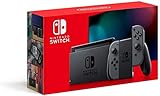
- Play your way with the Nintendo Switch gaming system. Whether you’re at home or on the go, solo or with friends, the Nintendo Switch system is designed to fit your life. Dock your Nintendo Switch to enjoy HD gaming on your TV. Heading out? Just undock your console and keep playing in handheld mode
- This model includes battery life of approximately 4.5 to 9 hours
- The battery life will depend on the games you play. For instance, the battery will last approximately 5.5 hours for The Legend of Zelda: Breath of the Wild (games sold separately)
- Model number HAC 001(01)
Read the connection test and NAT result
- Open System Settings > Internet > Test Connection.
- Record whether the console connects and obtains an IP address, the download and upload speeds shown, and the NAT type.
Speed and NAT describe different things: a good speed result does not rule out a matchmaking problem. NAT is a clue about how the network handles connections between players, not an internet-speed score. Nintendo says restrictive NAT can prevent some online activities, and the other player’s NAT can also affect whether a connection succeeds. No single NAT letter is guaranteed to work in every game or player pairing. See Nintendo’s NAT troubleshooting guidance for its explanation and network-level steps.
Use manual DNS only as a diagnostic
Nintendo recommends trying Google Public DNS to check whether the current DNS service is failing to resolve addresses. It will not fix weak Wi-Fi, restrictive NAT, carrier-grade NAT, router filtering, or an unstable ISP connection.
Rank #4

- Play your way with the Nintendo Switch gaming system. Whether you’re at home or on the go, solo or with friends, the Nintendo Switch system is designed to fit your life. Dock your Nintendo Switch to enjoy HD gaming on your TV. Heading out? Just undock your console and keep playing in handheld mode
- This model includes battery life of approximately 4.5 - 9 hours.
- The battery life will depend on the games you play. For instance, the battery will last approximately 5.5 hours for The Legend of Zelda: Breath of the Wild (games sold separately)
- Model number HAC 001( 01)
- Open System Settings > Internet > Internet Settings and select the saved network.
- Choose Change Settings > DNS Settings > Manual.
- Set Primary DNS to
8.8.8.8and Secondary DNS to8.8.4.4, then save. - Run System Settings > Internet > Test Connection and try matchmaking.
Nintendo identifies these as Google Public DNS servers, which are subject to Google’s terms of service. If the test does not help, return to DNS Settings and select Automatic, unless you have a specific reason to keep manual DNS.
Independent reader supportYour contribution helps us test, update, and keep practical guides available for everyone.If NAT or the router setup looks restrictive
Check whether you have two routers
A common arrangement is a modem or modem-router gateway connected to a second router. Two devices both routing traffic can create double NAT, which may make peer-to-peer matchmaking more difficult. Check the equipment and ask your ISP or network administrator how the devices are configured; do not assume the error code proves double NAT.
Do these 3 things before closing this tab:
1Clear out junk files and repair common Windows errors2Fix the driver behind crashes, sound loss and screen glitches3Repair Windows errors before they cause bigger problemsBest Value

- This pre-owned product is not Apple certified, but has been professionally inspected, tested and cleaned by Amazon-qualified suppliers.
- 6.2” LCD screen.
- Three play modes: TV, tabletop, and handheld
- Local co-op, online, and local wireless multiplayer
- Detachable Joy-Con controllers
Try Nintendo’s IPv6 test
- Open System Settings > Internet > Internet Settings and select the saved network.
- Choose Change Settings > IPv6 Connection and turn it off as a test.
- Save, run Test Connection, and retry the match.
If disabling IPv6 makes no difference, restore the prior setting. Nintendo also recommends checking for router firmware updates and contacting the ISP or network administrator when NAT-related problems persist.
Ask the ISP about restrictions
If other steps point to the home network, ask whether the service uses carrier-grade NAT or another restriction that affects peer-to-peer connections. An ISP may be able to explain available configurations, but the error code alone cannot confirm that carrier-grade NAT is in use. On school, hotel, dorm, workplace, or public Wi-Fi, contact the network administrator rather than changing equipment you do not control.
A hotspot or another trusted network can be a useful comparison. If the Switch works there but not at home, that points toward the home router or ISP; it does not prove which one is responsible. Hotspots can have their own NAT limitations.
Use the pattern of failures to narrow the cause
- All games and players fail: Focus first on the console’s connection test, home Wi-Fi, router setup, and ISP.
- Only one game or mode fails: The problem may be limited to that title’s service, maintenance, or matchmaking rather than the Switch’s general connection.
- Only one friend fails: Compare results with another player; the friend’s NAT or network may be involved.
- The problem returns after a temporary fix: Note whether it recurs during heavy network use. Wireless interference, router instability, ISP congestion, or firmware may be contributing.
- The Switch fails on multiple known-good networks: Contact Nintendo Support with the error code and connection-test results.
What not to do
- Do not factory-reset the Switch, delete save data, or buy a replacement console as an early troubleshooting step.
- Do not enable DMZ, disable the router firewall, or copy port-forwarding instructions from an unrelated guide. Router and ISP configurations differ, and these changes can reduce network security.
- Do not change MTU or buy a “NAT fixer” without a specific diagnosis.
When to contact support
Contact Nintendo Support if the error persists after the basic network steps and occurs on multiple networks, or if the Switch cannot complete a basic connection test. If it fails only on one managed or home network, contact that network’s administrator or your ISP; share the recorded NAT result and whether the console obtained an IP address. Those details are more useful for narrowing the issue than the error code alone.
Quick Recap
Product prices and availability are accurate as of the date/time indicated and are subject to change. Any price and availability information displayed on Amazon at the time of purchase will apply.



