The “Failed to lock profile” message is a documented Fortnite: Save the World error. First check Epic’s service status, wait a few minutes, then fully close and relaunch Fortnite. On PC, Epic also recommends verifying the game files; console players should check for game and system updates, clear the console cache where supported, and power-cycle the console. These steps can help with local or temporary problems, but none guarantees that a server-side session issue or missing mission reward will be resolved.
What does “Failed to Lock Profile” mean?
Epic documents this exact error for Fortnite: Save the World, not as a general Battle Royale-specific message. The game cannot obtain or maintain the profile or session state it needs to enter or continue a mission. Epic’s support article gives troubleshooting steps but does not identify a definitive technical cause.
The wording suggests the game may still be clearing an earlier session when it tries to start another. That is a reasonable interpretation, not a confirmed explanation from Epic. Players have reported seeing the error after crashes, network drops, being removed from a mission, or trouble rejoining, but those reports are anecdotal. Avoid assuming the cause is cloud saves, account corruption, or someone else using your account.
Epic’s support article for the error is specifically filed under Save the World. If it appears while switching modes, start by treating it as a Save the World session problem rather than evidence that your entire Epic account is broken.
Do these 3 things before closing this tab:
1Repair Windows errors before they cause bigger problems2Scan for outdated or missing drivers - takes under a minute3Clear out junk files and repair common Windows errors#1 Best Overall

- Now Including Hall Effect Modules – Say goodbye to stick drift with contact-free magnetic sensors in the thumbsticks giving you smoother control, enhanced precision, and increased longevity
- Code for Bonus Virtual Item Included – Moon Bounce Emote
- 2 Types of Glow – Bring the spirit of the arcade to your controller with a glow in the dark effect and a reaction when a UV light is applied giving off a fluorescent glow
- Advanced Gaming Buttons – Get an edge over the competition with two mappable buttons you can program on-the-fly, mid-game—no system settings to configure
- 3-Way Trigger Locks – Set the travel distance of the triggers with three different positions to pull off quicker actions in your favorite FPS games or go full throttle in a high-end race car
Check whether Fortnite services are having a problem
Before changing local settings, check Epic’s public status page. Look at Fortnite’s Game Services, Login, and Matchmaking components. Epic’s page showed Fortnite services and matchmaking as operational on August 18, 2026; status can change, so check the live page when the error occurs.
A reported incident is a reason to wait for Epic’s resolution rather than reinstalling the game. A green status page does not rule out a regional, account-specific, or Save the World-only issue. Epic’s console troubleshooting page also points players to Fortnite Status and the Fortnite Community Issues page for known issues.
Try the least disruptive recovery steps first
- If Fortnite still responds, return to the main lobby instead of immediately trying to enter the mission again.
- Wait several minutes. This is Epic’s direct instruction for the error.
- Fully close Fortnite, rather than merely minimizing the PC window or returning to the console dashboard.
- Relaunch the game and try Save the World again. A full restart is a practical workaround, not an Epic-confirmed cure.
If the error followed a crash or disconnect, give the earlier session time to clear before queuing again. Repeatedly trying the same mission immediately may not help. If the game is completely frozen, a forced close may be unavoidable; it can interrupt an active mission or save state.
Rank #2

- Code for Bonus Virtual Item Included – Tooth Pick Pickaxe
- Hall Effect Thumbsticks and Triggers – Contact-free magnetic sensors in the thumbsticks and triggers provide a more fluid pro-level feel to help with precision and longevity
- Low Latency Wireless – Play wirelessly on Xbox Series X|S, Xbox One, and Windows 10/11 using the included Wireless USB Adapter
- Advanced Gaming Buttons – Get an edge over the competition with 4 mappable buttons that you can program on the fly, mid-game—no system settings to configure
- 3-Way Trigger Locks – Set the travel distance of the triggers with three different positions to pull off quicker actions in your favorite FPS games or go full throttle in a high-end race car
Verify Fortnite files on PC
Epic lists file verification as a remedy for this error on PC. In the Epic Games Launcher:
- Open the Epic Games Launcher and select Library.
- Find Fortnite and click the three dots beside the game.
- Select Manage, then click Verify.
- Wait for validation to finish before launching Fortnite again.
Epic says verification checks for damaged or corrupted files and repairs files that differ. It does not affect saved data, though the check can take time. It cannot fix an Epic service outage or a server-side session that has not cleared; successful verification does not establish that your account or Fortnite services are functioning normally. See Epic’s file-verification instructions.
Troubleshoot on PlayStation, Xbox, or Nintendo Switch
Epic’s console guidance recommends working through updates, cache clearing, and power cycling before reinstalling. The exact cache-clearing procedure depends on the console, so use the manufacturer’s current instructions for your model rather than applying steps meant for another platform.
Rank #3
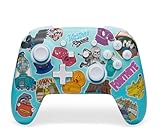
- Works with Nintendo Switch 2. C button not available
- Bonus Fortnite virtual item included (Googly Glider)
- Wireless controller with Bluetooth 5.0 technology
- Rechargeable lithium-ion battery: Up to 30 hours per charge*
- Two mappable Advanced Gaming Buttons
- Check for a Fortnite update, then check for a system software update.
- Clear the console cache if your platform supports it, following the manufacturer’s instructions.
- Power-cycle the console, then start Fortnite and test Save the World again.
- Reinstall Fortnite only if the earlier steps fail and a local installation problem remains plausible.
Epic gives these deletion paths if reinstalling becomes necessary:
- PlayStation: Highlight Fortnite from the main menu, press Options, and select Delete.
- Xbox Series X|S: Go to My Games & Apps → Games, highlight Fortnite, press Menu, and select Uninstall.
- Nintendo Switch: Highlight Fortnite, press
+, choose Manage Software, then Delete Software.
Reinstalling takes time and will not clear a live server-side lock. For persistent platform-specific trouble after these steps, consult Epic’s console troubleshooting guide and contact the platform manufacturer if needed.
What’s actually slowing this PC down?
Pick the symptom - the matching free tool is one click away.
Report the error if it keeps happening
Epic’s in-game reporting path is:
- Open the game menu: press
Escon PC, Options on PlayStation, Menu on Xbox, or+on Switch. On mobile, open Menu and then the gear icon. - Select the three-line menu, then REPORTING.
- Choose REPORT A BUG, PLAYER, OR ISLAND, then Report A Bug.
- Choose the closest reason, or Other if none fits. Select Accept, then Confirm.
Include details that help distinguish a temporary service problem from a recurring session or local issue:
Rank #4

- Now Including Hall Effect Modules – Say goodbye to stick drift with contract-free magnetic sensors in the thumbsticks giving you smoother control, enhanced precision, and increased longevity
- Advanced Gaming Buttons – Get an edge over the competition with two mappable buttons you can program on-the-fly, mid-game—no system settings to configure
- 3-Way Trigger Locks – Set the travel distance of the triggers with three different positions to pull off quicker actions in your favorite FPS games or go full throttle in a high-end race car
- Dual Rumble Motors – Take your gaming experience to the next level, providing tactile feedback and sensations that bring your virtual worlds to life
- Immersive Impulse Triggers – Provides reactive rumble sensations using built-in motors so you can feel the action of the game*
- The exact error text, platform, region, and approximate date and time.
- The Save the World mission or mode, and whether you were playing in a party or with fill enabled.
- Whether you had just disconnected, crashed, been removed, or returned to the lobby.
- Which steps you tried and whether any helped.
- A screenshot or video, if available.
Epic’s platform-specific directions are in its in-game bug-report guide.
Independent reader supportYour contribution helps us test, update, and keep practical guides available for everyone.What to check after reconnecting—and what not to assume
The message says Fortnite is checking that progress is recorded properly, but Epic’s support article does not promise a particular result for mission rewards or inventory changes. After reconnecting, check the relevant quest, inventory, reward, and mission status. If something appears to be missing, report it to Epic Support; do not assume it can be restored through a local setting.
Do not force-close the game while it is saving or returning to the lobby unless it is completely unresponsive. If an unexpected mission end occurred, allow time for the account state to settle before starting another mission.
Best Value

- Controller Holder: Gaming accessories straight from the Battle Bus to your workstation! Holds Xbox, PlayStation, Switch and most standard controllers securely while charging, or even your TV remote. Compatible with PS5 DualSense, Xbox Series X/S, Xbox One
- Phone Stand: Level up your gaming room accessories with a drop straight from the Island! Fits popular devices including iPhone, Samsung & Google Pixel, even with most phone cases. A great companion for any gaming station, desk setup or bedside outpost
- Fortnite Fans: The perfect gaming setup accessories for Fortnite fans. This collectible brings the iconic Supply Llama to life, while keeping your devices organized, on display and ready for your next Victory Royale
- Official Merchandise: Officially licensed Fortnite merch, this collectible figure is part of the popular Cable Guys range of gaming accessories. Ideal for Fortnite figure gifts or as a display piece for true fans. Built to hold, styled to survive
- Dimensions: At approximately 8.5 inches tall, these gamer desk accessories fit neatly into any setup, desk space or bedroom. The controller stand's stable circular base and secure arms keep your devices propped & primed, ready for whatever's thrown at you
If the error returns, record the pattern
A recurrence is useful information, not proof that a workaround permanently fixed the cause. Note the date and time, platform, region, mission, party or fill status, and whether a crash or disconnect happened first. If the same account sees the issue on more than one platform, local file corruption is less likely; check service status and known issues before reinstalling multiple copies. If friends can play while one account cannot, that makes a broad outage less likely, but does not prove an account fault.
Changing matchmaking region, using a VPN, changing DNS, deleting account data, or repeatedly reinstalling are not remedies in Epic’s current instructions for this error. Do not treat older third-party suggestions as guaranteed fixes, and do not delete account data to address a profile-lock message.
Quick Recap
Product prices and availability are accurate as of the date/time indicated and are subject to change. Any price and availability information displayed on Amazon at the time of purchase will apply.




