What’s actually slowing this PC down?
Pick the symptom - the matching free tool is one click away.
To show FPS with RivaTuner Statistics Server (RTSS), use MSI Afterburner to select the Framerate metric, then let RTSS draw it over the game. Install both programs, enable Show in On-Screen Display for Framerate, keep both applications running, and launch the game.
What you need
- A Windows PC with current graphics drivers recommended.
- MSI Afterburner.
- RivaTuner Statistics Server.
Download Afterburner only from MSI or Guru3D. Fake download sites have distributed modified installers. RTSS and Afterburner are separate programs:

- MSI Afterburner collects and configures metrics such as framerate, frametime, GPU usage, temperatures, and CPU usage.
- RTSS supplies the in-game overlay that displays those metrics.
For the standard Afterburner FPS counter, you normally need both programs. MSI’s current download page lists Afterburner 4.6.6 Final and 4.6.7 Beta, while Guru3D lists RTSS 7.3.7 Final as of the August 2026 check. Prefer the latest stable or final release unless a particular game or driver requires a beta build; version labels can change.
Set up the FPS counter
- Install MSI Afterburner. Leave RivaTuner Statistics Server selected in the installer. If Afterburner is already installed without RTSS, install RTSS separately from Guru3D.
- Open MSI Afterburner and click the gear icon.
- Open the Monitoring tab.
- In the hardware-monitoring list, select Framerate.
- Enable Show in On-Screen Display.
- Optionally select Frametime, Framerate Avg, or Framerate 1% Low. Frametime helps reveal stutter, while average and 1% low FPS provide more context than an instantaneous number.
- Click Apply, then OK.
Selecting Framerate is not enough by itself: the Show in On-Screen Display option must be enabled for that specific metric.
Free tools Windows power users keep installed
One-click scans. No signup required.
#1 Best Overall

- [2K 144HZ AND 4K 60HZ] Supports resolution cycling from 1920x1080 to 3840x2160 at 60Hz with 2K 144Hz capability making it suitable for gaming streaming video work and clear multi use.
- [DUAL OVERLAY] Combines Host and Sub signals onto one main display with adjustable upper layer extraction from 0 to 20 levels helping users tune overlay visibility for practical viewing.
- [EDID AND DISPLAY CONTROL] Type C port supports program upgrade and EDID injection while long press display info shows current resolution refresh rate plus host and sub status for easier matching and setup.
- [ALUMINUM ALLOY COOLING] Built with an aluminum alloy housing and fan temperature control to support stable long run use in trading floors control centers banks data centers and conference environments.
- [PLUG AND PLAY DESIGN] Features output Host input Sub input DC 12V power and clear indicator lights for power fuse mode and signal status offering simple daily operation with 1 unit included.
Keep both programs running
Before starting the game, check the Windows notification area for the RTSS icon. If it is missing, open the Start menu and launch RivaTuner Statistics Server. MSI Afterburner must also remain open in the background. MSI’s setup guidance states that both applications need to be running for monitoring data to appear in games.
Launch the game after applying the setting. The FPS number should appear in a screen corner.
Move, resize, or recolor the overlay
Open RTSS while the game is closed or running and adjust its presentation controls. You can change the overlay position, increase the Zoom level, change the text or background color, and enable a display fill or contrasting background. These controls are useful when the counter blends into bright scenery, disappears against a HUD, or is too small to read.
Rank #2
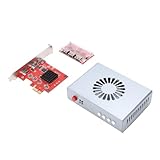
- Direct Memory Access Device: The DMA Fuser Hardware Kit is engineered as a high-performance video synthesizer designed to optimize data transfer and processing efficiency. It excels in high-bandwidth scenarios like image processing, video encoding/decoding, and network communications, making it the ideal development board for firmware and programming applications.
- Dual Signal Input & Overlay : This HD Multimedia Interface synthesizer supports two independent signal sources simultaneously, outputting them fused onto a single display. The overlay allows for adjustable image clarity, providing superior control for video conferencing or security monitoring in data centers.
- 4K HD Visuals & Built-in Cooling: Seamlessly to display a single full-screen image with stunning 3840x2160 @60Hz resolution for lossless, high-definition transfer. The integrated fan ensures effective temperature control, guaranteeing safe and reliable operation during extended use.
- Broad Application Compatibility: Leveraging an underlying embedded framework protocol ( CPU compatible), the DMA board enables communication between hardware devices at different speeds. It is tailored for securities trading floors, bank data centers, traffic safety emergency control centers, and video conferencing systems.
- User-Friendly Operation & Legal Compliance: No software installation is required on the primary gaming computer. Simply insert the DMA access device into the PCIE slot to replicate memory data via the DMA controller. This process is legally permitted within embedded system algorithms, supporting online dual-PC setups for high-performance gaming. Includes K1-K4 function keys for host/auxiliary screen switching and strength.
Assign a hotkey
To toggle the counter without closing the game, open MSI Afterburner → Settings → On-Screen Display and assign a key to Toggle On-Screen Display. Choose a key that the game does not already use.
Crashes, No Sound, or Screen Glitches?
Random freezes, missing sound and display glitches usually trace back to one bad driver. Find and replace yours safely.Free scan · under a minuteWindows Errors? Fix Them Before They Spread
Repair common Windows errors and clear accumulated junk for a smoother, more stable PC - no reinstall needed.Free scan · no reinstallBenchmark hotkeys are separate. They start or stop benchmark logging and are not required for an ordinary FPS display.
Make RTSS work with one specific game
If the overlay works in one game but not another, create a game-specific RTSS profile:
Rank #3

- HIGH-REFRESH MULTI-RESOLUTION SUPPORT – Supports up to 4K 120Hz, 3K 165Hz, 2K 240Hz, and 1080P 360Hz for compatible display systems. Actual resolution and refresh rate depend on the source device, graphics hardware, monitor, cable quality, and system settings.
- DISPLAYPORT 1.4 VIDEO FUSION – Designed for high-bandwidth video fusion and display overlay workflows. DisplayPort 1.4 connectivity helps provide clear image detail, smooth signal transmission, and stable performance for compatible desktop display environments.
- AUTOMATIC RESOLUTION DETECTION – Intelligent device recognition detects compatible display parameters during startup and helps match the appropriate resolution and refresh-rate configuration, reducing repeated manual adjustments.
- FULL-COLOR DISPLAY AND EASY CONTROL – The integrated color display provides clear system and signal information. Front-panel controls offer convenient access to operating functions for a straightforward setup and user experience.
- BUILT FOR PROFESSIONAL DISPLAY WORKFLOWS – Suitable for multimedia production, high-refresh display setups, monitor testing, video conferencing, workstation integration, and other professional video-processing applications.
- Open RTSS.
- Click Add.
- Browse to the game’s actual executable file.
- Select the executable and create its profile.
- Set Application detection level to High if the default level does not detect the game.
- Ensure OSD support is enabled for the profile.
- Save the profile and relaunch the game.
Add the rendering game’s executable, not necessarily its launcher. Some launchers start a different process after the game loads. If you are unsure which file is rendering the game, identify the active process in Windows Task Manager, then recreate the RTSS profile for that executable.
RTSS compatibility is application-specific. Rendering APIs, game updates, anti-cheat systems, protected executables, capture software, and other overlays can all affect whether the hook works.
RivaTuner is not showing FPS
| Symptom | What to check first |
|---|---|
| No Framerate option | Afterburner installation, the Monitoring tab, and whether you installed a legitimate complete package. |
| Framerate is enabled but no overlay appears | Confirm that RTSS and Afterburner are both running and that Framerate has its OSD option enabled. |
| It works in some games only | Add the actual game executable to an RTSS profile and raise application detection. |
| The counter shows zero | Check for the wrong executable, an undetected game, or a blocked overlay hook. |
| The game crashes | Disable RTSS or its profile for that title and test again. |
| Two FPS counters appear | Disable the game’s, Steam’s, GPU driver’s, or Xbox Game Bar’s counter. |
| The text is unreadable | Increase RTSS Zoom and adjust position, color, or display fill. |
If the FPS option is missing
Close Afterburner and RTSS, restart Windows, and reinstall the current stable Afterburner package with RTSS selected. An old, incomplete, or modified installation can cause missing monitoring options. MSI recommends a clean reinstall when an Afterburner update breaks the overlay.
If the overlay works on the desktop but not in-game
Test the game in windowed mode and then borderless-windowed mode. If the game offers more than one rendering API, testing another API can help identify a compatibility problem, but it is not a guaranteed fix. Launch RTSS before the game and temporarily disable other overlays.
If the counter remains at zero
Remove the incorrect RTSS profile and add the actual game executable. A launcher profile can attach to the launcher rather than the process that renders frames. If the game still is not detected, test its built-in counter or Windows Game Bar.
If the game crashes after enabling RTSS
Close the game, open RTSS, and remove or disable the game’s profile. You can set application detection to None or disable OSD support for that title, then test again. Also disable competing overlays. Do not try to bypass an anti-cheat restriction; check the game’s or anti-cheat vendor’s guidance and leave RTSS disabled if required. Some games restrict or conflict with third-party overlays, and RTSS is not guaranteed to work with every online game.
Best Value

- HIGH-REFRESH MULTI-RESOLUTION SUPPORT – Supports up to 4K 120Hz, 3K 165Hz, 2K 240Hz, and 1080P 360Hz for compatible display systems. Actual resolution and refresh rate depend on the source device, graphics hardware, monitor, cable quality, and system settings.
- DISPLAYPORT 1.4 VIDEO FUSION – Designed for high-bandwidth video fusion and display overlay workflows. DisplayPort 1.4 connectivity helps provide clear image detail, smooth signal transmission, and stable performance for compatible desktop display environments.
- AUTOMATIC RESOLUTION DETECTION – Intelligent device recognition detects compatible display parameters during startup and helps match the appropriate resolution and refresh-rate configuration, reducing repeated manual adjustments.
- FULL-COLOR DISPLAY AND EASY CONTROL – The integrated color display provides clear system and signal information. Front-panel controls offer convenient access to operating functions for a straightforward setup and user experience.
- BUILT FOR PROFESSIONAL DISPLAY WORKFLOWS – Suitable for multimedia production, high-refresh display setups, monitor testing, video conferencing, workstation integration, and other professional video-processing applications.
Alternatives when RTSS will not work
- Windows Game Bar: press Win + G, open the Performance widget, enable FPS, and pin it. MSI suggests Game Bar for some games where its OSD does not appear.
- Steam FPS counter: useful when you only need a basic counter for a Steam game.
- Game-built-in counter: often the safest option for a title with strict anti-cheat or overlay policies.
- NVIDIA, AMD, or Intel overlays: convenient if the graphics vendor’s software is already installed, although menus and customization vary by vendor and version.
RTSS plus Afterburner is the better choice when you want FPS alongside frametime, GPU and CPU statistics, temperatures, or per-game profiles. The trade-off is additional setup and the possibility of conflicts. Overlay overhead is generally small, but it can vary with the game, capture mode, overlay complexity, and system.
Sources
- MSI: How to use MSI Afterburner
- MSI: On-Screen Display, Monitoring and Features
- Guru3D: RivaTuner RTSS homepage
- MSI: Afterburner and RTSS troubleshooting
Frequently Asked Questions
Can RTSS show FPS without MSI Afterburner?
RTSS can display information supplied by supported applications, but the simplest standard FPS-counter setup uses Afterburner to select Framerate and RTSS to draw it.
Does RTSS work with NVIDIA, AMD, and Intel graphics?
The Afterburner and RTSS ecosystem is used with multiple GPU vendors, but monitoring and overlay behavior can vary by hardware, driver, game, and rendering API.
Does RTSS lower FPS?
Its impact is generally small, but there is no universal zero-cost guarantee. Overlay complexity, capture features, the game, and the system can change the result.
Can anti-cheat block RTSS?
Some games or anti-cheat systems may restrict or conflict with third-party overlays. Follow the game’s rules and disable RTSS rather than attempting to bypass a restriction.
Why are two FPS counters visible?
Another counter is enabled, such as the game’s own display, Steam, NVIDIA, AMD, Intel, or Xbox Game Bar. Disable all but one while troubleshooting.
Quick Recap
Product prices and availability are accurate as of the date/time indicated and are subject to change. Any price and availability information displayed on Amazon at the time of purchase will apply.



