To hide one game from other Steam users, open your Library, right-click the game, choose Manage, then select Mark as Private. To hide your games and current-game status broadly, set Game Details to Private in your profile’s Privacy Settings. Invisible only changes your presence, while Hide this game removes a title from your own Library view—not from other people’s.
Hide one specific game on Steam
In the current desktop client, the standard route is:
- Open Library.
- Find the game you want to conceal.
- Right-click the game and choose Manage.
- Select Mark as Private.
- Confirm if Steam displays a confirmation dialog.
Steam also documents access through the game’s details-page gear icon, then Manage, or through Properties > Privacy. The client must be online and connected to Steam for the per-game control to be available. Menu placement and wording can vary on Steam Deck, Big Picture Mode, the web interface, and localized clients. Steam Support’s per-game privacy instructions describe the available routes.
Steam says a private game is generally presented to other users as if you do not own it. It is hidden from your Community profile’s games list and recently played games, friends’ activity for that title, in-game indicators, and relevant Steam Store friend context. Steam also says related achievements and first-play activity are hidden from friends. This applies to Steam’s own surfaces; it is not a promise of invisibility to every external service or game server. Steam’s announcement of per-game privacy explains the feature.
What’s actually slowing this PC down?
Pick the symptom - the matching free tool is one click away.
#1 Best Overall

- The next-generation optical HERO sensor delivers incredible performance and up to 10x the power efficiency over previous generations, with 400 IPS precision and up to 12,000 DPI sensitivity
- Ultra-fast LIGHTSPEED wireless technology gives you a lag-free gaming experience, delivering incredible responsiveness and reliability with 1 ms report rate for competition-level performance
- G305 wireless mouse boasts an incredible 250 hours of continuous gameplay on just 1 AA battery; switch to Endurance mode via Logitech G HUB software and extend battery life up to 9 months
- Wireless does not have to mean heavy, G305 lightweight mouse provides high maneuverability coming in at only 3.4 oz thanks to efficient lightweight mechanical design and ultra-efficient battery usage
- The durable, compact design with built-in nano receiver storage makes G305 not just a great portable desktop mouse, but also a great laptop travel companion, use with a gaming laptop and play anywhere
You can mark a game private before buying it by using the option in the Steam shopping cart. That is useful when you want privacy from the start; for an already-owned game, use the Library route above.
Hide all games and current activity
To conceal game information across your profile rather than just one title:
Rank #2

- Plug and Play, Wireless Connectivity:Our 2.4GHz wireless mouse offers seamless and efficient performance, ensuring a stable connection with minimal interference. Simply plug the USB receiver into your device's USB port, no need drivers
- Ergonomic Design:This ergonomic wireless mouse for laptop features an ergonomic design that fits perfectly to the shape of your hand,It provides a comfortable grip, ensuring you stay efficient whether you're working or enjoying entertainment
- Visual Battery Display: With this rechargeable wireless mouse, no need to worry about changing batteries. Equipped with a long-lasting battery. easy to recharge, a good choice for daily use
- Adjustable DPI: This wireless computer mouse offers four levels of adjustable DPI settings (800-1200-1600-2400), allowing you to adjust the sensitivity of the cursor as you wish, ensuring optimum precision and control of the mouse for a better user experience
- Wide Compatibility, Worry-Free After-Sales Service:This laptop mouse is widely compatible with various operating systems such as Windows, Mac and Linux. The mouse comes with a forty-five day refund policy and one year of free replacement service
- Open the Steam profile menu and choose View my profile.
- Select Edit Profile.
- Open Privacy Settings.
- Set Game Details to Private.
Steam describes Game Details as covering games you own or have wishlisted, achievements, playtime, whether you appear in-game, and the title you are playing. This is broader than marking one game private: friends will not be able to see game details you might otherwise choose to share. The setting is documented in Steam’s profile-privacy announcement; Steam’s Privacy Settings help page also points to the profile controls.
Hide playtime without hiding your games
If you want friends to see your games but not your total hours, Steam provides a separate playtime privacy option. In Privacy Settings, look for wording similar to “Always keep my total playtime private even if users can see my game details.” The exact label may differ by client version or localization.
Free tools Windows power users keep installed
One-click scans. No signup required.
Rank #3

- PowerPlay wireless charging: Never worry about your battery life again. Add the power play wireless charging system to keep your G502 Lightspeed Wireless Mouse and other compatible G mice charged while at rest and at play. Powerplay wireless charging system sold separately
- Light speed wireless gaming mouse: Exclusive Logitech G ultra-fast wireless technology used by Pro gamers in competitions worldwide
- Hero 25K sensor through a software update from G HUB, this upgrade is free to all players: Our most advanced, with 1:1 tracking, 400plus ips, and 100 - 25,600 max dpi sensitivity plus zero smoothing, filtering, or acceleration
- 11 customizable buttons and hyper fast scroll wheel: Assign custom macro and shortcut commands to the buttons for each game with Logitech G hub software. Use hyper fast scrolling to rapidly review menus, long web pages and more
- Note: In case of Wireless mouse, the USB receiver will be provided inside or along with the mouse
This setting is for playtime, not live status: leaving Game Details visible does not hide the title you are currently playing. Use per-game privacy or make Game Details private if concealing the current title is the goal. Steam’s privacy announcement describes the separate playtime control.
What Invisible does—and does not do
Choose Invisible from your friends-list presence menu when you want to appear offline while still using the friends list and chat. It is a temporary presence setting, not a way to remove ownership, achievements, playtime, or past activity from your profile. For a title-specific privacy result, mark that game private; for broad game-data privacy, make Game Details private. Steam explains Invisible and profile privacy in its profile-privacy announcement.
Rank #4

- ICONIC ERGONOMIC FORM WITH 9 CUSTOMIZABLE CONTROLS — Favored by millions worldwide, the mouse’s signature shape perfectly supports different grips, while its numerous easy-access buttons allow for an endless combination of commands and macros
- RAZER HYPERSPEED WIRELESS AND BLUETOOTH — Unleash seamless, low-latency performance that's faster than other wireless tech or switch to Bluetooth for longer hours of gaming. Outfitted with multi-device support for a streamlined setup
- UP TO 285 HOURS OF BATTERY LIFE — With up to 535 hours on Bluetooth and 285 hours on Razer HyperSpeed Wireless, last longer in the heat of battle with a mouse designed to play the long game. May vary depending on usage conditions
- RAZER 5G ADVANCED 18K OPTICAL SENSOR — Tailor the mouse to the playstyle with a new, robust set of sensitivity settings. Enjoy responsive, pixel-precise aim with an ultra-reliable sensor that tracks movement with zero spinouts
- RAZER MECHANICAL MOUSE SWITCHES GEN-2 — With new gold-plated contact points, the switches are less prone to degrading and have a longer lifespan of up to 60-million clicks, so gamers can enjoy crisp execution that’s just as consistent
Which Steam privacy option should you use?
| Option | Who it affects | What it hides | Best for |
|---|---|---|---|
| Mark as Private | Other Steam users | One game’s Steam ownership visibility, current status, playtime, and activity | Hiding a particular title while keeping other game details visible |
| Game Details: Private | Other Steam users | Broad game information and in-game visibility | Hiding game activity across your profile |
| Invisible | Presence and friends-list surfaces | Your online presence | Appearing offline temporarily while retaining chat |
| Offline Mode | Your Steam network connection | Online Steam activity while disconnected | Playing without an active Steam connection, when the game supports it |
| Hide this game | Your own Library view | The title’s appearance in your Library | Organizing your Library, not concealing a game from friends |
Offline Mode is not the usual fix for hiding a game from friends. Steam says it requires preparation, including updating and launching the game while online first; games that require an active connection or external launcher may not work offline. It can also limit online features and updates. See Steam’s Offline Mode instructions.
Independent reader supportYour contribution helps us test, update, and keep practical guides available for everyone.What other players may still see
Private does not guarantee anonymity during multiplayer. Steam warns that in games using Steam matchmaking, your Steam ID may be visible to other players on the same server. If you invite a Steam friend to join a private game, that friend can see your in-game status until you leave the game or disconnect from Steam; Steam says this visibility is needed for joining. Do not assume private status hides you from other people you encounter in the game. Steam Support documents these exceptions.
Windows Errors? Fix Them Before They Spread
Repair common Windows errors and clear accumulated junk for a smoother, more stable PC - no reinstall needed.Free scan · no reinstallOutdated Drivers Are Slowing You Down
One free scan finds every outdated or missing driver and matches the right update for your exact hardware.Free scan · exact hardware matchBest Value
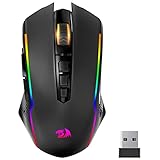
- 【Fully Programmable Gaming Mouse】- Redragon Wireless Gaming Mouse All buttons can be programmed with the driver and support macro editing. You can remap the buttons, assignment of complex macro functions, change RGB backlit effects, and adjust DPI (250-8000) to fit your different needs.
- 【High-Precision Gaming Mouse】-The wireless mouse features adjustable DPI(250-8000) and 4 adjustable polling rates ( 125Hz/250Hz/500Hz/1000Hz), you can easily adjust the moving speed, and experience a smooth, fast response and accurate tracking gaming experience. The fire button(✈1 click = 3 clicks) gives you the edge you need during those intense FPS battles.
- 【Enhance Your Gaming Immersion】UP to 9 RGB light effects can be chosen, you also can adjust backlit effects with 16.8 million color combinations by drivers to create your fancy gaming environment, and match your game style and desktop layout.
- 【Powerful Battery Life】The rechargeable mouse has a long battery life between 35 hours (RGB on) and 70 hours (RGB off) on a single charge, providing you with nonstopping use. It will auto-sleep after 1 minute of inactivity for power saving. The wireless mouse gaming also can be used while charging.
- 【Extreme Ergonomics】The mouse gaming with an ergonomic design and Skin-friendly material will provide you with a comfortable grip and soft touch, Effectively relieving fatigue during long-time gaming.
Troubleshooting
“Mark as Private” is missing
Make sure the Steam Client is online and connected to Steam. Then check the game’s right-click Manage menu, its details-page gear menu, or Properties > Privacy. If the control still does not appear, reconnect to Steam and restart the client before checking again. The online requirement is stated in Steam Support’s instructions.
The game is still visible after choosing “Hide this game”
That is expected: Hide this game only changes your own Library view. To hide the title from other Steam users, use Manage > Mark as Private.
You appear Invisible, but the profile still shows game details
Invisible changes your presence, not your game-data privacy. Set the game to Private or change Game Details to Private, depending on whether you want to hide one title or all game information.
Undo a private-game setting
Open the same game Manage or Privacy menu and switch it back from private; the exact wording can vary by client version and language. If the option is missing, make sure the Steam Client is online and connected.
Recommended Free Tools
Quick Recap
Product prices and availability are accurate as of the date/time indicated and are subject to change. Any price and availability information displayed on Amazon at the time of purchase will apply.



