Some links on this page are affiliate links: if you buy through them we may earn a commission, at no extra cost to you.
In iCUE 5, select your mouse, open Key Assignments, click + under Assignments, choose Macro, select the mouse button to trigger it, and record your inputs. Stop recording, review the events, then test the button in a harmless app. These steps focus on iCUE 5.14 and newer; iCUE 4 uses older hardware-profile labels, and the options available depend on your mouse model.
Before you begin
You’ll need a Corsair mouse that supports programmable assignments, Corsair iCUE, and a mouse that iCUE detects. Button support, macro controls, and onboard-memory features vary by model, so don’t assume every Corsair mouse can store a macro internally.
For setup or firmware troubleshooting, connect the mouse directly to the PC rather than through a hub or dock. For a wireless mouse, connect its receiver directly as well. Corsair recommends a direct connection during firmware updates; update iCUE and your mouse firmware when updates are available for your device. See Corsair’s firmware-update guidance.
Create and assign a macro in iCUE 5
- Launch iCUE and select your Corsair mouse on the home screen.
- Open Key Assignments in the left-side menu.
- Click + under Assignments to add an assignment.
- Set the assignment type to Macro. If prompted, choose the physical mouse button that should trigger it; otherwise select the button in the mouse preview or assignment controls.
- Open the macro’s recording controls and click the red record button.
- Press the keyboard keys and/or mouse buttons you want the macro to reproduce.
- Click the record button again to stop. Review the event list, then adjust order, delays, or repeat behavior if those controls are available in your iCUE version and assignment mode.
- Save or apply the assignment and test it.
Corsair’s current mouse setup guide uses Key Assignments and the plus button to add actions; its Scimitar RGB Elite example shows choosing Macro, recording with the red-circle control, and assigning the result. The Scimitar’s button count and controls are specific to that model, not all Corsair mice. Depending on your device and iCUE generation, the equivalent area may instead be labeled Actions.
#1 Best Overall
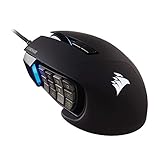
- 17 Fully Programmable Buttons: Built with Ideal for performing frequent actions and executing complex macros in MMOs and MOBAs.
- Patented Key Slider Control System: Reposition the 12 side buttons to comfortably fit your grip.
- Native 18,000 DPI Optical Sensor: Equipped with a custom PixArt PMW3391 sensor, adjustable in 1 DPI resolution steps, for highly accurate and customizable tracking.
- Ultra-Durable Construction: The SCIMITAR RGB ELITE’s 50 million click-rated Omron switches, sturdy scroll wheel, and braided cable ensure that it stands up to the wear-and-tear of extended gaming.
- Comfortable Contoured Shape: Sculpted to fit the contours of your palm, regardless of hand size or grip style, with a right-side finger rest for added support.
Try a simple test first
For a safe test, create a macro that types TEST, open Notepad, and press the assigned button. If the text appears in the expected order, the assignment is triggering. You can also record a familiar keyboard shortcut, such as Ctrl+Shift+Esc, and verify that it opens the intended Windows utility. Avoid starting with a gameplay sequence: test input and timing in a neutral app first.
A macro is a single button action that can produce a sequence of supported events. A remap makes one button send one other key or mouse button; a macro can combine multiple keystrokes, clicks, or supported keyboard-and-mouse events. Which events, delays, and repeat options you can use depends on the mouse and whether iCUE is running.
Choose software or onboard playback
| Type | What to expect | Best fit |
|---|---|---|
| Software/profile macro | Runs through iCUE while it is active and the relevant profile is in use. It generally offers the broadest set of actions, but may rely on iCUE. | Complex actions or profiles linked to particular applications. |
| Hardware/device-memory macro | Stored in a supported onboard profile slot and can work with iCUE closed, subject to device and action limitations. Hardware assignments have fewer options than software assignments. | Using the mouse without iCUE running or on another computer, if your model supports it. |
| Simple remap | One button sends one other input. It is simpler than a sequence and may be easier to troubleshoot. | Replacing a single key or mouse-button function. |
Creating a macro in a normal iCUE profile does not automatically store it on the mouse. Corsair’s Device Memory Mode instructions explain that stored configurations can operate without iCUE, but hardware actions have fewer options and onboard slot counts vary by device.
Quick wins for a faster PC:
Repair Windows errors before they cause bigger problemsFix Now →Scan for outdated or missing drivers - takes under a minuteDriver Scan →Clear out junk files and repair common Windows errorsFree Scan →Rank #2

- Smart Tunable Weight System: CORSAIR-exclusive software automatically detects the mouse’s center of gravity in real time, allowing you to adjust weight between 119g and 141g and fine-tune balance to perfectly fit your grip.
- CORSAIR’S Most Advanced Optical Sensor Yet: A custom Pixart PMW3391 native 18,000 DPI optical sensor, adjustable in 1 DPI resolution steps, gives you total sensitivity customization and ultra-accurate tracking.
- Professional Comfort: Built with a contoured shape that naturally fits your hand, with high-performance rubber grips inspired by pro sports equipment.
- Ten Fully Programmable Buttons: Customize your gaming with the in-game advantage of powerful macros and key remaps.
- Precise Weight Calibration: Two sets of weights and six mounting locations offer 120 different weight and balance configurations.
Save a macro to the mouse in iCUE 5.14 or newer
Use this path only if your mouse supports onboard memory or Device Memory Mode. In the newer interface:
- Select the mouse in iCUE and enable Device Memory Mode.
- Open Key Assignments and create or configure the macro as a hardware assignment.
- Select the onboard memory slot you want to edit, then save the changes to that slot.
- Exit or toggle Device Memory Mode as appropriate, close iCUE completely, and test the mouse again.
If all memory slots are occupied, clear or overwrite a slot if your device permits it. A software-only action may not be available for hardware playback, so a macro that works while iCUE is open may not be eligible to save. Consult Corsair’s onboard key-assignment guide for the hardware-mode limitations.
Older iCUE 4 interface
Do not follow the iCUE 5.14+ memory steps as if the labels were identical. In an older iCUE 4 interface, select the mouse and open Key Assignments or its equivalent action area to configure the macro. For a stored version, use Hardware Actions, then open Device Settings and find Onboard Memory to add, overwrite, or select a profile slot. Corsair’s hardware-profile guide covers the older path as well as the newer Device Memory Mode flow.
Rank #3

- Iconic Aluminum Frame: The M65 RGB ULTRA’s anodized aluminum frame makes for lasting durability with a familiar shape.
- CORSAIR MARKSMAN 26,000 DPI Optical Sensor: With an astonishing native 26,000 DPI and 650 inches per seconds (IPS) tracking, the MARKSMAN sensor captures your every mouse movement.
- Optical Switches: Left and right-click switches deliver hyper-fast and precise responses, while standing up to years of rigorous use.
- CORSAIR AXON Hyper-Processing Technology: Registers and transmits your movements and clicks up to 8x faster than conventional gaming mice thanks to a native 8,000Hz polling rate.
- Sensor Fusion Control: Combines a six-axis gyro and accelerometer to enable ultra-low lift-off distance for more accurate tracking when repositioning your mouse.
Edit, replace, or remove a macro
Select the existing assignment in the mouse’s assignment area. Use the event list and macro controls shown in your iCUE version to remove unwanted events, change delays where available, or re-record the sequence. If the target button is wrong, change the assignment’s button target rather than recording the sequence again. Assignment menus may also offer options to copy an assignment, save it to the Library, rename it, or delete it; exact controls differ by version and device.
Crashes, No Sound, or Screen Glitches?
Random freezes, missing sound and display glitches usually trace back to one bad driver. Find and replace yours safely.Free scan · under a minutePC Slower Than It Used to Be?
A free scan shows the junk files, broken settings and background clutter dragging Windows down - then fixes them in one click.Free scan · Windows 10 & 11Assignments can be associated with a profile. If a macro seems to disappear after switching profiles, check which profile is active before recreating it. iCUE supports profile management and application linking; see Corsair’s profile guide.
Independent reader supportYour contribution helps us test, update, and keep practical guides available for everyone.Troubleshooting
The mouse does not appear in iCUE
- Reconnect it directly to the PC; for wireless use, connect the receiver directly too.
- Restart iCUE and check for available iCUE or device-firmware updates.
- If it still is not detected, reinstalling iCUE or contacting Corsair support may be necessary.
Key Assignments or Macro is missing
- Make sure you selected the mouse rather than another Corsair device.
- Your model may not support programmable assignments, or the available assignment types may differ.
- Check the mouse’s main configuration page; do not confuse it with Device Settings, which is generally where device options such as memory slots live.
- Look for an older label such as Actions, and confirm whether you are in a software or hardware assignment mode.
The macro records but does nothing
- Test the assigned button in Notepad or another harmless application.
- Confirm that the assignment targets the physical button you are pressing.
- Check that the intended iCUE profile is active.
- Determine whether you created a software assignment or hardware assignment; for hardware playback, verify that it was saved to an onboard slot.
- If using a hardware macro, close iCUE and retest only after confirming the action is supported in hardware mode.
A target application may block or ignore simulated input, so success in a text editor does not guarantee that another program will accept the same events.
Rank #4

- Ergonomic asymmetric shape: The IRONCLAW WIRELESS SE’s unique shape is designed for larger hands and right-handed players who prefer a palm grip. Don’t strain your wrist conforming to a mouse that’s wrong for you, choose comfortable control instead
- 10 Programmable buttons: Program macros, map keybinds, and get your mouse set up for peak performance and productivity via powerful, easy-to-use iCUE software
- Precise CORSAIR MARKSMAN sensor: Get the precision you need for performance gaming with the 26K DPI CORSAIR MARKSMAN sensor. Surface calibration allows the IRONCLAW WIRELESS SE to adapt to any setup
- Massive battery life: With up to 285 hours of battery life over 2.4GHz and up to 532 hours of battery life using Bluetooth, you’ll have more than enough battery for marathon gaming sessions
- Customizable RGB lighting: The unique shape gives your RGB lighting more places to shine. Customize the scroll wheel, logo, and the front grill with your lighting preferences. There’s also 3-stage indicators to display DPI and profile cues
It works only while iCUE is open
That usually means the macro is a software/profile assignment, the mouse lacks onboard support, or the action needs iCUE in the background. Create a supported hardware assignment and save it to the correct memory slot if your model offers that option. A regular profile save is not the same as saving to onboard memory.
The onboard profile will not save
Check that your mouse supports Device Memory Mode and has an available slot, that you selected the slot being edited, and that the action is supported in hardware mode. If every slot is occupied, clear or overwrite one if available. Update iCUE and firmware if an update is offered for your device.
Recommended Free Tools
Timing is unreliable
Review the event sequence and add or adjust delays if iCUE exposes that control. Events recorded too quickly, missing key-down or key-up events, and applications with variable loading time can all affect playback. A macro cannot guarantee identical results in every application.
Best Value
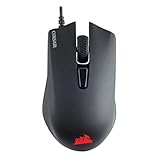
- Incredibly lightweight at just 85 grams so that you can play even longer
- Contoured shape and rubber side grips let you play in Lasting comfort with a confident grip
- Ready to game right out of the box—just plug in through a USB port and start taking down the competition
- Play with the precise control you need to win thanks to a 12,000 DPI optical sensor for high-accuracy tracking
- Create an in-game advantage with 6 fully programmable buttons for anything from Remaps tO complex custom macros
The macro behaves differently after a profile change
Assignments may belong to a particular profile. Confirm the active profile and any application link or automatic profile switching before assuming that the macro was deleted; copy or recreate the assignment in the profile where you need it.
Can you use a Corsair macro in a game?
Game and platform rules vary. Check the current rules and anti-cheat guidance for the specific game before using a macro; do not use one to automate prohibited gameplay, gain an unfair advantage, or bypass restrictions. For accessibility or productivity uses, test the macro in the target application and keep a normal-button fallback available.
For additional manufacturer instructions, see Corsair’s mouse setup guide and mouse-button assignment guide.
What’s actually slowing this PC down?
Pick the symptom - the matching free tool is one click away.
Quick Recap
Product prices and availability are accurate as of the date/time indicated and are subject to change. Any price and availability information displayed on Amazon at the time of purchase will apply.

