Recommended Free Tools
For most Linux users, the simplest starting point is RetroArch with its Beetle Saturn core: install the core, put a legally obtained region-appropriate Saturn BIOS in RetroArch’s configured system directory, then load a correctly dumped game through its cue sheet. Standalone Mednafen is a more technical alternative; Kronos is worth trying when a particular game has trouble with Beetle Saturn. No emulator runs every Saturn game perfectly.
Use BIOS and game images obtained from hardware and software you own, or from a source whose distribution rights are clear. Copyright and backup-copy rules vary by country and circumstance; this guide does not provide copyrighted BIOS or game files.
| # | Preview | Product | Price | |
|---|---|---|---|---|
| 1 |

|
Bandai Hobby - Best HIT Chronicle - Sega Saturn, Bandai Spirits 2/5 Model Kit | $58.81 | Buy on Amazon |
| 2 |

|
Sega Saturn (HST-0001) Console (Japanese Import) | $169.00 | Buy on Amazon |
| 3 |
|
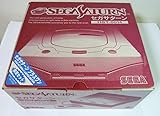
Sega Saturn (HST-0014) Console (Japanese Import) | $184.76 | Buy on Amazon |
| 4 |
|
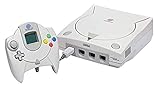
Sega Dreamcast Console (Renewed) | $219.97 | Buy on Amazon |
What you need
- A 64-bit Linux installation. Saturn emulation requirements vary by core, game, renderer, resolution, and CPU architecture.
- A controller is strongly preferred. A standard digital gamepad is the easiest place to start.
- A Saturn BIOS appropriate to the game’s region for configurations that use firmware.
- A complete disc image, including its cue sheet and every track it references.
- Storage for your disc images and, optionally, converted CHD files.
- Vulkan-capable graphics hardware is optional; it can enable particular RetroArch video drivers or shaders, but does not by itself guarantee better Saturn emulation.
For its own Saturn implementation, Mednafen recommends at least a quad-core Intel Haswell-class CPU with a base clock of 3.3 GHz or higher and turbo of 3.7 GHz or higher. That is Mednafen’s recommendation, not a universal minimum for every RetroArch core or Linux device. See Mednafen’s Saturn documentation.
Choose an emulator
| Option | Best fit | Trade-offs |
|---|---|---|
| RetroArch + Beetle Saturn | Most first-time users, Linux handhelds, and anyone who wants a unified library, controller tools, remapping, save states, rewind, screenshots, or netplay. | Requires frontend setup and the correct BIOS in RetroArch’s system directory. The core feature table does not list rumble support. |
| Standalone Mednafen | Users comfortable with keyboard commands and configuration files who want to run the original Mednafen Saturn implementation outside a frontend. | CPU-intensive and more technical, with less beginner-friendly controller configuration. Saturn emulation remains under development; official Saturn support is in supported 64-bit builds. |
| Kronos | Trying an independent implementation when a particular title behaves poorly in Beetle Saturn; it also offers options such as frameskip. | Different compatibility and image-format behavior. Its cue-sheet loader does not support references to external WAV, MP3, OGG, FLAC, or APE audio files. |
Beetle Saturn is the libretro port of Mednafen’s Saturn emulator. It supports Linux and the disc formats listed in its core documentation, along with RetroArch features such as remapping and save states. Kronos has a separate core guide. These are different implementations, not a guarantee that every game will work flawlessly.
Crashes, No Sound, or Screen Glitches?
Random freezes, missing sound and display glitches usually trace back to one bad driver. Find and replace yours safely.Free scan · under a minutePC Slower Than It Used to Be?
A free scan shows the junk files, broken settings and background clutter dragging Windows down - then fixes them in one click.Free scan · Windows 10 & 11#1 Best Overall
- The best hit chronicle series aims to bring you back in time to that first experience of products that made an impact
- The Sega Saturn celebrates its 25th anniversary In 2019, and brought the fun of various arcade games to homes.
- Now it comes back home to you in the form of a 2/5 scale model kit
- Product bears official Bluefin logo
Install RetroArch and Beetle Saturn
Use the official RetroArch platform downloads to choose a Linux build suitable for your distribution. Package formats and file permissions differ across distribution packages, Flatpak, Steam Deck setups, and standalone downloads, so do not assume a single BIOS path.
- Open RetroArch and, if needed, update the online updater or core information using the updater options available in your build.
- Choose Online Updater → Core Downloader, then install Sega – Saturn (Beetle Saturn). Menu names are the current standard labels; they can vary between builds and frontends.
- Open Settings → Directory and note the configured System/BIOS directory. Use the path shown there rather than guessing from a generic Linux installation.
- Copy your appropriate BIOS file into that directory. Restart RetroArch if the core still reports missing firmware.
- Choose Load Core → Sega – Saturn (Beetle Saturn), then Load Content and select the game’s cue sheet, playlist, or supported image file.
- If prompted to choose a core, select Beetle Saturn. Confirm that the game reaches the BIOS or title screen before changing graphics or performance settings.
Put the right BIOS in the right place
Beetle Saturn’s documentation lists these firmware filenames. The file must be in RetroArch’s configured system directory, not merely beside the game image.
| Filename | Use |
|---|---|
sega_101.bin |
Japanese Saturn BIOS; used for Japanese-region games in configurations requiring BIOS firmware. |
mpr-17933.bin |
North American and European Saturn BIOS; used for games from those regions in configurations requiring BIOS firmware. |
mpr-18811-mx.ic1 |
Cartridge ROM required for The King of Fighters ’95 in Beetle Saturn. |
mpr-19367-mx.ic1 |
Cartridge ROM required for Ultraman in Beetle Saturn. |
Filename and region details are from the Beetle Saturn firmware documentation; standalone Mednafen documents the same two principal BIOS filenames and provides SHA-256 values for verification in its Saturn firmware section. Verify checksums against the relevant emulator documentation. Do not rename one region’s BIOS to impersonate another: these are distinct files.
If the core says BIOS is missing
- Recheck the system directory shown under RetroArch’s directory settings.
- Check the filename exactly, including capitalization and extension, and compare the BIOS checksum with the documentation.
- Use firmware appropriate to the game’s region; do not assume one region’s BIOS will serve all titles.
- Restart RetroArch, reload Beetle Saturn, and test a known-good image.
- If using Kronos instead, consult its own BIOS and directory instructions rather than carrying over Beetle Saturn assumptions.
Prepare the disc image: load the cue sheet
A Saturn disc can have multiple data and audio tracks. A cue sheet records their layout and points to the track files. For a BIN/CUE dump, load the .cue file rather than opening an arbitrary .bin track. Keep the cue sheet and every referenced file together; if you rename a track, update the corresponding FILE line as well. Beetle Saturn’s loading documentation explains its cue-sheet and supported-format requirements.
The Tool Desk
Outbyte PC Repair FREEClear out junk files and repair common Windows errorsFree Scan →Outbyte Driver Updater FREEFix the driver behind crashes, sound loss and screen glitchesFind Drivers →A basic single-track cue sheet looks like this:
FILE "foo.bin" BINARY
TRACK 01 MODE1/2352
INDEX 01 00:00:00
The name in the FILE line must match the data file exactly. A real multi-track disc may have more entries; do not replace a complete cue sheet with this short example.
Beetle Saturn lists .cue, .toc, .m3u, .ccd, and .chd among its supported extensions. CHD is a supported format, not a repair tool or an automatic accuracy improvement: conversion cannot fix an incomplete or corrupt source dump. Keep a verified original image available when troubleshooting.
Launch and test a game
- Load the Beetle Saturn core if it is not already active.
- Choose Load Content and select the game’s
.cuefile (or an appropriate supported image). - Wait for the Saturn BIOS or game title screen. If the image fails, check the firmware, cue references, and image integrity before adding enhancements.
- Once the game boots, test basic controls and audio. Only then adjust scaling, shaders, or other options.
Configure a controller
Connect the controller before launching the game, then use RetroArch’s controller configuration and, if needed, per-core remapping. Begin with a standard digital Saturn pad and map the D-pad, A/B/C, X/Y/Z, both shoulder buttons, and Start. Do not assume that the Saturn 3D Control Pad or its analog behavior works correctly for every core and game.
For standalone Mednafen, the documented default keyboard controls for the first virtual digital gamepad are:
| Keyboard | Saturn control |
|---|---|
| W / A / S / D | D-pad |
| Enter | Start |
| Keypad 1 / 2 / 3 | A / B / C |
| Keypad 4 / 5 / 6 | X / Y / Z |
| Keypad 7 / 9 | Left / right shoulder |
The mapping is documented in Mednafen’s Saturn guide. Mednafen recommends a joystick over a keyboard, while noting the latency difference may not be perceptible to most users.
When a connected controller does nothing
In RetroArch, check the input driver, selected controller profile, per-core remap, and whether another device has taken Player 1. If analog inputs or triggers register as axes or buttons fail to respond, repeat the mapping rather than guessing identifiers.
Mednafen’s controller documentation specifically cautions Linux users with Xbox 360-type controllers and users with analog buttons to complete controller mapping before assigning physical analog buttons to virtual inputs. For standalone Mednafen, disconnect unrelated controllers, rerun mapping, press controls only when prompted, save the mapping, then relaunch. A standard XInput-compatible controller is a useful comparison if the issue persists.
Improve video and performance only after the game works
Start at native or modestly scaled resolution with no shader and no frameskip. Use a stable video driver supported by your distribution. Change one setting at a time so it is clear whether a change helped. Vulkan is an option, not a universal speed fix.
Quick wins for a faster PC:
Repair Windows errors before they cause bigger problemsFix Now →Fix the driver behind crashes, sound loss and screen glitchesFind Drivers →Clear out junk files and repair common Windows errorsFree Scan →Rank #3
- Japanese Import Console
- Only Plays NTSC-J Region Games
Saturn emulation in standalone Mednafen is highly CPU-intensive, so a game can run slowly even when GPU use is low. Check whether the slowdown affects one title or all titles, whether the CPU or GPU is saturated, whether a laptop or handheld is in a low-power mode, and whether shaders or background tasks are involved. Mednafen also recommends preloading CD images with cd.image_memcache to reduce disk-access pauses and audio pops; preloading uses additional memory, which matters on low-memory systems. See Mednafen’s performance notes.
If using Kronos, its documented frameskip options run from 0 through 5; frameskip can reduce visual smoothness and should not be the first troubleshooting step. Kronos also documents experimental SH-2 cache support, which may be required by some games but can reduce performance. Consult the Kronos core options and test one option at a time.
Independent reader supportYour contribution helps us test, update, and keep practical guides available for everyone.Multi-disc games and save management
Make an M3U playlist for a multi-disc game
Put each disc’s cue sheet in one directory, for example:
Game (Disc 1).cue
Game (Disc 2).cue
Game (Disc 3).cue
Create a plain-text file named Game.m3u containing one cue-sheet filename per line:
What’s actually slowing this PC down?
Pick the symptom - the matching free tool is one click away.
Game (Disc 1).cue
Game (Disc 2).cue
Game (Disc 3).cue
Load the M3U rather than an individual disc. Ensure each cue sheet’s own track references work. Beetle Saturn documents M3U disc control in its core guide. Standalone Mednafen also accepts an M3U listing one CUE, TOC, or CCD filename per line; its documented disc-switch keys are F6 and F8. See Mednafen’s general documentation.
Keep normal saves distinct from save states
In-game saves behave like Saturn backup RAM and are separate from save states, which capture an emulator snapshot. Beetle Saturn documents save-related .bcr, .bkr, and .smpc files as well as separate state files; its documentation describes the relevant directories.
Rank #4
- Contains: Gray Dreamcast unit, modem, controller, power cable, and stereo a/v cable.
- Back up in-game saves before changing cores or experimenting with settings.
- Do not assume Beetle Saturn, Kronos, and standalone Mednafen use interchangeable save formats.
- Do not rely on save states as your only copy of progress. Mednafen warns that state data is not fully sanitized; never load states from untrusted sources. See its Saturn documentation.
- Back up RetroArch’s full save directory before changing core settings. Kronos has a “Share saves with beetle” option, but it is an attempted compatibility feature, not a guarantee of successful migration; see the Kronos documentation.
Fix common problems
Black screen, return to menu, or BIOS animation without a game
- Confirm the BIOS filename, checksum, directory, and region.
- Check that the game’s cue sheet exists and every referenced track filename and path is correct.
- Confirm that Beetle Saturn is the active core and that the image is complete.
- Check whether the title needs a special cartridge ROM, as The King of Fighters ’95 and Ultraman do in Beetle Saturn.
- Try a known-good image, then compare with Kronos if the problem appears title-specific.
Missing music, silence, or tracks playing incorrectly
- Check that the dump includes all data and audio tracks and that the cue sheet lists them.
- Check for renamed or missing files in the cue sheet’s
FILEentries. - Consider the core’s format limitations. Kronos does not support cue sheets that reference external compressed audio files such as WAV, MP3, OGG, FLAC, or APE; use a properly structured BIN/CUE or a tested image format instead.
Kronos recommends Redump releases as a thoroughly tested format in its documentation; that recommendation is not proof that every individual image is perfect.
Slowdown or audio pops
First check the active core, image format, video driver, power mode, background tasks, and whether the problem is limited to one title. For standalone Mednafen, test CD-image memory caching if disk access appears to cause pauses, keeping available RAM in mind. For Kronos, evaluate frameskip or SH-2 cache only after simpler checks and one option at a time.
Free tools Windows power users keep installed
One-click scans. No signup required.
One game works poorly in Beetle Saturn
Compatibility varies by game and implementation. Test the same verified image in Kronos, noting its different audio and image-format constraints. Do not infer from one title that another core is universally better.
When standalone Mednafen makes sense
Choose standalone Mednafen if you prefer its direct interface and are comfortable with its keyboard commands and configuration. Its official Saturn implementation is CPU-intensive and its Saturn documentation, valid for Mednafen 1.32.1 dated March 19, 2024, says Saturn emulation is still under active development. It cautions against treating results as authoritative comparisons with real hardware. See the official Mednafen site and Saturn documentation.
Use the matching BIOS filenames described above and follow Mednafen’s own firmware and image-loading instructions rather than assuming RetroArch’s system directory applies. For multi-disc play, use an M3U playlist and the documented F6/F8 disc controls. If a controller fails on Linux, repeat Mednafen’s mapping procedure, especially before assigning analog buttons.
Quick Recap
Product prices and availability are accurate as of the date/time indicated and are subject to change. Any price and availability information displayed on Amazon at the time of purchase will apply.




