Free tools Windows power users keep installed
One-click scans. No signup required.
You can add mod-like content to a Bedrock Realm by activating a Resource Pack or Behavior Pack in that Realm’s world settings. For a Java Realm, Minecraft does not document a supported way to install arbitrary Java server mods; Realms’ curated maps and minigames are a different kind of content. Check which edition your Realm uses before choosing a method.
First, check whether your Realm is Bedrock or Java
Bedrock and Java Realms are separate services, and players can cross-play only within the same edition. The official Realms overview explains the distinction. The steps below apply to Bedrock Realms; Java Realms do not have the same Add-On workflow.
| Your goal | What to use | What to expect |
|---|---|---|
| Add gameplay content to a Bedrock Realm | Bedrock Add-Ons: Resource Packs and/or Behavior Packs | Activate the pack in the Realm’s selected world slot. Bedrock players joining the Realm automatically download and apply its active Add-Ons. |
| Use curated content on a Java Realm | Community maps and minigames offered through Realms | This is not installation of arbitrary Java server mods. |
| Play Java multiplayer with third-party mod loaders | A compatible modded server outside the documented Realms workflow | Players need a compatible setup. Minecraft Support does not support problems caused by mod use. |
How to add an Add-On to a Bedrock Realm
Bedrock’s official mod-like content is called Add-Ons. They use Resource Packs and Behavior Packs, which can change a world’s visuals or behavior. Minecraft’s Add-On creator tutorials describe these pack types.
- Launch Minecraft and select Play.
- Select Realms, choose the Realm you want to change, and open Settings.
- Choose the world slot you want to edit, then select Edit World.
- Under Add-Ons, open Resource Packs or Behavior Packs.
- Under My Packs or Marketplace Pass Packs, select the Add-On, then choose Activate and confirm.
- Return with the back button and wait for Minecraft to upload the changes to the Realm before playing.
These labels and steps are from Minecraft’s Bedrock Add-On activation instructions. The Realm owner activates the packs; other players joining from a compatible Bedrock client automatically download and apply the active Add-Ons. Let the download finish before entering the world.
#1 Best Overall

- Minecoins let you buy Minecraft content you can enjoy on your Android, iOS, Windows 10, Xbox One and Nintendo Switch devices*
- Visit the in-game Minecraft marketplace, where you'll discover a constantly updating library of exciting new Minecraft content - from a community whose imagination knows no limits.
- Once you've redeemed your Minecoins, they'll be linked with your Xbox Live account, so you can access your coins and purchases through all of your supported devices that run Minecraft.
- Minecoins are a perfect gift for Minecraft players!
Can you install Java mods on a Java Realm?
Minecraft’s published guidance does not establish a supported procedure for uploading arbitrary Java server mods to a Java Realm. Java Realms do offer curated community maps and minigames, but those are not equivalent to running a mod loader and third-party server mods.
Minecraft describes Java mods as third-party software that Mojang Studios does not create, review, or endorse, and warns that modding can make the game malfunction or become unplayable. Its support article says: “As modding is not officially supported, Minecraft Support cannot assist with issues arising from mod usage.” See Minecraft Support’s Java mods guidance and the Realms overview. If you want mod-loader-based Java multiplayer, use a compatible modded server rather than treating a Java Realm as one; the setup depends on the server and mods, and is outside the documented Realm workflow.
Rank #2
- Discover addons and mods for Minecraft PE, including furniture, lucky blocks, jurassic adventures, tools, mobs and gameplay packs.
- Explore maps, individual skins and complete skin packs for Minecraft Bedrock Edition.
- Preview skins in interactive 3D and import complete skin packs directly into Minecraft.
- Install compatible behavior packs, resource packs and maps with a simple guided import.
- Organize downloaded and updated content in a convenient Library with separate Addons, Maps and Skins sections.
Prevent and troubleshoot Bedrock Add-On problems
Add-Ons can conflict with one another, causing crashes, visual problems, or error messages. Minecraft Help recommends backing up the world and disabling Resource Packs or Behavior Packs one at a time to identify the conflict. Only the Realm owner can deactivate the Realm’s Add-Ons. Follow the official Add-On troubleshooting instructions.
Quick Recap
Best Value
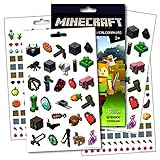
- Colorful fun and reward stickers featuring Minecraft.
- Sticker pad has over 295 stickers and 4 pages.
- Excellent party favors, reward charts, motivation, and more. Just the right size for reward charts.
- Perfect for any Minecraft game fan.
Rank #4
- Easy download
- Ambience Pack Add-On For Minecraft PE
- New aesthetic sound effects
Rank #3

- Minecraft Backpack with Lunchbox for Boys Set - 16” Creeper Video Game Backpack, Lunch Box, Keychain, Pencil Holder, Stickers, Water Bottle, More | Minecraft School Bag for Kids.
- This Minecraft school supplies set includes one 16" backpack with adjustable shoulder straps and top loop for hanging, one lunch bag, and one pencil holder, each depicting colorful artwork from Minecraft.
- This Minecraft insulated lunch box is sure to keep your food at the perfect temperature for hours and is great to take with you to school, the beach, on a picnic, and more! Set also includes a Beach Kids water bottle.
- Show off your love of Minecraft in style! This backpack is the perfect size for your kindergarten or elementary student to take to school and carry everything they need. Set also includes a Minecraft keychain and a carabiner.
- Officially licensed Minecraft backpack and lunch bag set for kids, boys and girls alike also includes Minecraft stickers and a Beach Kids video game door hanger. WARNING: CHOKING HAZARD—Small parts. Not for children under 36 months.
- Back up before changing packs on an established world. Disabling a pack can remove its custom mobs or replace its custom blocks with default blocks.
- Test one pack at a time. If the issue stops after disabling a pack, you have a useful lead on the conflict.
- Re-enable carefully. Change packs deliberately and check the world before inviting players back.
Product prices and availability are accurate as of the date/time indicated and are subject to change. Any price and availability information displayed on Amazon at the time of purchase will apply.
Quick wins for a faster PC:
Scan for outdated or missing drivers - takes under a minuteDriver Scan →Repair Windows errors before they cause bigger problemsFix Now →Fix the driver behind crashes, sound loss and screen glitchesFind Drivers →



