Do these 3 things before closing this tab:
1Fix the driver behind crashes, sound loss and screen glitches2Clear out junk files and repair common Windows errors3Scan for outdated or missing drivers - takes under a minuteSome links on this page are affiliate links: if you buy through them we may earn a commission, at no extra cost to you.
The safest way to restore Xbox Game Bar is to try Repair, then Reset, and then install it from its official Microsoft Store listing: https://apps.microsoft.com/detail/9nzkpstsnw4p. If the Store cannot install it but the package remains on your PC, an elevated PowerShell re-registration can repair its registration. These steps apply to Windows 10 and Windows 11.
First, identify what needs reinstalling
The package normally associated with Game Bar is Microsoft.XboxGamingOverlay. Windows may display it as Xbox Game Bar, Game Bar, Xbox Game Bar app or Gaming overlay. It is a separate component from the Xbox app, Gaming Services and Microsoft Store, so removing every Xbox-related package is not a necessary starting point.
Back up important clips before using Reset or uninstall commands. Recordings are normally stored separately in VideosCaptures, but app settings, local data or temporary files may not survive a reset or removal.
Install Xbox Game Bar from Microsoft Store
Use the direct listing when Store search does not show an obvious result.
#1 Best Overall

- Includes a tool with a T6 head on one end, and a T8 on the other, as well as a metal pry tool.
- Ideal for Repairs & Maintenance – Perfect for cleaning dust, replacing parts, or performing general upkeep.
- Durable & Reusable – Built with quality materials for long-term use in multiple repair projects.
- For use with the Xbox 360 Original "Fat" Console – Designed for opening and repairing.
- Open https://apps.microsoft.com/detail/9nzkpstsnw4p.
- Select Get, Install or Open in Microsoft Store, depending on what the page shows.
- Sign in to the Microsoft account associated with the Windows installation if prompted.
- Let the installation finish, restart Windows, and press
Win+G.
You can also open Microsoft Store, select Library (called My Library in some Windows 10 builds), find Xbox Game Bar and select Install or the download icon. Microsoft describes this Library process in its Store guidance at Microsoft Store app installation instructions.
The same Store destination can be opened with this URI from the Run dialog or a browser that supports Store links:
ms-windows-store://pdp/?productid=9NZKPSTSNW4PThe product ID and URI are identified in Microsoft Q&A community guidance, not in a dedicated Microsoft Game Bar support article: Microsoft Q&A.
Recommended Free Tools
Repair or reset it before reinstalling
If Game Bar is still listed, Windows can often fix it without downloading the package again. Microsoft documents these options separately in its app Repair and Reset guidance.
Windows 11
- Open Start > Settings > Apps > Installed apps.
- Search for Xbox Game Bar or Game Bar.
- Select the three-dot menu, then Advanced options.
- Select Repair.
- Restart Windows and test
Win+G. - If Repair does not help, return to the same page and select Reset, then restart and test again.
Windows 10
- Open Start > Settings > Apps > Apps & features.
- Select Xbox Game Bar or Game Bar, then Advanced options.
- Choose Repair; if necessary, choose Reset.
- Restart Windows and press
Win+G.
Repair is the least disruptive option. Reset is more aggressive and can remove app-local settings or data; not every Windows build exposes both controls.
Reset Microsoft Store when installation fails
If other Store apps also fail, fix the Store rather than repeatedly running Game Bar commands. Microsoft recommends updating Windows and Microsoft Store, restarting, and resetting the Store cache as part of its troubleshooting sequence: Microsoft Store app troubleshooting.
- Press
Windows+R. - Enter
wsreset.exeand select OK. - Wait while a blank Command Prompt window appears and closes. Microsoft Store should open automatically.
- In Store, open Library > Get updates if available.
- Install pending Windows updates, restart, and retry the Game Bar listing.
If the listing cannot be found, open the direct URL instead of relying on name search. Store availability can vary with region, family settings, device compatibility, account authorization, a restart pending after an update, or organizational policy. See Microsoft’s app-availability guidance.
Quick wins for a faster PC:
Repair Windows errors before they cause bigger problemsFix Now →Fix the driver behind crashes, sound loss and screen glitchesFind Drivers →Re-register an existing package with PowerShell
Use this advanced workaround only when Game Bar appears to remain on the computer but its registration is damaged. Open PowerShell as administrator, paste the command, and press Enter:
Rank #2
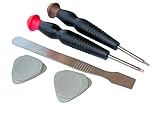
- Includes all the tools needed for repair or maintenance of your Xbox 1 Controller
- Includes: Torx 6, Torx 9, 2 non marring plastic picks, and metal pry bar
- Screwdrivers feature high quality CRV6150 steel, ergnomic handle, spin cap
Get-AppxPackage -AllUsers Microsoft.XboxGamingOverlay |
  ForEach-Object {
    Add-AppxPackage -DisableDevelopmentMode -Register "$($_.InstallLocation)AppXManifest.xml"
  }
Restart Windows and test Win+G. The command registers an existing AppX installation; it does not download a missing package. If Get-AppxPackage returns no result because Game Bar was completely removed, use the Store listing instead. This command is commonly suggested in Microsoft Q&A community answers, including this reinstall discussion; it is not a replacement for the normal Store procedure.
Optional removal when every normal route fails
Do not uninstall first. Repair, Reset, Store installation and re-registration are safer diagnostics. If you deliberately remove only the current user’s Game Bar package, save work and create a restore point first, then run PowerShell as administrator:
Get-AppxPackage *Microsoft.XboxGamingOverlay* | Remove-AppxPackageRestart and reinstall from the official listing. This targeted command comes from Microsoft Q&A community guidance at Microsoft Q&A. Do not combine it with commands that remove the Xbox app, Gaming Services, Microsoft Store or every AppX package.
The Tool Desk
Outbyte PC Repair FREEClear out junk files and repair common Windows errorsFree Scan →Outbyte Driver Updater FREEScan for outdated or missing drivers - takes under a minuteDriver Scan →Fix common symptoms
“You’ll need a new app to open this ms-gamingoverlay link”
This usually means the Game Bar handler is missing or incorrectly registered, although policy restrictions and wider Windows app problems can produce the same message. Install from the direct Store listing, restart, then use Repair and Reset if it is listed. If the package remains installed, try the PowerShell re-registration command.
Game Bar is missing from Settings
Open the direct Store URL and select Get or Install. If Store itself is missing, verify that you are signed in with a Microsoft account and that an administrator has not disabled Store access. Microsoft covers those conditions at its Microsoft Store availability page.
The Store cannot install or locate it
- Restart after installing Windows updates.
- Run
wsreset.exe. - Update Store from Library > Get updates.
- Use the direct listing rather than search.
- Check Microsoft account, region, family settings, compatibility and work-or-school restrictions.
PowerShell reports an AppX deployment error
- Close games, Xbox, Game Bar and Microsoft Store.
- Restart Windows.
- Run
wsreset.exe, install updates and restart again. - Retry the Store listing.
- If Game Bar reappears in Settings, use Advanced options > Reset.
Errors can result from a package in use, incomplete removal, corrupted local data, missing administrator rights, broken Store or Windows Update components, or a package that does not exist in the current user or system state. Do not delete Registry keys or the protected WindowsApps folder as a routine fix.
Win+G still does nothing
Open Game Bar from Start to distinguish a shortcut problem from an app problem, check its shortcut settings, confirm it is enabled and not blocked by organization policy, and restart after any repair or installation. Recording, screenshots, widgets, Xbox sign-in and Gaming Services can fail independently; reinstalling Game Bar will not automatically repair each of those components.
Free tools Windows power users keep installed
One-click scans. No signup required.
When to seek support
Contact Microsoft Support or your organization’s IT administrator if Microsoft Store is disabled, AppX deployment fails for multiple apps, Windows system components appear corrupted, or a work-or-school policy blocks installation. A local-account limitation, regional restriction or administrator policy may prevent Store access even when the Game Bar package itself is valid.
Quick Recap
Product prices and availability are accurate as of the date/time indicated and are subject to change. Any price and availability information displayed on Amazon at the time of purchase will apply.

