What’s actually slowing this PC down?
Pick the symptom - the matching free tool is one click away.
To simulate blowing or making noise in a DeSmuME game, assign the Microphone command to a key, choose a software-generated microphone option, then press or hold that key when the game asks for microphone input. In the standalone Windows version, the relevant menus are Config > Hotkey Config and Config > Microphone Settings. Physical microphone support is less dependable, and controls differ across platforms and frontends.
Set up a simulated microphone in DeSmuME for Windows
- Assign the microphone key. Open Config > Hotkey Config. Under Main, assign a convenient key to Microphone, then save the mapping. The Windows manual documents this hotkey workflow: DeSmuME FAQ.
- Choose a software input. Open Config > Microphone Settings and select an emulated noise mode or a supplied sample, rather than Use connected physical microphone. Depending on the build, the choices include an internal noise sample, random white noise, and a user-supplied sample. The menu and options are described in the FAQ and Windows manual.
- Activate it in the game. Return to the game and press the assigned key when it requests microphone input. Test both a quick tap and a longer hold: games can react differently to the duration and timing.
The DeSmuME FAQ puts it plainly: “If you are using software generated samples, you will have to experiment with the microphone hotkey timing. Some games like quick tapping, others like longer presses.”
Choose the right noise mode or sample
| Input option | What it does | Useful qualification |
|---|---|---|
| Internal noise pattern | Plays a built-in sample intended to provide a blowing-like sound. | The Windows manual says it works for many games that require this kind of input; that is not a guarantee for every game or build. Windows manual |
| Random white noise | Generates noise that can help when a game does not respond to the internal sample. | The Windows manual describes it as nondeterministic and unsuitable for tool-assisted runs. The Libretro core calls the choices pattern and random. Libretro DeSmuME core documentation |
| Custom WAV sample | Uses a user-supplied audio sample as microphone input. | The Windows manual specifies 8-bit mono PCM WAV. The FAQ’s later sample note specifies 8-bit unsigned PCM mono, so check what your particular build accepts. Windows manual · FAQ |
A FAQ note says 8 kHz samples functioned for a Nintendogs case at the time of that development note; it does not establish a universal sample rate for all games or versions. The same FAQ documents Mic Prev Sample and Mic Next Sample hotkeys in versions incorporating a March 2019 change. It describes numbered filenames such as sample_0.wav for cycling through numbered samples up to 254, and says playback changed to one-shot rather than looping. Treat those details as version-specific rather than assuming they apply to every current build. DeSmuME FAQ
Physical microphone support depends on platform
DeSmuME’s microphone options are not identical everywhere. The project’s FAQ documents the platform-specific behavior below, but its hardware-input warnings and historical notes are not a current compatibility guarantee for every build.
Quick Recap
Best Value
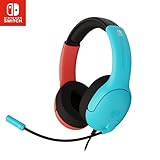
- STEREO SOUND GAMING HEADSET - Powerful 40mm speaker drivers deliver immersive gaming experiences with strong bass and crisp highs.Control Type:Volume
- PREMIUM LIGHTWEIGHT BUILD - Designed for long gaming sessions with deluxe comfort padding, adjustable durable headband, noise-isolating ear cups, and breathable, surround soft foam cushions.
- FLEXIBLE NOISE-CANCELING MIC - Enables crystal clear voice to your teammates with less background and ambient noise. Flip to mute microphone when not in use.
- ON-EAR VOLUME CONTROL - Make quick audio adjustments on the ear-cup while keeping your eyes on the game.
- WIRED COMPATIBILITY - Officially licensed by Nintendo for Switch, Switch OLED & Lite. Works great with Smartphones, Wii, 3DS, Windows PC, Mobile, Tablet, iPad, Mac, VR Devices. Great for travel.
Rank #4

- Applicable model: DS Lite NDSL
- Package Includes: 1 x Built-in Microphone
- Please make sure that this is the model and product type you need, wish you a pleasant shopping
Rank #3

- Supported models : DSi NDSi
- Package Include : 1 x Built-in Microphone
- Please compare the picture and the description carefully. Make sure you get what you need
Rank #2

- Compatible with: DS Lite NDSL
- Package included: 1 x Microphone
- Brand New and High Quality
- Please carefully check the picture, type, applicable model and color of the product before purchase to see if it is what you need. Enjoy your shopping.
#1 Best Overall
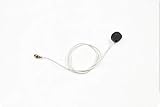
- Supported models : Nintend DS Lite NDSL
- Package Include : 1 x Built-in Microphone
- Please compare the picture and the description carefully. Make sure you get what you need
- Windows standalone: To try a physical mic, make the desired recording device the Windows default recording device, then select Config > Microphone Settings > Use connected physical microphone. The FAQ warns that hardware audio input may be broken in Windows; software samples may be a workaround.
- macOS standalone: The FAQ describes selecting the system default input device and using Emulation > Show Microphone Settings for gain or mute. It also documents generated samples configured through Input Preferences. Its statement that Mac was the only option for games relying heavily on real-time voice recognition is dated and should not be read as a current compatibility guarantee.
- Linux standalone: According to the FAQ, physical input requires a build compiled with libasound and a configured system default input device. It says software-generated samples are unsupported on Linux and warns hardware input may be broken. Confirm the behavior for your specific build and frontend.
- Libretro/RetroArch: The DeSmuME core uses its own options rather than the standalone Windows menus. Its documentation describes Microphone Button Noise Type with
patternandrandomvalues, plus a controller mapping for Make Microphone Noise. Libretro DeSmuME core documentation
Troubleshoot microphone input that does not work
- The game does not react: Confirm a key is assigned to Microphone, check that a software-generated mode or sample is selected, and try both tapping and holding the key. Game timing differs.
- A physical mic is silent: Check the operating system’s default recording device, but do not assume that will fix it; the FAQ reports hardware-input problems on Windows and Linux. Use software-generated input where the build supports it.
- A custom WAV will not load or respond: Check that it is mono PCM and matches the documented bit depth. The Windows manual says 8-bit mono PCM; the FAQ gives the more specific 8-bit unsigned PCM mono description.
- You hear only one burst: The FAQ says sample playback became one-shot in the version change it documents. If that behavior applies to your build, activate the microphone hotkey again for another burst.
- Your menus do not match: Check whether you are using standalone Windows, macOS, Linux, or the Libretro core. Menu labels and supported input options vary.
Product prices and availability are accurate as of the date/time indicated and are subject to change. Any price and availability information displayed on Amazon at the time of purchase will apply.



