Recommended Free Tools
Some links on this page are affiliate links: if you buy through them we may earn a commission, at no extra cost to you.
Yes. For most people, 1,000 DPI is a perfectly good everyday mouse setting. It’s a sensible starting point for browsing, office work, multitasking, and casual gaming. Keep it if you can move comfortably around your screen and click accurately; lower it if you overshoot, or raise it if you keep lifting the mouse to reach the edges.
What does 1,000 DPI mean?
DPI means “dots per inch.” For a mouse, it describes how much movement data the sensor reports for each inch the mouse travels. At 1,000 DPI, the sensor reports roughly 1,000 counts for an inch of physical movement. You may also see the term CPI (counts per inch); consumer discussions often use DPI and CPI interchangeably.
That does not mean the pointer always moves exactly 1,000 screen pixels per inch. The visible distance also depends on operating-system pointer speed, display scaling, acceleration, and the sensitivity settings of the app or game. Higher DPI generally moves the pointer farther for the same hand movement; lower DPI gives you more physical travel for a given pointer movement. Razer’s guide to mouse movement explains this relationship, while Microsoft’s technical overview discusses how mouse movement data is handled.
Free tools Windows power users keep installed
One-click scans. No signup required.
DPI is a sensitivity setting, not a quality score. A mouse with a very high maximum DPI is not automatically more accurate, comfortable, or responsive than one with a lower maximum.
#1 Best Overall

- ✅Silent Mouse - Reduced click sound and same click feel eliminates noise and distractions for you and others around you.
- ✅DURABLE & ERGONOMIC SHAPE - 5,000,000 times clicks using experience brings long life span. Symmetrical Design makes it convenient for both left and right hands, streamline shell is very comfortable to use it all day
- ✅High-definition-1000 DPI tracking engine. Enjoy responsive and smooth cursor control with the 1000 DPI high-definition optical tracking engine
- ✅Anti-slip and Silent Scroll-The grille anti-slip pattern on the scroll wheel ensures fast, easy and accurate scrolling. Almost little noise when you slowly scroll it. Please note: Middle button click is not quiet.
- ✅Shop with confidence - We are the designer and manufacturer, we have been engaged to providing the good products to our customers.
Is 1,000 DPI good for work and browsing?
Usually. It’s a reasonable setting for web browsing, email, documents, spreadsheets, file management, programming, and general desktop navigation. HP lists 1,000–1,600 DPI as a general productivity starting range, but that is guidance rather than a universal rule. Your comfort and control matter more than matching a number from a chart. HP’s guide also gives different example ranges for gaming.
At 1,000 DPI, you should be able to move between windows and monitors without excessive hand travel while still selecting text, spreadsheet cells, and small controls without constant overshooting. If that describes your experience, there is no need to change the setting.
Is 1,000 DPI good for gaming?
It can be. For casual games, strategy games, and many multiplayer online games, 1,000 DPI is a practical choice. In a first-person shooter, it can work too, but many players prefer a lower DPI and adjust the game’s sensitivity to suit their aim and mousepad space. HP gives broad examples of 400–800 DPI for competitive FPS play, 800–1,600 for casual FPS play, and 1,000–1,600 for MOBA games. Those are starting points, not requirements.
Rank #2

- Pentakill, 5 DPI Levels - Geared with 5 redefinable DPI levels (default as: 500/1000/2000/3000/4000), easy to switch between different game needs. Dedicated demand of DPI options between 500-8000 is also available to be processed by software.
- Any Button is Reassignable - 11 programmable buttons are all editable with customizable tactical keybinds in whatever game or work you are engaging. 1 rapid fire + 2 side macro buttons offer you a better gaming and working experience.
- Comfort Grip with Details - The skin-friendly frosted coating is the main comfort grip of the mouse surface, which offers you the most enjoyable fingerprint-free tactility. The left side equipped with rubber texture strengthened the friction and made the mouse easier to control.
- 5 Decent Backlit Modes - Turn the backlit on and make some kills in your gaming battlefield. The hyped dynamic RGB backlit vibe will never let you down when decorating your gaming space, it would be better with other Redragon accessories with lights on.
- Fatigue Killer with Ergonomic Design - Solid frame with a streamlined and general claw-grip design offers a satisfying and comfortable gaming experience with less fatigue even though after hours of use.
What matters in a game is the combined effect of mouse DPI and the game’s sensitivity multiplier. A lower DPI with higher in-game sensitivity can feel similar to a higher DPI with lower in-game sensitivity, but the exact relationship depends on the game. Change settings in small steps and test them in the specific game rather than relying on a universal conversion.
If you play competitively, consistency is more useful than chasing a particular DPI. Some players also prefer to disable Windows pointer acceleration for more predictable movement; that is a gaming preference, not a rule for everyone. For ordinary desktop use, keep whichever pointer behavior feels natural.
How to tell whether 1,000 DPI is right for you
- Set the mouse to 1,000 DPI and begin with your usual operating-system pointer speed.
- Use it for 10–15 minutes in your normal apps: browse, select text, drag a window, resize it, and click small controls.
- Move between the edges of your screen or desktop. Notice whether the pointer is controllable and whether you have to lift the mouse repeatedly.
- If you overshoot or the pointer feels twitchy, try 800 DPI or lower the operating-system pointer speed slightly.
- If you keep running out of mousepad or the pointer feels slow, try 1,200 or 1,600 DPI, or raise pointer speed slightly.
- Change only one setting at a time, then use it long enough to judge the difference.
The aim is comfortable, repeatable control—not a benchmark score. You can adjust DPI in the mouse’s software or hardware profile, if supported, or keep the mouse at 1,000 DPI and change pointer speed in the operating system.
Rank #3

- 【Plug and Play for Home/Office/School】The wireless computer mouse features 2.4GHz connectivity, delivering a stable, interference-free connection up to 32ft. Designed for 𝐦𝐞𝐝𝐢𝐮𝐦 𝐭𝐨 𝐥𝐚𝐫𝐠𝐞 𝐬𝐢𝐳𝐞𝐝 𝐡𝐚𝐧𝐝𝐬, it ensures comfortable use all day. Simply plug in the USB-A receiver for instant pairing—no drivers needed. 📌📌 If the mouse isn’t suitable, place the USB receiver in the battery compartment and return both.
- 【3 Levels Adjustable DPI】This travel USB mouse offers 3 adjustable DPI settings (800, 1200, 1600), allowing you to customize sensitivity for precise design work. Effortlessly switch to match your task and elevate your productivity. 📌 Please remove the film at the bottom of the mouse before use.
- 【Effortless Browsing】Equipped with forward and backward buttons, this computer mice streamlines your workflow, making it easy to navigate through web pages and files with a simple click. 📌Side button does not work on Mac.
- 【Visible Indicator Light】 The pc mouse features a visual indicator for DPI levels and low battery alerts. The red light flashes once for 800 DPI, twice for 1200 DPI, and three times for 1600 DPI. When the battery level is below 10%, the light flashes red until the mouse is completely out of power.
- 【Click to Wake】With smart sleep mode, it saves power by standby after 10 inactive minutes, just 2-3 clicks to wake. This efficient design delivers 3x longer battery life than motion-wake mice. Engineered for durability, its buttons and scroll wheel are tested for 10 million clicks, ensuring long-term reliability and consistent performance.
How screen size and resolution affect the feel
A 1,000 DPI setting works on a 4K monitor; mouse DPI is not limited by screen resolution. But the pointer may feel slower across a large desktop than on a small laptop display, depending on operating-system settings and scaling. On a 1080p laptop it may feel fairly quick; on 1440p, 4K, an ultrawide, or multiple monitors, it may feel comfortable or a little slow. There is no fixed DPI requirement for any resolution.
What’s actually slowing this PC down?
Pick the symptom - the matching free tool is one click away.
Display scaling changes the apparent size of interface elements, and a multi-monitor or wide desktop can take more pointer travel to cross. If you want less hand movement, raise DPI or pointer speed. If you prioritize deliberate selection, lower effective sensitivity. Choose by how the setup feels in your actual work.
DPI, pointer speed, and polling rate are different settings
- DPI: How much movement data the mouse produces for a given amount of physical movement.
- Operating-system pointer speed: A software setting that changes how that movement translates into pointer movement.
- Polling rate: How often the mouse reports its position to the computer. For example, 100 Hz means a report every 10 milliseconds. Razer’s support page explains polling rate separately from sensitivity.
A 1,000 DPI mouse is not necessarily a 1,000 Hz mouse, and a higher polling rate does not make the pointer travel farther. For regular work, a stable, comfortable experience matters more than maximizing either specification.
Rank #4
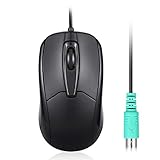
- Functional PS/2 Serial port - Mouse with classic design made to comply old generation of PC; uses legacy PS/2 connector; easy to install without additional drivers
- High definition 1000 DPI - Optical tracking enables responsive and accurate work; navigate smoothly with simple 3 button design with precise scroll wheel
- Symmetrical ergonomic design - feels good in either hand; buttons can be adjusted in computer BIOS; comfortable curved shape supports natural hand Position
- High quality production - without logo printing; Solid black color with glossy details on side; simple integration with any home, office or industrial systems
- Compatibility - PERIMICE-209P is compatible with Windows XP, Vista, 7, 8, 10, and 11; Product Dimension: 4.3 x 2.3 x 1.5 inches; Cable: 6 foot; Weight: 0.21 lb; Warranty: 12 month limited warranty
Windows also offers Enhance pointer precision, an acceleration setting. Acceleration changes pointer movement according to how quickly you move the mouse; it is separate from DPI. Some competitive players turn it off to keep movement more consistent, as described in Logitech’s gaming-mouse guidance. You do not need to disable it for normal use if you prefer the feel with it on.
When to use a lower or higher setting
- Try lower sensitivity if the cursor feels twitchy, you overshoot buttons or text, or detailed photo, illustration, or CAD work calls for more deliberate movement. A large mousepad and arm aiming may also suit lower sensitivity.
- Try higher sensitivity if you repeatedly lift the mouse to cross the desktop, have limited desk space, or find navigation unnecessarily slow.
- Consider other factors too if you have tremor, reduced fine motor control, or wrist discomfort. A different sensitivity may help control, but ergonomics, mouse shape, grip, posture, arm movement, and breaks can matter as much; raising DPI alone is not a fix for discomfort.
Some mouse software offers fixed DPI steps, and some models round entered values. For example, Logitech documents rounding to the nearest 50 DPI on certain configurations; that behavior does not apply to every mouse. Check the documentation for your specific model if it will not accept the exact number you enter.
PC Slower Than It Used to Be?
A free scan shows the junk files, broken settings and background clutter dragging Windows down - then fixes them in one click.Free scan · Windows 10 & 11Crashes, No Sound, or Screen Glitches?
Random freezes, missing sound and display glitches usually trace back to one bad driver. Find and replace yours safely.Free scan · under a minuteIf 1,000 DPI feels wrong—or the cursor skips
The pointer feels too fast
Confirm that the mouse is using the intended DPI profile and that a DPI-shift button has not switched it temporarily. Then check operating-system pointer speed, acceleration, and any sensitivity setting in the app where you notice the problem. Mouse software may also switch profiles automatically. Test one change at a time so you can identify what helped.
Best Value
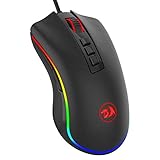
- 5 DPI Options & Customized Function – 5 adjustable DPI levels (500, 1000, 2000, 3000, 5000) meet your multiple needs, either for daily work or gaming. DPI can be adjusted freely by ±100 from 100 to 10000, taking advantage of on-the-fly DPI switching to instantly match mouse speed to gameplay demands. Besides, the Mouse Point Speed setting in the software also allows you to mildly change the movement speed of the mouse to achieve the right fit mode for yourself.
- 7 Programmable Buttons & 16.8-million Lighting “Breathing” RGB – 7 (7 out of 9) programmable buttons enable superior productivity and efficiency to meet all your gaming needs. 5 memory profiles each with a dedicated light color for quick identification and 16-Million Color backlight 'breathing' RGB LED gives out ambient light and set you in a unique gaming atmosphere.
- Professional Programming Software – Adopted the latest professional gaming chip AVAGO to capture fast and accurate movement for precise control; 5 adjustable DPI settings-500/1000/2000/3000/5000, quickly adjustable for different gaming scenarios; 5000 FPS, 100IPS Maximum Tracking Speed, 20G acceleration.
- Comfort & Precision At Your Hands – The M711 Cobra gaming mouse is an essential computer accessory for die-hard gamers with its aggressive design for hands! You will be amazed by the unmatched comfort, lethal accuracy and killer precision of our durable, desktop and laptop pro gaming mouse! You can enjoy a wonderful clicking experience without disturbing others. It is an optimal choice in the office, library, dormitory or wherever you like.
- The Choice Of Die-hard Gamers – Whether you are targeting, aiming, slashing or attacking, a professional gaming mouse is your basic weapon! The mouse will be your ideal partner. Compatible with Windows 2000/ME/XP/03/VISTA/7/8/10 system for programmable using and Mac OS for normal using.
The pointer feels too slow
Try a modest increase in DPI or pointer speed. If the issue occurs only in one game or application, check its own sensitivity settings. If it happens everywhere, test the mouse on another suitable surface or computer to rule out a connection or tracking problem.
The cursor skips or feels inaccurate
DPI may not be the cause. Clean the sensor and check that the mouse is on a suitable surface. For wireless models, check the battery and receiver placement; also consider interference, a USB hub, driver or firmware issues, and the app’s input handling. A high polling rate can cause problems on some older systems. Supported devices may also offer surface calibration; Razer’s troubleshooting guidance notes that dirt can affect operation.
What matters more than the maximum DPI when buying?
If a mouse supports 1,000 DPI, that is enough for normal use. When choosing a mouse, focus first on whether its shape and size suit your hand and grip. Then consider reliable tracking on your desk or mousepad, comfortable weight, dependable buttons and scroll wheel, connection stability, battery life for wireless models, and useful operating-system or software support.
The Tool Desk
Outbyte Driver Updater FREEFix the driver behind crashes, sound loss and screen glitchesFind Drivers →Outbyte PC Repair FREEClear out junk files and repair common Windows errorsFree Scan →A configurable gaming mouse can serve for both work and play, but it is not automatically a better office mouse. A work-focused model may offer a shape, scrolling, quieter clicks, or multi-device switching that suits productivity better. Conversely, if you want one mouse for gaming and work, adjustable profiles and a DPI switch can be useful. Buy for the features you will use—not for an 8,000, 16,000, or 20,000 DPI headline.
A mouse with a 1,000 DPI maximum can be perfectly adequate for basic tasks, though its sensor, tracking, comfort, and controls still matter. A mouse with a higher maximum can simply be set to 1,000 DPI. Manufacturers’ settings and software vary by model, so check the device documentation if exact DPI steps or profiles matter to you.
Quick Recap
Product prices and availability are accurate as of the date/time indicated and are subject to change. Any price and availability information displayed on Amazon at the time of purchase will apply.

