Free tools Windows power users keep installed
One-click scans. No signup required.
If your Logitech G CLOUD will not power on, start with a known-good USB-C charging setup, then try Logitech’s force-reboot procedure: while it is connected to power, slide and hold the Power switch for about eight seconds. A flat battery or frozen system may look completely dead; a factory reset is a later option because it erases data.
First, identify what “won’t turn on” looks like
The next step depends on what the handheld is doing. A blank screen alone does not prove the device is off: it could be frozen, stuck during boot, or running with a display problem.
| # | Preview | Product | Price | |
|---|---|---|---|---|
| 1 |
|
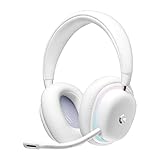
Logitech G735 Wireless Gaming Headset Customizable LIGHTSYNC - White Mist | $139.99 | Buy on Amazon |
| 2 |
|
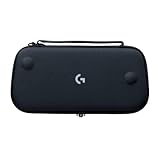
Logitech G Cloud Gaming Handheld Official Carrying Case Protective - Black | $14.99 | Buy on Amazon |
| What you see | What to try next |
|---|---|
| No screen, sound, vibration, or charging indication | Check the power gesture and charging setup, then force reboot. |
| Charging symbol appears, but the device will not start | Leave it connected to a suitable wall adapter, then try a force reboot. |
| Logitech or Android logo appears, then startup stops | Try a force reboot. If normal boot keeps failing, consider Recovery Mode only after reviewing the data-loss warning below. |
| Black screen, but you suspect the unit is active | Check for sound, vibration, or touch response. These clues may help distinguish a display issue from a fully unresponsive device, but they do not diagnose the cause. |
| It works only while plugged in, or power is intermittent | Test another charging setup. A battery, port, power switch, or other internal fault is possible. |
Check the power-on gesture
Logitech’s quick-start guide says to slide and hold the power switch to turn on the G CLOUD. Disconnect nonessential accessories first—such as a microSD card, USB-C headset, hub, or display adapter—so they are not part of the troubleshooting setup. Then slide and hold Power and wait for a startup screen. If nothing happens, move on to charging rather than repeatedly trying button combinations.
Logitech G CLOUD quick-start guide
Charge it with a known-good setup
The charging port is the USB Type-C port on the bottom of the handheld. Logitech lists QC3.0 and PD3.0 support and 18 W charging. For a first test, use a wall outlet, a known-good USB-C cable, and an 18 W QC/PD-compatible adapter if available. A cable may fit the port but still fail to deliver reliable power.
#1 Best Overall
- Unmatched Fit: Wireless gaming headset with intentional design to fit all gamers inclusive of people with smaller head sizes and those who wear glasses or small earrings.Specific uses for product : Movies and Gaming
- Cool and Comfy: Play the day away in this Logitech gaming headset with breathable cloud-soft, rotatable ear cups; lightweight weighing in at only 273g
- Play Across Screens: Multi-device gaming headset made for play; connects to PC, mobile, and aux input with pro-grade Logitech LIGHTSPEED wireless, Bluetooth, or 3.5 mm wired play flexibility
- Dual Audio Mixing: Hear two devices with Logitech wireless gaming headset, one with Bluetooth and the other with LIGHTSPEED or 3.5 mm; mix them to dial-up or down in-game audio, voice chat and more.Note:If you face issue in Bluetooth connectivity please turn off the Bluetooth function for a couple of minutes, then turn it back on
- Sound in Color: Soft, dual-zone LIGHTSYNC RGB lighting with preloaded Play Mood animations; customize your own one-of-a-kind look on Logitech G HUB for your RGB gamer headset
- Connect the G CLOUD to a wall outlet with a known-good USB-C cable and a suitable adapter.
- Inspect the cable, adapter, outlet, and device-side port for damage or a loose connection. Do not scrape the port with metal tools.
- If the battery may be fully depleted, leave the device connected while powered off. Logitech estimates a full charge at approximately 2.5 hours when the handheld is powered off and uses an 18 W QC/PD-compatible adapter; this is an estimate, not a guarantee that a faulty unit will charge.
- If there is still no response, repeat the test with a different cable, adapter, and outlet.
Logitech’s general power and charging troubleshooting guidance recommends testing a different USB charging cable and power source when a device will not charge or power on. Logitech’s G CLOUD specifications and full-charge estimate provide the model-specific charging details.
Force-reboot a frozen or unresponsive G CLOUD
A force reboot is not a factory reset: it is intended to restart an unresponsive system and is not the data-erasing step described below.
- Connect the G CLOUD to power.
- Slide and hold the Power switch for approximately eight seconds.
- Release it when the device begins rebooting or shows a startup screen.
This is Logitech’s published force-reboot procedure. If the device remains unresponsive, remove nonessential accessories if you have not already done so, and retry with a different known-good charging setup. Removing accessories is a practical way to isolate variables, not a guaranteed Logitech fix.
What to do if it starts, but does not boot normally
It stops at the Logitech or Android logo
Try the force reboot first. If normal startup repeatedly fails, Recovery Mode may be appropriate, but use the reset procedure only if you accept losing the data stored on the device.
The Tool Desk
Outbyte Driver Updater FREEScan for outdated or missing drivers - takes under a minuteDriver Scan →Outbyte PC Repair FREERepair Windows errors before they cause bigger problemsFix Now →The screen stays black but the device may be active
Listen for sound or check for vibration or touch response. If you already have compatible equipment, you can also test an external display connection; a result from that test does not by itself prove that the built-in screen has failed. If there is no reliable sign of activity, return to the charging and force-reboot checks.
Rank #2
- Stow and Go: Take your Logitech G Cloud Handheld anywhere you want without having to worry about getting it there safely.
- Hand Strap: Attached strap for comfortable carrying. Pick up and go wherever you want to play.
- Detachable Strap: A detachable and size-adjustable strap gives you more options on how you want to carry and secure your Cloud Handheld device.
It began after an update or keeps crashing
Back up data if the device becomes usable before attempting a reset. Logitech says its Firmware Update Tool is no longer supported or maintained, so do not rely on that tool as a recovery fix.
Logitech factory-reset instructions
Independent reader supportYour contribution helps us test, update, and keep practical guides available for everyone.Use Recovery Mode only when a reset is justified
Recovery Mode is a last resort for a serious boot problem or a forgotten lock-screen PIN or password—not a routine fix for a handheld that failed its first power-on attempt. A factory reset deletes personal data and installed apps. During setup, Android Factory Reset Protection may require the Google account previously associated with the device. A reset cannot repair a failed battery, damaged USB-C port, defective switch, or other physical fault.
Logitech says a reset from Settings requires at least 20% battery; its Recovery procedure requires AC power. To enter Recovery Mode and reset:
PC Slower Than It Used to Be?
A free scan shows the junk files, broken settings and background clutter dragging Windows down - then fixes them in one click.Free scan · Windows 10 & 11Outdated Drivers Are Slowing You Down
One free scan finds every outdated or missing driver and matches the right update for your exact hardware.Free scan · exact hardware match- Turn the device off and wait 10 seconds.
- Press and hold Volume −.
- While holding Volume −, connect the USB cable to the G CLOUD, then connect it to a power source.
- Use Volume − or Volume + to select Recovery mode, then press Power.
- Hold Power, then press Volume + to display the Recovery menu.
- Select Wipe data/factory reset, then select Factory data reset.
Logitech documents these steps for forgotten PIN or password recovery and factory resetting the G CLOUD. If the device will not reliably reach Recovery Mode, do not keep experimenting with button combinations.
When to stop troubleshooting and contact Logitech
Contact Logitech if the G CLOUD still shows no response after you have tested a known-good cable, adapter, and outlet, allowed time for charging, and tried the force reboot. A fault in the battery, charging port, power switch, or other internal hardware is possible, but these symptoms do not identify a specific failed part.
Quick Recap
- Stop charging and seek service if the device becomes unusually hot, swells, smells burnt, or shows visible battery damage.
- Do not charge or continue testing a device with suspected liquid damage or a visibly damaged USB-C port.
- Do not open the handheld or buy an unverified replacement battery based only on the symptom.
- Use Logitech’s support portal for product assistance. Warranty or repair eligibility depends on region, purchase details, and the applicable terms.
Product prices and availability are accurate as of the date/time indicated and are subject to change. Any price and availability information displayed on Amazon at the time of purchase will apply.



