What’s actually slowing this PC down?
Pick the symptom - the matching free tool is one click away.
Logitech MX Ink is a tracked mixed-reality stylus for Meta Quest—not a conventional Bluetooth pen. It combines a pressure-sensitive tip, 6DoF spatial tracking, buttons and haptics so you can write on a physical surface in passthrough, draw in 3D, or switch to regular Quest controllers. It supports Meta Quest 2, Quest 3 and Quest 3S running Quest OS v69 or later.
Logitech announced MX Ink on June 17, 2024, and made it globally available in September 2024. The relevant question in 2026 is therefore whether its supported apps and workflow justify buying a specialized accessory.
What MX Ink actually is
MX Ink is a pen-shaped “Made for Meta” input device that Quest recognizes as a tracked controller. The headset tracks its position and rotation in six degrees of freedom, allowing the stylus to work on a desk, sheet of paper or mat viewed through passthrough, then move into room-scale virtual space.
The tip is pressure-sensitive for physical-surface writing and drawing. A separate pressure-sensitive middle area provides analog input for air drawing and selection. Buttons, haptics and a Meta button give it controller-like functions that an Apple Pencil, Surface Pen or ordinary capacitive stylus does not have.
Quick wins for a faster PC:
Clear out junk files and repair common Windows errorsFree Scan →Scan for outdated or missing drivers - takes under a minuteDriver Scan →#1 Best Overall
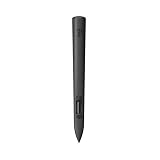
- Experience high-precision creations and operations in Mixed Reality (MR) with the familiar feel of a pen; say goodbye to learning curves, save time, and stay seamlessly in your workflow
- MX Ink MR Stylus is designed and built to effortlessly connect with your Meta Quest and work alongside your Meta Touch Controllers; transition smoothly from 2D to 3D, then back again without disrupting your workflow
- Enjoy high-precision creativity and control with a pressure-sensitive tip (1 replacement fine tip/ 1 wide tip included) and main button of this stylus; sketch, grab, move, and manipulate fluidly in Mixed Reality (MR)
- Deep integration in Meta Settings lets you tailor your control, pressure curves, activation forces; select right or left-handed control, and configure button mapping
- High-accuracy 6DoF with balanced button feel, pressure, tactility, and haptics achieves seamless spatial tracking; a must for MR applications
It does not replace a graphics tablet, control a computer by itself, or provide universal Windows, tablet, PC-VR or Apple Vision Pro support. Its strongest integration is with the Meta Quest platform.
Compatible Quest headsets
| Headset | Support | Requirement or limitation |
|---|---|---|
| Meta Quest 2 | Yes | Quest OS v69 or later |
| Meta Quest 3 | Yes | Quest OS v69 or later |
| Meta Quest 3S | Yes | Listed by Logitech as supported |
| Meta Quest Pro | Not listed as supported | Do not assume compatibility |
| Other non-Quest headsets | No official support established | MX Ink is designed for native Quest integration |
See Logitech’s compatibility list and product page for the current headset and software requirements.
One MX Ink can be paired alongside the normal Meta Touch Controllers. Logitech describes this as enabling more than two paired controllers on Quest. That does not make every app capable of switching among all devices, however. The Meta Quest Touch Pro Controller is explicitly not compatible with MX Ink.
Tracking, controls and configuration
How tracking feels in use
Quest tracks MX Ink as a dedicated spatial device while the headset supplies the mixed-reality view. You can rest the tip on a real surface for writing, lift it to draw or point in the air, and move between 2D and 3D tasks without treating it as a simple Bluetooth accessory. Independent coverage has described MX Ink as the first officially supported third-party tracked controller-style accessory for Quest; that “first” claim belongs to the reporting and Logitech’s launch positioning, not a promise of broader headset compatibility.
Free tools Windows power users keep installed
One-click scans. No signup required.
Default button map
- Front button: Grab.
- Rear button: A.
- Double-tap the rear button: B.
- Meta button: Open the Universal Menu.
- Hold Meta for two seconds: Turn the stylus on.
- Hold Meta for five seconds: Power it off.
- Tip: Pressure-sensitive writing and drawing.
- Middle area: Pressure-sensitive analog input for air drawing and selection.
After pairing, open Settings → Devices → Stylus on the headset. You can change haptics, left- or right-handed use, the pressure curve, initial activation force and button mappings. Logitech’s default configuration is haptics enabled and right-handed operation. The exact labels can change with Quest software updates.
How to pair MX Ink
Use the current Logitech-documented route in the Meta Horizon phone app:
Rank #2

- Experience high-precision creations and operations in Mixed Reality (MR) with the familiar feel of a pen; say goodbye to learning curves, save time, and stay seamlessly in your workflow
- Easily recharge the wireless MX Ink stylus by simply placing it in the included MX Inkwell Charging Dock or with a USB-C cable (not included)
- MX Ink MR Stylus is designed and built to effortlessly connect with your Meta Quest and work alongside your Meta Touch Controllers; transition smoothly from 2D to 3D, then back again without disrupting your workflow
- Enjoy high-precision creativity and control with a pressure-sensitive tip (1 fine tip/ 1 wide tip included) and main button of this stylus; sketch, grab, move, and manipulate fluidly in mixed reality (MR)
- Deep integration in Meta Settings lets you tailor your control, pressure curves, activation forces; select right or left-handed control, and configure button mapping
- Turn on the Quest headset.
- Hold the MX Ink Meta button for 2 seconds to power on the stylus.
- Open the Meta Horizon app on your phone.
- Choose Headset Settings.
- Select Controllers.
- Tap Pair New Controller.
- Choose Pair Stylus.
- Hold the MX Ink rear button and Meta button together for 4 seconds, then finish the in-app instructions.
Meta’s app labels may move in a future update, but the documented path is currently Headset Settings → Controllers → Pair New Controller → Pair Stylus. The full setup guide is on Logitech’s Getting Started page.
What you can do with it
Logitech positions MX Ink for drawing, sculpting, annotation, design, collaboration, education, healthcare visualization and productivity. The practical advantage is fine motor control: a physical pen can be steadier for handwriting, marking up a virtual object or manipulating a small design element than a bare hand.
- Write or annotate on a real desk, paper sheet or dedicated mat while viewing it in passthrough.
- Draw and sculpt directly in 3D space.
- Point, select and manipulate virtual objects with a pen-shaped tool.
- Use pressure for supported drawing applications.
- Switch between MX Ink, Touch Controllers and hand tracking where the application permits.
These are intended workflows, not guarantees for every Quest title. An app may recognize the stylus but omit pressure, haptics, physical-surface input or seamless controller switching.
App compatibility is the key caveat
Developers decide whether an app exposes MX Ink’s tracked pose, tip pressure, middle pressure, haptics and button events. A headset can track the device correctly while the software ignores it or supports only basic pointing. Independent reporting in late 2025 also found that using MX Ink together with hand tracking remained uncommon in some applications.
For a purchase decision, identify the exact apps you intend to use and confirm their current MX Ink support rather than relying on the headset model alone.
Rank #3

- Compatibility: For all iPads 2018 and later.
- Digital Stylus Pen: Logitech Crayon uses Apple Pencil technology so you can write and draw naturally in pixel-perfect precision without missing a single line or detail
- Thick or Thinner Lines: Just tilt this iPad stylus pencil and the smart tip will adjust line weight automatically to the needed thick or thin size
- Instant Connection: This Logitech stylus pen for iPad connects to iPad instantly—just slide down the off/on switch and start writing; no device pairing or other delays required
- Fast Input: Logitech Crayon stylus for iPad delivers precise and fast input with hundreds of indispensable Apple Pencil supported apps and the list is growing bigger every day
Battery, charging and what is in the box
Logitech quotes up to seven hours of battery life in a typical workflow, while its product information also cites roughly three hours when haptics are used. Those are estimates, not fixed runtimes; tracking load, application behavior and haptic use can reduce endurance.
The stylus charges through USB-C. A USB-C cable is not included. Pogo-pin contacts allow charging in the optional MX Inkwell dock.
The standard package contains:
- MX Ink stylus.
- One fine spare tip.
- One wide spare tip.
- Documentation.
One tip is already installed, so you receive three tips in total.
MX Inkwell and MX Mat
MX Inkwell charging dock
MX Inkwell is optional. It charges through the stylus’s pogo pins, while USB-C charging works without the dock. It suits a permanent desk, classroom, studio or workplace where the pen should have a visible home and be charged between sessions. Occasional or mobile users can avoid the extra cost and use a USB-C cable they already own.
Do these 3 things before closing this tab:
1Fix the driver behind crashes, sound loss and screen glitches2Repair Windows errors before they cause bigger problems3Scan for outdated or missing drivers - takes under a minuteMX Mat
Logitech announced MX Mat as a compatible physical writing surface. It can provide a defined area for passthrough writing, but it is not required if your desk or another suitable surface works for your setup.
Size and physical details
| Specification | Logitech figure |
|---|---|
| Length | 6.46 inches (164 mm) |
| Diameter | 0.72 inches (18.2 mm) |
| Weight | 1.02 ounces (29 grams) |
| Charging | USB-C or MX Inkwell pogo pins |
Price and availability
The verified launch MSRPs announced for September 2024 were:
Rank #4

- Capacitive touch screen technology is impenetrable to contaminants and liquids, for instance, dust, oil, grease and water globules
- The stylus pen is simple to handle, a bit like a traditional ball pen on the tablet
| Product | Launch MSRP | What it included |
|---|---|---|
| MX Ink stylus | $129.99 | Stylus and spare tips |
| MX Ink plus MX Inkwell | $169.99 | Stylus and charging dock |
| MX Mat | $49.99 | Compatible writing surface |
These are historical launch prices, not a confirmed August 2026 street price. Check the current Logitech product page or a retailer before purchasing. The launch announcement is documented by Business Wire.
Common problems and fixes
It does not appear in pairing
- Confirm the headset is Quest 2, Quest 3 or Quest 3S and is running Quest OS v69 or later.
- Power on MX Ink by holding Meta for two seconds.
- Hold the rear and Meta buttons together for four seconds during the pairing step.
- Check that the Meta Horizon app is connected to the intended headset.
- If it was paired elsewhere, restart both devices and repeat the flow.
It tracks but will not draw
The application may not support MX Ink, may support tracking without pressure, or may require a particular interaction mode. Test another known-compatible app and consult Logitech’s current app list. Also distinguish tip or middle pressure from button presses.
Recommended Free Tools
Touch Pro Controllers are unavailable
That is a compatibility limitation: Logitech explicitly excludes the Meta Quest Touch Pro Controller from MX Ink support.
Battery drains faster than expected
Disable haptics when they are unnecessary, charge over USB-C, and treat the seven-hour figure as an upper-end estimate rather than a guarantee. A dock can make regular charging easier but does not increase the stylus’s rated battery capacity.
Who should buy MX Ink?
It makes sense if you:
- Own a Quest 2, Quest 3 or Quest 3S.
- Use applications with confirmed MX Ink support.
- Draw, write, annotate, design, teach or model in mixed reality.
- Prefer a physical pen for precise fine-motor work.
- Want one accessory that moves between a real surface and 3D space.
Skip it if you:
- Own a Quest Pro or rely on Touch Pro Controllers.
- Mainly play games that need sticks, triggers and broad controller inputs.
- Expect a general-purpose PC graphics tablet or universal desktop pen.
- Need every Quest app to support pressure, haptics and stylus switching.
- Only need simple menus, where hand tracking or standard Touch Controllers may be enough.
- Do not want another rechargeable device or a specialized accessory costing more than $129.99 at launch.
Verdict
MX Ink is a specialized but unusually integrated Quest accessory. Its pressure-sensitive tip and 6DoF tracking can make writing, annotation and 3D creation more natural than hand tracking, but the value depends almost entirely on app support. It is not a replacement for Touch Controllers, a Quest Pro accessory, or a universal computer stylus. Buy it when your headset and software support the pen workflow you actually need; otherwise, the standard controllers or hand tracking remain the simpler choice.
Quick Recap
Product prices and availability are accurate as of the date/time indicated and are subject to change. Any price and availability information displayed on Amazon at the time of purchase will apply.
The Tool Desk
Outbyte PC Repair FREERepair Windows errors before they cause bigger problemsFix Now →Outbyte Driver Updater FREEFix the driver behind crashes, sound loss and screen glitchesFind Drivers →



