Quick wins for a faster PC:
Repair Windows errors before they cause bigger problemsFix Now →Fix the driver behind crashes, sound loss and screen glitchesFind Drivers →riafui2.dll is a printer-driver component, not a general Windows runtime such as Visual C++, DirectX, or .NET. It is identified as the PCL Unidrv Printer Driver UI Plugin, associated with Ricoh PCL printer software and the Windows Unidrv printing architecture.
The safest fix is to remove the affected Ricoh printer and reinstall its driver through Windows Update or Ricoh’s official support site. Do not download a loose copy of riafui2.dll, copy it into System32, or begin with regsvr32. Those actions often leave the damaged driver package in place and can introduce an incorrectly matched or unsafe file.
What riafui2.dll does
Windows Unidrv can load an optional user-interface plug-in supplied for a particular printer. That plug-in adds printer-specific controls to areas such as printer properties, preferences, and setup. riafui2.dll is reported as one of these older Ricoh PCL/Unidrv components.
The file may be involved when Windows:
- Opens a Ricoh printer’s properties or printing preferences
- Installs or removes an older Ricoh printer
- Sends a document to print
- Starts software that calls the Windows print subsystem
- Loads a damaged or incomplete printer driver
The exact error may say that riafui2.dll was not found, is missing, is corrupted, or could not be loaded. A similar message can also mean that a dependency of the printer plug-in is missing, rather than proving that this particular file is the only problem.
#1 Best Overall

- Monochrome Wireless, Duplex 4-in-1: Print, Scan, Copy, Fax
- Print up to 42 ppm
- Easy Wireless Setup
- 5-inch Touchscreen
- Mobile Device Printing
Historical third-party records describe this as an old 32-bit driver component. That does not establish that the same file belongs in every Windows 10 or Windows 11 installation. A 64-bit Windows computer can use legacy 32-bit printer components, but the printer’s complete driver package must supply the compatible files.
Before repairing the file
Record these details before changing anything:
- Copy the complete error message.
- Note whether it appears while printing, opening printer properties, adding a printer, or starting another program.
- Write down the printer manufacturer and exact model.
- Check whether the problem affects one printer or every printer.
- Note your Windows version and system architecture.
- Check whether the file was recently quarantined by antivirus software.
- If a file path appears in the error, record that path.
To check the Windows architecture, open Settings > System > About and look at System type. Do not use an old 32-bit DLL merely because the filename matches. The correct architecture is determined by the printer driver package and the Windows installation.
Fix 1: Remove and reinstall the affected printer
Time needed: 10 to 20 minutes
This is the most likely solution because riafui2.dll belongs to a printer-driver installation rather than to a general application runtime.
Remove the printer in Windows 11
- Select Start > Settings.
- Select Bluetooth & devices.
- Select Printers & scanners.
- Select the Ricoh printer that triggers the error.
- Select Remove.
- Confirm the removal.
- Restart Windows.
Remove the printer in Windows 10
- Select Start > Settings.
- Select Devices.
- Select Printers & scanners.
- Select the affected Ricoh printer.
- Select Remove device.
- Confirm the removal.
- Restart Windows.
After restarting, return to the same printer page and select Add device. Allow Windows to search for the printer. If it finds the printer, complete the installation and print a test page.
Crashes, No Sound, or Screen Glitches?
Random freezes, missing sound and display glitches usually trace back to one bad driver. Find and replace yours safely.Free scan · under a minutePC Slower Than It Used to Be?
A free scan shows the junk files, broken settings and background clutter dragging Windows down - then fixes them in one click.Free scan · Windows 10 & 11If the printer is connected by network, confirm that it is powered on and connected to the same network. For a USB printer, connect it directly to the computer rather than through an unpowered hub while testing.
Install the driver through Windows Update
- Open Start > Settings.
- Select Windows Update.
- Select Check for updates.
- Install available updates.
- Open Advanced options > Optional updates, if available.
- Expand Driver updates.
- Install a Ricoh or printer-related driver that matches your model.
- Restart Windows.
- Add the printer again under Printers & scanners.
Microsoft recommends Windows Update as the normal way to obtain current printer drivers. If Windows installs a generic driver but the error returns when you open Ricoh-specific preferences, continue with the model-specific installation below.
Fix 2: Install the exact Ricoh driver package
Time needed: 15 to 30 minutes
Use Ricoh’s official support and driver pages, search for the exact printer model, and select the package for your Windows version and architecture. Avoid choosing a driver solely because it contains the word “PCL.” Several packages may exist for one model, and a driver for a similar printer may not contain the required UI plug-in.
Before installing:
- Disconnect the printer from the computer if it is connected by USB.
- Remove the printer from Printers & scanners.
- Restart Windows.
- Download the driver for the exact Ricoh model from Ricoh.
- Confirm that the package matches your Windows edition and architecture.
- Run the installer as an administrator.
- Follow the installer’s connection and port instructions.
- Reconnect the printer when instructed.
- Print a test page.
- Open Printing preferences and check whether the error has stopped.
If Ricoh provides both a PCL 6 driver and another printer language option, use the package recommended for your model. PCL 6 is a normal choice for many Ricoh printers, but the correct package depends on the device and the intended features.
Rank #2

- BEST FOR SMALL BUSINESSES – Engineered for extraordinary productivity, the Brother DCP-L2640DW Monochrome (Black & White) 3-in-1 combines laser printer, scanner, copier in one compact footprint and delivers high-quality black & white prints
- FAST PRINTER WITH EFFICIENT SCANNING – Produces documents quickly with print speeds up to 36 ppm(2) and scan speeds up to 23.6/7.9 ipm(3) (black/color). A 50-page auto document feeder(4) allows for convenient, time saving multi-page scanning and copying
- FLEXIBLE CONNECTION OPTIONS – Easily navigate the changing demands of your business with secure multi-device connectivity via built-in dual-band wireless (2.4GHz / 5GHz) and Ethernet. Or connect locally to a single computer via USB interface
- BROTHER MOBILE CONNECT APP – Print, scan, and manage your wireless printer anytime, from almost anywhere from your mobile device. Order Brother Genuine Supplies, track toner usage, and complete more work on-the-go(5)
- CHOOSE BROTHER GENUINE TONER – When it’s time to replace your toner, be sure to choose Brother Genuine TN830 or TN830XL replacement toner. And with Refresh EZ Print Subscription Service, you’ll never worry about running out of toner again and you’ll enjoy savings of up to 50%(6) on Brother Genuine Toner. Get started with Refresh today with a Free Trial(1)
For a manual installation, Windows may offer a Have Disk button:
- Open Settings > Bluetooth & devices > Printers & scanners.
- Select Add device.
- Choose Add manually if automatic discovery does not find the printer.
- Select the connection method.
- When Windows asks for a driver, choose Have Disk.
- Browse to the extracted Ricoh driver folder.
- Select the driver information file supplied with that package.
- Complete the installation.
- Print a test page.
Do not replace the driver by copying only riafui2.dll. A printer driver includes related files, configuration data, architecture-specific components, and installation information.
If manually identifying outdated drivers across several office computers is taking longer than checking each package, Outbyte Driver Updater can scan and show driver problems; its free scan identifies issues, while the full version performs driver installation. Verify the proposed Ricoh package against the printer model before applying changes.
Fix 3: Check Device Manager for an old printer driver
Time needed: 10 to 20 minutes
Printer entries do not always appear in Device Manager in an obvious way, but old or failed printer-related devices may be listed there.
Recommended Free Tools
- Right-click Start.
- Select Device Manager.
- Expand Printers.
- Also expand Print queues.
- Look for the Ricoh printer or an entry with a warning icon.
- Right-click the affected entry and select Uninstall device.
- If Windows offers to remove the driver package, select that option only when you intend to reinstall the driver immediately.
- Restart Windows.
- Install the correct Ricoh driver again.
Do not uninstall unrelated display, audio, chipset, or storage devices because their names contain similar letters. riafui2.dll is a printer-driver component, so the relevant entry should be connected to the printer or print queue.
If the printer is shared from a print server, the server may be supplying the driver. In that situation, reinstalling only the local queue may not solve the problem. Contact the administrator responsible for the print server and provide the printer model, Windows version, and full error message.
Fix 4: Repair Windows components with DISM and SFC
Time needed: 15 to 45 minutes
Use this fix when the error affects more than one printer, Windows reports other missing system files, or the problem began after an interrupted update, disk problem, image restore, or system change.
DISM repairs the Windows component store. SFC checks protected Windows files after that repair.
Free tools Windows power users keep installed
One-click scans. No signup required.
- Open Start.
- Type
Command Prompt. - Right-click Command Prompt.
- Select Run as administrator.
- Select Yes if User Account Control asks for permission.
- Run this command:
DISM.exe /Online /Cleanup-Image /RestoreHealth
- Wait for DISM to finish.
- Run:
sfc /scannow
- Wait until the scan reaches 100 percent.
- Restart Windows.
- Test the printer again.
Run the commands separately and do not close the window while either operation is working. A successful result means that Windows repaired components or found no integrity violations. It does not necessarily reinstall a Ricoh printer driver, so repeat Fix 1 or Fix 2 afterward if the printer still reports the DLL error.
Rank #3
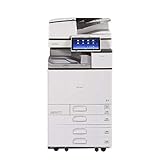
- Comes with Built-In WIFI and 10.1" wide smart operation panel.
If SFC says it could not repair some files, run DISM again, restart, and run SFC once more. If it continues to fail, save the CBS log identified in the SFC result and consider a Windows repair installation using matching installation media.
If repeated manual DISM and SFC runs are difficult to track, Outbyte PC Repair can scan and show system issues; its free scan reports what it finds, while repairs are performed by the full version. It is optional, and the official DISM and SFC commands remain the direct Microsoft-supported path.
Fix 5: Check Microsoft Defender Protection history
Time needed: 5 to 15 minutes
An antivirus quarantine can make a previously working printer driver appear to have a missing DLL. Do not restore the file automatically. A filename alone does not prove that a file is safe.
What’s actually slowing this PC down?
Pick the symptom - the matching free tool is one click away.
- Open Start > Settings.
- Select Privacy & security in Windows 11, or Update & Security in Windows 10.
- Select Windows Security.
- Select Virus & threat protection.
- Select Protection history.
- Look for an action involving
riafui2.dllor the Ricoh driver package. - Expand the entry and review its path, detection name, and action.
- Run a security scan before allowing anything.
Only consider restoring or allowing a file after confirming that:
- It came from the Ricoh driver installation
- The path is consistent with the printer package
- The file has a valid publisher or digital signature where expected
- The printer driver was obtained from an official source
- Defender and any other security software no longer identify it as malicious
If the file is repeatedly quarantined, do not weaken Defender merely to make the printer work. Remove the old package, scan the computer, and obtain a fresh driver from Ricoh or Windows Update.
Fix 6: Use System Restore after a recent driver change
Time needed: 20 to 40 minutes
Use System Restore when the error began immediately after a Windows update, printer installation, driver update, or other system change and a suitable restore point exists.
- Press Windows key + R.
- Type:
rstrui.exe
- Press Enter.
- Select Next.
- Choose a restore point created before the problem began.
- Select Scan for affected programs if available.
- Review the changes.
- Select Next, then Finish.
- Allow Windows to restart.
System Restore does not remove personal documents, but it can change drivers, applications, and system settings. After the restore, install a current compatible Ricoh driver rather than relying permanently on an old package.
Fix 7: Check the Print Spooler when printing fails
Time needed: 10 to 20 minutes
This fix is more relevant when printing fails or documents remain stuck in the queue. It is less likely to repair a missing file reported while opening printer properties.
- Press Windows key + R.
- Type:
services.msc
- Press Enter.
- Find Print Spooler.
- Right-click it and select Restart.
- Try printing again.
If the queue remains stuck, use Microsoft’s printer troubleshooting procedure to clear pending jobs and reconnect the printer. Do not delete random files from the Windows directory. If you manually clear spool files, stop the Print Spooler first and restart it only after the queue has been removed.
Rank #4

- Prints up to 30 ppm, copy, scan, optional fax
- 1200x1200 dpi max print resolution
- Paper capacity up to 4,700 pages
- Add software and applications as necessary to meet emerging needs
If every printer operation fails, open Event Viewer and inspect:
Applications and Services Logs > Microsoft > Windows > PrintService
Record the event details and the printer model. Those details can distinguish a spooler failure from a driver or dependency problem.
Independent reader supportYour contribution helps us test, update, and keep practical guides available for everyone.Why regsvr32 usually does not fix this error
regsvr32 registers DLLs that provide the required registration entry point, such as DllRegisterServer. It is not a universal repair command for every .dll file.
A printer UI plug-in should normally be repaired by reinstalling its complete driver package. Running commands such as these with a guessed path can produce another error or register an incompatible file:
regsvr32 riafui2.dll
regsvr32 C:WindowsSystem32riafui2.dll
Do not use regsvr32 unless the printer vendor’s documented installation procedure specifically requires it for that exact package.
Do not download riafui2.dll from a DLL website
A loose DLL download can be:
- The wrong version for the printer driver
- The wrong 32-bit or 64-bit architecture
- Missing required dependencies
- Unsigned or modified
- Incompatible with the installed Windows release
- Malware disguised with a familiar filename
Copying it into System32, SysWOW64, a random application folder, or the DriverStore can create loader failures and signature problems. It also does not repair the printer’s driver registration or supporting files.
Use Windows Update, Microsoft’s printer support guidance, or Ricoh’s official model-specific driver package instead.
Best Value
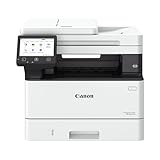
- Monochrome, Wireless, Duplex 4-in-1: Print, scan, copy, fax.
- Fast Print Speeds: Print up to 37 pages per minute and spend less time waiting with a quick first print time of approximately 5 seconds.
- Easy Wireless Setup: Setup your wireless connection and get up and running in just a few steps2
- 5-inch Color Touchscreen: Get the job done quickly with Application Library - an intuitive and easy to use customizable access to the features you use most.
- Mobile Device Printing: Print from your compatible mobile devices using the free Canon PRINT app, Apple AirPrint and Mopria Print Service.
Likely causes of the error
| Likely cause | Appropriate repair |
|---|---|
| Damaged or incomplete Ricoh driver | Remove the printer and install the exact Ricoh package |
| Old driver after a Windows upgrade | Replace it with a compatible model-specific driver |
| Wrong 32-bit or 64-bit package | Install the package matching Windows and the printer |
| Windows component corruption | Run DISM, then SFC |
| Antivirus quarantine | Review Protection history and verify the file before restoration |
| Recent system or driver change | Use System Restore if an appropriate restore point exists |
| Print Spooler or queue failure | Restart the spooler and clear stuck jobs through Microsoft’s procedure |
| Incorrectly named file | Compare the exact filename with the error and inspect the calling printer |
The problem may begin after removing a Ricoh printer, updating its driver, upgrading Windows, restoring an old Windows image, running disk cleanup, or installing an incompatible package. It can also appear when a dependency is missing even though riafui2.dll itself is present.
If the error continues
Create a new local printer using the correct Ricoh package or a compatible generic/IPP driver where the model supports it. If the new printer works, the original queue or driver package is the likely source of the failure.
The Tool Desk
Outbyte PC Repair FREEClear out junk files and repair common Windows errorsFree Scan →Outbyte Driver Updater FREEScan for outdated or missing drivers - takes under a minuteDriver Scan →If the error appears for every printer:
- Run DISM and SFC.
- Restart the Print Spooler.
- Check Event Viewer’s PrintService log.
- Review Defender Protection history.
- Test a new local printer.
- Record the exact error, file path, printer model, Windows version, and driver source.
If the error appears only for one old printer, replace that printer driver rather than trying to preserve a loose historical DLL.
FAQ
Is riafui2.dll a Microsoft runtime file?
No. It is described as a PCL Unidrv printer-driver UI plug-in. Microsoft provides the Unidrv printing architecture, while the file is associated with Ricoh printer software.
Does every Windows 10 or Windows 11 computer need this file?
No. Modern Windows installations do not universally require this historical Ricoh printer component. Its relevance depends on the installed printer and driver package.
Should I install Visual C++ Redistributable?
Not for this filename alone. There is no evidence that riafui2.dll is a Visual C++ runtime component.
Do these 3 things before closing this tab:
1Scan for outdated or missing drivers - takes under a minute2Clear out junk files and repair common Windows errors3Fix the driver behind crashes, sound loss and screen glitchesCan I fix it by copying the file from another computer?
That is unsafe and often ineffective. The other computer may have a different Windows release, printer model, driver architecture, or file version. Reinstall the complete driver package instead.
Can I register it with regsvr32?
Usually not. Reinstalling the printer driver is the appropriate repair unless the vendor specifically documents registration for that package.
What if the error names a similarly spelled DLL?
Check the spelling carefully. Compare the complete filename in the message with riafui2.dll, then identify which printer or application generated it. A similarly named file may belong to a different product and require a different repair.
What should I give a technician?
Provide the full error text, printer model, Windows version, system architecture, file path, time the problem began, recent driver or Windows changes, and any Defender Protection history entry. This information is more useful than an isolated copy of the DLL.
Free tools Windows power users keep installed
One-click scans. No signup required.
Quick Recap
Product prices and availability are accurate as of the date/time indicated and are subject to change. Any price and availability information displayed on Amazon at the time of purchase will apply.



