What rocket.dll is and the safest fix
rocket.dll is an application DLL, not a Windows system file. rocket.dll is most strongly associated with older Encore Hoyle games and collections, where it appears among Dynamix-named game components.
The safest repair is to identify the Hoyle or Encore game requesting the file, then repair or reinstall that exact product from its original disc, installer, or legitimate vendor download. Do not begin by downloading a replacement DLL or copying one into System32.

rocket.dll identification
| Detail | What the available records show |
|---|---|
| Internal description | Poker |
| Reported developer | Dynamix, Inc. |
| Category | Third-party application file |
| Strongest product association | Older Hoyle Card Games, Hoyle Casino, Hoyle Puzzle and Board Games, and related collections |
| Reported metadata | One record describes a 32-bit file, version 0.5010.0.2, sized 32 KB |
| Conflicting records | Other public records list 32-bit and 64-bit files around 3 MB with version 0.0.0.0 |
| Windows ownership | No evidence supports that it belongs to Windows |
The conflicting size, architecture, and version records are important. They do not prove that every file called rocket.dll is interchangeable. Restore only the copy belonging to the same game edition and installation source.
The Poker description also does not prove that the file belongs exclusively to a poker game. It is an internal description reported in file metadata. Hoyle products contain several card, casino, puzzle, and board games, and their installed-file inventories list Rocket.dll with other Dynamix components.
#1 Best Overall

- Card Games..Hoyle's card games, copyright 1974
- Library of congress catalog card number 73-163085
- A Dolphin Handbook, softcover 398 pages
- "According to Hoyle" is the card-table synonym for Correct --a definitive guide to the correct playing of all known card games, with full descriptions and explanations of rules and techniques for each game and its variations.
- From the Publisher "According to Hoyle" is the card-table synonym for Correct --a definitive guide to the correct playing of all known card games, with full descriptions and explanations of rules and techniques for each game and its variations.
Step 1: Identify the game requesting rocket.dll
The filename alone cannot identify the exact Hoyle edition installed on your computer. Start with the error window and the game shortcut.
Check the shortcut target
- Right-click the shortcut that produces the error.
- Select Properties.
- Open the Shortcut tab.
- Read the Target field.
- Note the executable name and the folder containing it.
- Select Open File Location if that button is available.
Look for an older Hoyle or Encore product name in the folder, shortcut, Start menu entry, or installed-program list.
Check installed applications
- Press Windows + I.
- Select Apps.
- Choose Installed apps in Windows 11, or Apps & features in Windows 10.
- Search for
Hoyle,Encore,Card Games,Casino,Puzzle, orBoard Games. - Select the matching application and check whether Modify, Repair, or Uninstall is available.
If more than one Hoyle product is installed, repair the one whose shortcut or executable produces the error. Do not assume that copying rocket.dll from one Hoyle title to another is safe.
Find the missing file’s expected location
Open the game’s installation folder and search for these related names:
Quick wins for a faster PC:
Clear out junk files and repair common Windows errorsFree Scan →Scan for outdated or missing drivers - takes under a minuteDriver Scan →Rocket.dllPoker.dll24Cents.dllEightBall.dllNineBall.dll
Their presence can help confirm that you are looking at the correct older Hoyle installation. A normal game DLL is usually stored beside the executable that loads it or in a subfolder used by that game.
If you need to identify the executable more precisely:
- Start the game until the error appears.
- Press Ctrl + Shift + Esc to open Task Manager.
- Select Details.
- Look for the game process, if it remains open.
- Right-click it and choose Open file location.
If the process closes immediately, use the shortcut’s Target field instead.
Step 2: Repair or reinstall the owning Hoyle product
This is the most likely fix because rocket.dll is associated with the game installation rather than Windows.
Use the program’s repair option
- Open Settings with Windows + I.
- Select Apps.
- Open Installed apps or Apps & features.
- Select the Hoyle or Encore game.
- Choose Advanced options, Modify, or Repair, depending on what Windows displays.
- Follow the installer’s instructions.
- Restart Windows.
- Start the game from its normal shortcut.
If the game starts, the repair restored the missing file or corrected its installation registration.
Reinstall from original media or a legitimate vendor installer
If repair is unavailable or does not work:
- Back up saved games if you know where the product stores them.
- Uninstall the affected Hoyle or Encore product.
- Restart Windows.
- Run the original installer from the game disc, a trusted backup, or a legitimate vendor-provided download.
- Install the same edition again.
- Restart Windows once more.
- Launch the game using its installed shortcut.
Do not select a random rocket.dll from the internet as a substitute for reinstalling. The installer supplies the DLL together with the other files and dependencies expected by that particular edition.
Check whether security software removed the file
Antivirus software may quarantine a game DLL after an update or scan.
- Open Windows Security.
- Select Virus & threat protection.
- Choose Protection history.
- Look for an event naming
rocket.dllor the game’s installation folder. - Expand the event and review the detected path and action.
- Restore the file only if it came from the original trusted installer or installation media and the product installation is otherwise genuine.
- If Windows Security continues to remove it, do not permanently disable protection. Obtain a clean installer and scan it before reinstalling.
If another antivirus product is installed, open its quarantine or protection-history screen instead. Record the original file path before restoring anything.
What’s actually slowing this PC down?
Pick the symptom - the matching free tool is one click away.
Rank #2
![Encore Classic Card Games - [PC Download]](https://m.media-amazon.com/images/I/51UP+mV4zgL._SL160_.jpg)
- Over 150 new and classic card games to learn, practice and master!
- Choose from dozens of backgrounds and cards
- All-new visuals with widescreen support
- Put yourself in the game or create silly faces with the new and improved Face Creator.
- Challenge yourself with adjustable difficulty level
Step 3: Confirm that the restored file is in the correct folder
After repair or reinstall, check the game directory.
The restored DLL should normally be beside the executable that requests it, or in the product’s own component folder. It should not normally be placed manually in:
C:WindowsSystem32C:WindowsSysWOW64- A different game’s folder
- A generic downloads folder
A 32-bit game can run normally on 64-bit Windows through Windows’ compatibility layer. That does not mean it needs a 64-bit replacement DLL. The bitness of the DLL must match the program loading it, not simply the version of Windows installed on the computer.
If the error changes after reinstalling, read the new message carefully. A new error naming a different DLL may indicate that rocket.dll was restored and the installer has exposed a separate missing dependency.
Step 4: Understand the exact error message
“The program can’t start because rocket.dll is missing from your computer”
The game’s loader could not find the DLL in the expected application path. Repair or reinstall the owning Hoyle product first.
“The code execution cannot proceed because rocket.dll was not found”
This has the same basic meaning: the executable requested the file, but Windows could not locate it. Confirm that antivirus software did not quarantine it and that you repaired the correct game.
“There was a problem starting rocket.dll”
The file may be missing, damaged, incompatible with the executable, or blocked by another dependency. Reinstall the exact product rather than replacing only the named file.
“The specified module could not be found”
This message can be misleading. It can mean that rocket.dll itself is absent, but it can also mean that rocket.dll is present and one of its dependencies is missing. Check the complete error context and run the game’s original installer or repair package.
Recommended Free Tools
“rocket.dll is either not designed to run on Windows or it contains an error”
This usually points to a damaged, wrong-architecture, incomplete, or incompatible copy. Remove the questionable replacement if one was downloaded, then reinstall from the original product source.
Step 5: Install only dependencies named by the error
Do not install Visual C++, DirectX, or .NET merely because a DLL error appeared.
There is no evidence that rocket.dll itself is a Microsoft Visual C++ runtime, DirectX component, or .NET file. Installing unrelated runtimes will not recreate the game’s own DLL.
If the installer or a separate error specifically names a Microsoft runtime, use Microsoft’s official package:
The Tool Desk
Outbyte Driver Updater FREEScan for outdated or missing drivers - takes under a minuteDriver Scan →Outbyte PC Repair FREEClear out junk files and repair common Windows errorsFree Scan →Rank #3
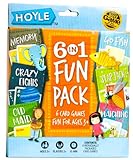
- 6 CLASSIC KIDS CARD GAMES IN 1: Enjoy card game favorites like Go Fish, Memory, Old Maid, Crazy Eights, Slap Jack, and Matching, all packed into one fun Hoyle boxed set.
- LEARN THROUGH PLAY: These kids playing cards help build memory, matching, and social skills, while keeping playtime fun and engaging.
- FAMILY FUN FOR ALL AGES: Perfect card games for kids ages 3+, that parents can enjoy too.
- QUICK & EASY TO PLAY: Simple instructions and familiar rules mean kids can start play right away!
- FAST-PACED PLAYTIME: Each game takes 15 minutes or less, kids stay engaged without losing focus. Great for classroom activities, travel, or game nights at home.
- For a 32-bit game, the x86 Visual C++ package is generally the relevant architecture.
- Install the legacy DirectX End-User Runtime only when the game identifies a separate legacy DirectX component.
- Enable a Windows feature only when the application or its installer explicitly requires it.
To check optional Windows features:
- Press Windows + R.
- Type
optionalfeatures. - Press Enter.
- Review the listed features.
- Change a feature only when the game’s documentation or error specifically identifies it.
- Restart if Windows requests one.
Do not enable features at random to repair rocket.dll.
Step 6: Repair Windows components only when Windows itself is damaged
System File Checker repairs protected Windows files. It does not normally recreate an application DLL installed by an old game, so this is not the first repair for rocket.dll.
Use it when you also have broader Windows symptoms, such as damaged system components, repeated servicing errors, or other protected Windows files failing.
- Open Start.
- Type Command Prompt.
- Right-click Command Prompt.
- Select Run as administrator.
- Run this command:
DISM.exe /Online /Cleanup-image /Restorehealth
- Wait for it to finish.
- Then run:
sfc /scannow
- Wait until verification reaches 100 percent.
- Restart Windows.
- Test the game again.
DISM should run before SFC. If either command reports that it could not complete, restart Windows and repeat the sequence once. If both complete successfully but the Hoyle game still reports rocket.dll, return to the product repair or reinstall steps.
PC Slower Than It Used to Be?
A free scan shows the junk files, broken settings and background clutter dragging Windows down - then fixes them in one click.Free scan · Windows 10 & 11Crashes, No Sound, or Screen Glitches?
Random freezes, missing sound and display glitches usually trace back to one bad driver. Find and replace yours safely.Free scan · under a minuteRepeating SFC and DISM cannot replace the original application installer. If you want help identifying whether Windows has broader corruption instead of repeatedly guessing with repair commands, Outbyte PC Repair can scan for reported problems; its free scan shows what it finds, while repair is handled by the full version. Reinstalling the Hoyle product remains the definitive fix for its own missing DLL.
Step 7: Do not treat drivers as the primary fix
rocket.dll is not identified as a hardware driver. Updating a graphics or sound driver is therefore not the normal solution.
Check drivers only if the game also displays graphics, sound, or device errors:
- Right-click Start.
- Select Device Manager.
- Expand Display adapters, Sound, video and game controllers, or another relevant category.
- Right-click the affected device.
- Select Update driver.
- Choose Search automatically for drivers.
- Restart Windows if a driver is installed.
Avoid uninstalling a working driver just because rocket.dll is missing. If you are manually tracking several device manufacturers and Windows versions, Outbyte Driver Updater can scan for reported driver issues; its free scan shows what is outdated, while installation is handled by the full version. A driver update does not replace the Hoyle game’s missing DLL.
Step 8: Try compatibility settings for very old games
A successful reinstall does not guarantee that an old game will run correctly on Windows 10 or Windows 11. Older games may depend on outdated graphics behavior, installers, permissions, or copy-protection systems.
Try compatibility settings after restoring the original game files:
- Open the game’s installation folder.
- Right-click the game’s main
.exefile. - Select Properties.
- Open the Compatibility tab.
- Select Run this program in compatibility mode for.
- Start with an older Windows version suggested by the program’s age.
- Select Apply, then OK.
- Start the game again.
You can also run Windows’ compatibility troubleshooter:
- Right-click the game executable.
- Select Properties.
- Open Compatibility.
- Select Run compatibility troubleshooter.
- Apply the recommended settings.
- Test the game.
Use Run this program as an administrator only when the program genuinely needs permission to write to its installation folder. It does not repair a missing DLL.
Do these 3 things before closing this tab:
1Clear out junk files and repair common Windows errors2Fix the driver behind crashes, sound loss and screen glitches3Repair Windows errors before they cause bigger problemsIf the game still fails after the original files are restored, consider a supported newer edition or an isolated older Windows environment. A virtual machine can be safer than weakening security settings on your main Windows installation, especially when the old program relies on obsolete copy protection.
What not to do
Do not download a random rocket.dll
Third-party DLL download pages can provide a file with the wrong version, architecture, internal contents, or source. A malicious or mismatched DLL can create a new security or compatibility problem, and copying it may not fix a missing dependency beside it.
Rank #4
There is no universal official download for rocket.dll. The safe sources are the original Hoyle or Encore installer, legitimate installation media, a verified backup of the same edition, or a quarantine item that clearly came from that trusted installation.
Do not copy it into System32 or SysWOW64
Those folders are not general-purpose storage for application DLLs. Copying an old game DLL there can affect unrelated programs and still leave the game unable to find the correct file.
Free tools Windows power users keep installed
One-click scans. No signup required.
Do not use regsvr32 by default
regsvr32 is intended for DLLs that provide registration entry points such as DllRegisterServer. It is not a universal missing-DLL repair command.
A game DLL normally loads because the game finds it in its application directory. Registration does not recreate a deleted file or repair a damaged game installation. Running a command such as this is therefore not an appropriate first step:
regsvr32 rocket.dll
If the DLL is not a self-registering component, Windows may report that DllRegisterServer was not found. That result does not identify the real problem.
If reinstalling still fails
Work through this final checklist:
- Confirm that you repaired the exact Hoyle or Encore product named by the shortcut.
- Check the executable’s folder for
Rocket.dll. - Review antivirus quarantine again.
- Remove any manually downloaded replacement.
- Confirm that the game and DLL came from the same edition.
- Check whether the error names a second missing dependency.
- Test from a clean Windows user profile.
- Run the game’s executable directly from its installation folder.
- Try compatibility settings.
- Use System Restore only if the failure began recently and a suitable restore point exists.
If every reinstall removes rocket.dll again, security software is a leading suspect. If the file is present but the error says the module cannot be found, the problem may be a dependency rather than the named DLL. If the original game runs only in an older Windows environment, stop replacing files and use compatibility mode, a supported re-release, or an isolated virtual machine.
The Tool Desk
Outbyte Driver Updater FREEScan for outdated or missing drivers - takes under a minuteDriver Scan →Outbyte PC Repair FREERepair Windows errors before they cause bigger problemsFix Now →FAQ
Is rocket.dll a Windows file?
No evidence supports that. It is associated with a third-party application, most strongly older Hoyle and Encore games.
Why does it say Poker?
Poker is the reported internal description. It may describe a component within the game collection and does not prove that every copy belongs to a standalone poker application.
Does Microsoft Visual C++ install rocket.dll?
No. Visual C++ may be needed by a separate dependency, but rocket.dll is not identified as a Visual C++ runtime file.
Does DirectX install rocket.dll?
No. Legacy DirectX can provide separate components needed by some old games, but it does not install this application DLL.
Free tools Windows power users keep installed
One-click scans. No signup required.
Can a 32-bit game run on 64-bit Windows?
Yes. A 32-bit game can run on 64-bit Windows. Restore the DLL that belongs to the 32-bit game rather than choosing a replacement based only on the operating system’s architecture.
Should I register rocket.dll?
Usually not. Registration is for specific self-registering components, not ordinary game DLLs. Reinstall the game instead.
What is the best fix?
Repair or reinstall the exact Hoyle or Encore product that requests the file, then check whether antivirus software quarantined it. That restores the correct file and its related dependencies together.
Quick Recap
Product prices and availability are accurate as of the date/time indicated and are subject to change. Any price and availability information displayed on Amazon at the time of purchase will apply.
Quick wins for a faster PC:
Scan for outdated or missing drivers - takes under a minuteDriver Scan →Clear out junk files and repair common Windows errorsFree Scan →Fix the driver behind crashes, sound loss and screen glitchesFind Drivers →



