Start with this quick diagnosis
Before replacing anything, record:
- The exact program, game, installer, or Creative utility showing the error.
- The complete message, such as “sbcsy16.dll is missing,” “was not found,” or “could not be loaded.”
- Whether the error appeared after uninstalling Creative software, restoring an old disk image, moving the application, or antivirus quarantine.
- Whether Windows is 32-bit or 64-bit. Open Settings → System → About and check System type.
- Whether the affected application is an old Sound Blaster utility or another program that only happens to be searching for the file.
PC Slower Than It Used to Be?
A free scan shows the junk files, broken settings and background clutter dragging Windows down - then fixes them in one click.Free scan · Windows 10 & 11Outdated Drivers Are Slowing You Down
One free scan finds every outdated or missing driver and matches the right update for your exact hardware.Free scan · exact hardware matchsbcsy16.dll is a legacy Creative Technology file associated with Sound Blaster PCI128 and AudioPCI software. It is reported as AudioPCI Driver Resources and as a Win16 DLL, so a missing-file message may actually indicate that modern Windows cannot run the old component.
What sbcsy16.dll is
sbcsy16.dll is not a normal Windows component and is not part of the Microsoft Visual C++ runtime. It belongs to the old Creative Sound Blaster PCI128 software stack, which included driver resources, utilities, and waveset packages.

Public file listings identify the file as:
| Property | Reported information |
|---|---|
| Description | AudioPCI Driver Resources |
| Product | Sound Blaster PCI128 |
| Publisher | Creative Technology Ltd |
| Category | Legacy audio driver resource |
| Architecture | Reported as Win16 |
The Win16 classification comes from third-party file metadata rather than an authenticated Creative file specification. Creative’s own support material identifies the PCI128 as an end-of-service-life product with archived downloads for older Windows releases.
That distinction matters. A missing sbcsy16.dll error is usually not fixed by installing DirectX, .NET, or a Visual C++ Redistributable. It normally means the originating Creative installation is incomplete, the file was removed, or the old software is being run on an incompatible version of Windows.
The Tool Desk
Outbyte Driver Updater FREEScan for outdated or missing drivers - takes under a minuteDriver Scan →Outbyte PC Repair FREERepair Windows errors before they cause bigger problemsFix Now →#1 Best Overall

- HIGH-RESOLUTION AUDIO - Delivers ultra-clear playback with 32-bit / 384 kHz and up to 120 dB SNR
- SURROUND SOUND - Supports discrete 7.1-channel analog output for immersive multi-channel audio on your PC
- VERSATILE CONNECTIVITY - Connects effortlessly to multi-channel PC speaker systems, SPDIF output and headset outputs, mic-in, as well as line-in sources
- ALL-NEW CREATIVE NEXUS APP - AutoEq customization that allows users to simulate the frequency response of various headphones for a tailored listening experience
- COMPACT LOW-PROFILE DESIGN - The card is 10.5 cm in length and comes with a half-height bracket to ensure compatibility with smaller cases and different build needs
What the error means
You may see one of these messages:
- “The program can’t start because sbcsy16.dll is missing from your computer.”
- “This application failed to start because sbcsy16.dll was not found.”
- “Error loading sbcsy16.dll.”
- “Failed to load sbcsy16.dll.”
- “The file sbcsy16.dll is missing or corrupted.”
- “A required component is missing. Please install the application again.”
These messages do not all mean the same thing.
When the file is genuinely missing
If the Creative installation directory no longer contains the file, the software may have been partially uninstalled, cleaned by security software, or copied without its supporting files. Reinstalling the complete Creative package is the correct remedy.
When the file exists but will not load
Windows may find the file and reject it because it is a 16-bit component. Microsoft states that 64-bit editions of Windows do not support 16-bit Windows components or applications. In that situation, copying the same DLL to another directory cannot make it compatible.
When another application is requesting it
An old game, installer, or utility may be looking for a Creative resource that was bundled with its original installation. Identify the launching executable before changing Windows system folders.
Fix 1: Reinstall the complete Creative package
This is the safest and most likely repair when the Sound Blaster PCI128 software was removed or damaged.
What’s actually slowing this PC down?
Pick the symptom - the matching free tool is one click away.
Creative’s archived support pages list packages including SBPCI128Setupus.exe, an older SB PCI128 driver update package, and AudioPCI/PCI128 waveset packages. These archives target legacy systems including Windows 95, Windows 98, Windows NT 4.0, Windows 2000, and Windows Me. Their compatibility with current Windows 10 and Windows 11 installations is not established.
If you still have the original CD
- Insert the Sound Blaster PCI128 installation disc.
- Open File Explorer and browse to the disc.
- Run the setup program from the disc.
- If Windows blocks the installer, right-click it and select Properties.
- Open the Compatibility tab.
- Select Run this program in compatibility mode for and choose the closest supported older Windows version.
- Select Run this program as an administrator.
- Select Apply, then OK.
- Run the installer and restart Windows when prompted.
Do not copy only sbcsy16.dll from the disc. The package may also install driver files, resources, registry entries, and supporting utilities.
If you need an archived download
- Go to Creative’s official Sound Blaster PCI128 support page.
- Confirm that the page identifies the product as Sound Blaster PCI 128.
- Open the archived downloads area.
- Look for the package appropriate to the original operating system and hardware revision.
- Download the complete installer from Creative.
- Scan the downloaded installer with Windows Security before opening it.
- Right-click the installer, select Properties, and review the Digital Signatures tab if one is present.
- Run the installer with administrator privileges.
- Restart the computer.
- Launch the original program again.
If the installation completes but the same error appears, check whether the affected program is 16-bit or whether Windows is 64-bit. Reinstalling the same legacy package will not overcome an unsupported architecture.
Rank #2
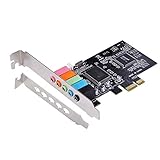
- PCIe sound card, 5.1 stereo audio card.
- Easily convert the PC into a cinematic entertainment system by providing a 5.1 3D stereo surrounding sound.
- With low profile bracket for 2U case, your best choice of sound card for PC desktop.
- 16-bit multimedia digital signal editing decoder inside, Supports 32/64-bit audio processing, recording and playback.
- Supports direct sound, A3D and EAX, HRTF 3D tone. Supports Windows XP / 7 / 10.
Fix 2: Check whether Windows 10 or 11 can run it
A 32-bit application and a 16-bit application are not the same thing. Many 32-bit applications can run on 64-bit Windows through WOW64. Microsoft specifically excludes 16-bit Windows code from 64-bit Windows.
Check your Windows architecture
- Press Windows key + I.
- Select System.
- Select About.
- Read System type.
If it says 64-bit operating system, an old Win16 sbcsy16.dll component cannot run natively.
If it says 32-bit operating system, the legacy component may still work, provided the driver and the rest of the application are compatible.
Check the application architecture
- Right-click the application shortcut.
- Select Open file location.
- Right-click the main executable.
- Select Properties.
- Review the Details and Compatibility tabs.
- Note the installation directory and the name of the executable that produces the error.
Windows does not always expose a clear architecture label in the file properties. If the program is an old Windows 9x utility, DOS-era application, or legacy Creative control panel, assume that compatibility is a serious possibility.
Use a compatible environment
If the old software is essential, use it inside a compatible 32-bit Windows environment or virtual machine rather than trying to force a Win16 DLL into Windows 11. A virtual machine also keeps obsolete drivers isolated from the main operating system.
Quick wins for a faster PC:
Repair Windows errors before they cause bigger problemsFix Now →Scan for outdated or missing drivers - takes under a minuteDriver Scan →If the purpose is simply to make the sound card work, replace the unsupported driver with a modern audio solution where possible. The archived PCI128 software is not a verified Windows 10 or Windows 11 driver path.
Fix 3: Check Windows Security quarantine
Security software may have removed a file after the original installation.
Rank #3
- Open Windows Security from the Start menu.
- Select Virus & threat protection.
- Select Protection history.
- Review recent detections.
- Expand any entry that identifies
sbcsy16.dllor the Creative installer. - Check the file path and detection details.
- Restore it only if the file came from the original Creative CD or an official Creative installer and you have confirmed its provenance.
- Run a full scan afterward.
Microsoft warns that restoring a detected file can expose the computer if the file is actually malicious. Never restore an unexplained copy downloaded from a DLL collection site.
If Protection History shows that a trusted Creative installer was blocked, reinstall the complete package after confirming that the installer is legitimate. Restoring a single DLL may leave the installation incomplete.
Fix 4: Repair the application or game that launches the file
If the error appears when starting a game or another application rather than a Creative utility, repair that application first.
Use the application’s repair option
- Open Settings → Apps → Installed apps.
- Find the affected program.
- Select the three-dot menu beside it.
- Choose Advanced options, if available.
- Select Repair.
- Start the application again.
If no repair option exists:
- Uninstall the affected application.
- Restart Windows.
- Reinstall it from its original media or the vendor’s official installer.
- Start it from its normal shortcut.
Verify a game installation
If a game launcher reports the error, use its Verify integrity, Verify files, or Repair command before copying DLLs manually. The correct menu differs by launcher, so use the option built into the launcher that installed the game.
A game-specific association with sbcsy16.dll cannot be confirmed from the filename alone. The installation directory and launching executable are more useful evidence than the error text.
Fix 5: Reinstall or clean up the audio driver
Because this file belongs to a hardware driver package, inspect the audio device before attempting broader Windows repairs.
- Right-click the Start button.
- Select Device Manager.
- Expand Sound, video and game controllers.
- Look for Sound Blaster PCI128, AudioPCI, an unknown audio device, or a warning icon.
- Right-click the device and select Properties.
- Open the General tab and read Device status.
- Open the Driver tab and note the provider and driver date.
- If the problem began after an update, select Roll Back Driver if available.
- Otherwise select Uninstall Device.
- If Windows offers Attempt to remove the driver for this device, select it only when you intend to remove the obsolete package.
- Restart Windows.
- Install the complete driver package from Creative’s official archive or use a supported replacement driver.
Do not expect Device Manager to locate a modern driver for an end-of-service-life PCI128 card. Windows may install a generic audio driver while the old Creative utilities remain unusable.
Rank #4

- ➤ This sound card uses /HT8738 chip. The chip's ‑to‑noise ratio reaches 120dB, PCI plug‑and‑play interface‑full duplex playback and recording‑HRTF 3D spatial positioning sound effects, supports dircet sound 3D and A3D interfaces.
- ➤ Support for 98 / for / / NT voltage (0.5V~5V).
- ➤ Support 4‑channel surround sound output, support sound library technology, support A3D 1.0 and DS3D, compatible with DirectSound 3D and sound effects. Supports 24‑bit SPDIF, OUT and SPDIF IN at the same time, and supports optical fiber input and output through a daughter card.
- ➤ This card supports music synthesizer, traditional sound card, and supportsfull duplex playback and recording.
- ➤ Support Direct Music ‑SPDIF digital audio indicators: 24‑bit stereo, 44KHzsound sampling recording and playback, 120dB sound quality full duplex playback recording.
Manually hunting through old driver versions can be difficult, especially when several revisions appear to match similar hardware. Outbyte Driver Updater can scan for driver problems and identify available driver installations; its free scan shows the findings, while driver installation through the full version is optional. For this specific file, reinstalling the original Creative application remains the definitive fix when that application is the component requesting it.
Fix 6: Repair Windows components with DISM and SFC
System File Checker and Deployment Image Servicing and Management repair Windows component files. They do not recreate arbitrary third-party Creative DLLs, but they are useful if Windows itself is damaged or several system errors appeared together.
Run DISM
- Right-click the Start button.
- Select Terminal (Admin) or Command Prompt (Admin).
- Select Yes at the User Account Control prompt.
- Enter:
DISM /Online /Cleanup-Image /RestoreHealth
- Press Enter.
- Wait for the operation to finish.
- Restart Windows.
Run SFC
Open an elevated Terminal again and enter:
sfc /scannow
Press Enter and wait for verification to reach 100 percent.
Possible outcomes include:
- Windows Resource Protection did not find any integrity violations: Windows system files appear intact.
- Windows Resource Protection found corrupt files and successfully repaired them: restart and test the affected program.
- Windows Resource Protection found corrupt files but was unable to fix some of them: review the DISM result, restart, and run SFC again.
These commands will not normally restore sbcsy16.dll, because it is not a Windows system component.
Repeatedly running SFC and DISM without knowing which component changed can waste time. Outbyte PC Repair can provide a scan that identifies repair issues before applying fixes through its full version, but it is not a substitute for reinstalling the Creative application that owns this file.
Independent reader supportYour contribution helps us test, update, and keep practical guides available for everyone.Fix 7: Use System Restore after a recent change
System Restore is useful when the error began immediately after a driver installation, cleanup utility, or software removal.
- Press Windows key + R.
- Enter:
rstrui.exe
- Press Enter.
- Select Next.
- Choose a restore point created before the problem began.
- Select Scan for affected programs if available.
- Review the changes.
- Select Close, then Next.
- Select Finish and allow Windows to restart.
System Restore is not a replacement for reinstalling the Creative package. Use it when you need to reverse a known recent change and do not have a clean installer available.
Free tools Windows power users keep installed
One-click scans. No signup required.
Why downloading the DLL alone is a bad fix
Random DLL download sites are unsafe and technically inadequate for this problem.
A downloaded file may:
- Contain malware or an unwanted modification.
- Be the wrong architecture.
- Belong to a different Creative package.
- Have unknown version information or dependencies.
- Fail because the application also requires registry entries and other driver resources.
- Create DLL-preloading risk when placed in a system or application directory.
Never copy an unverified file into C:WindowsSystem32 or C:WindowsSysWOW64. Those folders are not interchangeable, and placing a legacy DLL there does not make it a supported Windows component.
Best Value

- REFERENCE-GRADE HI-RES AUDIO – Powered by the ESS ES9039Q2M DAC with up to 130 dB SNR, supporting 32-bit / 384 kHz playback for exceptional clarity and detail, far beyond typical onboard audio
- POWER FOR DEMANDING HEADPHONES – Built-in high-performance headphone amplifier delivers up to 350mW @ 32Ω. Easily drives studio-grade headphones
- LOW-LATENCY PERFORMANCE – Supports DSD256 and ASIO 2.3 for high-resolution playback and low-latency audio, ideal for music, gaming, and PC audio workflows.
- PRECISION SOUND PERSONALISATION – 10-band parametric EQ + AutoEq in Creative Nexus add meaningful personalization and offers advanced audio tuning and control
- FLEXIBLE CONNECTIVITY – Coaxial output and optical input for seamless integration with desktop audio setups.
The safer sources are the original Creative installation media and Creative’s archived support pages. Verify the installation source, scan it, and install the complete package rather than extracting one file.
Why regsvr32 usually does not help
regsvr32 is not a universal DLL repair command. Microsoft documents it for DLLs that expose registration entry points such as DllRegisterServer.
Recommended Free Tools
There is no verified evidence that the legacy sbcsy16.dll resource supports that interface. Running commands such as these is therefore normally irrelevant:
regsvr32 sbcsy16.dll
regsvr32 C:PathTosbcsy16.dll
If the command reports that the module could not be loaded, that may simply confirm an architecture or dependency problem. It does not prove that the DLL should be registered.
Final diagnostic checklist
If the error remains, record the following before escalating:
- The complete error text.
- The name and path of the executable that launches.
- The directory containing
sbcsy16.dll, if any. - Whether the file came from original Creative media or an archived Creative installer.
- Your Windows edition and whether it is 32-bit or 64-bit.
- The audio device shown in Device Manager.
- Any recent antivirus detection or software removal.
- Whether reinstalling the complete Creative package changes the message.
If the file is absent, reinstall the originating Creative software. If it is present but Windows rejects it on a 64-bit system, treat the problem as an incompatibility rather than a missing-file problem. In that case, use a compatible legacy environment, replace the hardware or software, or abandon the old Creative utility while keeping a supported audio driver.
Do these 3 things before closing this tab:
1Fix the driver behind crashes, sound loss and screen glitches2Clear out junk files and repair common Windows errors3Scan for outdated or missing drivers - takes under a minuteQuick Recap
Product prices and availability are accurate as of the date/time indicated and are subject to change. Any price and availability information displayed on Amazon at the time of purchase will apply.



