scriptlayerppro.dll is an Adobe Premiere Pro application file, not a Windows system DLL. If Windows reports that scriptlayerppro.dll is missing, was not found, or could not be loaded, repair the Premiere installation rather than downloading an individual DLL.
Common messages include:
- “The program can’t start because scriptlayerppro.dll is missing from your computer.”
- “The code execution cannot proceed because scriptlayerppro.dll was not found.”
- “There was a problem starting scriptlayerppro.dll.”
- “Error loading scriptlayerppro.dll. The specified module could not be found.”
- “The application was unable to start correctly because scriptlayerppro.dll was not found.”
The 60-second answer
- Close Premiere and the Creative Cloud desktop app.
- Check whether antivirus quarantined
ScriptLayerPPro.dll. - Open Creative Cloud and repair, update, or reinstall Premiere.
- Do not copy the DLL into
System32orSysWOW64. - Do not use
regsvr32unless documentation specifically says the file is a self-registering component. - If Premiere still fails, repair Windows components with DISM and SFC, then check drivers, plugins, disk health, and crash logs.
The documented file is associated with Adobe Premiere Pro CC 2018. An Adobe crash report identifies it in:
C:Program FilesAdobeAdobe Premiere Pro CC 2018ScriptLayerPPro.dll
That report identifies Premiere version 12.1.0.186 and nearby Premiere modules. This is strong evidence that the file belongs inside Premiere’s installation directory, not in a Windows folder.
What usually causes this error
For this file, the likely causes are:
| Cause | What happened | Correct response |
|---|---|---|
| Incomplete update | Creative Cloud stopped while replacing Premiere files | Repair or reinstall Premiere |
| Damaged installation | Files were corrupted or manually deleted | Reinstall the complete application |
| Antivirus quarantine | Security software removed or isolated the DLL | Check quarantine, then repair Premiere |
| Version mismatch | Files from different Premiere releases were mixed | Install one complete matching release |
| Missing dependency | Another Adobe or runtime component cannot load | Repair Premiere and check diagnostics |
| Storage corruption | Disk or filesystem errors damaged application files | Check the drive and reinstall Premiere |
| Windows corruption | System components are damaged | Run DISM, then SFC |
| Plugin or driver conflict | Premiere crashes while loading a related component | Check plugins, GPU drivers, and crash reports |
The message “specified module could not be found” does not always mean the named DLL itself is absent. Windows may be unable to load a dependency required by that DLL.
Quick wins for a faster PC:
Scan for outdated or missing drivers - takes under a minuteDriver Scan →Repair Windows errors before they cause bigger problemsFix Now →Fix the driver behind crashes, sound loss and screen glitchesFind Drivers →#1 Best Overall

- Existing subscribers must first complete current membership term before linking new subscription term
- Premiere Pro is a video editing software app for film, TV, and the web
- Turn raw footage into flawless productions. Edit, adjust color, refine audio, and more
- Premiere Pro is used by Hollywood filmmakers, TV editors, YouTubers, videographers — anyone with a story to tell, including you
- Edit footage in any modern format, from 8K to virtual reality
Fix 1: Repair or reinstall Premiere through Creative Cloud
This is the safest and most likely fix because scriptlayerppro.dll is part of Premiere rather than a standalone Windows runtime.
Try an available Premiere update or version
- Save your Premiere projects and close Premiere.
- Open the Adobe Creative Cloud desktop app.
- Select Apps.
- Find Premiere.
- Select More actions (…).
- Choose Other versions, if shown.
- Select the required available version.
- Choose Install.
If Premiere is already installed, Creative Cloud may offer an update or reinstall option instead. Use the complete Adobe installer, not a DLL copied from another computer.
Adobe generally exposes the current release and previous major versions through normal Creative Cloud menus. Premiere Pro CC 2018 may no longer appear there. If you specifically need that release for an older project, use an existing legitimate installer, an organizational deployment package, or Adobe Support. Do not use an unofficial repackaged installer.
Repair the Creative Cloud desktop app if it is malfunctioning
If Creative Cloud will not install or repair Premiere:
Do these 3 things before closing this tab:
1Fix the driver behind crashes, sound loss and screen glitches2Clear out junk files and repair common Windows errors3Scan for outdated or missing drivers - takes under a minute- Open Settings.
- Select Apps.
- Select Installed apps.
- Find Adobe Creative Cloud.
- Select the three-dot menu.
- Choose Uninstall.
- If Adobe offers Repair, select it first.
- Restart Windows.
- Open Creative Cloud and retry the Premiere installation.
If repair fails, uninstall and reinstall Creative Cloud, then reinstall Premiere. Back up projects, custom presets, plugins, and templates first.
What success looks like
Start Premiere from the Start menu after installation. The error should disappear, and Premiere should load its own matching files from the Adobe installation directory.
If the same message returns immediately, do not copy a DLL into another folder. Continue with the quarantine and version checks below.
Fix 2: Check antivirus quarantine
Security software can remove a file after an update or after Premiere changes its binaries.
Rank #2
- Core Ultra 9 285K 3.7GHz (Up To 5.7GHz Turbo) 24 Core 125W
- 128GB DDR5 ECC Reg (2x64GB)
- GeForce RTX 5080 16GB GPU
- 10G + 2.5G Networking + WiFi 7
- Onboard AQtion AQC113C 10GbE LAN
Windows Security
- Open Start.
- Type Windows Security.
- Open it.
- Select Virus & threat protection.
- Select Protection history.
- Look for an item mentioning
ScriptLayerPPro.dll,scriptlayerppro.dll, or Premiere. - Check the detected file path.
Only consider restoring the file if all of these are true:
- The path is inside the genuine Adobe Premiere installation directory.
- Premiere was installed through a legitimate Adobe source.
- The alert identifies the actual file rather than a similarly named file in a temporary or user-writable folder.
After restoring a legitimate quarantined file, repair or reinstall Premiere anyway. That ensures related modules are restored together.
Do not broadly disable antivirus protection to make Premiere start. If the file is repeatedly removed, run a full security scan and reinstall Premiere from Adobe afterward.
Fix 3: Remove mixed or manually copied Premiere files
Do not combine ScriptLayerPPro.dll or ScriptLayerPProQE.dll from different Premiere releases. A DLL copied from another computer may have the wrong build, dependencies, or architecture.
Recommended Free Tools
Check the installation directory:
- Open File Explorer.
- Browse to the Adobe Premiere folder under:
C:Program FilesAdobe
- Search for
ScriptLayerPPro.dll. - Right-click the file if present.
- Select Properties.
- Use the Details tab to review whatever version information Windows provides.
Public Adobe material does not establish a complete file manifest, verified hash, exact size, publisher metadata, or confirmed 32-bit/64-bit status for this DLL. Treat the documented Premiere path as the important check, not an unverified file listing.
If files were copied manually, uninstall that Premiere version and install one complete matching release through Creative Cloud.
Fix 4: Check Microsoft Visual C++ dependencies
Visual C++ Redistributables can matter when a Premiere module depends on Microsoft runtime files. However, there is no verified evidence that this particular DLL requires one specific Visual C++ package, so this is a secondary fix.
Premiere and its dependencies may require different architectures. A 32-bit application generally needs the x86 runtime even on 64-bit Windows. Installing only x64 does not satisfy every application.
Windows Errors? Fix Them Before They Spread
Repair common Windows errors and clear accumulated junk for a smoother, more stable PC - no reinstall needed.Free scan · no reinstallCrashes, No Sound, or Screen Glitches?
Random freezes, missing sound and display glitches usually trace back to one bad driver. Find and replace yours safely.Free scan · under a minuteRank #3

- Existing subscribers must first complete current membership term before linking new subscription term
- With Audition's digital audio editing software, you can create, mix, and design sound effects
- Audition is a comprehensive toolset that includes multitrack, waveform, and spectral display for creating, mixing, editing, and restoring audio content
- This powerful audio workstation is designed to aelerate video production workflows and audio finishing — and deliver a polished mix with pristine sound
Use Microsoft’s official Visual C++ packages:
- x86:
https://aka.ms/vc14/vc_redist.x86.exe - x64:
https://aka.ms/vc14/vc_redist.x64.exe - ARM64:
https://aka.ms/vc14/vc_redist.arm64.exe
For each applicable package:
- Download it from Microsoft.
- Run the installer.
- Accept the license.
- Choose Install or Repair.
- Restart Windows.
- Test Premiere.
Do not remove unrelated Visual C++ versions merely because Premiere is affected. Multiple redistributables can coexist.
If reinstalling Visual C++ changes nothing, return to repairing Premiere. Do not install every historical runtime without evidence that a dependency is missing.
Fix 5: Repair Windows components with DISM and SFC
SFC and DISM repair Windows components. They do not normally restore an Adobe application DLL from Premiere’s program directory. Use them when Windows has broader problems, system files are damaged, or other applications are also failing.
- Open Start.
- Type Command Prompt.
- Select Run as administrator.
- Run:
DISM.exe /Online /Cleanup-Image /RestoreHealth
- Wait for it to finish.
- Run:
sfc /scannow
- Restart Windows.
- Test Premiere again.
Microsoft recommends running DISM before SFC. If SFC reports that it repaired files, restart before testing. If it reports that it could not repair some files, repeat the repair after Windows Update has completed, then reinstall Premiere if the DLL error remains.
The Tool Desk
Outbyte Driver Updater FREEFix the driver behind crashes, sound loss and screen glitchesFind Drivers →Outbyte PC Repair FREEClear out junk files and repair common Windows errorsFree Scan →Repeatedly hunting through Windows repair commands can make it difficult to know which component changed. Outbyte PC Repair can show a scan of reported system problems, while its full version performs the repair; it is optional, and reinstalling Premiere remains the definitive fix for this application DLL.
Fix 6: Check Windows Features only for broader application requirements
There is no evidence that enabling a random Windows Feature restores scriptlayerppro.dll. Do not turn on features blindly.
If a separate Premiere or plugin message specifically names a Windows component:
- Press Windows key + R.
- Type:
optionalfeatures
- Press Enter.
- Enable only the feature named by the error or official application documentation.
- Select OK.
- Restart if Windows requests it.
If no feature is named, skip this step and repair Premiere instead.
Fix 7: Update GPU and related drivers if Premiere still crashes
A missing-DLL message can be followed by a crash caused by a GPU driver, third-party plugin, or damaged user profile. Check drivers only after the Premiere installation is complete.
Rank #4
- Existing subscribers must first complete current membership term before linking new subscription term
- With Audition's digital audio editing software, you can create, mix, and design sound effects
- Audition is a comprehensive toolset that includes multitrack, waveform, and spectral display for creating, mixing, editing, and restoring audio content
- This powerful audio workstation is designed to aelerate video production workflows and audio finishing — and deliver a polished mix with pristine sound
Through Device Manager
- Right-click Start.
- Select Device Manager.
- Expand Display adapters.
- Right-click the graphics adapter.
- Select Update driver.
- Choose Search automatically for drivers.
- Restart Windows.
- Test Premiere.
Also check Sound, video and game controllers if the crash involves audio hardware or capture devices.
Windows Update may not provide the newest driver for every GPU. Use the graphics hardware manufacturer’s official support channel when a newer driver is required. Do not use a driver package from an unknown download site.
Manually checking each device means hunting versions and guessing which of many drivers is stale. Outbyte Driver Updater can scan and identify driver problems, while driver installation is handled by its full version; it is optional and does not replace repairing Premiere.
What’s actually slowing this PC down?
Pick the symptom - the matching free tool is one click away.
If Premiere opens, use Help > System Compatibility Report to identify driver or component issues. Disable or update third-party plugins that load during startup, especially plugins installed before the Premiere version changed.
Why regsvr32 is normally wrong here
regsvr32 is for DLLs that expose registration entry points such as DllRegisterServer. It is not a general repair command for every missing DLL.
There is no public evidence that ScriptLayerPPro.dll is a self-registering COM or ActiveX component. Running:
regsvr32 scriptlayerppro.dll
is therefore not recommended. It will not recreate missing Premiere dependencies, repair a damaged installation, or make a mismatched DLL compatible.
Free tools Windows power users keep installed
One-click scans. No signup required.
Why DLL download sites are unsafe
Do not download scriptlayerppro.dll from a random DLL archive or copy it from another PC. That file may be:
- From the wrong Premiere release.
- The wrong architecture.
- Modified or malicious.
- Missing companion Adobe modules.
- Incompatible with your installed Premiere executable.
A standalone replacement often changes the error rather than fixing the installation. The safe source is Adobe Creative Cloud or a legitimate Adobe-provided installer for the required Premiere release. Microsoft is the safe source for Windows repair tools and Visual C++ Redistributables.
Best Value
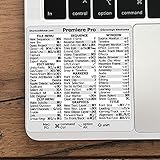
- 💻 ✔️ EVERY ESSENTIAL SHORTCUT - With the SYNERLOGIC Reference Keyboard Shortcut Sticker, you have the most important shortcuts conveniently placed right in front of you. Easily learn new shortcuts and always be able to quickly lookup commands without the need to “Google” it.
- 💻 ✔️ Work FASTER and SMARTER - Quick tips at your fingertips! This tool makes it easy to learn how to use your computer much faster and makes your workflow increase exponentially. It’s perfect for any age or skill level, students or seniors, at home, or in the office.
- 💻 ✔️ QUALITY GUARANTEE - We stand behind our product! It’s made with outstanding military-grade durable vinyl and the professional design gives our stickers an OEM appearance. Our responsive and dedicated customer service team is here to promptly respond to your messages and resolve any issues you may have.
- 💻 ✔️ From BASIC to ADVANCED - Whether you are a seasoned computer professional or a beginner, the SYNERLOGIC Sticker will save you both time and frustration, guaranteed! You can easily reach a new level of computer proficiency using our convenient and affordable sticker.
- 💻 ✔️ Cross-platform compatibility. The sticker is specially designed to work for both PC and Mac computer keyboards.
Do not place the file in:
C:WindowsSystem32
C:WindowsSysWOW64
The documented location is within the Adobe Premiere directory.
If Premiere still will not start
Work through these checks:
- Open Event Viewer.
- Expand Windows Logs.
- Select Application.
- Look for an error at the time Premiere failed.
- Note the failing application, module, and exception details.
- Check Adobe crash logs and Creative Cloud installation logs.
- Run a full security scan.
- Check available disk space and disk health.
- Test with third-party Premiere plugins disabled.
- Create a temporary Windows user profile and test Premiere there.
- Repair or reinstall the exact Premiere release again.
If the error began after restoring a backup, disk cleanup, changing Premiere versions, or an interrupted update, reinstalling the complete application is more reliable than restoring one file.
FAQ
Is scriptlayerppro.dll part of Windows?
No evidence supports that. The documented file path is inside Adobe Premiere Pro CC 2018, so it should be treated as an Adobe application module.
Which Premiere version uses it?
The documented association is Adobe Premiere Pro CC 2018, with a crash report identifying version 12.1.0.186. That does not prove the same filename is used identically by every Premiere release.
Should I download the missing DLL?
No. Repair or reinstall Premiere from Adobe. A copied DLL can be mismatched, unsafe, or incomplete.
Does Visual C++ definitely fix it?
No. A runtime dependency may be involved, but no verified source establishes a specific Visual C++ package for this DLL. Repair Premiere first.
Can SFC restore the file?
Normally no. SFC repairs protected Windows components, while this file belongs to Premiere’s application directory.
Can I register the file with regsvr32?
Normally no. This Premiere module is not publicly documented as a self-registering DLL, and registration does not repair a missing application installation.
What if Creative Cloud no longer offers Premiere Pro CC 2018?
Adobe generally limits ordinary Creative Cloud access to current and previous major versions. Use a legitimate existing installer, an organizational deployment package, or contact Adobe Support. Avoid unofficial installers and DLL archives.
Quick Recap
Product prices and availability are accurate as of the date/time indicated and are subject to change. Any price and availability information displayed on Amazon at the time of purchase will apply.



