What’s actually slowing this PC down?
Pick the symptom - the matching free tool is one click away.
sgfplib.dll is a SecuGen fingerprint SDK file, not a Windows component. If sgfplib.dll is missing or cannot load, repair the SecuGen application or FDx SDK that installed it instead of downloading an isolated copy.
The safest fix is to identify the program showing the error, reinstall or repair that program and its official SecuGen runtime, then confirm that the runtime architecture matches the application.
What sgfplib.dll is
sgfplib.dll is the main native runtime module used by SecuGen FDx SDK Pro for Windows. The SDK supports fingerprint capture, fingerprint image processing, minutiae extraction, and matching for applications using SecuGen readers.
It commonly works alongside:
sgfpamx.dll, the fingerprint extraction and matching moduleSecuGen.FDxSDKPro.Windows.dll, the managed .NET wrappersgfplibx.ocx, an older ActiveX component- Separate 32-bit and 64-bit runtime files
The file may be used by a .NET application calling SGFingerPrintManager, a legacy ActiveX application, or a third-party identity, biometric, or remote-desktop product that includes SecuGen support. There is no single Windows program that universally owns this DLL.
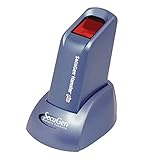
#1 Best Overall

- Supports most major OS
- Rugged, high-performance, maintenance-free optical sensor resistant to scratches, impact, vibration and electrostatic shock
- Automatic finger detection technology (when used with apps built with SecuGen)
- Self-adjusting scanning technology (when used with apps built with SecuGen)
- Latent print and false fingerprint rejection, prior fingerprints left behind on sensor nor 2-D images
Version and architecture information
| Item | Information |
|---|---|
| File | sgfplib.dll |
| Product family | SecuGen FDx SDK Pro for Windows |
| Typical role | Native fingerprint SDK runtime |
| Commonly listed metadata | 64-bit, version 4.2.0.0, approximately 0.15 MB |
| Architecture | Must match the application process |
| Windows component | No |
The version and size above are historical file metadata, not a recommendation to obtain the DLL from a file catalog. SecuGen’s official SDK package is the correct source for the runtime.
Error messages you may see
The wording depends on the application and Windows loader. Common variants include:
can't find sgfplib.dllError. can not find sgfplib.dllsgfplib.dll is missingsgfplib.dll was not foundThe code execution cannot proceed because sgfplib.dll was not foundThere was a problem starting sgfplib.dll. The specified module could not be foundsgfplib.dll is either not designed to run on Windows or it contains an error
“Specified module could not be found” does not always mean that sgfplib.dll itself is absent. A dependent file such as sgfpamx.dll may be missing, incompatible, or unavailable in the application’s DLL search path.
Fix 1: Identify the application and reinstall its SecuGen runtime
This is the most likely repair.
Find the program that displays the error
- Close the error message.
- Note the application name in the window title or taskbar.
- Open Settings with
Windows + I. - Select Apps, then Installed apps.
- Search for the application name, “SecuGen,” or “FDx SDK.”
- If the program is listed, select the three-dot menu beside it.
- Choose Advanced options, if available.
- Select Repair. If Repair is not available or does not work, choose Reset only if you understand that it may remove the program’s local settings.
For a desktop application without those options, open Control Panel, select Programs and Features, select the application, and choose Repair or Change.
If repair fails, uninstall the host application, restart Windows, and reinstall it using the installer supplied by the application vendor. If the program directly uses SecuGen FDx SDK Pro, obtain the complete SDK through SecuGen’s official software-request process rather than searching for the DLL by itself.
What success looks like
Start the fingerprint application and test reader detection or fingerprint capture. A successful repair should remove the missing-DLL message and allow the program to reach its normal login, capture, or device-selection screen.
If the error returns immediately, do not keep copying DLLs into random folders. Continue with the architecture check below.
Rank #2

- Auto-On detects live fingers
- Smart Capture-adjustable brightness allowing high quality fingerprint capture
- 500 dpi resolution
- Corrision and ergonomically discharge (ESD)
- USB connection
Fix 2: Match the DLL to the application’s architecture
A 64-bit edition of Windows can run both 32-bit and 64-bit applications. The application’s process architecture determines which SecuGen native DLL it can load.
Do these 3 things before closing this tab:
1Repair Windows errors before they cause bigger problems2Fix the driver behind crashes, sound loss and screen glitches3Clear out junk files and repair common Windows errorsHistorical SecuGen packages separate runtime files into folders such as Bini386 and Binx64. Use the i386 runtime with a 32-bit application and the x64 runtime with a 64-bit application.
Check a running application
- Start the application, if it opens far enough to appear in Task Manager.
- Press
Ctrl + Shift + Esc. - Select Details.
- Right-click a column heading and choose Select columns.
- Enable Platform, if your Windows version provides it.
- Look for the application process.
On some Windows versions, a 32-bit process is marked with *32 after its name. For a .NET application, also inspect the project’s build settings. Any CPU can run as either architecture depending on the application configuration and the Prefer 32-bit setting.
Check installed copies
Open Command Prompt and run:
where /r "%ProgramFiles%" sgfplib.dll
where /r "%ProgramFiles(x86)%" sgfplib.dll
These commands locate copies under the two standard program directories. They do not prove that a discovered copy is compatible or complete.
Do not assume that System32 means 32-bit. On 64-bit Windows, Microsoft documents System32 as the normal location for 64-bit system files, while SysWOW64 is associated with 32-bit system-file redirection. These folders are not interchangeable storage locations for manually copied application DLLs.
What success looks like
After installing the correct SDK architecture, the application should load without the DLL error. If a 32-bit application still fails with a 64-bit runtime present, install the 32-bit SecuGen package or configure the application to use the vendor-supplied i386 files. Do not place both architectures in arbitrary Windows directories and hope the loader chooses correctly.
Fix 3: Restore the complete dependency set
sgfplib.dll is not normally a standalone file. A working installation may also need sgfpamx.dll, the .NET wrapper, device support files, and other files from the same SDK release.
- Open File Explorer.
- Browse to the application’s installation folder.
- Check whether
sgfplib.dllis beside the application executable or in the vendor’s runtime folder. - Check for
sgfpamx.dllin the same deployment set. - If the files came from different computers, releases, or download sources, remove that mixed deployment.
- Repair or reinstall the full official SDK or host application.
For developers, deploy the exact vendor-supplied runtime beside the application executable when the SecuGen deployment instructions require that layout. Do not add sgfplib.dll as a .NET assembly reference. The managed SecuGen.FDxSDKPro.Windows.dll is the assembly; sgfplib.dll is a native library called by it.
A file can exist and still fail because it is corrupt, blocked, unsigned, incompatible, or missing one of its dependencies. Windows searches specific application and system directories according to its DLL search rules, so a copy stored elsewhere may never be considered.
Fix 4: Install the correct SecuGen reader driver
The SDK runtime and the fingerprint reader driver are separate parts of the installation. Install the driver family that matches the actual reader model. SecuGen provides separate packages for different device families, including general USB, FDU, WBF, U10, U20, U30, and UPx hardware.
Reinstall through Device Manager
- Disconnect the fingerprint reader.
- Right-click Start and select Device Manager.
- Expand Biometric devices, Universal Serial Bus controllers, and Other devices.
- Reconnect the reader.
- Identify the device that appears or changes.
- Right-click it and select Uninstall device.
- If offered, select Attempt to remove the driver for this device.
- Select Uninstall.
- Restart Windows.
- Install the driver package supplied by SecuGen for the reader model.
- Reconnect the reader and return to Device Manager.
- Confirm that the device appears without a yellow warning icon.
Installing a driver alone may not install the SDK runtime required by the application. If the DLL error remains, repair the application or FDx SDK as well.
Manually comparing driver versions across several device families is tedious, especially when Windows offers a generic biometric driver that is not the package your application expects. Outbyte Driver Updater can scan for stale or mismatched drivers, with driver installation handled by the full version; it is optional, and the SecuGen model-specific package remains the authoritative source.
Fix 5: Check Windows Security quarantine
Security software may quarantine a native DLL after an update, cleanup operation, or application reinstall.
Outdated Drivers Are Slowing You Down
One free scan finds every outdated or missing driver and matches the right update for your exact hardware.Free scan · exact hardware matchPC Slower Than It Used to Be?
A free scan shows the junk files, broken settings and background clutter dragging Windows down - then fixes them in one click.Free scan · Windows 10 & 11- Open Windows Security from the Start menu.
- Select Virus & threat protection.
- Select Protection history.
- Review recent actions for
sgfplib.dll, the SecuGen installer, or the host application. - Do not restore the file automatically.
- First verify that it came from the official application or SecuGen installer.
- If the source is trusted, use the available Restore or Allow on device action.
- Reinstall the complete vendor package afterward if the file was damaged or removed.
Microsoft warns that allowing a genuine threat can expose the computer. If the file came from an unofficial DLL site, delete it rather than creating an antivirus exclusion.
Fix 6: Repair Windows components only after repairing the app
sgfplib.dll is a third-party SecuGen file. System File Checker and DISM generally repair protected Windows components; they do not normally recreate a missing SecuGen SDK runtime. They are still useful when Windows itself is damaged or installers are failing.
Rank #4

- MFS110 L1 USB Fingerprint Scanner
- Support Window, Android and Lenux
- 1 Year RD Service Registration included from mantra
- USB with Type C connector available for using in Type C supporting devices
- Scratch free Sensor Surface,Auto Finger Detection
First install pending Windows updates:
- Open Settings.
- Select Windows Update.
- Select Check for updates.
- Install available updates.
- Restart the computer.
Then open an elevated Command Prompt:
- Open Start.
- Type
cmd. - Right-click Command Prompt.
- Select Run as administrator.
- Run:
DISM.exe /Online /Cleanup-Image /RestoreHealth
Wait for it to complete, then run:
sfc /scannow
Restart Windows and retry the SecuGen application.
The manual SFC and DISM process can involve repeated scans without clearly showing which component changed. Outbyte PC Repair can provide a scan that identifies repair issues, while the full version performs its repair; it is optional, and reinstalling the SecuGen application remains the definitive fix for this third-party DLL.
Fix 7: Use System Restore after a recent change
If the application worked until a driver update, cleanup utility, or installation change, System Restore may reverse that change.
- Press
Windows + R. - Type:
rstrui.exe
- Press Enter.
- Select Next.
- Choose a restore point dated before the problem began.
- Select Scan for affected programs if available.
- Review the result.
- Select Next, then Finish.
System Restore does not replace a missing SDK that was never installed. It is useful only when a recent system change likely caused the failure.
Independent reader supportYour contribution helps us test, update, and keep practical guides available for everyone.What not to do
Do not download an isolated DLL
Random DLL download sites sites can provide malware, the wrong architecture, an incompatible release, or a file with a misleading name. Even a genuine-looking copy may not include sgfpamx.dll or the other files the application needs.
Use the official application installer or SecuGen’s official FDx SDK software-request process.
Do not copy both versions into System32 and SysWOW64
This hides the real architecture problem and can leave the application loading an unintended file. Keep the runtime with the application or in the vendor-prescribed installation directory.
Recommended Free Tools
Do not register sgfplib.dll with regsvr32
sgfplib.dll is a native runtime library, not normally a COM registration server. regsvr32 is therefore not the normal repair method.
The older sgfplibx.ocx ActiveX component may have separate registration requirements, but register it only when the application’s vendor or SecuGen deployment instructions explicitly require it, using the regsvr32.exe matching the application architecture.
Best Value

- Certified to Microsoft’s highest fingerprint security standards (ESS & SDCP) for robust, hardware-isolated authentication. Supports next-gen Windows features, including Copilot Recall and Windows Hello with ESS support.
- Windows Hello ready for fast, password free fingerprint login to Windows and Microsoft 365 accounts
- On device fingerprint storage keeps biometric data securely within the key. Supports privacy regulations (GDPR, BIPA, CCPA) through on device biometric processing; TAA compliant.
- Reliable wired USB fingerprint authentication with USB C and USB A compatibility for desktop PCs.
- Consistent, all condition 360° fingerprint recognition.
Do not add it as a .NET reference
Add the SecuGen managed wrapper as directed by the SDK documentation. Do not add the native sgfplib.dll as a managed assembly reference.
FAQ
Is sgfplib.dll part of Windows?
No. It belongs to SecuGen software or an application that bundled SecuGen fingerprint support.
Quick wins for a faster PC:
Fix the driver behind crashes, sound loss and screen glitchesFind Drivers →Clear out junk files and repair common Windows errorsFree Scan →Scan for outdated or missing drivers - takes under a minuteDriver Scan →Should I install a Microsoft Visual C++ package?
There is no reliable evidence that sgfplib.dll itself is supplied by Windows, DirectX, .NET, or a Microsoft Visual C++ redistributable. Install additional runtimes only when a dependency diagnostic or the application vendor specifically identifies one.
Why does the error remain when the file is visible?
The file may have the wrong bitness, be in a directory the application does not search, be corrupt or blocked, or depend on another missing file such as sgfpamx.dll.
Does a fingerprint driver install the DLL?
Not necessarily. The driver and FDx SDK runtime are separate components. Install both when the application requires both.
What information should I give support?
Provide the host application name and version, Windows architecture, application process architecture, SecuGen reader model, exact error text, installer source, and whether sgfplib.dll appears beside the application executable. This lets the application vendor or SecuGen distinguish a missing file from a failed dependency load.
The Tool Desk
Outbyte Driver Updater FREEScan for outdated or missing drivers - takes under a minuteDriver Scan →Outbyte PC Repair FREEClear out junk files and repair common Windows errorsFree Scan →Quick Recap
Product prices and availability are accurate as of the date/time indicated and are subject to change. Any price and availability information displayed on Amazon at the time of purchase will apply.



