Sony’s current PS3 guidance lists a maximum internal capacity of 1.5 TB. The replacement must be a 2.5-inch internal SATA drive, and Sony lists support for both AFT and non-AFT sector formats. For the least trouble, most owners should choose a 1 TB 2.5-inch SATA HDD or SSD. Community documentation reports occasional recovery problems with drives above 1 TB, while ordinary 2 TB installations are outside Sony’s stated specification.
Official PS3 internal HDD limit
Sony’s PS3 hard-drive guidance specifies a 2.5-inch Serial ATA internal drive up to 1.5 TB. It also says both Advanced Format (AFT) and non-AFT drives are supported, while warning that operation of every individual drive is not guaranteed. Sony recommends updating the console to the latest available system software before replacing the drive.
Read the current requirements in Sony’s PS3 HDD support guidance. The 1.5 TB figure applies to the internal drive, not to USB storage used for backups.
Official maximum versus practical maximum
| Category | Capacity | What it means |
|---|---|---|
| Official Sony specification | 1.5 TB | Largest internal capacity listed in Sony’s current guidance |
| Conservative everyday choice | 1 TB | Broad availability and fewer reported recovery concerns |
| Enthusiast territory | About 1.75 TB or modified 2 TB | Unofficial, method-dependent and not suitable as a normal recommendation |
| Ordinary 2 TB installation | Not recommended | Exceeds Sony’s stated 1.5 TB maximum |
Community maintenance documentation reports that drives above 1 TB can make the PS3’s file-system-recovery behavior unreliable. That is an enthusiast-reported caveat, not a warning confirmed by Sony. A drive that boots and displays a capacity is not necessarily dependable during future checks, updates or recovery.
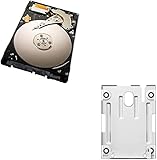
#1 Best Overall

- 1TB Capacity, 9.5mm High, Rotation Speed of 5400RPM
- 8MB Buffer, SATA 3.0Gb/s Interface, 2.5inch Hard Drive
- Works for PS3 / PS4 Game Console HDD replacement / upgrade
- PS3 / PS4 Hard Drive installation & Playstation firmware download instruction included
- Backed by a 3-year warranty from Reseller
Can a PS3 use a 2 TB drive?
Some owners have used capacity-limiting techniques or custom tools to make larger drives appear smaller. Reports also exist of approximately 1.75 TB installations. These configurations depend on the console model, firmware and exact procedure, and may expose only part of the drive. They are unsupported and can fail during later file-system operations.
For a standard consumer replacement, stay at or below 1.5 TB. Do not buy a 2 TB drive on the assumption that a manufacturer’s PlayStation label makes it officially compatible with the PS3. A Seagate datasheet, for example, lists a 2 TB 2.5-inch SATA PlayStation drive, but that capacity still exceeds Sony’s PS3 specification: Seagate product datasheet.
What kind of replacement drive should you buy?
Check the physical and electrical requirements
- 2.5-inch internal form factor.
- Serial ATA/SATA interface.
- Capacity no greater than 1.5 TB for an officially specified installation.
- Thickness that fits your particular bay; 9.5 mm or thinner is the practical target commonly used for Slim replacements. See the iFixit Slim replacement guide.
- A logical-sector presentation and firmware compatibility the PS3 can recognize; a matching connector alone is not enough.
Identify the model number beginning with CECH before ordering. Fat, Slim and Super Slim systems have different covers, carriers and access procedures. CECH-400x Super Slim systems can require a model-specific mounting bracket; Sony documents the arrangement in its CECH-400x mounting instructions.
Rank #2

- 2.5inch Notebook HDD, 7mm Height (Slim)
- 1TB Capacity, 5400RPM, 64MB Cache, SATA 6.0Gb/s
- Works for PlayStation gaming systems (PS3 / PS4 Original, PS4 Slim, PS4 Pro)
- Massive 1TB capacity can store up to 80 × 25GB games.
- 2 Years Warranty from Reseller
HDD or SATA SSD?
A 2.5-inch SATA SSD can replace the original HDD when it meets the same interface, dimensions and capacity requirements.
Outdated Drivers Are Slowing You Down
One free scan finds every outdated or missing driver and matches the right update for your exact hardware.Free scan · exact hardware matchWindows Errors? Fix Them Before They Spread
Repair common Windows errors and clear accumulated junk for a smoother, more stable PC - no reinstall needed.Free scan · no reinstall- SSD advantages: no moving parts, quieter operation, better resistance to mechanical shock and potentially lower storage latency or shorter loads in some software.
- SSD limits: the PS3’s older SATA hardware limits the gain compared with a modern computer. An SSD does not improve CPU or GPU performance and does not remove the 1.5 TB capacity boundary.
- HDD advantages: often lower cost and a familiar, original-style solution. New 2.5-inch HDD availability is less consistent, and used units may have unknown wear.
Which capacity fits your use?
- Choose 1 TB for the simplest upgrade, a moderate digital library, or the broadest choice of drives and SSDs.
- Choose 1.5 TB if you specifically want Sony’s largest listed capacity and can verify the drive’s thickness, SATA interface and return coverage.
- Avoid larger drives if you need dependable recovery, do not want custom firmware or capacity limiting, or cannot verify sector behavior.
How to replace the PS3 hard drive
1. Prepare the console and backup
- Record the CECH model number and obtain a compatible 2.5-inch SATA drive.
- If the old drive still works, update through Settings > System Update > Update via Internet. Sony’s current US support page is here.
- Sign in and synchronize trophies with PlayStation Network.
- Connect a USB storage device formatted as FAT32.
- Open Settings > System Settings > Backup Utility > Back Up. The PS3 creates the required backup structure; do not rename or move those folders. See Sony’s Backup Utility documentation.
- Keep the backup and old drive untouched until the new installation has been tested.
The backup is not necessarily a sector-by-sector clone. Sony warns that some protected video content may not restore in every circumstance, and a failing source drive may not produce a complete backup. Copy irreplaceable saves individually where possible.
2. Remove the old drive and install the replacement
- Shut the PS3 down completely, unplug it and let it cool.
- Remove the model-specific HDD cover.
- Undo the retaining screw or carrier and slide out the old drive.
- Transfer the carrier or bracket to the new drive.
- Install the replacement in the same orientation, secure it and reinstall the cover before powering on.
Fat, Slim and Super Slim access steps differ. Do not force a cover or omit the carrier; the exact model instructions take priority. Sony’s accessory documentation includes safety and data-copy warnings: PS3 HDD installation document.
Rank #3

- INTERFACE:SATA CAPACITY:320GB RPM:5400RPM CACHE:8MB SIZE:2.5Inchs
- This product has 3 Years Warranty and 14 Days Money Back Guarantee
- This is Brand New, Never Used Hard Disk Drive
3. Reinstall system software
The replacement drive is blank. Download the PS3 system software only from Sony’s official support page and place it on the USB medium using Sony’s required folder and filename structure. The console may require the same or a newer version than was previously installed; do not assume a downgrade is possible. Follow every on-screen prompt and do not interrupt installation.
4. Restore the backup
- After initialization, open Settings > System Settings > Backup Utility > Restore.
- Select the PS3 backup and allow the process to finish.
- Check user profiles, saves, installed content and personal media before erasing or discarding the old drive.
What happens to saves, games and other data?
Initializing the new internal drive erases data already on that replacement drive. A successful backup can restore many categories, including saves, downloaded games and add-ons, installed game data, photos, music, video, profiles and settings. Trophy data should be synchronized separately before the swap.
Restoration is not guaranteed for every protected item. If the backup is incomplete, redownload content from the account that originally obtained it where it remains available, and copy individual saves by the method appropriate to each title.
Rank #4

- 1TB Capacity, 9.5mm High, Rotation Speed of 5400RPM
- 8MB Buffer, SATA 3.0Gb/s Interface, 2.5inch Hard Drive
- Works for PS3 / PS4 Game Console HDD replacement / upgrade
- PS3 / PS4 Hard Drive installation & Playstation firmware download instruction included
- Backed by a 3-year warranty from Reseller
Troubleshooting
The PS3 does not recognize or format the drive
- Confirm it is a 2.5-inch SATA drive and physically fits the bay.
- Check that the capacity is within the official range.
- Update system software if the old drive still boots.
- Consider a defective drive, unusual prior configuration or incompatible sector presentation.
- Return to a known-compatible 1 TB or 1.5 TB drive instead of immediately trying an unsupported workaround.
The displayed capacity is lower than the label
Drive makers quote decimal capacity, while the PS3 reports a lower formatted figure after system overhead. A marketed “1.5 TB” drive will not show exactly 1,500 GB as available space.
The console repeatedly performs file-system recovery
Repeated recovery is the main practical reason many owners choose 1 TB. Community documentation associates some drives above 1 TB with unreliable recovery behavior; Sony does not state this as an official limitation. Replace the drive with a known-compatible 1 TB model if dependable recovery matters.
The backup is not detected
- Verify that the USB drive is FAT32.
- Confirm the PS3-created folder names and locations were not changed.
- Try the original USB port or another FAT32-formatted drive.
- Do not reformat the backup drive until you have exhausted recovery options, because reformatting erases its contents.
The old drive is failing
Back up immediately while the console still starts, copy the most important saves individually, and avoid repeated power cycling of a mechanically failing HDD. A damaged source may not yield a complete restore.
Quick wins for a faster PC:
Clear out junk files and repair common Windows errorsFree Scan →Scan for outdated or missing drivers - takes under a minuteDriver Scan →Internal versus external USB storage
The internal-drive limit does not establish a universal external-drive limit. For PS3 Backup Utility use, Sony says the USB storage device must be recognized as FAT32; the cited documentation does not state one simple maximum capacity for every external drive. Reformatting or repartitioning a large modern drive can erase existing data. See Sony’s backup requirements.
Bottom line
Largest official internal capacity: 1.5 TB. Best practical choice for most owners: a reputable 1 TB 2.5-inch SATA HDD or SSD. Do not treat ordinary 2 TB installations or modified-capacity methods as supported upgrades.
Quick Recap
Product prices and availability are accurate as of the date/time indicated and are subject to change. Any price and availability information displayed on Amazon at the time of purchase will apply.




