Some links on this page are affiliate links: if you buy through them we may earn a commission, at no extra cost to you.
If your Logitech G733 is not working, check the problem in this order: battery and power, the LIGHTSPEED USB receiver, your computer’s selected audio devices, microphone permissions, and Logitech G HUB pairing or firmware. The G733’s documented wireless connection is LIGHTSPEED through its USB receiver, so it should not be treated like a Bluetooth headset.
Use the symptom that matches your problem below, then test the headset on another computer before assuming the headset itself has failed.

Quick symptom guide
| Symptom | Likely cause | First fix |
|---|---|---|
| No lights and no power | Flat battery, cable, charging port, or hardware fault | Charge it with another known-good cable and USB port |
| Headset powers on but has no sound | Wrong output device, volume mixer routing, receiver, or pairing problem | Connect the receiver directly and select the G733 under Windows or macOS sound settings |
| Microphone does not work | Mute control, loose boom mic, permissions, or application settings | Unmute it, reseat the microphone, and select it as the input device |
| Receiver is not detected | USB port, hub, interference, driver, or damaged receiver | Try another direct USB port and another computer |
| G HUB cannot see the headset | G HUB installation, permissions, firmware, or receiver pairing | Restart G HUB and the computer, then reinstall the current version |
| Audio cuts out or crackles | Receiver placement, interference, low battery, or USB power behavior | Move the receiver closer and away from hubs and crowded USB devices |
For specifications and platform compatibility, see Logitech’s G733 specifications and official product page.
Do these five checks first
- Charge the headset. Connect it to a known-good computer USB port or charger. Try another cable if there is no charging response. Logitech’s setup guide describes low-battery warnings below 10% and more urgent warnings below 2%.
- Turn it on normally. Plugging in the charging cable does not necessarily switch the headset on. Press the power button and check whether the LEDs respond.
- Check the microphone mute control. Press the mute control once and look for its mute indication.
- Move the receiver. Plug the USB-A LIGHTSPEED receiver directly into the computer—not a USB hub, KVM, monitor, or switch. Try another port, preferably one with a clear path to the headset.
- Restart and select the G733. Restart the computer, then choose the G733 for both playback and microphone input.
Keep the receiver away from densely packed USB devices and other wireless transmitters. If it is hidden behind a desktop case, the supplied adapter or a short USB extension can improve line of sight. Logitech’s wireless connection troubleshooting also recommends direct connection, reduced interference, updated software, and testing another computer.
#1 Best Overall

- Personalize your Logitech wireless gaming headset lighting with 16.8M vibrant colors. Enjoy front-facing, dual-zone Lightsync RGB with preset animations—or create your own using G HUB software.
- Total freedom - 20 meter range and Lightspeed wireless audio transmission. Keep playing for up to 29 hours. Play in stereo on PS4. Note: Change earbud tips for optimal sound quality. Uses: Gaming, Personal, Streaming, gaming headphones wireless.
- Hear every audio cue with breathtaking clarity and get immersed in your game. PRO-G drivers in this wireless gaming headset with mic reduces distortion and delivers precise, consistent, and rich sound quality.
- Advanced Blue VO CE mic filters make your voice sound richer, cleaner, and more professional. Perfect for use with a wireless headset on PC and other devices—customize your audio with G HUB.
- Enjoy all-day comfort with a colorful, reversible suspension headband designed for long play sessions. This wireless gaming headset is built for gamers on PC, PS5, PS4, and Nintendo Switch.
If the G733 will not turn on or charge
Start with the physical connection rather than G HUB:
- Use a different charging cable and a different USB port or charger.
- Leave the headset connected long enough to rule out a deeply depleted battery.
- Check for charging LEDs or other signs of life.
- Inspect the charging socket for debris, looseness, or damage.
- Do not pull or twist the cable while it is connected.
USB charging should not be assumed to provide ordinary wired audio. The G733’s normal wireless audio path is the LIGHTSPEED receiver, while USB is used primarily for charging and firmware-related tasks. If there is still no charging or power response with multiple known-good cables and ports, hardware failure involving the battery, socket, or headset electronics becomes more likely.
If the G733 turns on but there is no sound
Windows 10 and 11
- Open Settings > System > Sound.
- Under Output, select the G733 or Logitech headset playback device.
- Under Input, select the G733 microphone.
- Open the volume mixer and confirm the affected game or application is not routed to a different output.
- Open Settings > System > Sound > More sound settings. On the Playback tab, set the G733 as the default device and, where appropriate, the default communications device.
Check the game or chat application separately. Discord, Steam, the Xbox app, OBS, Zoom, and individual games can retain their own output and input choices even when Windows is configured correctly.
Quick wins for a faster PC:
Clear out junk files and repair common Windows errorsFree Scan →Scan for outdated or missing drivers - takes under a minuteDriver Scan →Repair Windows errors before they cause bigger problemsFix Now →macOS
Open System Settings > Sound, select the G733 for output, and confirm the output volume and mute state. Check the affected application’s own audio settings as well. The G733 is listed for Windows 10 or later and macOS 10.12 or later, but available features can differ between operating systems.
Rank #2

- Total freedom with up to 20 m wireless range and LIGHTSPEED wireless audio transmission. Keep playing for up to 29 hours of battery life.1 Play in stereo on PlayStation(R) 4..2
- Personalize your headset lighting across the full spectrum, ~16.8M colors. Play in colors with front-facing, dual-zone LIGHTSYNC RGB lighting and choose from preset animations or create your own with G HUB software.3
- Colorful, reversible suspension headbands are designed for comfort during long play sessions.
- Advanced mic filters that make your voice sound richer, cleaner, and more professional. Customize with G HUB and find your sound.
- Hear every audio cue with breathtaking clarity and get immerse in your game. PRO-G drivers are designed to significantly reduce distortion and reproduce precise, consistent, rich sound quality.
If the device is disabled or missing
In Windows, open Device Manager and inspect Audio inputs and outputs, Sound, video and game controllers, and Universal Serial Bus controllers. If the receiver disappears, uninstall only the relevant G733 or receiver entry and restart Windows. Do not remove unrelated USB controllers.
If the microphone is not working
- Press the physical mute control once and check its indicator.
- Remove and firmly reinsert the detachable boom microphone.
- In Settings > System > Sound, select the G733 as the input device and check its input level.
- In Windows, open Settings > Privacy & security > Microphone. Enable microphone access and access for desktop applications.
- Check the input device inside Discord, the game, Steam, Xbox app, Zoom, OBS, or other software.
- Test the microphone with Windows’ recording controls or another voice recorder.
If it works in a recorder but not in Discord or a game, the headset is probably functioning and the application is using another microphone or lacks permission. Close the affected application and reopen it after changing the device. If the sound is muffled or distorted rather than silent, temporarily disable G HUB voice filters, noise reduction, equalizer changes, and unusual input gain settings.
If the USB receiver is not detected
- Unplug the receiver and restart the computer.
- Reconnect it directly to another USB port.
- Avoid hubs, KVMs, monitor ports, and unpowered extensions while diagnosing the problem.
- Move the receiver away from the back of the PC case, other wireless transmitters, phones, speakers, and crowded USB devices.
- Check Windows Device Manager or macOS system information for a newly detected USB device.
- Test the receiver and headset on another computer.
A receiver that works on another computer points to the original computer’s USB, driver, power-management, or application configuration. A receiver that is absent on multiple computers may be damaged or may have lost pairing. A flashing indicator or a detected receiver with no audio can also indicate that the headset and receiver are no longer synchronized.
When G HUB does not detect the G733
Basic operating-system audio should not depend entirely on G HUB remaining open. G HUB is mainly needed for advanced configuration, lighting, voice filters, firmware prompts, and pairing tools.
Rank #3
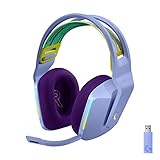
- Total freedom with up to 20 m wireless range and LIGHTSPEED wireless audio transmission. Keep playing for up to 29 hours of battery life.1 Play in stereo on PlayStation(R) 4..2
- Personalize your headset lighting across the full spectrum, ~16.8M colors. Play in colors with front-facing, dual-zone LIGHTSYNC RGB lighting and choose from preset animations or create your own with G HUB software.3
- Colorful, reversible suspension headbands are designed for comfort during long play sessions.
- Advanced mic filters that make your voice sound richer, cleaner, and more professional. Customize with G HUB and find your sound.
- Hear every audio cue with breathtaking clarity and get immerse in your game. PRO-G drivers are designed to significantly reduce distortion and reproduce precise, consistent, rich sound quality.
- Close G HUB completely.
- Unplug the LIGHTSPEED receiver.
- Restart the computer.
- Reconnect the receiver directly to another USB port.
- Launch G HUB and check its home screen.
- If the headset appears, open its settings and check for firmware updates.
- If G HUB is stuck loading or repeatedly initializes, install the current version from Logitech’s G HUB support and download page.
On macOS, follow the current permission prompts and restart after granting them. Reinstalling G HUB can fix corrupted installation or detection problems, but it may reset custom profiles.
Do not make Logitech’s older Firmware Update Tool or Connection Utility your default fix. Logitech’s current G733 support information identifies legacy utilities as unsupported or no longer maintained and directs users toward current G HUB and support pathways.
Independent reader supportYour contribution helps us test, update, and keep practical guides available for everyone.Repair pairing between the headset and receiver
Use the current G HUB workflow first:
- Connect the headset to the computer with its charging cable.
- Open G HUB and install any available headset firmware update.
- Leave G HUB open, then unplug and reconnect the LIGHTSPEED receiver to another USB port.
- Open G HUB Settings > Device Pairing Tool, if available.
- Select the G733 and follow the on-screen pairing instructions.
Logitech’s receiver-update guidance uses this sequence for connection loss after a G HUB update. Do not unplug the headset or receiver during a firmware update.
Crashes, No Sound, or Screen Glitches?
Random freezes, missing sound and display glitches usually trace back to one bad driver. Find and replace yours safely.Free scan · under a minuteWindows Errors? Fix Them Before They Spread
Repair common Windows errors and clear accumulated junk for a smoother, more stable PC - no reinstall needed.Free scan · no reinstallFix dropouts, static, lag, or limited range
- Charge the headset fully.
- Move closer to the receiver and relocate it for clearer line of sight.
- Use another direct USB port.
- Avoid hubs, KVMs, congested wireless areas, and tightly packed USB devices.
- Restart both the headset and computer.
- Check whether the fault occurs in every application or only one game.
- Temporarily disable unnecessary spatial-audio layers to separate wireless problems from audio processing problems.
- Compare default Windows or macOS audio settings with G HUB-enabled settings.
Logitech advertises up to 20 metres of wireless range and 29-plus hours of battery life, but volume, lighting, interference, and computing conditions affect real-world results. Those figures are not guarantees for every setup.
Windows, macOS, and console limitations
Ask which platform is involved before applying PC-only fixes. The G733 uses a USB-A LIGHTSPEED receiver, and compatibility and feature support vary across Windows, macOS, PlayStation, and other platforms. Consoles generally cannot use the full G HUB configuration workflow available on a computer. Logitech also notes that some advanced features are unavailable on PlayStation 4, including RGB customization and certain G HUB-dependent functions. If you need Bluetooth, a wired fallback, or broader console and mobile flexibility, a different headset design may be a better fit.
Is the headset defective or is the receiver the problem?
Use the second-computer test as the key isolation step:
The Tool Desk
Outbyte Driver Updater FREEFix the driver behind crashes, sound loss and screen glitchesFind Drivers →Outbyte PC Repair FREERepair Windows errors before they cause bigger problemsFix Now →- Headset and receiver work elsewhere: investigate the original computer’s USB ports, drivers, permissions, power management, and application routing.
- Receiver fails everywhere but the headset shows normal power: suspect the receiver or pairing.
- Audio and microphone fail everywhere: suspect the headset, receiver, battery, or firmware synchronization.
- No charging or power response anywhere: suspect the cable, charging port, battery, or headset electronics.
Contact Logitech support if the receiver is not detected on multiple computers, pairing still fails after current G HUB steps, or the charging port, battery, buttons, microphone connector, or headset behaves intermittently. Liquid damage, impact, and a pulled cable are also strong reasons to stop troubleshooting. Check the Logitech support portal and the G733 support page for warranty eligibility before buying a replacement.
If only the receiver has failed, ask Logitech about the exact G733 replacement receiver and hardware revision before purchasing a third-party dongle. If the headset itself has failed, replacing the complete unit may be simpler, but it is unnecessary when the real problem is Windows routing, G HUB, or receiver placement.
Quick Recap
Product prices and availability are accurate as of the date/time indicated and are subject to change. Any price and availability information displayed on Amazon at the time of purchase will apply.

