Recommended Free Tools
Some links on this page are affiliate links: if you buy through them we may earn a commission, at no extra cost to you.
If your Oculus Quest 2—now branded Meta Quest 2—is lagging, first find out whether the problem happens in native headset games, Air Link, or wired Quest Link. Native-only stutter points to the headset or game; Air Link-only stutter usually points to Wi-Fi; stutter in both PC VR modes more often points to PC performance or Link settings. Compare the modes before buying a cable, router, or headset.
Identify what kind of lag you have
“Lag” can mean a dropped frame, delayed input, a streaming freeze, or unstable tracking. Those symptoms have different causes, so note what happens and in which mode:
| What you notice | Likely place to investigate |
|---|---|
| The image freezes, turns blocky, or breaks up while using Air Link | Local Wi-Fi, network congestion, or PC video encoding |
| Head movement feels delayed, but the picture stays clear | Streaming latency, PC frame time, or compositor performance |
| Judder, double images, or repeated frames | A missed rendering frame-rate target, often from PC or game load |
| Only one native Quest game stutters | That game’s performance, settings, or a game-specific issue |
| The Quest home area and multiple games stutter | Headset software, heat, tracking, or a broader hardware issue |
| Black flashes, disconnects, or USB reconnect sounds during wired Link | Cable, port, USB controller, or Link software |
| Visuals are smooth, but multiplayer actions arrive late | Game-server or internet latency rather than headset frame rate |
| PC VR stutters along with crackling audio | USB stability, PC load, drivers, or streaming instability |
Air Link streams over your home network; your broadband download speed is not the main measure of that link. The important path is from the PC to the router or access point, then wirelessly from there to the headset.
What’s actually slowing this PC down?
Pick the symptom - the matching free tool is one click away.
Run this quick isolation test first
- Disconnect Air Link or wired Link and launch a lightweight native Quest game, then the game that stutters.
- Try another native game and the Quest home environment. Note whether the issue is limited to one title.
- If native play is smooth but PC VR is not, test the same PC VR game with wired Link if possible.
- Compare wired and wireless results. If wired Link is smooth and Air Link is not, investigate the network first. If both PC VR modes stutter, focus on PC rendering, Link settings, drivers, and USB where relevant.
This comparison is more useful than changing several settings at once: it helps separate headset or game performance from PC VR transport.
#1 Best Overall

- Improved Comfort and Fit: The PU Leather Foam Replacements is designed to provide a more comfortable and immersive experience while wearing the Oculus Quest 2 headset.
- Premium Materials: The AMZDM Quest 2 Face Pad is made with high-quality PU leather for enhanced comfort and durability. It includes a PU Leather Foam Replacement that provides a soft and sweatproof experience.
- Enhanced Air Circulation: Unique L-Shaped vent design of ventilation and exhaust holes which exhausts the gas generated in the VR eye cover without light leakage, relieves temperature, provides a more comfortable experience.
- Go Deep into vR: The improved nosepieces to solve the light-leakage problem around the nose, enjoy immersive vr experiences by using this comfy face pad for meta quest 2 accessories.
- Easy to Use: Designed for easy installation and replacement. The included Velcro makes it simple to attach and secure the face pad to the headset. The face pad can be easily cleaned with microfiber cloth, ensuring an enjoyable VR experience.
Try safe fixes before changing advanced settings
- Restart the Quest 2. Restart the PC as well if you use PC VR.
- If using Air Link, restart the router or access point. For diagnosis, use one nearby access point rather than adding extenders or mesh nodes.
- Install available updates for the headset, Meta Horizon Link desktop app, Windows, and graphics driver. If the problem began after an update, reset Link graphics settings to defaults before changing other options.
- Close unnecessary desktop applications, recording tools, overlays, VPNs, and third-party VR tuning utilities temporarily. Restore security tools afterward; do not leave protection disabled.
- If the headset feels unusually warm, let it cool and test again. Avoid treating a cooling accessory as a general fix for rendering or network stutter.
Change one thing at a time and retest. This makes it possible to tell what helped and avoids layering conflicting tweaks.
If native Quest 2 games stutter
Test at least two games and the home environment. If only one title has trouble, check its in-game performance options and whether the issue appeared after that game was installed or updated. Lower graphics or effects such as shadows and reflections if the game offers those controls. Stop casting to a phone, TV, or browser while troubleshooting, and reinstall the affected game only if its installation appears corrupted. Check for saved-game implications before deleting data.
Quest games have to meet CPU and GPU frame-time targets. Meta’s developer guidance describes 72 frames per second as a minimum app requirement target, with CPU work such as physics or game logic and GPU work such as complex scenes both able to cause missed frames. That is a development target, not a promise that every retail Quest 2 game will hold a fixed frame rate in every scene. Meta’s mobile performance guidance explains these constraints.
Quick wins for a faster PC:
Repair Windows errors before they cause bigger problemsFix Now →Fix the driver behind crashes, sound loss and screen glitchesFind Drivers →Clear out junk files and repair common Windows errorsFree Scan →Rank #2

- 🥇【Compatible With 】---- Unlike other products, our Headstap for Meta Quest 2/3/3s has been upgraded to support not only for Meta Quest 3/3s , but also for Oculus Quest 2
- 💎【Improve VR Gaming Comfort】----Saqico Head Strap is Specially Designed For Newest Meta Quest 3S/3 and Quest 2, Longer immersion in Virtual Reality Video Games, Reduce Head & Face Pressure for a truly comfortable experience.
- ☀️【Reduce Face & Head Pressure】 ----Full surround Comfortable cushion with inner soft memory foam thickness (0.67inches) with larger head support, making the head strap more comfortable and reduce Face & Head pressure. The head strap for oculus quest 2/3S/3 accessories is weight balance fit for any game experience
- ❤【Adjustable for Adults and Children】 ----This elite strap with for oculus quest 2/3S/3 has upgraded the knob, Designed with a 360 rotatable knob, this head strap makes it easy to adjust the length and size of the headband. Also comes with an adjustable top strap to meet the needs of all VR players head size.is suitable for both adults and children, and children can easily adjust it themselves.
- 💎【New Detachable Design】---3 kinds of wearing ways for Choose,Detachable Design make the package size for for smaller, It's better advocacy of environmental protection. Lightweight and Portabl Saqico vr accessories for oculus quest3S/3 weighs only 6.5 oz,Package include 1 x elite headstrap, 1 x user manual
If the virtual world shakes, drifts, or moves incorrectly rather than visibly dropping frames, treat it as possible tracking instability. Improve room lighting, clean the tracking cameras gently, reduce reflections or rapidly changing LED lighting, and redraw the boundary. If the issue seems controller-specific, test with hand tracking disabled or controllers paired.
If Air Link is lagging
Improve the local network path
- Connect the headset to the router’s 5 GHz Wi-Fi band as a starting point.
- Connect the PC to the router or access point by Ethernet when practical.
- Play near the access point and test with the headset in the same room.
- Avoid a guest network, extender, mesh satellite, or wireless backhaul on the test path. Mesh can work in some homes, but roaming between nodes or a wireless hop can add instability.
- If the router steers devices between bands, try separate 2.4 GHz and 5 GHz network names so the headset does not move bands mid-session.
- Reduce heavy local network use temporarily and check whether the problem changes.
Meta support guidance has recommended a 5 GHz headset connection and Ethernet for the PC, and warned that switching to 2.4 GHz can harm performance. These are good baseline conditions, not a guarantee: signal strength, interference, router placement, and channel behavior still matter. See the Meta community Air Link guidance and its discussion of mesh and setup issues.
Lower the streaming and rendering load
In the Meta Horizon Link desktop app, find the device graphics preferences or equivalent settings; names and paths can vary by app version. Return graphics settings to defaults, then test at a lower refresh rate and render resolution. Lower the game’s graphics quality too. Higher refresh rates and render resolutions ask the PC to render and encode more work per second, so increasing them can turn a marginal setup into a stuttery one.
Rank #3
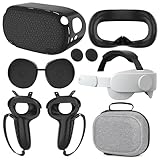
- What You Get -1x VZNEK Head Strap ,1xVZNEK case,1x VR Silicone face Cover, 1x VR Shell Cover, 2x Controller Grip Cover, 1x Lens Cover, 1 Pair x Button Caps. This is an affordable starter accessory kit. All accessories are specifically designed to enhance the gaming experience and are perfect for the Oculus 2.
- Compatible with Oculus Quest 2 Head Strap : Adopt the gravity-balanced and distributed design,this elite strap replacement for oculus quest 2 makes its gravity evenly distributed in different positions of the head,further reducing facial pressure,the back wing-shaped wide bracket can offer larger head support than original while preventing slippage,it can be freely adjusted to the most comfortable state,making your device fit your head better,increasing your gaming immersion.
- The carrying case for oculus quest 2 is made of water-resistant and wear-resistant high-quality EVA material, which is shockproof, dustproof, and moisture-proof. High-quality and smooth double zipper for perfect closure. Effectively protects the oculus headset from scratches and dirt.
- VR Grip Cover: they add comfort and additional gripping power to the stock slippery plastic. Accurate cutouts and holes design ensure that the signal can enter the controller normally.
- VR Silicone face Cover : The face cover replacement is made of high quality environmentally silicone material, which makes it soft and comfort. prevent light leakage and worked well for keeping sweat off of the stock pad.
For a clean comparison, run the same PC VR title over Air Link and then a short, known-good wired Link connection. If wired is smooth, prioritize Wi-Fi topology and signal rather than buying a faster GPU. If both are rough, use the PC troubleshooting section below.
Free tools Windows power users keep installed
One-click scans. No signup required.
If wired Quest Link stutters or disconnects
- Use a USB data cable, not a charge-only cable. A compatible third-party cable may work; the official Meta cable is not inherently required.
- Connect directly to a suitable USB port on the PC, avoiding hubs, front-panel extensions, loose adapters, and docks during diagnosis.
- Reseat both ends, try another USB port, and test another known-good cable if available.
- Run the USB connection test in the Meta Horizon Link desktop app if your current version offers it. Treat a failed test or repeated disconnects as evidence that the cable, port, or controller needs attention.
If you previously changed Oculus Debug Tool or third-party Link values, restore manually changed settings to defaults, or to 0 where that particular field uses zero for automatic behavior, then restart the desktop app and retest. The diagnostics folder is commonly C:Program FilesOculusSupportoculus-diagnostics, but the installation path and labels can vary with software age and branding. Avoid copying aggressive bitrate settings from a forum: appropriate values depend on the software, connection, encoder, and headset.
For intermittent USB trouble on Windows, try another USB 3 port. As a test, you can turn off USB selective suspend or the hub’s device power-saving option in Device Manager, then retest. Restore the power-saving behavior if it makes no difference; this is a Windows-specific troubleshooting step, not a universal Quest fix.
Rank #4

- Compatible with Meta Quest 3/Quest 3s: Still using BOBOVR’s innovative power swap design, the new battery architecture separates the discharge module from the battery pack, reducing battery pack heat. It also improves the discharge efficiency by 6% compared to the old model, and adds low-battery sound reminders and accurate battery levels;
- Brand new B100 battery system: Compared with B2, while the volume remains unchanged, the capacity is increased from 5200mah to 10000mah, the battery capacity is increased by 92%, and the weight is only increased by 28%. Thanks to the higher output efficiency, the available capacity is B2 2 times;
- S3 Pro has a built-in Head Air Cooling System: which uses silent technology to keep the head and face cool and comfortable even when Quest3/3S is worn for a long time, and supports 100-level flexible wind speed adjustment (Press the roller to open);
- The structure of the back of the head is optimized,Flattened back structure enhances comfort during seated or reclined use, with adjustable height and removable overhead support.
- Tip: S3 Pro Strap is only Compatible with Meta Quest 3/Quest 3s; The air conditioning system requires B100 to work(Not compatible with B2 battery pack) ; Battery Configuration: Two 5000mAh lithium cells in series (7.3V total), – equivalent to a single 10000mAh/3.65V battery pack.
If the PC is the bottleneck
Reduce one load-setting at a time, starting with the Meta Link render resolution, refresh rate, then in-game resolution and graphics quality. Turn off supersampling, third-party sharpening, overlays, and recording while testing. On laptops, confirm Windows and the graphics driver are using the dedicated GPU for the VR game rather than integrated graphics. If stutter began after a driver problem, update the driver; consider a clean reinstall only when a normal update does not resolve it.
VR smoothness depends on frame time, not just average FPS. Approximate per-frame budgets are 13.9 ms at 72 FPS, 11.1 ms at 90 FPS, and 8.3 ms at 120 FPS. A brief CPU or GPU spike can feel like a hitch even when an average frame-rate counter looks acceptable. These are timing calculations, not a claim that every Quest 2 title or PC configuration supports all those rates. Meta’s developer documentation covers CPU and GPU frame-time limits.
If available in your current software, use performance or diagnostic overlays to compare CPU/GPU frame time and network or transport latency. A frame-time spike points toward rendering; a network-latency or bitrate fluctuation points toward streaming. A USB disconnect points toward the wired path. Treat overlays as clues, not diagnoses, and change only one related setting before testing again.
Best Value

- 【Weight Balance-Dual Adjustable Straps】Customize fit using by dual adjustment knobs (top/back), kawaye vr headset strap 4 points adjustable helps evenly distributes weight to eliminate facial pressure. Fits 22.1"-27.5" head sizes, suitable for both children and adults. 55° flip-up design for oculus head strap design enables glasses-friendly access.
- 【All-Day Comfort - Dual Cotton Pads】Maximum comfort and support with two thick and soft cotton pads. This VR head strap design for oculus/meta quest 3s/3/2 accessories to extend comfort, 35in² oversized cushion rear pad engineered for weight distribution to enhance stability & safety during intense VR workouts.
- 【Built-in Battery Slot】If you have additional power requirements, kawaye for oculus/meta quest 3/3s/2 headstrap features a dedicated compartment for hot-swappable battery packs (MQ001/MQ002, sold separately) - Hot swappable technology helps simplily add a battery in seconds without removing your headset or interrupting gameplay.
- 【90-Second Install & Build Quality】Kawaye design for meta quest 3/2 elite strap replacement includes two set connection fastener kits wthich can quick installs in 90 secs—no tools needed,pur plug-and-play. This kawaye headstrap accessories for meta /oculus Quest 2/Quest 3/33 after 10,000+ bend-tested won’t crack like cheap straps.
- 【Universal Fit for Meta Quest 3S/3/2 】Kawaye head strap compatible with Meta Quest 3/Quest 3S/Oculus Quest 2 vr headset, enjoy the same adjustable comfort across all. We Included:1× Comfort Head Strap | 1× for Quest 3S/3 Fasteners | 1× for Quest 2 Fasteners | 1× Cleaning Cloth | 24/7 Support.
Choosing between wireless and wired play
| Option | Useful when | Trade-off |
|---|---|---|
| Air Link | You want cable-free play and have a stable nearby access point | More sensitive to Wi-Fi interference, roaming, topology, and streaming settings |
| Wired Quest Link | You want a predictable transport or need a diagnostic baseline | Requires cable management and a dependable USB connection |
| Virtual Desktop | You want another wireless PC VR software option and are comfortable configuring it | It adds another software layer and cannot fix poor Wi-Fi or a weak PC; see the official site |
| ALVR | You are an advanced user interested in an open-source alternative | Setup is more technical; see the project page |
A dedicated access point can be worth considering if the PC can connect to it by Ethernet, the current router is far away or congested, and you play near the new access point. A newer Wi-Fi standard alone does not guarantee better results. A Link cable is most relevant when native games are smooth, Air Link is the only failing mode, and the PC is capable; it is not a remedy for native frame drops or an underpowered GPU.
When to escalate—and when not to factory reset
Factory reset is a last-resort recovery step, not a routine performance tweak. Consider it only when the home environment and multiple apps remain affected after restarts and updates, system behavior appears corrupted, or Meta Support recommends it. Before resetting, confirm access to your Meta account and understand that local data and settings may be removed; verify cloud saves where relevant.
Contact Meta Support if headset-wide stutter persists across native games and the home environment, Link repeatedly fails with known-good connections, or you suspect a hardware fault. Include when the problem began, headset and desktop-app versions, whether native games stutter, and whether wired Link differs from Air Link. That evidence helps separate a headset problem from a PC or network issue.
Quick Recap
Quick decision tree
- Native games stutter: test multiple titles and the home environment; investigate game load, heat, software, or tracking.
- Only Air Link stutters: prioritize the local Wi-Fi path, PC Ethernet, access-point placement, and lower streaming settings.
- Both Air Link and wired Link stutter: reduce PC rendering load, reset forced Link settings, and check drivers or the game.
- Wired Link disconnects or flashes black: test the data cable, direct USB ports, and USB power behavior.
- Only one game is affected: start with that game’s settings, updates, and installation rather than resetting the headset.
Product prices and availability are accurate as of the date/time indicated and are subject to change. Any price and availability information displayed on Amazon at the time of purchase will apply.

