Quick wins for a faster PC:
Repair Windows errors before they cause bigger problemsFix Now →Fix the driver behind crashes, sound loss and screen glitchesFind Drivers →Clear out junk files and repair common Windows errorsFree Scan →wincpuid.dll is a third-party 32-bit DLL associated with SEGA PC Division WINCPUID, not a Windows system file. If Windows reports that wincpuid.dll is missing, was not found, or could not be loaded, repair the original SEGA game or application that installed it rather than downloading the DLL into a Windows folder.
What is wincpuid.dll?
The file is identified with the internal description:
CPUID for Windows. Programmed by Kei.Takashima.
Available file metadata associates it with SEGA PC Division WINCPUID and reports it as a Win32, or 32-bit, DLL developed by SEGA PC Division. Third-party metadata also reports version 1.0.1.1, a size of 122,368 bytes, Japanese language support, Unicode resources, and a 1996 SEGA Enterprises copyright. Treat those version and size details as identification clues, not as an official SEGA checksum or guaranteed replacement specification.
A public inventory for Virtua Cop 2 version PC lists WINCPUID.DLL among the files installed in the game’s program directory. That makes Virtua Cop 2 a documented example, but it does not prove that every wincpuid.dll error comes from that game. Other old SEGA applications may use the same component.
#1 Best Overall

- Sega Genesis Core System 2 Bundle
- Includes Sonic 1 and 2
wincpuid.dll should normally sit beside the executable that needs it, inside the application’s installation directory. It should not normally be in either of these Windows folders:
C:WindowsSystem32
C:WindowsSysWOW64
Windows checks an application’s directory as part of its normal DLL search process. Consequently, putting a random copy in a system directory can hide the real installation problem, create version conflicts, or leave the program unable to find companion files.
Reported file details
| Detail | Reported information |
|---|---|
| Filename | wincpuid.dll |
| Description | CPUID for Windows. Programmed by Kei.Takashima. |
| Associated software | SEGA PC Division WINCPUID |
| Reported type | Win32 DLL, 32-bit |
| Reported version | 1.0.1.1 |
| Reported size | 122,368 bytes, approximately 119.5 KB |
| Reported copyright | SEGA ENTERPRISES Co., Ltd 1996 |
No verified evidence shows that this file ships with Windows, DirectX, .NET, Microsoft Visual C++, or a current SEGA runtime. No verified 64-bit variant has been established.
What the error usually means
You may see any of these messages or close variations:
Free tools Windows power users keep installed
One-click scans. No signup required.
wincpuid.dll is missingThis application failed to start because wincpuid.dll was not foundwincpuid.dll was not foundCannot find wincpuid.dllwincpuid.dll could not be locatedwincpuid.dll error loadingwincpuid.dll crashwincpuid.dll Access ViolationCannot register wincpuid.dll
These are reported search and error variants, not a complete official Microsoft or SEGA error catalog. The wording still provides a useful starting point:
- Missing or not found usually means the file is absent, the installation is incomplete, or the program is being launched from the wrong folder.
- Error loading can mean the file exists but cannot load because another dependency is missing or incompatible.
- Procedure entry point errors usually indicate a wrong DLL version or binary mismatch.
- Access violation or crash may point to incompatibility, damaged files, or a failure in the application or one of its dependencies.
- Cannot register does not mean the DLL should be registered. Most app-local runtime DLLs are not COM or ActiveX components.
Before changing anything, note the exact message and the executable that produces it. A similarly named shortcut may start a launcher, patcher, or compatibility wrapper instead of the main game.
Fix 1: Repair or reinstall the original SEGA program
This is the most likely and safest fix because wincpuid.dll belongs to a particular application installation.
If the game came from Steam
- Restart Steam.
- Open Library.
- Right-click the affected game.
- Select Properties.
- Choose Installed Files.
- Select Verify integrity of game files.
- Wait for Steam to compare the installation and reacquire missing files.
- Start the game from Steam.
If verification restores wincpuid.dll, the original problem was probably a deleted, damaged, or incomplete game file. Test the game before manually changing compatibility settings.
If the game came from an installer or disc
- Close the game and its launcher.
- Find the original installer, disc, or legitimate installer backup.
- Run the installer again.
- If it offers Repair, choose Repair first.
- If repair is unavailable, uninstall the affected program from Settings > Apps > Installed apps.
- Restart Windows.
- Install the program again from the original media or legitimate storefront.
- Start the game from its newly installed shortcut or executable.
If you still have a working copy on another computer, do not copy only wincpuid.dll. Compare the complete application folder and reinstall the program using its original installer where possible. Old games often require companion files, configuration data, registry entries, or legacy runtime components in addition to this DLL.
Check the installation directory
After repair or reinstall:
- Right-click the game shortcut.
- Select Properties.
- Open the Shortcut tab.
- Check the path in Target and select Open File Location.
- Confirm that the executable and
wincpuid.dllare in the same application directory, unless the program’s own installer uses a documented subfolder. - Launch that executable directly once.
If the DLL exists beside the executable but the error remains, the problem may be a dependent DLL, an incompatible version, or the wrong executable rather than a missing wincpuid.dll.
Fix 2: Check Windows Security quarantine
Antivirus software may remove or quarantine an old executable component. A filename alone does not establish whether a DLL is safe, so inspect its provenance and detection before restoring anything.
Rank #2

- Experience the classic era of 16-bit gaming in a streamlined, compact console design MK-1631.
- Console unit, one Sega Brand controller, AC power adapter, and A/V cable for TV connection
- The perfect choice for retro enthusiasts, offering a robust and reliable platform for SEGA's legendary catalog of games.
- Open Windows Security from the Start menu.
- Select Virus & threat protection.
- Choose Protection history.
- Open the event associated with the game or
wincpuid.dll. - Read the detection name, file path, and action taken.
- Restore the item only if you can verify that it came from the original, legitimate SEGA installation.
- Scan the complete game folder.
- Repair or reinstall the game if the file is not clearly trustworthy.
Protection History normally retains events for two weeks. If the file was genuinely removed, reinstalling the parent program is safer than extracting a standalone DLL from an unrelated source.
If the DLL appeared in a temporary folder, a download directory, or an unexpected system location, do not restore it automatically. Run a full Microsoft Defender scan. For stronger suspicion of malware, use Microsoft Defender Offline from Windows Security > Virus & threat protection > Scan options > Microsoft Defender Offline scan.
Fix 3: Confirm that the complete game folder was not moved
Older games can fail when only part of their installation is copied to another drive. Moving the executable without its companion DLLs, changing a drive letter, or launching an old shortcut can produce a missing-file error.
Check the following:
- Right-click the shortcut and select Properties.
- Review the Target and Start in paths.
- Open the target folder in File Explorer.
- Confirm that
wincpuid.dllis beside the executable. - Check that the folder contains the rest of the game’s files.
- If the folder was copied from another computer, restore the complete installation or reinstall it.
- Create a new shortcut from the correct executable if the existing shortcut points to an old location.
Do not place the DLL in System32, SysWOW64, the Windows directory, or a general PATH folder. The program should load its own copy from its application directory.
Fix 4: Check for a missing dependency
A program can report a failure involving wincpuid.dll even when that file is present. Windows may be unable to load it because another library that it needs is absent, damaged, or incompatible.
Do these 3 things before closing this tab:
1Repair Windows errors before they cause bigger problems2Fix the driver behind crashes, sound loss and screen glitches3Clear out junk files and repair common Windows errorsThis is more likely when the message says error loading, entry point not found, or access violation instead of simply saying that the file cannot be found.
Work through these checks:
- Reinstall the game from its original source.
- Install any prerequisite package included with the game.
- Read the game’s original documentation for required DirectX or Visual C++ components.
- Use only the architecture required by the application.
- If a separate error names a Microsoft runtime DLL, repair or install the matching Microsoft Visual C++ Redistributable.
- Restart Windows and test the application again.
Microsoft provides separate x86 and x64 Visual C++ Redistributables. A 32-bit game generally needs the x86 package even when Windows itself is 64-bit. Installing Visual C++ is not a proven fix for wincpuid.dll itself, so do not treat it as a replacement for repairing the SEGA installation.
If the error names a legacy DirectX component, use the game’s original installer or documentation rather than assuming that every current Windows component is interchangeable with the version the game expected.
Fix 5: Test compatibility settings for the old application
Compatibility mode is application-specific. There is no verified universal compatibility setting for wincpuid.dll.
After restoring the complete installation:
- Right-click the game executable.
- Select Properties.
- Open the Compatibility tab.
- Select Run this program in compatibility mode for.
- Choose an older Windows version.
- Select Apply, then OK.
- Start the game and test it.
- If it fails, return to the same screen and disable the setting or test another supported mode.
You can also select Run this program as an administrator if the application needs access to its own installation directory. Use this only for the affected program, not as a blanket solution for every executable.
If compatibility mode changes the symptom from “file not found” to a different error, that suggests the original DLL is being reached and the remaining issue is elsewhere.
Rank #3

- Original 16-Bit Sega Genesis System Console
- Extremely Large Video Game Library Available
Fix 6: Repair Windows components when Windows itself is damaged
wincpuid.dll is not normally a Windows-protected component, so SFC and DISM generally cannot recreate this SEGA DLL. Use them when the error is accompanied by broader Windows problems, such as damaged system apps, update failures, crashes in unrelated programs, or missing Microsoft system files.
- Open Start.
- Type
Command Prompt. - Right-click Command Prompt.
- Select Run as administrator.
- Run:
DISM.exe /Online /Cleanup-image /Restorehealth
- Wait for DISM to finish.
- Then run:
sfc /scannow
- Restart Windows.
- Test the SEGA application again.
DISM repairs the Windows component store. SFC then checks protected Windows files. If both commands complete successfully but the game still reports a missing wincpuid.dll, return to repairing or reinstalling the game.
Crashes, No Sound, or Screen Glitches?
Random freezes, missing sound and display glitches usually trace back to one bad driver. Find and replace yours safely.Free scan · under a minuteWindows Errors? Fix Them Before They Spread
Repair common Windows errors and clear accumulated junk for a smoother, more stable PC - no reinstall needed.Free scan · no reinstallRepeatedly running SFC and DISM will not substitute for restoring an app-local SEGA file. If manually hunting through repair commands is taking longer than identifying which Windows components are actually damaged, Outbyte PC Repair can scan for problems and show what it detects; its repair actions are performed by the full version. Reinstalling the SEGA program remains the definitive fix when this specific DLL is missing from its game folder.
Fix 7: Update drivers only when the symptoms point to drivers
A graphics or chipset driver does not normally supply wincpuid.dll. Driver work is relevant when the game also shows graphics corruption, crashes after a display change, fails with DirectDraw or Direct3D errors, or has problems across several older games.
For graphics drivers:
- Right-click Start.
- Select Device Manager.
- Expand Display adapters.
- Right-click the graphics adapter.
- Select Update driver.
- Choose Search automatically for drivers.
- Restart Windows if a driver is installed.
For a clean reinstall:
- Open Device Manager.
- Expand Display adapters.
- Right-click the adapter and select Uninstall device.
- Follow the prompt, taking care not to remove unrelated devices.
- Restart Windows.
- Install the current driver from the graphics hardware manufacturer’s official support page.
Do not uninstall a driver merely because wincpuid.dll is missing. If several old games have driver-related failures and manually checking hardware support pages is becoming guesswork, Outbyte Driver Updater can scan and identify outdated drivers; driver installation is completed by the full version. It is not required to restore this SEGA DLL, and repairing the original application remains the correct fix for a missing app-local file.
Fix 8: Check Windows Features only for a matching error
Windows Features are not a normal source for wincpuid.dll. Do not enable random components simply because the game is old.
The Tool Desk
Outbyte Driver Updater FREEScan for outdated or missing drivers - takes under a minuteDriver Scan →Outbyte PC Repair FREEClear out junk files and repair common Windows errorsFree Scan →Check them only when the application documentation or a separate error specifically requires a legacy Windows component:
- Open Start.
- Search for Turn Windows features on or off.
- Open the matching Control Panel result.
- Review the feature named by the application documentation.
- Select it, choose OK, and restart if Windows requests it.
- Test the program.
If the game needs a legacy .NET component, DirectPlay, or another Windows feature, use the exact requirement identified by the game. Enabling unrelated features will not replace wincpuid.dll.
What not to do with wincpuid.dll
Do not download a standalone DLL from a random site
Unverified DLL downloads can contain malware, the wrong version, the wrong architecture, or a file modified from its original form. Even a genuine-looking replacement may not match the game’s companion files or dependencies.
A downloaded DLL often fails to solve the root cause because the installation may also be missing configuration files, registry entries, runtime components, or other game files. Use the original SEGA disc, a legitimate installer backup, or the official storefront installation instead.
What’s actually slowing this PC down?
Pick the symptom - the matching free tool is one click away.
Do not copy it into System32 or SysWOW64
Those folders are not interchangeable drop locations. A 32-bit application on 64-bit Windows normally loads its own 32-bit DLL from the application directory. Copying files into both folders can create conflicts and make later troubleshooting harder.
Do not run regsvr32 as a generic DLL repair
regsvr32 is intended for DLLs that provide registration entry points such as DllRegisterServer. An ordinary runtime DLL does not automatically support that interface.
Running a command such as this is therefore not a general repair:
Rank #4
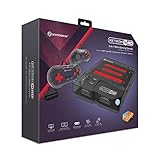
- 3-in-1 Retro Console: Compatible with NES, Super NES, Super Famicom, and Genesis/Mega Drive cartridges—play thousands of original classics on one system.
- HD Ready: Enjoy your favorite retro games in crisp 720p via HDMI; toggle between 4:3 and 16:9 aspect ratios for the perfect nostalgic feel.
- EverDrive Support: Fully compatible with most EverDrive and reproduction cartridges—expand your library and keep your originals safe.
- Includes 2 Controllers: Comes with two premium Hyperkin controllers for instant multiplayer action; console also supports original NES, SNES, and Genesis controllers.
- Classic Meets Modern: AV-compatible for CRT setups and HDMI-ready for modern TVs—perfect for collectors, streamers, and retro enthusiasts alike.
regsvr32 wincpuid.dll
It may produce an error stating that the module was loaded but the DllRegisterServer entry point was not found. Use registration only when the application’s documentation explicitly requires it and identifies the DLL as a registrable component.
Recommended Free Tools
Do not trust a filename as proof of safety
If wincpuid.dll is outside the expected game directory, has an unexpected publisher, came from an untrusted download, or triggers antivirus detection, treat it as suspicious. Remove the questionable installation, scan the computer, and reinstall the parent application from a trusted source.
If reinstalling does not fix the error
Use this escalation sequence:
- Write down the exact error text.
- Identify the executable that displays it.
- Open that executable’s file location.
- Confirm whether
wincpuid.dllis beside it. - Check Windows Security Protection history.
- Verify the game files again if it is installed through Steam.
- Confirm that the entire installation was restored, not just the executable.
- Check whether a separate error names another missing DLL.
- Test compatibility settings for that application.
- Use a dependency diagnostic tool to identify which module fails to load.
- Contact the publisher or storefront support channel if the original installer cannot restore the program.
A procedure entry point not found message usually calls for a complete reinstall rather than copying another DLL. It can mean that the file version does not match the executable or that another binary is incompatible.
System Restore is a fallback when the problem began immediately after a known system change and a suitable restore point exists. Open Settings > System > About > System protection, select System Restore, and choose a restore point from before the change. Because System Restore can roll back applications, drivers, settings, and updates, it is not the first-line fix for this file.
FAQ
Is wincpuid.dll a Windows file?
No. Available evidence identifies it as a third-party SEGA PC Division component. It should normally be installed with the game or application that requires it.
Which game uses wincpuid.dll?
A public installed-file inventory documents WINCPUID.DLL in the PC version of Virtua Cop 2. That is an example, not a verified complete list of every program using the DLL.
Should wincpuid.dll be in System32?
Normally, no. It should usually be beside the affected program’s executable in the application directory.
Is wincpuid.dll 32-bit?
Reported metadata identifies it as a Win32, 32-bit DLL. A 32-bit application can run on 64-bit Windows, but it needs the correct complete application installation and its compatible dependencies.
Will Visual C++ Redistributable fix it?
Not necessarily. No evidence establishes that Visual C++ supplies this DLL. Install or repair the x86 or x64 redistributable only when the actual error or the application documentation identifies a Microsoft runtime requirement.
Can I register wincpuid.dll with regsvr32?
Usually not. regsvr32 applies to DLLs that expose registration entry points. Reinstall the parent application instead.
Why does the file exist but Windows still say it cannot load?
Another dependency may be missing, the DLL may be damaged, the wrong executable may be launching, or the DLL may be the wrong version. Reinstall the complete program and inspect the full error message rather than replacing the file in a system folder.
What is the safest fix?
Repair or reinstall the original SEGA game or application from legitimate installation media or an official storefront. For a Steam installation, verify the game’s installed files first.
Quick Recap
Product prices and availability are accurate as of the date/time indicated and are subject to change. Any price and availability information displayed on Amazon at the time of purchase will apply.
Do these 3 things before closing this tab:
1Clear out junk files and repair common Windows errors2Fix the driver behind crashes, sound loss and screen glitches3Repair Windows errors before they cause bigger problems



