Crashes, No Sound, or Screen Glitches?
Random freezes, missing sound and display glitches usually trace back to one bad driver. Find and replace yours safely.Free scan · under a minuteWindows Errors? Fix Them Before They Spread
Repair common Windows errors and clear accumulated junk for a smoother, more stable PC - no reinstall needed.Free scan · no reinstallSome links on this page are affiliate links: if you buy through them we may earn a commission, at no extra cost to you.
The Xbox Adaptive Joystick can make Xbox and Windows gaming easier to control for some players with limited mobility—but it is not a complete gamepad or a fix for every game. Its separate, mountable stick and seven remappable buttons can suit players who need a different physical arrangement. Depending on the game and the player’s needs, it may also require another controller, an Xbox Adaptive Controller, switches, a mount, or in-game accessibility settings.
What the Xbox Adaptive Joystick is—and isn’t
The Xbox Adaptive Joystick is a wired, configurable controller designed primarily for players with limited mobility. It provides a standard thumbstick and a small set of buttons that can be arranged as part of a larger Xbox setup. It can be used on a tabletop, mounted, or operated with a hand or another body part if that arrangement works for the individual player. Xbox describes it as a way to add or reposition controls, not as a universal replacement for a conventional gamepad. Xbox’s product page notes that external devices may be needed for full gameplay functionality.
The device can be used by itself for some control needs, connected alongside another Xbox controller, or added to an Xbox Adaptive Controller setup. Its value depends on whether its available inputs match what the player needs for the games they want to play.
Do these 3 things before closing this tab:
1Scan for outdated or missing drivers - takes under a minute2Clear out junk files and repair common Windows errors3Fix the driver behind crashes, sound loss and screen glitchesControls and physical design
The joystick has one standard Xbox thumbstick and seven buttons: four on the front, two on the rear in positions intended to mimic bumper and trigger placement, and a button activated by pressing the stick. It weighs 106.2 grams, connects through USB-C, and has a 1/4-20-inch threaded mounting point. A 9-foot braided USB-C-to-USB-A cable is included; a complete mount is not.
#1 Best Overall

- Officially licensed by Xbox, and compatible with Xbox Series X|S, Xbox One & Windows 10 and above.
- Designed for accessibility - unified face-button layout, featuring lower-resistance buttons and highly sensitive joysticks.
- 2.4G wireless connection for Xbox and Windows.
- Dual Super Buttons - offer large, programmable keys, allowing you to map any function instantly without using software.
- 3 profiles. 3.5mm audio jack. Microphone mute button. Hall Effect joysticks.
One specification deserves particular attention: Xbox lists approximately 130 gram-force of actuation for the six buttons, but approximately 870 gram-force for the stick press. That difference may matter to a player who has difficulty with force, pain, or repeated clicks. It is a specification to consider, not a prediction of how it will feel for every person. If stick-click input is essential, check whether the player can comfortably activate it or whether the game and control setup offer another way to perform that action.
Who might benefit most?
- Players who cannot comfortably hold a two-handed controller: A separate joystick may allow the player to position stick control independently from other inputs.
- Players who need a mounted control: The 1/4-20 thread can attach to a compatible mounting solution, such as an arm or tabletop mount, which must be obtained separately.
- Players who can operate a joystick with an alternative movement: Depending on the person and setup, control might be possible with a hand, chin, toe, limb, or prosthetic device. These are possibilities, not guaranteed fits.
- Players who need only some controls relocated or simplified: The joystick can be combined with a standard Xbox controller so that each device handles inputs the player can reach more comfortably.
- Players building a broader assistive setup: It can be connected to the Xbox Adaptive Controller and used with compatible switches and other external inputs.
Accessibility needs vary with reach, strength, fatigue, tremor, pain, vision, and other factors. Xbox also cautions that its adaptive topper designs will not necessarily suit everyone. Where possible, consider a hands-on trial and the player’s own feedback before committing to a configuration.
Three ways to use it
1. Use the joystick on its own
Connect it to a supported Xbox console or Windows 11 PC using the supplied cable. This may be enough for a game or control task that needs only a limited set of inputs, but the joystick does not provide every control found on a standard gamepad. A setup that works during gameplay may not cover system buttons, menus, or every action a particular title requires.
Recommended Free Tools
Rank #2
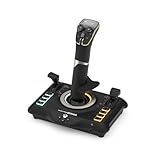
- High-Precision, Non-Contact Main Axes
- Customizable, Multi-Function Throttle & Flap Levers
- Compatible with Xbox Series X|S, Xbox One & PC
- 27 Programmable Buttons, 8 Axes, POV Hat & Rapid-Fire Trigger
- Integrated, OLED Flight Management Display
2. Combine it with another Xbox controller
For fuller control, connect the Adaptive Joystick and another controller, then use Xbox Controller Assist (formerly Xbox Copilot) to link two controllers so they act as one combined input system. This can let a player use the joystick for the controls that are easier to reach and the other controller for remaining functions. See Xbox’s explanation of Controller Assist. Check that the combined arrangement covers menu navigation as well as in-game actions.
3. Connect it to the Xbox Adaptive Controller
The Xbox Adaptive Controller is a hub for a wider setup. It has 19 3.5mm ports and two USB ports for external inputs, including compatible switches and other devices. The joystick can be one element in that system, rather than the whole solution. The Xbox Adaptive Controller page describes its connections and role.
Compatibility and software requirements
Xbox lists compatibility with Xbox One, Xbox One S, Xbox One X, Xbox Series S, Xbox Series X, the Xbox Adaptive Controller, and supported Windows 11 x64 PCs. For PC use, Microsoft’s current product requirements specify Windows 11 x64 version 22H2, build 22621.3958 or later for customization through the Xbox Accessories PC app. The listed app requirement is version 2502.2502.12001.0 or later. Console customization requires Xbox OS version 2502 or later. A compatible USB-C cable is required for the Windows app workflow; the included cable is USB-C to USB-A.
Rank #3

- 🎮SIMPLE BUT POWERFUL🎮Control and navigate the game consoles, TV, Blu-ray and apps at the touch of a button via a traditional & compact remote with soft rubberized texture
- 🎮SECURE BATTERY COVER🎮It’s attached firmly on the remote with the improved hook design to avoid the sliding off issue
- 🎮PRESS BUTTONS ANYTIME EASIER🎮Motion activated backlighting helps you locate buttons in the dark
- 🎮PLUG AND PLAY🎮Install the batteries in the remote control and it can function well without setting (However, TV control function depends on the setting and TV itself - Please refer to the user manual)
- 🎮WHAT ELSE🎮Offer the replacement without charge within the warranty period & helpful customer service anytime
These are version-sensitive requirements, so check the current Xbox product listing before buying or troubleshooting. Button mapping uses the Xbox Accessories app, but app labels and menus can change; consult the current app rather than relying on an outdated menu path. Xbox does not list PlayStation, Nintendo Switch, macOS, Linux, Steam Deck, or mobile devices as supported platforms for this product. Do not assume that an unofficial workaround amounts to official compatibility.
Setup: plan around the player and the game
This practical checklist follows Xbox’s documented connection and customization options; it is not a substitute for current device-specific support instructions.
- List the inputs the player needs. Include movement, camera control, stick clicks, triggers, bumpers, menus, and any actions that must happen at the same time. Note which inputs are comfortable and which are not.
- Choose a setup. Try the joystick alone for a limited control set; combine it with another Xbox controller using Controller Assist for additional controls; or add it to an Xbox Adaptive Controller setup when switches and other external inputs are needed.
- Position and connect the hardware. Start with the supplied cable and a stable tabletop arrangement. If mounting is needed, remember that the threaded point does not include a mount. Route the cable so it will not snag or restrict movement.
- Bring software up to date. Check the console OS, controller firmware where applicable, and Xbox Accessories app against Microsoft’s current requirements before attempting customization.
- Configure and test the mapped inputs. Use the Xbox Accessories app where supported. Test menu navigation and system controls separately from gameplay: a working character control scheme may still leave a player unable to navigate menus or access system functions.
- Test one game at a time. Confirm that the title accepts the mapped inputs, that necessary controls are available, and that required simultaneous actions are manageable. Then review the game’s own accessibility settings.
- Adjust only after the basic arrangement works. Add a mount or printed thumbstick topper if testing shows a need. Keep a standard controller or another usable profile available so the player can recover from an uncomfortable or unusable mapping.
Hardware access is not the same as game accessibility
It helps to think of accessibility in three layers:
Rank #4

- Customizable Controls for Sony Access Controller for PS5: High performance, durable buttons and triggers for the Sony Access controller to unlock the possibilities of play.
- Ultimate configurability and flexibility: Easily configurable to suit your gaming needs, including an assortment of button types and sizes to connect to your AccessTM Controller.
- 8 plug-and-play buttons and triggers: Arrange and attach as needed so you can game your way with a variety of pressure-sensitive trigger controls and precise actuation buttons.
- Hook-and-loop gaming board: Freely layout buttons and triggers to fit your unique needs or use ties for additional flexibility and stability.
- PS5 stick-on label system: Label your buttons and triggers with PS5 symbols for seamless gameplay.
- Hardware: Can the player comfortably reach, move, and activate the joystick and buttons in the intended position?
- Xbox system and profile: Can the available inputs be remapped or combined to cover the needed controls, including menus and system navigation?
- The game: Does the title support the controls and settings the player needs?
The joystick can change how a player physically accesses controls. It cannot add missing features to a game. A title may require two analog sticks, analog triggers, a D-pad, frequent stick clicks, or simultaneous commands that the player’s setup does not provide. Button prompts may not reflect remapped controls, and menus may impose different demands from gameplay. Look for game-specific options such as controller remapping, toggle actions in place of sustained holds, sensitivity adjustments, aim assistance, simplified controls, visual aids, or motion settings. Their availability varies by game; Xbox’s accessibility coverage discusses the range of features individual games may offer.
Independent reader supportYour contribution helps us test, update, and keep practical guides available for everyone.Mounting and adaptive thumbstick toppers
The threaded mount makes the joystick easier to integrate into a compatible mounting arrangement, but buyers still need the mount, arm, tray, or tabletop solution that suits their setup. The 9-foot cable offers some placement flexibility, but a wired device can create routing and snagging concerns around a wheelchair, bed, or desk.
If the main issue is grip, reach, or leverage on a thumbstick—not a need for another joystick or more inputs—Xbox Design Lab offers free downloadable files for 3D-printed adaptive thumbstick toppers compatible with the Adaptive Joystick, Xbox Wireless Controller, and Xbox Elite Wireless Controller Series 2. The files are not physical accessories: the buyer needs a 3D printer or a printing service. The Design Lab page lists seven customizable shapes and options to adjust shape, width, and height. Microsoft recommends ABS material and approximately 10% infill, but results depend on printer settings and tolerances. A poor fit or rough print may be uncomfortable or damage a controller, and Microsoft does not guarantee a design will work for every user.
Which option fits the need?
| Option | Consider it when… | Trade-off |
|---|---|---|
| Xbox Adaptive Joystick | The player needs a separate, mountable stick and a limited number of remappable controls. | It is wired and does not supply a complete conventional gamepad’s controls; other hardware may be required. |
| Xbox Adaptive Controller | The player needs a hub for multiple switches, buttons, joysticks, pedals, or other assistive inputs. | A broader system may require additional devices and more setup. See Xbox’s product details. |
| 8BitDo Lite SE 2.4G Wireless Controller for Xbox | The player wants a more conventional compact controller with top-mounted controls, low-resistance buttons, Hall Effect sticks, and two programmable Super Buttons. | It is less suited to someone who needs physically separated controls, extensive external switches, or a highly modular layout. Check the manufacturer’s page for current availability and price; Xbox announced a U.S. estimated retail price of $59.99 in 2024. |
| ByoWave Proteus Controller | The player needs a highly modular arrangement, including one-handed or tabletop layouts. | It is a more involved and higher-priced modular system, not a simple low-cost way to add one stick. Check ByoWave’s current product page for platform requirements, price, and availability. |
| 3D-printed thumbstick topper | The player’s main difficulty is the shape, reach, or leverage of an existing stick. | It does not add separated controls, switches, or remapping; printing or a printing service is still needed. |
Xbox announced a U.S. estimated retail price of $29.99 for the Adaptive Joystick in 2024, but that is not a guarantee of its current checkout price or availability. Check the Microsoft Store listing for current purchasing information. Consider the total setup cost too: a mount, second controller, Adaptive Controller, switches, or printing service may change the value substantially.
Quick Recap
Buying checklist
- Can the player operate the stick and buttons in the intended position?
- Does the player need a complete controller’s worth of inputs, or only a separate stick and a few buttons?
- Can the setup handle Xbox menus and system functions as well as the chosen games?
- Does the player need another controller, Controller Assist, external switches, or an Adaptive Controller?
- Is the approximately 870gf stick press usable, or can required stick-click actions be avoided or reassigned?
- Is a compatible mount available, and can the cable be routed safely?
- Does the player use a supported Xbox console or Windows 11 x64 PC, and meet the current customization requirements?
- Do the player’s actual games support the controls and accessibility settings they need?
Product prices and availability are accurate as of the date/time indicated and are subject to change. Any price and availability information displayed on Amazon at the time of purchase will apply.

