Crashes, No Sound, or Screen Glitches?
Random freezes, missing sound and display glitches usually trace back to one bad driver. Find and replace yours safely.Free scan · under a minutePC Slower Than It Used to Be?
A free scan shows the junk files, broken settings and background clutter dragging Windows down - then fixes them in one click.Free scan · Windows 10 & 11If your Steam Deck is draining quickly, running hot, stuttering, looking blurry, or feeling less responsive than expected, the problem may be a performance setting rather than the hardware. The five most common troublemakers are an uncapped frame rate, an incompatible refresh-rate target, an overly low TDP limit, an incorrect manual GPU clock, and overly aggressive scaling.
None of these controls is inherently bad. They become harmful when applied globally, set below what a particular game needs, or combined without checking frame pacing. Reset the advanced controls, choose a frame-rate target the game can actually sustain, and tune demanding games with per-game profiles.
Quick fixes at a glance
| Setting | What it can cause | Safe starting point | When it can be useful |
|---|---|---|---|
| Frame Limit disabled | Battery drain, heat, fan noise, inconsistent pacing | 30, 40, 45, or 60 FPS depending on the game | Only when a game benefits from rendering above the display target |
| Refresh rate and frame limit mismatch | Judder, uneven delivery, wasted power | LCD: 60 Hz with 30 or 40 FPS; OLED: 90 Hz with 30 or 45 FPS | Higher refresh rates for games that can sustain higher frame rates |
| TDP Limit set too low | Frame drops, hitching, CPU/GPU contention | Off until normal performance is understood | Per-game battery tuning in light titles |
| Manual GPU Clock set incorrectly | Lower FPS, poor dips, unnecessary power use | Off for most games | Advanced, game-specific GPU-bound tuning |
| Aggressive scaling or upscaling | Blur, shimmering, smeared text and detail | Native output or a moderate built-in upscaler | Demanding games that cannot hold their target at native resolution |
These controls are found in the in-game Quick Access menu, opened with the three-dot button. Exact labels and available choices can vary between SteamOS channels, so stable, beta, and preview builds may not look identical.
1. Disabling the frame limit
With Frame Limit disabled, the Deck renders as many frames as the game and hardware allow. That can sound desirable, but it often means the APU spends power producing frames the display cannot show. It can also increase heat and fan noise, shorten battery life, and create less consistent frame delivery as performance moves between different rates.
The Tool Desk
Outbyte PC Repair FREERepair Windows errors before they cause bigger problemsFix Now →Outbyte Driver Updater FREEScan for outdated or missing drivers - takes under a minuteDriver Scan →#1 Best Overall

- Steam Deck & ROG Ally Carrying Case: This carrying case is designed for Steam Deck (OLED) , ROG Ally and ROG Ally X (2024), PlayStation Portal Remote Player, providing safe daily protection, sturdy and durable. Giving you convenient storage and portable travel.
- Newly Upgraded Large Capacity: Built-in expanded storage space can accommodate more accessories. You can put original AC charger, docking station, small power bank, headphones and other accessories at the same time. Plenty of space to easily place the Steam Deck or ROG Ally without removing the protective case. Keeps everything in order. Note: Accessories not included
- Multiple Protection: JSAUX ROG Ally X Case uses a thickened EVA shell to resist external extrusion, effectively preventing collisions and falls. With groove design, it will not press on the handle. The built-in fleece compartment protects the screen from scratches
- Double Zipper Design: The zipper is smooth and can be easily opened and closed when using. A good closure ensures that accessories will not fall out. Concealed chain, prevent rust and beautiful design
- Handable and Fixed: Reinforced handle, will not fall off. Velcro straps inside can secure the body. You can easily take this Steam Deck Case anywhere
Valve recommends using an FPS limit to improve battery life. An explicit cap is particularly useful when a game can run comfortably above the rate you actually want.
Choose a sustainable target
- 30 FPS: a sensible starting point for demanding AAA games and maximum efficiency.
- 40 FPS: often a good LCD target when the game can hold it in demanding scenes.
- 45 FPS: a natural OLED target when performance is stable.
- 60 FPS or higher: appropriate for lighter games where responsiveness matters and the Deck can sustain it.
Judge the target by the game’s worst-case performance, not its average. A game that averages 45 FPS but repeatedly falls into the high 20s will usually feel worse than one locked to a consistent 30 FPS.
How to change it
- Launch the affected game.
- Press the three-dot Quick Access button.
- Open Performance.
- Set Frame Limit to a stable target.
Some games have a better in-game limiter than the SteamOS limiter. If SteamOS limiting causes unusual input lag or audio behavior, disable it and use the game’s own frame-rate cap instead. The Steam-Deck-Guide performance reference documents this type of game-specific exception.
2. Mismatching refresh rate and frame limit
Refresh rate is how often the display updates. Frame rate is how many frames the game renders. They interact, but they are not the same setting. Choosing a high refresh rate does not make a demanding game render faster.
Recommended Free Tools
The LCD Steam Deck supports up to 60 Hz. The OLED model supports up to 90 Hz. A refresh rate above the hardware’s supported maximum cannot improve performance and may increase battery drain, as Steam Support explains.
Useful pairings
| Model/display | Frame target | Use case |
|---|---|---|
| LCD at 60 Hz | 30 FPS | Demanding games and efficiency |
| LCD at 60 Hz | 40 FPS | Smoother motion if sustained |
| OLED at 90 Hz | 30 FPS | Efficient, easy-to-sustain target |
| OLED at 90 Hz | 45 FPS | Clean half-refresh pairing |
| Either model | 60 FPS | Lighter games |
| OLED at 90 Hz | 90 FPS | Only exceptionally light games |
A 40 FPS target is especially useful on a 60 Hz LCD panel because each frame is displayed for 1.5 refresh cycles. It is not a universal “best” setting. Likewise, 45 FPS pairs naturally with 90 Hz on OLED, but only if the game can maintain it.
For a demanding 30 FPS game on OLED, leaving the display at 90 Hz may work, but a lower compatible refresh choice can reduce power use. On an external monitor, use the display’s actual capabilities and the game’s realistic performance rather than automatically choosing its highest refresh rate.
Rank #2
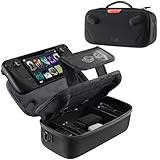
- Upgraded Design for Steam Deck: Fits Steam Deck and Steam Deck OLED. JSAUX designed this next gen carrying case for handheld gamers, built to keep your console and essentials protected for commuting, travel, and gaming on the go
- Dual Layer Storage: Upper layer stores your Steam Deck and microSD cards. Lower layer fits a charger, power bank, cables, dock, earbuds, and more. Removable hook and loop divider lets you customize the layout and keep everything organized. Note: Accessories not included
- Charge Ready Cable Port: Built in cable port lets you connect to your power bank for on the go charging while the case is open. Includes a right angle USB C to USB C cable to help reduce bending at the connector. Note: Power bank not included
- Visible Details for Daily Carry: The center panel folds into a stand for desk mode play. A recessed top groove helps reduce joystick pressure. Secure straps help keep your Steam Deck in place, and the comfortable carry handle makes grab and go travel easy
- Everyday Protection Inside Out: Durable exterior helps resist daily wear and light splashes, while the soft padded lining cushions bumps and helps prevent scuffs and minor scratches during travel
How to change both settings
- Launch the game and open Quick Access > Performance.
- Set Refresh Rate to 60 Hz on LCD or 90 Hz on OLED as a straightforward baseline.
- Set Frame Limit to 30, 40, 45, or 60 FPS as appropriate.
- Test the most demanding area of the game for several minutes.
Look for consistent frame times, not merely a high counter in a quiet area.
Do these 3 things before closing this tab:
1Fix the driver behind crashes, sound loss and screen glitches2Repair Windows errors before they cause bigger problems3Scan for outdated or missing drivers - takes under a minute3. Setting a global TDP limit too low
The TDP limit restricts the power available to the Deck’s APU, which contains both the CPU and GPU. It can save energy in a light game, but it is not a universal battery-saving switch.
A limit that is too low can cause frame-rate drops and stutter when the CPU and GPU compete for the reduced power budget. It can also hurt CPU-heavy games such as simulations, strategy games, open-world titles, and some emulators even when the GPU appears underused.
A lower limit can be effective when a game keeps the same frame rate with less power. But if rendering each frame takes longer, the Deck may spend more time working and deliver a worse experience. Battery efficiency and smoothness must be evaluated together.
Safer TDP tuning
- Leave TDP Limit off while establishing the game’s normal performance.
- Enable Use per-game profile before changing it.
- Lower the limit gradually, one change at a time.
- Stop when frame times begin fluctuating or the target is no longer stable.
- Restore the default limit if you see hitching, sudden drops, or audio problems.
Valve says the Deck runs at full performance in portable mode unless the user changes performance settings or another condition limits it. A Deck that becomes slow only after a TDP change should be reset before you investigate more complicated causes. See the Steam Deck FAQ.
Quick wins for a faster PC:
Clear out junk files and repair common Windows errorsFree Scan →Scan for outdated or missing drivers - takes under a minuteDriver Scan →Repair Windows errors before they cause bigger problemsFix Now →4. Setting the manual GPU clock incorrectly
Manual GPU Clock imposes a GPU-frequency limit. It is an advanced control, not a guaranteed performance boost. For most owners, automatic power management is the safer choice.
A fixed clock can reduce performance when it is below what a game needs. It can also do little or nothing for a CPU-limited title, and it may become counterproductive when paired with a low TDP limit. A forced frequency can even use more power than expected if it prevents the Deck from managing the GPU efficiently.
Rank #3
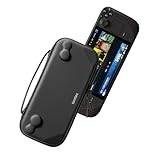
- Slim Steam Deck carrying case: Specially designed for Steam Deck/ Steam Deck OLED players to travel and carry. Super thin and lightweight. Whether it is commuting to work or long-distance travel, it is your best choice
- Super protection: The durable hard shell Protects your Steam Deck Console free from scratches, providing maximum protection for your Steam Deck against the knocks, bumps, and drops that might happen on the go
- Excellent design: The hard shell has raised areas, the accurate design perfectly fits the curves of the steam deck console, and prevents the joystick and buttons from being mis-touched; a built-in padded buffer avoids compression on shoulder buttons
- High quality: Made of splash-proof PU and felt hard shell material and equipped with heavy-duty YKK zippers, this Steam Deck travel case is portable, sturdy, and durable; to provide customers with the best experience from the details
- What you get: A slim Steam Deck carrying bag; Worry-free 12-month warranty, and friendly customer service. (Steam Deck and other accessories not included, for demonstration purposes only)
Possible symptoms include lower FPS despite apparently low GPU utilization, larger dips in demanding scenes, and unexpectedly high power use. Do not assume that a higher fixed MHz value is automatically faster; the correct value depends on the title, workload, and other limits.
Recovery and advanced use
- Open Quick Access > Performance.
- Turn Manual GPU Clock off.
- Turn TDP Limit off temporarily as well.
- Restore a sensible frame-rate and refresh-rate pairing.
- Restart the game and retest.
Only consider manual GPU tuning after confirming that a particular game is GPU-limited. Change one control at a time and keep the setting in a per-game profile. Valve does not publish one universal best GPU-clock value.
5. Using an overly aggressive scaling filter or upscaler
Scaling can rescue performance when a game renders below the Deck’s 1280×800 output resolution. The trade-off is image quality. Dropping the internal resolution too far can make text, HUD elements, foliage, distant objects, and fine detail look soft or shimmer during motion.
SteamOS scaling is not automatically active in every game. It generally requires the game to render below the display’s output resolution and use a compatible display mode. A game’s built-in FSR, XeSS, or other upscaler may produce a better result than SteamOS scaling, depending on the title.
A sensible order of operations
- Start at native 1280×800 output where practical.
- Lower expensive settings such as shadows, volumetrics, reflections, crowd density, and ray tracing.
- If performance is still insufficient, reduce internal resolution moderately.
- Try the game’s built-in upscaler and inspect text, foliage, and motion.
- Use SteamOS scaling only if its image quality and performance trade-off are acceptable.
FSR does not automatically improve performance: the game must actually render below native resolution, and the reduced rendering workload must outweigh the upscaler’s processing cost. A lower resolution is worthwhile when it produces a stable frame target, but it is not a free upgrade.
For games that support it, Valve recommends Vulkan as a primary graphics API for performance and battery life, while noting that Proton’s DirectX-to-Vulkan translation can be preferable to a poor custom implementation. See Valve’s Steam Deck graphics recommendations.
Use global defaults, then tune per game
The Steam Deck is a PC with games that can be CPU-bound, GPU-bound, affected by shader compilation, or limited by compatibility. One aggressive global profile cannot suit every workload.
Rank #4

- Comprehensive Protection: Individually Protected Independent cabin for your Steam Deck, ROG Xbox Ally X (2025) , ROG Xbox Ally (2025), ROG Ally, ROG Ally X, PlayStation Portal or Switch. Efficiently protect the screen from scratch by other sharp devices such as keys, metal goods, etc
- Large Storage: Multiple-layer space that meets different demand, including unique cabin for Steam Deck, Steam Deck OLED & ROG Ally. Separated rooms for different sizes of goods such as JSAUX Steam Deck docking station, powerbank, AC adapter, cellphones, USB C cables, Switch, etc
- Unigue Design: The anti-sloshing belt will keep your bag closely fit with your body while riding or running. The two-side resistance band will prevent your goods from pouring out when open totally the carrying case bag
- Durable Fabric & Fashion Appearance: JSAUX Steam Deck case bag is made of premium durable oxford fabric. The hard shell is made of EVA material with a fashionable appearance
- What You Get: JSAUX BG0105X Carrying Case is compatible with ROG Xbox Ally X (2025) / ROG Xbox Ally (2025) / Steam Deck / ROG Ally / ROG Ally X / PS5 Portal / Switch 2 / Switch , with an 18-Month worry-free period and 24/7 friendly client consultation, if you have any questions, we will resolve your issue within 24 hours
- Keep TDP and manual GPU-clock controls at their defaults globally.
- Use per-game profiles for frame limit, refresh rate, power, and scaling changes.
- Change one variable at a time so you know which setting helped or hurt.
- Record unusual changes, especially after switching SteamOS branches or reinstalling a game.
- Prioritize stable frame pacing over a headline FPS number.
The Verified badge also does not guarantee a particular frame rate, image-quality preference, or battery result. Valve’s compatibility review covers functionality such as controller support and text legibility, but individual games may still need tuning. See Valve’s compatibility criteria.
Steam Deck performance reset checklist
Use this sequence when a game became worse after copying a “best settings” profile:
- Launch the affected game.
- Press the three-dot Quick Access button.
- Open Performance and enable Use per-game profile.
- Turn off TDP Limit and Manual GPU Clock.
- Replace an uncapped frame rate with 30 FPS for a demanding game, 40 FPS on LCD if stable, or 45 FPS on OLED if stable.
- Use 60 Hz on an LCD Deck or 90 Hz on an OLED Deck as the initial display baseline.
- Return scaling to a neutral/default setting.
- Restart the game.
- Test the worst-performing area for several minutes.
If the problem remains, examine the game’s own graphics settings, its Proton version, shader compilation, storage behavior, thermal conditions, or a title-specific compatibility issue. Continuing to lower TDP blindly can hide the real cause.
Choose settings by your priority
For battery life
Start with a 30 FPS cap, a compatible lower refresh rate, default graphics settings that remain stable, and per-game TDP tuning only after testing. Lower brightness and volume can also help. Do not trade away so much performance that the Deck takes substantially longer to render each frame.
For responsiveness
Choose the highest stable target the game can sustain, avoid an unnecessarily low TDP, and leave manual GPU Clock off unless testing proves it helps. Higher performance generally means higher power use. A stable 40 FPS can feel better than an unstable 60 FPS, while a stable 60 FPS can feel better than a 90 FPS target with frequent dips.
For image quality
Keep native output where practical, lower expensive effects before resolution, and prefer a good game-specific upscaler. Check text and fine detail in motion, not just a still screenshot or FPS counter.
For simplicity
Leave advanced power controls at their defaults, use 60 Hz on LCD or 90 Hz on OLED, cap demanding games at 30 FPS, and create a per-game profile only when a title clearly needs a different approach.
Quick Recap
Product prices and availability are accurate as of the date/time indicated and are subject to change. Any price and availability information displayed on Amazon at the time of purchase will apply.



