What’s actually slowing this PC down?
Pick the symptom - the matching free tool is one click away.
Xbox Game Bar is more than a recording shortcut. Press Win+G to open a customizable in-game overlay where you can record gameplay or an app, take screenshots, check system usage, control audio, and keep useful widgets visible without switching away from the game.
It is built into Windows and is designed for convenience rather than full production work. The exact widgets and controls you see can vary with your Windows edition and version, the Game Bar app version, your hardware, installed widget apps, and Microsoft Store availability.
As an Amazon Associate I earn from qualifying purchases.
Before you start: enable Xbox Game Bar
Game Bar’s capture shortcuts will not work if the feature has been disabled. In Windows Settings, search for Xbox Game Bar, open the relevant setting, and turn on the option that allows Game Bar to open for recording game clips and related features.
The recording workflow described here applies to Windows 10 and Windows 11 installations. However, Windows 10 support ended on October 14, 2025. For a supported and security-maintained installation, Windows 11 is the better choice.
#1 Best Overall

- The next-generation optical HERO sensor delivers incredible performance and up to 10x the power efficiency over previous generations, with 400 IPS precision and up to 12,000 DPI sensitivity
- Ultra-fast LIGHTSPEED wireless technology gives you a lag-free gaming experience, delivering incredible responsiveness and reliability with 1 ms report rate for competition-level performance
- G305 wireless mouse boasts an incredible 250 hours of continuous gameplay on just 1 AA battery; switch to Endurance mode via Logitech G HUB software and extend battery life up to 9 months
- Wireless does not have to mean heavy, G305 lightweight mouse provides high maneuverability coming in at only 3.4 oz thanks to efficient lightweight mechanical design and ultra-efficient battery usage
- The durable, compact design with built-in nano receiver storage makes G305 not just a great portable desktop mouse, but also a great laptop travel companion, use with a gaming laptop and play anywhere
Useful Xbox Game Bar shortcuts
| Shortcut | Action |
|---|---|
| Win+G | Open Xbox Game Bar |
| Win+Alt+R | Start or stop recording |
| Win+Alt+M | Turn the microphone on or off during recording |
| Win+Alt+Print Screen | Capture a screenshot of the current game or app |
On a compatible Xbox controller, you can also press the Xbox button to open Game Bar. A controller is optional; it is not required for recording, screenshots, or widgets.
1. Turn your game into an in-game control center
Press Win+G while a game or supported app is open and Game Bar appears over the current screen. You can use the overlay to reach capture controls, audio settings, performance information, and installed widgets without using Alt+Tab.
This is useful when you want to change an audio level, begin recording, inspect performance, or open another supported tool without fully leaving the game. You can close the main Game Bar panel and return to the game after making the change.
Quick wins for a faster PC:
Repair Windows errors before they cause bigger problemsFix Now →Scan for outdated or missing drivers - takes under a minuteDriver Scan →Clear out junk files and repair common Windows errorsFree Scan →Game Bar is customizable, but it is not identical on every PC. The widget list depends on the Windows and Game Bar versions, installed apps, device configuration, and other Microsoft Store components. If a widget described by another guide is missing, that does not necessarily mean Game Bar is malfunctioning.
2. Record gameplay, an app, or a short tutorial
Game Bar can record a game or app, making it convenient for saving a highlight, documenting a problem, or creating a short walkthrough.
- Open the game or app you want to capture.
- Press Win+Alt+R to start recording.
- Press the same shortcut again to stop.
Recordings are saved as MP4 files in VideosCaptures. The filename includes the game or app name and the recording date and time, which makes clips easier to identify later.
For a quick clip, this is considerably simpler than opening a separate recording application. It is also useful when a game error is difficult to reproduce: start recording before repeating the problem, then send the resulting file to someone helping you troubleshoot it.
Rank #2

- Wireless for Boundless Winning - Cables truly will affect your detailed battle reaction, Redragon M810 pro wireless gaming mouse with 2.4Ghz nano receiver offers you the purest mouse moving experience and hype your KDA rise again.
- Adjustable DPI to 10000 - Geared with 5 on-board DPI levels (500/1000/2000/3000/10000) which allow your mouse movements to be registered to each pinpoint location. 5 DPI levels are free to DIY with software, for gamers to switch swiftly in game.
- Easy Keybinding with Macro - All 8 programmable buttons are all editable with customizable tactical keybinds in whatever game or work you are engaging. 1 rapid fire + 2 side macro buttons offer you a better gaming and working experience.
- Ultra Long-lasting Core - Equipped with the PAW3325 Optical Pixart sensor, the mouse consumption is further optimized with 1000Hz Polling Rate in dual mode. Rechargeable battery keeps the mouse working up to 45 hours at maximum (eco-mode).
- Adjustable True Color - With Redragon Pro driver, DIY endless style like dynamic streaming, breathing, waving. The game closely linked with various lighting modes makes your room full of competitive vibe.
There is an important limit. Game Bar should not be treated as a universal desktop recorder for every Windows surface. Microsoft’s documented workflow is centered on recording a game or app. If you need scene layouts, multiple sources, advanced audio routing, camera composition, live production, or detailed editing, you will need a more specialized tool.
3. Capture a screenshot without leaving the game
Press Win+Alt+Print Screen to capture the current game or app. The screenshot is saved as a PNG file in VideosCaptures.
This is handy for:
- Saving a memorable game moment;
- Documenting an error message or visual glitch;
- Showing a settings screen when asking for technical help;
- Preserving an in-game map, inventory, result screen, or configuration.
Do not confuse this shortcut with Win+Print Screen. The latter is a separate Windows shortcut for capturing the full desktop. Game Bar’s screenshot command is intended for the current game or app.
4. Record game audio, system sound, and your microphone
Game Bar can capture more than the picture. In Game Bar’s settings, open Capturing and choose the audio scope that includes the sources you need, such as game audio, microphone input, apps, and system audio.
Windows Errors? Fix Them Before They Spread
Repair common Windows errors and clear accumulated junk for a smoother, more stable PC - no reinstall needed.Free scan · no reinstallCrashes, No Sound, or Screen Glitches?
Random freezes, missing sound and display glitches usually trace back to one bad driver. Find and replace yours safely.Free scan · under a minuteWhile recording, press Win+Alt+M to toggle the microphone. This lets you make a narrated clip, explain a troubleshooting step, or switch your commentary off when you want game audio alone.
A headset or separate microphone is optional. Windows can use an available built-in microphone, headset microphone, or other selected input device. For game chat and narrated clips, a PC gaming headset with microphone can be a practical accessory because it combines game audio, voice input, and monitoring in one device; it is not required for Game Bar itself.
If your voice is missing from the recording, check these items before assuming the shortcut failed:
Rank #3

- Pentakill, 5 DPI Levels - Geared with 5 redefinable DPI levels (default as: 500/1000/2000/3000/8000), easy to switch between different game needs. Dedicated demand of DPI options between 500-8000 is also available to be processed by software.
- 3 Modes Connect Tech - Cables truly will affect your detailed battle reaction, M612 PRO geared with BT and 2.4Ghz receiver offers you the purest and preciser mouse moving experience and hype your KDA rise again.
- Any Button is Reassignable - 9 programmable buttons are all editable with customizable tactical keybinds in whatever game or work you are engaging. 1 rapid fire + 2 side macro buttons offer you a better gaming and working experience.
- Comfort Grip with Details - The skin-friendly frosted coating is the main comfort grip of the mouse surface, which offers you the most enjoyable fingerprint-free tactility. The left side equipped with rubber texture strengthened the friction and made the mouse easier to control.
- 7 Decent Backlit Modes - Turn the backlit on and make some kills in your gaming battlefield. The hyped dynamic RGB backlit vibe will never let you down when decorating your gaming space.
- Confirm that the microphone toggle is enabled with Win+Alt+M.
- In Windows sound settings, confirm that the intended microphone is detected and selected as the input device.
- Check Windows microphone privacy permissions and allow the relevant apps to access the microphone.
- Review Game Bar’s Capturing audio settings and make sure the desired audio sources are included.
- If using a headset, check its mute switch, cable or wireless connection, and input selection.
These checks matter because Game Bar can be working correctly while Windows is listening to a different input—or has blocked microphone access entirely.
Free tools Windows power users keep installed
One-click scans. No signup required.
5. Watch performance and resource usage without pressing Alt+Tab
The Performance widget can provide a quick view of metrics such as CPU usage, GPU usage, GPU memory, RAM, and FPS. The Resources widget can help identify applications using significant system resources.
This is useful when a game begins stuttering or frame rates seem unusually low. Instead of leaving the game, you can look for obvious patterns:
- High GPU usage may indicate that the graphics processor is working near its current workload.
- High GPU-memory usage can show that available video memory is under pressure.
- High RAM or CPU usage may point to another application competing for resources.
- A visible FPS reading can help you observe whether a change appears to affect the game.
Use these readings as quick diagnostics, not as a complete benchmark. Game Bar’s overlay cannot by itself identify every cause of stutter, prove that a component is defective, or provide the controlled conditions needed for a reliable performance comparison. For serious testing, record the game, graphics settings, driver version, resolution, frame-rate cap, background processes, and test scene consistently.
Some newer Game Bar features are also hardware- and version-dependent. For example, Microsoft documents an Auto SR tab in the Game Bar Display widget for supported Windows 11 devices. That is an optional experience for compatible systems, not a feature every Windows PC will show.
6. Pin a guide, chat, performance panel, or other widget over the game
Game Bar widgets can be pinned so they remain visible after the main overlay closes. This lets you keep selected information or controls above the game instead of reopening the full overlay each time.
Rank #4
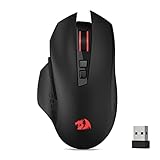
- Wireless for Boundless Winning - Cables truly will affect your detailed battle reaction, Redragon M656 wireless gaming mouse with 2.4Ghz nano receiver offers you the purest mouse moving experience and hype your KDA rise again.
- 5 Adjustable DPI Levels - Geared with 5 on-board DPI levels (1000/1500/2000/2400/4000) which allow your mouse movements to be registered to each pinpoint location. 5 DPI levels are free to DIY with software, enable to switch swiftly in game.
- Easy Keybinding with Macro - All 7 programmable buttons are all editable with customizable tactical keybinds in whatever game or work you are engaging. 2 side macro buttons offer you better gaming and working experience.
- Ultra Long-lasting Core - Equipped with the PAW3104 Optical Pixart sensor, the mouse consumption is further optimized with 500Hz Polling Rate in 3 levels. Smart ECO sleep mode helps for saving battery power when using the mouse intermittently (battery not included).
- Essential Software Suportted - With Redragon Pro driver, select your preferred style in red LED to fit your using vibe. All 7 buttons are ready to be assigned with complex or convenient macros, custom keybinds to the buttons you are used to mostly.
Practical examples include:
- Keeping a game guide or walkthrough visible while following instructions;
- Watching stream chat, where a supported widget is available;
- Leaving performance readings on screen during a troubleshooting session;
- Viewing another supported webpage, video, or overlay while playing.
To find more options, open the Game Bar widget menu and use the Widget Store to discover, install, or remove widget applications. The selection is not fixed: it depends on the widget apps installed on your PC and what is available through the Microsoft Store.
Pinning has a trade-off. A widget consumes screen space and can cover interface elements or important game information. If it is no longer useful, unpin it or close it rather than allowing it to remain over every game.
Independent reader supportYour contribution helps us test, update, and keep practical guides available for everyone.Common problems and quick fixes
Nothing happens when I press Win+G
Open Windows Settings, search for Xbox Game Bar, and make sure the option allowing it to open for recording game clips is enabled. Then try the shortcut with the game or app in focus. Also remember that available behavior can vary by Windows version, permissions, and the Game Bar app version.
The Tool Desk
Outbyte Driver Updater FREEFix the driver behind crashes, sound loss and screen glitchesFind Drivers →Outbyte PC Repair FREERepair Windows errors before they cause bigger problemsFix Now →Win+Alt+R does not start a recording
First confirm that Game Bar is enabled. Make sure a game or supported app is the active window, then try the shortcut again. If recording starts but stops unexpectedly, check available storage and whether the app or Windows configuration permits capture.
The clip has no microphone audio
Use Win+Alt+M to check the microphone state, then verify the selected Windows input device and microphone privacy permissions. A connected microphone is not automatically the same as the microphone Windows has selected.
I cannot find a widget mentioned online
Widgets vary by Game Bar version, Windows version, device, and installed widget applications. Open the widget menu and check the Widget Store. A widget may have been updated, removed, or simply may not be available in your configuration.
Best Value

- 【Tri-Mode Connectivity】Switch easily between 2.4G wireless, Bluetooth, and wired connections to match your setup. This mouse wireless design adapts to your work, study, or gaming environment with stable and flexible performance. Enjoy ultra-fast response with the wired mode’s 1000Hz polling rate.
- 【Adjustable DPI Settings】Fine-tune your aim with six DPI levels ranging from 800 to 8000, each with a unique color indicator for quick switching. Perfect for both casual use and professional gaming equipment setups.
- 【Cross-Platform Compatibility】This wireless computer mouse works with Windows XP/7/8/10 and macOS 10.5+, making it an ideal choice for versatile computer accessories across multiple devices.
- 【Simple Bluetooth Pairing】Activate Bluetooth mode with a long press of the mode button, then connect in seconds. Switch between two Bluetooth channels quickly, allowing you to use the same wireless gaming mouse across different devices.
- 【Smart Power Saving】Automatic sleep mode conserves battery life, with light sleep after 15 seconds and deep sleep after 20 minutes of inactivity. Wake instantly with a click or movement, keeping your wireless mouse efficient.
What Xbox Game Bar is—and is not
Game Bar is best understood as a low-friction Windows overlay and capture utility. Its strengths are speed, built-in shortcuts, basic recording, screenshots, audio controls, quick resource visibility, and pinned widgets.
Recommended Free Tools
It is not a replacement for a full streaming-production suite, a complete video editor, a professional audio recorder, or a controlled hardware-monitoring and benchmarking application. It also does not require a capture card, headset, controller, or special storage drive. Those accessories can improve a particular workflow, but the built-in feature itself is designed to work with the Windows hardware and input devices already available.
Frequently Asked Questions
Where does Xbox Game Bar save recordings?
Game recordings are saved as MP4 files in VideosCaptures. Game Bar includes the game or app name and recording date and time in the filename.
Where are Xbox Game Bar screenshots saved?
Screenshots captured with Win+Alt+Print Screen are saved as PNG files in VideosCaptures.
Do I need a headset or microphone to use Xbox Game Bar?
No. A headset or separate microphone is optional. However, you need an available and correctly selected microphone if you want to record narration or voice chat. Windows microphone permissions must also allow access where applicable.
Can Xbox Game Bar record the entire Windows desktop?
It should not be treated as a universal desktop recorder. Microsoft’s documented workflow is centered on recording a game or app, so another capture tool may be more suitable for unrestricted desktop recording.
The Bottom Line
Bottom line: Xbox Game Bar is valuable because it removes friction. With a few shortcuts, you can open an in-game control center, save clips and screenshots, include or mute your microphone, inspect resource usage, and pin helpful information over the game. Enable it first, verify your audio and privacy settings, and treat its performance readings and recording tools as convenient utilities rather than replacements for specialized software.
Quick Recap
Product prices and availability are accurate as of the date/time indicated and are subject to change. Any price and availability information displayed on Amazon at the time of purchase will apply.




