Free tools Windows power users keep installed
One-click scans. No signup required.
Steam Link lets an ARM device act as a streaming client while a separate PC runs the game. The documented options are the Steam Link app on Android 5.0 or newer, and Valve’s app on Raspberry Pi 3 or newer. Keep the host PC on with Steam running, connect both devices to the same home network, then pair an input device and start streaming.
How Steam Link works
The PC does the gaming: it runs Steam and the game, then sends the picture and sound to the ARM device. The client sends your controller or keyboard input back to the PC. The ARM device is therefore not replacing the gaming PC or running the PC game locally. Valve’s Steam Link hardware overview describes this client-and-host model.
| # | Preview | Product | Price | |
|---|---|---|---|---|
| 1 |

|
STEAM LINK | $109.99 | Buy on Amazon |
| 2 |

|
Valve Index Steam Link | $124.99 | Buy on Amazon |
| 3 |

|
T-Power Charger for Steam Link Played Game on Your TV Using Steam Link Power Supply Charger Power... | $9.99 | Buy on Amazon |
| 4 |

|
Cazxooy Adapter Compatible with Steam Link Game Streaming Box | $10.99 | Buy on Amazon |
| 5 |
|
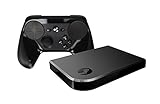
Steam Link Bundle (2 Items): Steam Link and Steam Controller | $1,211.65 | Buy on Amazon |
Choose an ARM client
| Route | Documented requirement | Install method | Network guidance |
|---|---|---|---|
| Android phone, tablet, or TV | Android 5.0 or newer, per Valve’s Android Steam Link page | Free Steam Link app from Google Play, or Valve’s alternate Android download | Connect to the same network as the host; Valve lists a 5 GHz-capable router as recommended equipment |
| Raspberry Pi | Raspberry Pi 3 or newer, per Valve’s Raspberry Pi Steam Link page | Install the Steam Link package on the Pi | Valve recommends wired networking; 5 GHz wireless may work but is not recommended for Raspberry Pi |
An Android device you already own can avoid setting up a separate client. A Pi is a dedicated option but requires package installation and compatible input hardware. Valve does not publish comparative ARM-device benchmarks here, so neither route can be said to guarantee lower latency or better image quality.
Set up Steam Link on Android
- On the host PC, turn it on, launch Steam, and sign in.
- Connect the Android phone, tablet, or TV to the same home network as the PC.
- Install the Steam Link app from Google Play. If Google Play is unavailable, use the alternate download described by Valve.
- Open Steam Link and follow its on-screen instructions to find and pair with the host.
- Connect a supported controller, or use another input option recognized by your device, then launch a game through the Steam Link interface.
Valve’s Android support list names the Steam Controller, Xbox One S Controller, Sony DualShock 4 on Android 9.0 or newer, and Razer Kishi and Raiju Mobile. Other devices may work without official support; the list is not a guarantee across every Android device, OS build, or connection method. Check the current Android compatibility list for the exact combination you intend to use.
PC Slower Than It Used to Be?
A free scan shows the junk files, broken settings and background clutter dragging Windows down - then fixes them in one click.Free scan · Windows 10 & 11Crashes, No Sound, or Screen Glitches?
Random freezes, missing sound and display glitches usually trace back to one bad driver. Find and replace yours safely.Free scan · under a minute#1 Best Overall
Set up Steam Link on Raspberry Pi
Valve documents Steam Link for Raspberry Pi 3 or newer. On the Pi, install it with:
sudo apt update
sudo apt install steamlink- Start Steam and sign in on the host PC.
- Connect the Pi to the same network as the host. Ethernet is Valve’s recommended option for the Pi.
- Launch Steam Link from the Games menu, or open a terminal and run
steamlink. - Follow the client setup and pairing prompts, then connect an input device supported by your Pi configuration.
Valve’s Pi controller list covers Steam Controller, selected Xbox controllers, DualShock 4, Nintendo Switch Pro Controller, Razer controllers, SteelSeries Stratus Duo, keyboard, and mouse. Support can depend on whether a device is wired, uses Bluetooth, or requires a particular receiver; do not assume every listed controller works wirelessly in every configuration.
Rank #2
- Commemorate 500 million playstation systems Sold with this limited
Improve the network before changing settings
For the most reliable connection, wire the host PC to the router with Ethernet. If both the host and client use Wi-Fi, they compete for wireless airtime while the stream travels to the client and input returns to the PC. Valve recommends 5 GHz rather than congested 2.4 GHz when a client must be wireless, but its Raspberry Pi guidance specifically says 5 GHz may work yet is not recommended for that platform.
- Keep the client reasonably close to the router and reduce walls or other obstacles between them.
- Check for channel interference, weak signal, and competing traffic on the network.
- Update router firmware and make sure the network does not isolate wireless clients from one another.
- Avoid guest, captive-portal, workplace, school, public, or otherwise isolated networks that may block Remote Play connections.
- Check that a firewall is not blocking Steam traffic required for Remote Play.
Valve’s suggested network settings explain its wired and wireless recommendations, network isolation, and firewall considerations.
The Tool Desk
Outbyte Driver Updater FREEScan for outdated or missing drivers - takes under a minuteDriver Scan →Outbyte PC Repair FREEClear out junk files and repair common Windows errorsFree Scan →Rank #3
- T POWER Brand New - Input Voltage Range: AC 100V - 240V
- Compatible with: 5V DC~ Steam Link played Game on your TV using Steam Link Power Supply ONLY
- FL55005F8E MODEL: 1003 FCC ID: 2AES41003 IC: 20207-1003 / P/N: A15-012N1A UP/N: A012R001L REV:01 / CAN ICES-3(B)-3(B) 9F64 E143709 150788-11 AC DC SMALL-Adapter Power ONLY
- (((NOTE: Please DOUBLE CHECK the model number is matched, before placing the order. If not sure, feel free to email us. Many thanks.)))
Diagnose stutter or freezing
Check whether the network is varying
Enable Steam’s Remote Play performance overlay while streaming. Valve says large spikes in the cyan network-time line indicate highly variable network time and commonly coincide with stutter or freezing. If the line spikes, simplify the connection first: wire the host, move the wireless client closer to the router, and reduce interference or competing traffic.
Reduce the stream workload
If the network looks stable but performance is still poor, lower the streaming resolution or the game’s resolution. Valve’s display troubleshooting recommends 1280×720 as a useful starting point; it is a diagnostic setting, not a promise of a particular frame rate or image quality.
Rank #4
- Universal Voltage: AC 100V-240V wide voltage input for worldwide use
- Compatibility: This Replacement AC DC Adapter Charger Compatible with Steam Link Played Game on Your TV Using Steam Link Power Supply Cord
- Safety Features: Built-in over-voltage, over-current and short-circuit protection for safe charging
- Reliable Performance: Stable Power Output and Sturdy Power Cord ensure consistent charging performance
- Portable Design: Compact lightweight build, 4ft cable length for flexible use & neat storage
Test host encoding
In Steam’s Remote Play settings, test enabling and disabling hardware encoding on the host. Valve notes that the better result can depend on the graphics card, so treat this as a comparison to make on your PC rather than a universal optimization. See Valve’s Steam Link display troubleshooting.
Independent reader supportYour contribution helps us test, update, and keep practical guides available for everyone.Do both devices need to be on the same Wi-Fi?
For the straightforward home setup described here, put the host and client on the same home network. They do not both have to use Wi-Fi: the host can connect to the router by Ethernet while the Android device uses Wi-Fi, and Valve recommends wiring the host. A client on an isolated guest network may not be able to reach the PC.
Quick wins for a faster PC:
Clear out junk files and repair common Windows errorsFree Scan →Scan for outdated or missing drivers - takes under a minuteDriver Scan →Quick Recap
Product prices and availability are accurate as of the date/time indicated and are subject to change. Any price and availability information displayed on Amazon at the time of purchase will apply.




