Nintendo Switch Sports does not have a documented game-wide motion-sensitivity slider or button-only mode in the Nintendo support information covered here. The supported adjustments are specific: choose Leg-Strap Mode for Soccer using the button for your play mode, and calibrate Joy-Con motion controls through the Switch’s system settings if they respond incorrectly.
Choose Leg-Strap Mode for Soccer
Leg-Strap Mode is a Soccer option, not a general control setting for every sport. How you select it depends on whether you are playing online, locally, or with friends, according to Nintendo’s controller and Leg Strap FAQ.
| # | Preview | Product | Price | |
|---|---|---|---|---|
| 1 |

|
MLB: The Show 26 - Nintendo Switch | $37.49 | Buy on Amazon |
| 2 |
![Nintendo Switch Sports Standard - Nintendo Switch [Digital Code]](https://m.media-amazon.com/images/I/513dxGiaPIL._SL160_.jpg)
|
Nintendo Switch Sports Standard - Nintendo Switch [Digital Code] | $39.99 | Buy on Amazon |
| 3 |

|
30 Sport Games in 1 Nintendo Switch | $25.70 | Buy on Amazon |
| 4 |
|
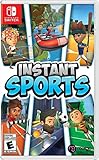
Instant Sports - Nintendo Switch | $28.69 | Buy on Amazon |
- Play Globally: On the sport-selection screen, highlight Soccer and press X.
- Play Locally or Play with Friends: On the screen showing how to hold the Joy-Con controllers, press +.
The Leg Strap requires a compatible left Joy-Con. Nintendo says Joy-Con 2 controllers cannot be used with the Leg Strap. Nintendo Switch Pro Controllers and Nintendo Switch 2 Pro Controllers are also not compatible with Nintendo Switch Sports, and the game does not support Handheld Mode, as detailed in the same Nintendo FAQ.
Attach and fit the Leg Strap
Nintendo’s Leg Strap attachment instructions specify using the left Joy-Con. Insert it firmly into the pocket with the control stick facing outward. For Nintendo Switch Sports, position the strap at the center of either thigh, wrap it securely, and fasten it so it will not slip. Tighten it enough to stay in place, but do not overtighten. If it loosens while you are standing, retighten it without overtightening.
#1 Best Overall
- Step up and take control of how you leave your mark in the biggest, most immersive MLB The Show yet.
- NEW – Road to Cooperstown & Expanded Amateur Years Career. Your journey to greatness starts here, which path will you choose? Earn a coveted spot at the MLB Draft Combine or catch the eye of one of 11 additional new colleges as you advance through chapters of your career.
- Compete in the officially licensed Men’s NCAA College World Series as you rise from a promising high school talent to one of the all-time MLB greats – immortalized in the National Baseball Hall of Fame and maybe even a place on the first ballot.
- Build your ultimate fantasy team with a new Red Diamond rarity tier and World Baseball Classic player cards featuring elite game-changing players.
- Play revamped Mini-Seasons campaigns as you level up your stars with an upgraded PXP system, customize their skills with Parallel Mods, and hit Parallel V faster through special challenges.
Calibrate Joy-Con motion controls
If motion input is not responding correctly, Nintendo’s system-level calibration procedure is a troubleshooting step. It is not an in-game sensitivity adjustment. Before starting, remove straps or other accessories from the controller and check that the console has the latest system update. Then follow these steps from Nintendo’s motion-control calibration instructions:
- From the HOME Menu, open System Settings.
- Select Controllers and Sensors, then Calibrate Motion Controls.
- Follow the on-screen prompt to hold the controller’s − or + button.
- Place the controller on a flat, stable surface and wait for calibration to finish.
- Select OK when prompted.
Nintendo’s game FAQ also points to motion-control troubleshooting. If you repeatedly see a “connection is unstable” message, wireless interference may be involved. If the issue occurs only during Leg-Strap play, check that the strap is attached properly.
Rank #2
- Swing, kick, spike, and bowl your way to victory in 7 sports
- Play Golf, Soccer, Volleyball, Bowling, Tennis, Badminton and Chambara (swordplay)
- Motion controls will get you moving and help turn your real-world actions into in-game movements
- Use the Leg Strap accessory to kick the ball in Soccer
- Play with friends and family locally or online—in some sports, you and a friend can even team up on the same system to take on other teams online
What accessibility and control options are documented?
The Nintendo support pages cited here explain controller compatibility, Soccer’s Leg-Strap selection, and motion calibration; they do not establish a comprehensive accessibility-feature list, a game-wide button-only alternative, or an in-game motion-sensitivity control. Controller requirements vary by sport, and the game excludes Handheld Mode and Pro Controllers. If you need to play without motion input or with a particular alternative control method, the cited documentation does not confirm that option.
Independent reader supportYour contribution helps us test, update, and keep practical guides available for everyone.Play with room around you
Nintendo’s Nintendo Switch Sports product page advises: “Be aware of your surroundings. Wear wrist straps and allow adequate room around you during game play.” Follow that guidance when playing with motion controls. The page also notes that the Leg Strap accessory is required for some Soccer gameplay.
Quick Recap
Rank #4
- 6 sports: Baseball, run's jump, goalkeeper, tennis, bowling & rafting.
- 20 characters to customize (change your name, outfit, accessories & hair)
- Varied game modes - Solo or multiplayer for up to 8 players.
- More than 15 environments and tons of unlockable items.
Rank #3
- The ultimate game that brings together 30 different sports
- Challenge your family or friends and may the best player win
- Multiple game modes available: Quick match or Tournament / Team mode or Solo
- Explore a multitude of environments! Volcano / Desert / Snowy countries
- Unlock new costumes and choose to play with motion or buttons on NSW
Product prices and availability are accurate as of the date/time indicated and are subject to change. Any price and availability information displayed on Amazon at the time of purchase will apply.




