Here are the default keyboard and mouse controls listed for Half Sword, plus what each input does. The mouse directs your weapon arm, so attacks depend on how you move it—not just which button you press. Because the game is in Early Access and some published mappings conflict, check Options → Controls → Key Binds in your build if an input behaves differently.
Default Half Sword keyboard and mouse controls
| Input | Listed action | What it does |
|---|---|---|
| W / A / S / D | Move | Move forward, left, backward, or right. A player guide also describes moving with Shift as a way to strafe or dodge, but that is player advice rather than an official control description. |
| Left Shift | Run | Run. The same player guide says combining Shift with WASD can strafe or dodge and drains stamina. |
| Left Ctrl | Crouch | Crouch; the player guide describes this as useful for kneeling or reaching low. |
| LMB | Right Hand Swing | Control a swing with the right arm. Dragging the mouse while holding the button is how the player guide describes directing it. |
| RMB | Left Hand Swing | Control a swing with the left arm. Double-click RMB is also listed as a thrust input. |
| E | Right Hand Grab | Grab with the right hand. Holding E is listed as Sheathe Right. |
| Q | Left Hand Grab | Grab with the left hand. Holding Q is listed as Sheathe Left. |
| RMB double-click | Thrust | Perform the listed thrust input. The player guide describes a double-click-and-hold gesture with either mouse button as another way to enter thrust mode; treat that detail as player guidance. |
| Left Alt | Thrust Mode | Enter thrust mode. The player guide says holding Alt straightens the weapon and sliding a mouse button extends it. |
| X | Swap Hands | Change which hand holds the weapon, according to the player guide. |
| R | Inventory | Open the inventory or weapon wheel, as described by the player guide. An extracted configuration-file mapping instead assigns R to Restart, so verify the in-game binding. |
| F | Arrow Time | Toggle slowed time, according to the player guide, which also says it drains stamina. |
| Z | Lock on Target | Focus on the closest enemy, according to the player guide. |
| V | Switch View | Switch perspective; the player guide says this changes to first-person view. |
| G | Give Up | The control reference shows the HUD prompt “Hold G to give up”; the player guide says holding it for several seconds surrenders. |
| C | Photo Mode | Open photo mode in the visible controls list. The extracted configuration-file mapping instead lists P, and the reference says both may work. |
The controls reference lists LMB as the right-hand swing and RMB as the left-hand swing: the two buttons control different arms. E and Q likewise map to right- and left-hand grabs, with holding those keys assigned to sheathing the corresponding side.

How mouse-driven combat works
Half Sword Games describes the game as physics-driven combat: bodies, limbs, and weapons are simulated, so momentum, weight, and balance matter. The mouse drives the blade directly; moving it shapes the weapon’s path rather than triggering only a canned attack animation. As the developer puts it, “Every swing is yours to control.”
Extra controls reported from configuration data
The unofficial controls reference combines 18 bindings shown in the game’s keybind screen with 11 additional entries extracted from configuration data. Those additional entries are not equivalent to confirmed, screen-visible defaults:
#1 Best Overall

- - Epic Arena Fights
- - Knight & Gladiator Gameplay
- - Half Sword & Half Shield Combat
- - Sword Fighting Battles
- - Progression & Upgrades
| Input | Configuration-data action | How to interpret it |
|---|---|---|
| Space | Jump | Configuration-file entry; not established here as a visible default. |
| Esc | Pause | Configuration-file entry. |
| P | Photo mode | Conflicts with C, which appears as Photo Mode in the visible controls list. |
| R | Restart | Conflicts with R for Inventory in the visible list. |
| Mouse X / Y | Turn / look | Configuration-file entries. |
| Gamepad left stick | Movement | Configuration-file entry; a current in-game controller mapping is not established by the visible keyboard-and-mouse list. |
| Gamepad right stick | Turn / look | Configuration-file entry. |
| Gamepad left / right bumpers | Left / right grabs | Configuration-file entries. |
| Gamepad left / right triggers | Left / right arm control | Configuration-file entries. |
| Gamepad X | Swap hands | Configuration-file entry. |
| Gamepad A | Jump | Configuration-file entry. |
| Gamepad stick clicks | Crouch / thrust mode | Configuration-file entries. |
The reference also reports a configuration-file Gallery action for G, while the visible control list assigns G to Give Up. The listed keyboard-and-mouse defaults are cross-checked by Destructoid’s January 30, 2026 guide; the extra mappings and conflicts should be treated as configuration-data findings, not guaranteed controls for every build.
Change or verify a key binding
- Open Options.
- Select Controls, then Key Binds.
- Select the action you want to change and press the replacement key or button.
- Save the change. Destructoid’s guide also mentions a shortcut for inverting mouse input.
Why older control guides may differ
The developer’s Steam FAQ says Half Sword entered Early Access on January 30, 2026 and notes that earlier builds tested different mechanics. Half Sword Games describes the game as experimental and says player feedback informs ongoing development. Older demo instructions and configuration extracts therefore may not match the bindings currently shown in your build.
Quick Recap
Best Value
Rank #4

- SOFT TIP: The retractable swords are made with ultra-soft tips so kids can duel safely with no bumps or bruises
- HOW TO PLAY: Each NERF sword has (4) targets on the handle. Hit your opponent's handle to drop the target. The first dueler to drop all of their opponents targets wins!
- GLOW IN THE DARK: Each sword has a battery LED light inside so you can turn off the lights and duel in the dark for an extra challenge (requires (6) AAA batteries, not included)
- EASY ASSEMBLY: Simply attach the retractable sword blade onto the handle, extend the sword and you are ready to play!
- FUN FOR ALL: This sword fencing set is kid-safe and fun for duelers of all ages. Grab your set and join the fun today!
Rank #3
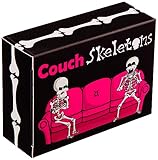
- These spooky sassy skeletons are looking for a couch to crash on! Be the first player to fill the couch seats with your skeletons by placing them according to their numbers.
- Quick and Easy to Learn - Each game takes only 5-10 minutes to play and less time to learn! Can be played by people of any age - kids, teens, and adults.
- Designed for Two Players - Perfect for a fun one on one game night for couples, families, and friends.
- Fits in the Palm of Your Hand - Its compact size makes it a popular choice for travel, camping, or as a stocking stuffer!
- Great Gift Idea - Whether it's a birthday, holiday, or a spooky celebration, Couch Skeletons is sure to be a unique and exciting gift.
Rank #2

- How to Play: Collect 3 sets of matching cards by choosing card Piles from the center. When multiple players pick the same Pile, duel with your fake swords using the card rules. First to hit their target wins the Pile!
- What's Included: Includes 2 swords for epic duels and 72 cards for thrilling gameplay. Everything you need for competitive fun and sword fights.
- Who's it For?: Ideal for anyone who loves a good duel or to settle family disputes via sword play! Perfect for family game nights or friendly gatherings where laughter and action are guaranteed.
- Where to Play: Perfect for game nights, parties, or any gathering where you want to add a physical and hilarious twist. Play indoors or outdoors for maximum fun.
- Our Story: From the creators of Exploding Kittens, the game that broke Kickstarter records, comes a new twist on fun. Known for our playful and inventive games, we bring you Let’s Hit Each Other With Fake Swords – proof that good times are always in style!
Product prices and availability are accurate as of the date/time indicated and are subject to change. Any price and availability information displayed on Amazon at the time of purchase will apply.



