ProtonUp-Qt is a free, open-source app for installing and managing compatibility tools such as GE-Proton for Steam, Lutris and other supported Linux game launchers. It is useful when a game needs a community runner, or when you want to test runner versions without finding archives and placing them by hand. It does not launch games, guarantee better performance or fix every game that will not start.
What ProtonUp-Qt does
Steam’s Proton and other Wine-based runners provide the compatibility layer that lets many Windows games run on Linux. Some players try community builds such as GE-Proton when a game has a specific compatibility issue or community guidance recommends a different runner. Those tools are separate from ProtonUp-Qt: the app provides a graphical way to download, install, update and remove them for supported launchers.

ProtonUp-Qt is not a replacement for Steam, Lutris, Heroic or Bottles, and it does not automatically choose the right runner or switch every game to one. It also does not repair a game prefix, supply every missing dependency, bypass anti-cheat or guarantee a frame-rate improvement. The project describes its role and the boundaries between runner-management problems and game-specific problems in its compatibility-tool troubleshooting guide.
Current version, launchers and tools
As of August 18, 2026, ProtonUp-Qt’s current AppStream metadata and Flathub listing identify version 2.15.1, with metadata dated June 24, 2026. GitHub’s rendered repository and release listings have shown inconsistent “latest” labeling, including v2.15.0, so check the Flathub listing and current application metadata rather than treating the repository label as definitive.
#1 Best Overall
The project lists Steam, Lutris, Heroic Games Launcher, Bottles and WineZGUI as supported launchers. It also says it can handle normal, Snap and Flatpak installations of supported launchers, but discoverability and permissions depend on how the launcher is packaged and configured. The current tool list in the project metadata includes GE-Proton, SteamTinkerLaunch, Proton-Tkg, Luxtorpeda, Boxtron, Roberta, NorthstarProton, Scrumplex’s Steam-Play-None, Wine-GE, Lutris-Wine, Kron4ek’s Vanilla Wine-Builds, DXVK and DXVK Async (including D8VK-related support), and VKD3D. This catalog can change; support for a tool is not a promise that every build is maintained or suitable for every game.
Version 2.15.1’s metadata notes architecture-aware GE-Proton downloads: aarch64 builds on ARM systems and x86_64 builds on other systems. That matters because a runner for the wrong CPU architecture will not work. The version, architecture and tool details above are based on the project’s current metadata.
Install ProtonUp-Qt
Flathub or an app store
The project recommends Flathub or an operating system’s app store. On a Flatpak-based distribution with the Flathub remote configured, install and launch it from a terminal with:
flatpak install flathub net.davidotek.pupgui2
flatpak run net.davidotek.pupgui2
The commands may differ if your distribution has not configured Flathub. The app’s Flathub page has the package details and store option.
Recommended Free Tools
Rank #2

- 75% Layout with Magnetic Switches: Experience the perfect blend of mechanical performance and magnetic precision with the Keychron K2 HE. Its popular 75% layout and magnetic sensors allow for fully customizable actuation, giving you control over every key's response for an unparalleled typing and gaming experience
- Launcher Web Configurator: Customize your K2 HE effortlessly with the web-based Launcher. From key remapping to macro creation, actuation point adjustments, and rapid triggering setup, access everything you need from any browser—anytime, anywhere—for a truly personalized setup
- Multi-Mode Connectivity: Switch seamlessly between devices with 2.4 GHz wireless, Bluetooth 5.2, and Type-C modes. Enjoy a 1000 Hz polling rate for competitive gaming or connect up to three devices for efficient multitasking across your computer, phone, and tablet
- Mac & Windows Compatibility: Seamlessly compatible with both macOS and Windows, the K2 HE allows you to switch effortlessly between them with the included Mac and Windows keycaps, ensuring a consistent typing experience across devices
- Hot-Swappable Gateron Magnetic Switch: Pre-lubed Gateron Double-Rail Magnetic switches offer hot-swap capability and precise actuation customization with 0.1 mm sensitivity, adjustable from 0.2 to 3.8 mm.(Compatible with Gateron Double-Rail Magnetic switches only.)
AppImage
Download the AppImage from the official release page or another trusted distribution source. Make it executable, then open it from your file manager or run it from the terminal:
chmod +x ProtonUp-Qt*.AppImageAppImage can be a useful alternative if a Flatpak’s sandbox cannot access the launcher installation you want to manage. It does not eliminate the need to select the correct launcher target.
Arch-based distributions
The project README documents AUR packages named protonup-qt and protonup-qt-bin for Arch-based systems, including Manjaro and EndeavourOS. AUR packages are community-maintained; they are not necessarily packaged by the upstream developer. See the project README for the documented options.
Install GE-Proton for Steam
- Open ProtonUp-Qt and choose Steam as the installation target. If the interface offers several Steam installations, select the one you actually use.
- Choose the add-version or install control, select GE-Proton, pick a release and confirm. Wait for download and extraction to finish.
- If the new version is not listed in Steam, fully restart Steam so it can rescan its compatibility tools.
- In Steam, open the game’s Properties, then Compatibility. Enable the option to force the use of a specific Steam Play compatibility tool and select the GE-Proton version you installed.
- Launch the game and test it. Change one variable at a time so you can tell whether the runner helped.
Installing a runner does not activate it globally. The Steam selection is usually per game, and Valve’s Proton FAQ explains Proton’s relationship to Steam and its library setup.
Do these 3 things before closing this tab:
1Repair Windows errors before they cause bigger problems2Scan for outdated or missing drivers - takes under a minute3Clear out junk files and repair common Windows errorsRank #3
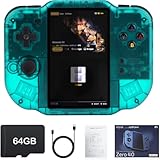
- 【Immersive 4.0-Inch IPS Display & Portable Design】Experience crystal-clear retro gaming console on a 4.0-inch IPS full-view screen with zero-distance OCA lamination (480*800 resolution). Designed for on-the-go play, handheld game console has ultra-slim profile (136x105x17mm) and lightweight body (182g) slip effortlessly into your pocket – the ultimate portable Android handheld for commute or travel.
- 【Retro System Emulation & Preloaded Classics】Gaming consoles can supports multiple simulators! You can download other emulators to play by yourself. It is a true all-in-one emulator machine.Emulator console supports TF card expansion, up to 512GB.Ample space also speeds up game loading, slashing wait times and upping playtime.
- 【 5-7 Hour Battery & Enhanced Flexibility】Retro game console powered by a 4,300mAh polymer battery for marathon 5-7 hour gaming sessions. Runs a 64-bit Android system, letting you install Google Play games, streaming apps, and custom emulators – beyond just retro titles. Perfect for modern indie games too!
- 【Vibration Feedback & HD Stereo Sound】Feel every hit and explosion with built-in vibration motors – a rare feature in handheld emulators. Gaming handheld's dual stereo speakers deliver immersive audio for arcade brawlers and RPGs. The fingerprint-resistant touchscreen ensures smudge-free controls during intense sessions.
- 【Expandable 512GB Storage & 2.4G WiFi Connectivity】Never delete games again! Expand storage via TF card (up to 512GB) – ideal for massive ROM libraries. The game boy seamlessly transfer files or download titles using 2.4G WiFi and Bluetooth 4.2. The DDR4 2GB RAM + AllWinner 1.8GHz CPU handles even demanding games smoothly.
Use ProtonUp-Qt on Steam Deck
ProtonUp-Qt is available on Flathub and is commonly installed on Steam Deck through Discover in Desktop Mode. The project describes its interface as suitable for handheld and gamepad use. Once installed, select the Steam target, add the runner, restart Steam if needed, then choose that runner in the game’s compatibility settings.
Steam Deck users should pay attention to packaging: a Flatpak ProtonUp-Qt installation and a native or differently packaged launcher may not see the same files. Do not assume that a runner installed for one Steam installation will appear in another. The release page and Flathub listing provide current availability details.
Install a runner for Lutris or another launcher
- In ProtonUp-Qt, choose Lutris as the target—not Steam—then select a compatible runner and version.
- Wait for installation to complete, then open Lutris. Edit the relevant game’s configuration, choose the installed runner in its runner options and save.
- Launch the game. If the runner is missing, check that Lutris and ProtonUp-Qt refer to the same installation type and restart Lutris.
Steam and Lutris expect runners in different locations and formats. A successful install for Steam should not be expected to show up in Lutris, or vice versa. The project’s release history includes a fix for Lutris GE-Proton placement under its runners/wine location; updating ProtonUp-Qt is safer than guessing a directory. Heroic, Bottles, WineZGUI and Flatpak variants may likewise have their own paths or permission requirements. The project documents its launcher handling in its application metadata and source implementation.
When GE-Proton is worth trying
Try a community runner when a game has a specific issue on the standard Proton version, or when reliable game-specific guidance recommends a particular GE-Proton build. Community versions may include patches, newer Wine components or media-codec changes that help some titles. They are not universally better: a new release can introduce regressions, and Valve’s Proton may remain the best choice for a particular game.
Rank #4

- Lightning-Fast 8000Hz for Pro Gaming: Gain a competitive edge with an 8000Hz polling rate for near-zero latency. Experience ultra-responsive keystrokes that are 8x faster than standard keyboards, ensuring every reflex is registered instantly in high-stakes FPS and MOBA games.
- Premium Gasket Mount & "Thocky" Sound: The V1 8K features a sophisticated gasket-mounted design paired with sound-absorbing foam. This creates a flexible, cushioned typing feel and a clean, "thocky" sound profile, eliminating plastic hollowness for a high-end custom experience.
- Effortless QMK & Keychron Web Launcher: Personalize your workflow with the Keychron Launcher web app. Remap keys, program advanced macros, and control the solid metal knob without extra software. QMK support makes it perfect for gamers and power users.
- Hot-Swappable & Factory Lubed Switches: Tailor your tactile feel in seconds. The hot-swappable PCB supports both 3-pin and 5-pin MX switches. Pre-installed, factory-lubricated Keychron Super switches deliver a smooth, consistent press with minimal wobble right out of the box.
- Compact 75% Layout Saves Desk Space - Experience the solid and durable plastic case that feels substantial and significantly contributes to a marble-like 'thock' sound profile with no plastic hollowness. The efficient 75% layout keeps arrow and function keys while saving desk space. Great ergonomics and a stable build—ideal for beginners and enthusiasts in minimalist setups.
Keep track of the version a game currently uses before experimenting. If a newer runner breaks something, switch back to the known-working version or the game’s previous compatibility setting. ProtonUp-Qt can also help retain an older version for testing, but keeping every release adds storage use and makes it harder to track which version a game needs.
ProtonUp-Qt versus ProtonPlus and manual installation
Both ProtonUp-Qt and ProtonPlus aim to simplify managing compatibility tools. ProtonUp-Qt is a Qt-based manager with documented support for Steam, Lutris, Heroic, Bottles and WineZGUI, plus Flatpak and AppImage distribution routes. ProtonPlus is an alternative with a GTK/libadwaita-oriented interface. Tool and launcher support can change, so compare their current project information rather than assuming one is universally better.
| Approach | Useful when | Trade-off |
|---|---|---|
| ProtonUp-Qt | You want a GUI to install and manage runners across its listed launchers, including a handheld-friendly interface. | Launcher packaging, sandbox access and target selection can still affect whether a runner appears. |
| ProtonPlus | You prefer its interface or workflow for managing compatibility tools. | Check its current supported launchers and distribution options on the ProtonPlus project page. |
| Manual installation | You need a specific archive, a GUI workaround, or direct control over the destination. | You must choose the right build, extract it correctly and place it where the intended launcher can discover it. |
ProtonUp-Qt is not required if your games already work with Steam’s included Proton and you have no reason to test community builds. It is most useful for players who regularly manage runners, use multiple launchers or prefer not to handle archives manually.
Independent reader supportYour contribution helps us test, update, and keep practical guides available for everyone.Troubleshoot common problems
The runner installed but does not appear
- Confirm that ProtonUp-Qt’s target matches the launcher you use: Steam, Lutris or another supported option.
- Check whether the launcher and ProtonUp-Qt are native, Snap or Flatpak installations. Their filesystem access and runner locations can differ.
- Restart the launcher and check for a custom installation directory or a different Steam root/library.
- For Lutris, verify that the runner is installed where its current Wine runner configuration can find it. Do not apply a Steam path to Lutris.
A reported issue involving Steam Flatpak and installation-directory detection illustrates why no single hard-coded Steam path works for every setup: ProtonUp-Qt issue 463.
Quick wins for a faster PC:
Repair Windows errors before they cause bigger problemsFix Now →Scan for outdated or missing drivers - takes under a minuteDriver Scan →Best Value
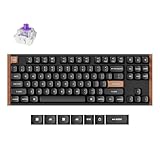
- Hall Effect Magnetic Switches: Contactless magnetic sensing delivers 0.2 mm to 3.8 mm adjustable actuation, and Rapid Trigger resets each keystroke by travel distance for instant strafe response in competitive FPS play
- Tri-Mode Wireless Freedom: Switch between 2.4 GHz, Bluetooth 5.2 and USB-C wired, pair up to three devices, and move from desktop to laptop or tablet without re-pairing, with a 1000 Hz polling rate in 2.4 GHz and wired modes
- Hot-Swappable and Built to Last: Swap the magnetic switches in seconds without soldering, while double-shot PBT keycaps resist shine and wear and the wood and aluminum frame adds the weight and rigidity that keeps every keystroke planted
- Space-Saving TKL for Work and Play: The 80% TKL layout keeps arrow and function keys while freeing desk space for the mouse, and the K8 HE pairs with Mac, Windows, Linux and Bluetooth tablets so one keyboard covers coding, office typing and gaming
- Web App Customization, No Downloads: Remap keys, build macros and set actuation depth in the Keychron Launcher web app or with QMK, and the box includes the keyboard, USB-C cable, keycap and switch puller, and a quick start guide
Download or extraction fails, or progress stalls
- Update ProtonUp-Qt from its official distribution source and retry.
- Check free storage and remove any clearly partial extraction before trying again.
- If the issue appears specific to packaging or sandbox access, try the other official format—Flatpak or AppImage.
- If you need the runner immediately, install it manually from its own official upstream source, taking care to use the correct launcher destination.
- When reporting the problem, include the ProtonUp-Qt version, launcher packaging, distribution, CPU architecture and relevant log output.
The project’s debugging guide asks users to identify whether they use the Flatpak or AppImage build.
A newly installed runner fails immediately
Check the runner’s architecture first, especially if you use an ARM system or the failure began after changing runner versions. The 2.15.1 metadata records the GE-Proton architecture-selection change; it does not mean that every failure is caused by architecture.
The game still will not launch
ProtonUp-Qt only manages the runner. The cause may instead be a game-specific compatibility issue, damaged prefix, missing dependency, launcher authentication problem, anti-cheat limitation, Vulkan or driver setup, or another system component. Use the project’s compatibility-tool troubleshooting guide to distinguish runner-management issues from problems in the tool or game.
A new version made a working game worse
Switch back to the runner that worked or to the game’s prior compatibility setting. Change one thing at a time and keep only the versions you use for known-working games or active tests; removing a runner can disrupt games that depend on it.
What’s actually slowing this PC down?
Pick the symptom - the matching free tool is one click away.
Is ProtonUp-Qt worth using?
For Linux gamers who need a community runner or manage more than one launcher, ProtonUp-Qt is a practical way to install and maintain compatibility tools without manual archive handling. If standard Proton already runs your games, there is no need to change anything. Treat a runner change as a targeted compatibility test, not an automatic upgrade.
Quick Recap
Product prices and availability are accurate as of the date/time indicated and are subject to change. Any price and availability information displayed on Amazon at the time of purchase will apply.




