Recommended: Crashes or Glitches? A Free Driver Scan Usually Finds the Culprit →Recommended: PC Feels Slow? A Free Scan Shows What's Dragging Windows Down →Recommended: Update Every Outdated Driver on Your PC in One Scan - Free →
Special offer. See more information about Outbyte and uninstall instructions. Please review EULA and Privacy policy.
To use helicopter transport in Gray Zone Warfare, open the map, select your destination, travel to the pickup landing zone (LZ) assigned to your transport, and board the helicopter. You can check the helicopter widget for descriptions of both the pickup and destination zones.
Quick Recap


![FM 5-0 The Operations Process: [Annotated] The Complete Guide to Strategic Thinking, Decision-Making, and Battlefield Leadership](https://m.media-amazon.com/images/I/41Y2Uoho8pL._SL160_.jpg)
Rank #3
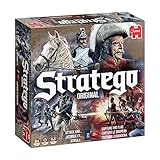
Jumbo, Stratego - Original, Strategy Board Game, 2 Players, Ages 8 Year Plus
- Stratego is the strategic game where you challenge your opponents in the heat of battle
- Your task is to capture your opponent’s flag while defending your own
- Lead your men into battle, every move is crucial
- Includes 2 x 40 pre-printed playing pieces, Game board, Screen and 2 sorting trays for the pieces
- Suitable for 2 players, aged 8+
#1 Best Overall
How to call and board a helicopter
- Open the map. Press M using the default controls. Holding M opens the minimap, according to MADFINGER Games’ July 2026 Patch 0.4.6.0 & 0.4.7.0 notes. If you changed your key bindings, use your mapped controls instead.
- Select where you want to go. Choose your destination on the map. The exact current map layout is not fully documented in the available official notes, so follow the labels and prompts shown in your game.
- Check the helicopter widget. Use its pickup and destination zone descriptions to confirm where to meet the helicopter and where it is headed. MADFINGER added these descriptions in Patch 0.1.2.
- Reach the assigned pickup LZ and board. A 2024 Shacknews walkthrough describes the requested transport being dispatched to a nearby LZ; use the current map and widget to locate your pickup rather than relying on marker colors or other older UI details. See Shacknews’ helicopter transport walkthrough.
- Optionally expedite takeoff. The default key for expedited takeoff was changed to Y in MADFINGER’s May 2025 Update 0.3 changelog. Check your in-game bindings if that key does not work.
What to know while using helicopter transport
- You cannot drop items while flying. This restriction is recorded in the Update 0.3 changelog.
- Transport availability after exiting may vary. The 2024 Shacknews guide reports a short cooldown and says another transport can be called after the previous helicopter leaves the map. Current official notes reviewed do not confirm that exact rule, so use the game’s availability feedback rather than treating the older timing as guaranteed.
- A past exit-related issue was fixed. MADFINGER’s July 2026 patch notes say they fixed a bug that could cause players to fall beneath the map when exiting a helicopter during an unstable connection. The notes describe a fix, not an expected part of normal travel.
Product prices and availability are accurate as of the date/time indicated and are subject to change. Any price and availability information displayed on Amazon at the time of purchase will apply.




