In osu!standard, the default keyboard hit keys are Z and X. Move the cursor onto each hit object, then press either key in time with the beat. Sliders also require you to hold a key and follow the slider ball; spinners require the spinner action, not keyboard tapping alone. These instructions are for osu!standard, not osu!mania, taiko, or catch.
Play osu!standard with Z and X
- Start a beatmap in osu!standard.
- Move the cursor over each hit object as it appears.
- Press Z or X at the moment the object should be hit, following the rhythm. These are the default keyboard inputs for the two click actions, K1 and K2.
- For a slider, press and hold a key while following the moving slider ball through the follow circle.
- For a spinner, move or spin the cursor as the object requires. Pressing Z or X alone does not perform the spinner action.
In standard mode, the keyboard supplies the tapping input; it does not replace cursor movement. The official keyboard guidance documents the Z/X defaults and notes that its page is incomplete, so treat these as the documented defaults rather than a complete guide to every setup.
Check or change the keyboard bindings
If Z and X are uncomfortable or unavailable, open Options and choose Change keyboard bindings to inspect or remap the keys. osu!mania has separate layout settings in Options.
Make sure you are using the right mode’s controls
osu! has four built-in modes: osu!standard, taiko, catch, and mania. Their gameplay and controls differ, so Z/X instructions describe only osu!standard. In osu!mania, the documented default keys are D, F, J, and K; taiko and catch use their own controls and mechanics. The official game-mode guide lists Ctrl+1 through Ctrl+4 as shortcuts for the four built-in modes.
Quick wins for a faster PC:
Clear out junk files and repair common Windows errorsFree Scan →Scan for outdated or missing drivers - takes under a minuteDriver Scan →Repair Windows errors before they cause bigger problemsFix Now →#1 Best Overall

- 【O3C OSU SayoDevice Keyboard】This keyboard with 3 Hall magnetic linear switches, 1 knob, 1 screen! TYPE-C,USB 2.0 high-speed 8000HZ.
- 【Replaceable Switches】Supports any Hall magnetic Switches, with a simple click for calibration.
- 【IPS color Screen】With 0.96 inch IPS color screen,160*80 Resolution, visible key range and button counting.
- 【Custom Screen】The first line of text on the screen can be customized, such as writing your own ID.
- 【Custom Knob】The knob can also be set with any key, such as to scroll through the song list.
Do you need a special keypad?
No. A regular keyboard is enough to use the default Z/X bindings. The official keyboard guide describes osu! keypads as miniature keyboards, usually with two or four keys, and notes that they are popular with players. A compact two-key keypad is an optional preference if you want dedicated keys, not a requirement.
When choosing between your existing keyboard and a separate keypad, consider whether you already own the device, which keys are accessible and comfortable to reach, how much desk space or portability matters to you, and the cost. The available official guidance does not establish that either device improves scores or reduces latency.
Rank #2
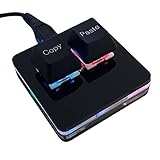
- 【Package Listing】 1*mini 2-key black keyboard 1*shaft-puller 1*5 feet long USB data cable 2*copy&paste keycaps(black and white)
- 【Copy Keyboard】For Windows User,this is Plug and Play, Out of the Box, no Software and Website Required for Copying and Pasting.
- 【Mac User Notice】 Before using, you need to connect the keyboard to the MAC computer, open the webpage link "SayoDevice. com", and manually configure the settings for the two buttons: Left Button=GUI(win)+C, Right Button=GUI(win)+V.
- 【Functions】 The default function is "Copy" and "Paste". You can also use other functions, such as Shortcut keys, Multi-step operation, Multi-key in one, Cut, Undo, Redo, Select all, Play, Pause, Volume, Switch song, Forward, Backward, Custom script, etc. You can control the light color and gradient mode of the case you want through the software or website.
Why timing and cursor control both matter
osu! gameplay asks you to pay attention to timing, the beat and visual design, control your input, and react to objects appearing around the playfield. For osu!standard, that means coordinating cursor movement with the Z/X taps—and handling sliders and spinners according to their actions—rather than relying on keyboard presses alone. The official gameplay guide describes the broader gameplay concepts.
Quick Recap
Rank #4

- 【O3C OSU SayoDevice Keyboard】This keyboard with 3 Hall magnetic linear switches, 1 knob, 1 screen! TYPE-C,USB 2.0 high-speed 8000HZ.
- 【Replaceable Switches】Supports any Hall magnetic Switches, with a simple click for calibration.
- 【IPS color Screen】With 0.96 inch IPS color screen,160*80 Resolution, visible key range and button counting.
- 【Custom Screen】The first line of text on the screen can be customized, such as writing your own ID.
- 【Custom Knob】The knob can also be set with any key, such as to scroll through the song list.
Rank #3

- 3-Key Compact Form Factor - The smallest pad with flagship-level performance. XPAD MINI delivers everything essential from a high-performance gaming keyboard in a compact 3-key layout.
- Embedded LCD Display - Check profiles, keymaps, macro status, and settings directly from the built-in LCD.
- Ultra-Fast 100K Scan Rate - Scans inputs up to 100,00.1ms Ultra-Low Latency
- Pulsar gravity-S01 Magnetic switch - Pulsar Gravity-S01 Magnetic Switch features 0.01mm precision sensing across the full key travel range, enabling highly customizable actuation settings for faster response and greater control.
- Ambient Glow - Dual-button Featuring 16.8 million RGB colors, XPAD MINI illuminates both the key area and translucent upper housing, creating a soft ambient glow that enhances any setup. Customize colors and lighting effects through Bibimbap software to match your style.
Product prices and availability are accurate as of the date/time indicated and are subject to change. Any price and availability information displayed on Amazon at the time of purchase will apply.
Do these 3 things before closing this tab:
1Clear out junk files and repair common Windows errors2Scan for outdated or missing drivers - takes under a minute3Repair Windows errors before they cause bigger problems



