Quick wins for a faster PC:
Fix the driver behind crashes, sound loss and screen glitchesFind Drivers →Clear out junk files and repair common Windows errorsFree Scan →Scan for outdated or missing drivers - takes under a minuteDriver Scan →A symptom by itself doesn’t prove your Xbox is broken. First work out whether the problem is power, picture, startup or updates, or a game, controller, or network connection. Check the external setup and the console’s update status before pursuing hardware repair; Microsoft says an update may resolve an issue and recommends that the console be fully updated before repair.
Start by identifying what the Xbox is doing
Note exactly what happens when you try to use the console. Does it show any sign of power? Does a startup screen appear? Is there an error code? Does the picture disappear, or does the problem occur only in one game or online activity? Also note whether anything changed shortly before the issue began. A change may be relevant, but timing alone does not establish the cause.
Use the pattern to choose what to check first:
- No sign of power: Check the external power connection and use the instructions for your specific Xbox model.
- Power but no picture: Check the display path, including the HDMI connections, selected display input, cable, and screen.
- Startup, error, or update trouble: Record the exact message or code and use Xbox’s model-specific troubleshooting guidance.
- Only one game, controller, or online task is affected: Check that game, accessory, or network connection rather than assuming the console itself has failed.
If your Xbox turns on but shows no picture
A powered console with no visible image does not, on its own, identify a failed console component. Check that the HDMI cable is firmly connected at both ends, that the display is set to the correct input, and that the screen is on and working. If available, test with a known-good HDMI cable and another suitable display. These checks help isolate the display path; they do not prove that a particular cable or device is defective.
Microsoft includes an HDMI cable and display among the standard equipment used to test Xbox consoles. See the Xbox Series X service guide. The guide is model-specific, so owners of other Xbox models should follow the instructions for their console.
#1 Best Overall
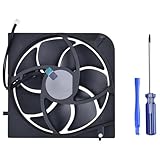
- Only Fit: Brand new and silent Replacement Xbox Series X Internal Cooling Fan
- Compatible With: This 5 blades Replacement Internal Fan ONLY compatible with Xbox Series X
- Good Quality: Each Fan was tested before shipping to make sure you will get a workable fan! This 5 blades Xbox Series X fan will have a better low-frequency noise to offer a better experience!
- Package Contain: 1x Replacement Xbox Series X 5 Blades Fan, 1x T8 Screwdriver
- Each replacement CPU coolong fan was tested before shipping.
If your Xbox will not turn on
Check the external power connections and confirm that the outlet and power setup are appropriate for the console. Consult the current manual and support instructions for your exact model and region; Xbox generations do not all share the same troubleshooting steps. Microsoft’s product guide warns against using non-standard power sources such as generators or inverters, even when their stated voltage and frequency appear suitable. Refer to the Xbox product setup and support guide for the applicable instructions.
If external checks do not change the behavior, don’t open the console or probe its power supply to try to diagnose it. A symptom alone is not enough to identify an internal fault safely.
Rank #2

- 【Easy to Repair by Yourself】It come with complete repair kit,you can use this kit to complete the installation in a few minutes without using any other tool.
- 【Premium Quality】All our parts replacement will be inspected before packaging to ensure that the parts you receive are in good condition.
- 【Package】It comes with a strong outer casing, ensuring that the product will not sustain any damage during transit.
- 【What you Get】1 x Internal Cooling Fan Replacement, 1 x 5.5 inch Torx T8 Security Screwdriver, 1 x Metal Tweezers, 1 x Spudger, 1 x Plastic Pry Tool.
- 【Compatible model】Compatible with Series X console only, NOT for Series S and other console.
Check startup, updates, and error messages
If the console reaches startup but cannot complete an update or displays an error, write down the exact message or code. Then follow the official troubleshooting guidance for that model and symptom rather than trying a button combination intended for a different console or problem.
Before seeking hardware repair, check whether the console is fully up to date. Microsoft’s Series X service guidance says an update may address the issue and that the device should be fully updated before hardware repair. Read the Series X service guidance; it does not establish that an update will fix every fault, or apply the same steps to every Xbox generation.
The Tool Desk
Outbyte Driver Updater FREEScan for outdated or missing drivers - takes under a minuteDriver Scan →Outbyte PC Repair FREERepair Windows errors before they cause bigger problemsFix Now →Rank #3
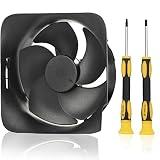
- Compatible with: for Xbox Series X console
- Fit for Xbox Series X Console Replace your faulty, cracked or broken Internal Cooling Fan.
- The case fan blows quietly with no noise.To make heat dissipation faster to give a smooth and stable gaming and lengthen its service life.
- Internal Cooling Fan Easy to install and use.It comes with a strong outer casing, ensuring that the product will not sustain any damage during transit.
- Comes with professional tools of T8 T10 Screwdriver. Help you to replace the XSX internal cooling fan more convenient and easily.
When the problem may be a game, controller, or connection
If the console works normally except for one game, controller, or online task, isolate that part of the setup before concluding the console is broken. Test another game or task where practical, check the affected accessory’s connection, and compare Wi-Fi with Ethernet if the issue is online and an Ethernet connection is available. Microsoft’s Series X service guide lists a controller, Wi-Fi, Ethernet, a game, audio output, and USB among its standard test equipment, reflecting the need to assess relevant connections and accessories as well as the console.
These comparisons can narrow down where the problem follows, but they are not a definitive diagnosis of an internal fault. Use official Xbox support instructions for your specific model and error.
Rank #4
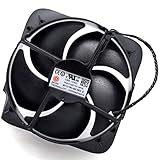
- Compatible with Xbox Series X console ONLY (model #1540), NOT FIT for XB Series S, XB one X/S Consoles.
- CAUTION: Due to storage, some might have SMALL SCUFFS.
- NOTE: There are TWO Styles of Fans for the XB Series X console, one is 5-blades ROUNDED Corner, and other is 5-blades SQUARE Corner.
- Compatible Part Number(s): PAAD1A451SH MF00, M1127364-002; Direct Current: 4-wire 4-pin Plug-in, DC 12V / 0.6A, 5-Blades
- Each pack come with 1x 5-Blades Cooling Fan (ROUNDED Corner, Securing screws not included).
Clean safely and know when to stop
For cleaning, Microsoft says to power off the Xbox and disconnect it from the wall first. Follow the care guidance for your model: Xbox console and controller cleaning and care. Keep troubleshooting external and low-risk; don’t open the console or replace internal parts based only on a symptom.
If the issue persists after relevant external checks and the console is up to date, contact Xbox support and check the current service options for your region and warranty status. Microsoft’s Series X service instructions point to an authorized service provider or an out-of-warranty repair order when the device does not meet the guide’s stated repair conditions. See Microsoft’s Series X service guidance. It does not specify a repair price or guarantee a particular repair outcome.
Quick Recap
Product prices and availability are accurate as of the date/time indicated and are subject to change. Any price and availability information displayed on Amazon at the time of purchase will apply.




