Do these 3 things before closing this tab:
1Repair Windows errors before they cause bigger problems2Fix the driver behind crashes, sound loss and screen glitches3Clear out junk files and repair common Windows errorsTo play RuneScape: Dragonwilds with friends, one player creates a world using Play → Create World → Play with Friends. Friends can join it from the in-game Friends tab. For cross-platform play, the host must enable crossplay when loading the world; they can then share the invite code shown in the pause menu.
How to host a friends-only world
- From the main menu, select Play.
- Select Create World at the bottom of the screen.
- Choose Play with Friends, rather than Play with the Community.
- Set the world’s visibility to Friends or Public, choose whether friendly fire is on, name the world, and optionally set a password.
- Select Create World.
These labels are English translations of the menus documented by Jagex Support; wording or menu placement may vary by platform or game version. Jagex says a world can be switched between solo and multiplayer, with the mode choice offered when entering it.

How friends join your world
Joining a friends world
Open the Friends tab, select the host’s world from the list, and choose Join World.
Joining a public world
Open the Public tab, select or search for the world, and choose Join World. A public world is discoverable through that browser, so use Friends visibility if you want access limited to friends.
What’s actually slowing this PC down?
Pick the symptom - the matching free tool is one click away.
#1 Best Overall
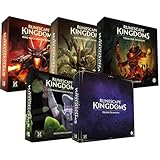
- Immerse yourself in a thrilling tabletop adventure filled with strategy, storytelling, and dynamic character interactions designed to challenge every decision.
- Experience high replayability through immersive roleplay, unpredictable encounters, and evolving tactical choices that keep every session intense and fresh.
- Master your destiny with customizable heroes, intricate quests, and deep world-building that fuel creative expression and competitive gameplay.
- Perfect for RPG enthusiasts seeking complex mechanics, cooperative missions, and richly detailed scenarios that spark imagination and rivalry.
- Premium components, atmospheric artwork, and narrative depth make this board game a must-have centerpiece for any tabletop gaming collection.
How to play across platforms
When loading the multiplayer world, the host needs to enable crossplay. Crossplay worlds appear in the world browser. To invite someone directly, the host can find the invite code in the in-game pause menu; the joining player enters that code in the world browser. Jagex’s 1.0 announcement also lists a crossplay option for dedicated servers.
Jagex lists PlayStation 5, Nintendo Switch 2, Xbox Series X|S, and PC through Epic Games Store, Jagex Launcher, and Steam among the 1.0 platforms. The Steam listing says Steam requires an Epic Online Services account and supports linking a Steam account.
Friends, public worlds, and dedicated servers
| Option | How access works | Useful when |
|---|---|---|
| Friends world | Friends select the host’s world in the Friends tab; the host may optionally set a password. | You want a shared world for friends rather than open discovery. |
| Public world | Players can select or search for the world in the Public tab. | You want the world to be available to a broader community. |
| Crossplay | The host enables crossplay while loading the world; players can find it in the browser or join using its invite code. | Your group is playing on different supported platforms. |
| Dedicated server | Jagex’s 1.0 notes confirm a crossplay option; the cited source does not specify further setup details. | Your group wants a persistent shared-world option. |
How many players can join?
Jagex’s March 31, 2025 launch announcement described play with “up to three friends,” or four players total. That is a dated launch figure, not a confirmed current cap; check the in-game limit or current official information before planning a group around it. A later official Steam Community update documented connection failures in some cases when more than two players were present, including an Xbox case. That report shows multiplayer behavior can be patch-specific; it does not establish a universal current two-player limit.
If a friend cannot join
- They cannot see the world: Confirm they are looking in the correct Friends or Public tab. For cross-platform play, confirm the host enabled crossplay while loading the world.
- You are using an invite code: The host should retrieve the code from the in-game pause menu, and the guest should enter it in the world browser.
- The group cannot connect: Connection issues can vary by patch. Check the latest official patch notes and try again after verifying the world’s multiplayer and crossplay settings.
- You are on Steam: Check the Steam listing’s Epic Online Services account requirement.
What carries over between worlds?
Jagex Support documents switching a world between solo and multiplayer, but the official information cited here does not establish whether character inventory, character progression, or world progression transfers between worlds. Do not assume those carry over; check current in-game guidance before moving a character or starting a separate world.
Quick Recap
Best Value
Rank #4

- Deep in the dangerous wasteland to the north east — the place they call the Wilderness — lies the lair of the King Black Dragon. A fearsome, three-headed beast infamous for dealing burning, freezing, electrifying, poisonous death to unfortunate adventurers. But lucky for you, Bob the Cat is here to lend a helping paw! Still, you may want to say a prayer before taking this quest on…
- The King Black Dragon expansion grows your RuneScape Kingdoms universe with an infamous new boss to face, Bob the Cat to meet, Prayer skill to master, Wilderness location to explore, and a whole new campaign, A Cat’s Tale of Triple Trouble, that will test your dragon-slaying mettle!
- It’s packed with new side quests, vault cards, and events, plus new items to discover, craft, and equip on your path to victory.
- Please note, you’ll need a copy of RuneScape Kingdoms: Shadow of Elvarg to use this expansion.
Rank #3

- Grab your capes and party hats, because we’re going to Gielinor!
- Inspired by the record-breaking online universe that’s captured the imagination of millions worldwide, RuneScape Kingdoms: Shadow of Elvarg is the official cooperative board game for 1-5 players.
Product prices and availability are accurate as of the date/time indicated and are subject to change. Any price and availability information displayed on Amazon at the time of purchase will apply.




