If opera.dll is missing, not found, or could not be loaded, repair or reinstall the matching Opera Internet Browser rather than downloading a loose DLL. opera.dll belongs to Opera Software’s older Opera browser builds, so placing a random copy in System32 is unsafe and usually does not fix the damaged installation.
What this file actually does
opera.dll is an application module identified as Opera Internet Browser. It was distributed with older, pre-Chromium versions of Opera and normally sits in Opera’s own installation directory beside the executable that loads it.
| # | Preview | Product | Price | |
|---|---|---|---|---|
| 1 |

|
Opera for Windows Keyboard Shortcut Guide | $0.99 | Buy on Amazon |
| 2 |
|
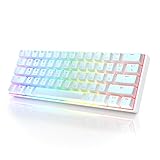
HK GAMING GK61 Mechanical Gaming Keyboard - 61 Keys Multi Color RGB Illuminated LED Backlit Wired... | $29.99 | Buy on Amazon |
It is not:
- A Windows system component
- A Microsoft Visual C++ runtime
- A DirectX file
- A .NET component
- A graphics-driver file
- A general-purpose DLL intended for
System32orSysWOW64
Historical third-party records list 32-bit variants including version 12.16.1860.0, 12.1.1532.0, and 10.0.1750.0. Those records are catalog metadata, not a complete official Opera version manifest, and the files are not interchangeable.
Current Opera, Opera GX, and older Opera releases should be treated as separate products for repair purposes. If you specifically need an old Opera release, obtain its complete installer from Opera’s official download page or official FTP archive. Otherwise, install the current supported Opera version from Opera.
Windows Errors? Fix Them Before They Spread
Repair common Windows errors and clear accumulated junk for a smoother, more stable PC - no reinstall needed.Free scan · no reinstallOutdated Drivers Are Slowing You Down
One free scan finds every outdated or missing driver and matches the right update for your exact hardware.Free scan · exact hardware match#1 Best Overall
What the error usually means
| Symptom | Most likely explanation | Best first action |
|---|---|---|
Opera.dll is missing when Opera starts |
Damaged or incomplete Opera installation | Reinstall Opera |
| The error appeared after antivirus activity | The file may have been quarantined or deleted | Check Protection history |
The specified module could not be found |
opera.dll or one of its dependencies is unavailable |
Reinstall the complete package |
Not designed to run on Windows or Bad Image |
Corruption, wrong architecture, or a damaged dependency | Install the matching Opera build |
| Opera worked until an update or shutdown | An interrupted update may have left mixed files | Use Update & Recovery or reinstall |
The path mentions System32opera.dll |
Incorrect advice or a suspicious misplaced copy | Do not restore it to the system folder |
| The error names another DLL too | That other file may be the actual dependency problem | Diagnose the named file separately |
| Opera opens after the warning | A stale shortcut, updater, or startup entry may be launching an old copy | Check shortcuts and startup items |
The wording varies between Windows versions. “Missing,” “not found,” and “failed to load” do not prove that opera.dll alone is the root cause. Windows can report the main module when a required dependency is missing.
Fix 1: Back up your Opera profile first
Before uninstalling an old Opera installation, preserve bookmarks, saved settings, and other profile data.
- Close every Opera window.
- Press Ctrl + Shift + Esc to open Task Manager.
- Select any Opera process that remains.
- Click End task.
- Press Windows key + R.
- Enter
%appdata%and press Enter. - Look for an Opera-related folder.
- Copy that folder to Documents, an external drive, or another safe location.
- Repeat with
%localappdata%if the Opera installation stores data there.
Do not blindly replace the entire profile after reinstalling. A damaged profile can make a healthy Opera installation fail again. Restore data selectively where possible.
If you cannot find the profile, search File Explorer for folders named Opera Software or Opera under your user account. Do not delete anything until the backup is complete.
The Tool Desk
Outbyte PC Repair FREERepair Windows errors before they cause bigger problemsFix Now →Outbyte Driver Updater FREEFix the driver behind crashes, sound loss and screen glitchesFind Drivers →Fix 2: Check Windows Security Protection history
Antivirus quarantine is a common reason an application DLL suddenly disappears.
- Open Start.
- Type Windows Security.
- Open it.
- Select Virus & threat protection.
- Under Current threats, click Protection history.
- Review recent detections.
- Expand any item that references Opera,
opera.dll, or the Opera installation folder. - Check the detected path, detection name, and action taken.
Do not automatically choose Allow on device. Restore the file only when you can verify that:
- It came from a legitimate Opera installation
- The path is the expected Opera application directory
- The detection details support a false positive
- The installed Opera version and architecture match
Microsoft explains how Protection history works in the Windows Security Protection history documentation.
The safer response is usually to remove the damaged installation and reinstall Opera from its official source. If the same file is quarantined again immediately, stop restoring it and run a full or offline security scan.
Fix 3: Repair Opera through its own recovery menu
Use this option if Opera still opens or can open far enough to display its settings.
- Open Opera.
- Click the Opera menu button.
- Select Help.
- Choose Update & Recovery.
- Click Check for Update.
- Allow Opera to complete the update.
- Restart Opera.
If Opera offers a repair or recovery choice, use it before removing your profile. This replaces incomplete program files while giving you a chance to preserve personal data.
If the error prevents Opera from opening, skip to the clean reinstall procedure below. Do not repeatedly launch a broken copy while copying files from another Opera version into its folder.
Fix 4: Clean-reinstall the matching Opera release
This is the most reliable fix for a missing or damaged opera.dll.
For current Opera
- Back up your profile as described above.
- Press Windows key + I.
- Select Apps.
- Open Installed apps on Windows 11, or Apps & features on Windows 10.
- Search for Opera.
- Click the three-dot menu beside the relevant Opera entry.
- Select Uninstall.
- Follow the uninstall wizard.
- Restart Windows.
- Download Opera from Opera’s official download page.
- Install it normally.
- Start Opera and test it before restoring profile data.
For an old Opera installation
If a legacy program, saved workflow, or old website requires Opera 12 or another pre-Chromium release:
- Record the old Opera version if it is visible in the error, shortcut, backup, or installer name.
- Back up the profile.
- Uninstall the existing damaged copy.
- Restart Windows.
- Obtain the complete matching installer from Opera’s official historical FTP archive.
- Install the complete package into its intended application directory.
- Test the browser before copying profile files back.
Do not combine an old executable with opera.dll from another release. A similarly named file can have different exports, dependencies, or processor architecture. A wrong combination may produce crashes or a “Bad Image” error instead of the original missing-file message.
If a per-user installation under %LocalAppData%Programs remains damaged, reinstalling through the installer’s available system-wide option can avoid a broken per-user directory. Only delete the old Opera profile after confirming that the backup opens or contains the data you need.
How to tell whether reinstalling worked
The repair succeeded when:
- Opera opens without the
opera.dllmessage - The installed executable and DLL are in the same Opera directory
- Windows Security does not immediately quarantine the file
- Opera remains open after a restart
- Your essential profile data can be restored without reproducing the error
If the error returns immediately after reinstalling, continue with the checks below instead of downloading another DLL.
Quick wins for a faster PC:
Clear out junk files and repair common Windows errorsFree Scan →Fix the driver behind crashes, sound loss and screen glitchesFind Drivers →Repair Windows errors before they cause bigger problemsFix Now →Fix 5: Verify the installation path and architecture
An application DLL belongs beside the application that uses it. The normal location is Opera’s installation directory, not C:WindowsSystem32 or C:WindowsSysWOW64.
To inspect the shortcut:
- Right-click the Opera shortcut.
- Select Properties.
- Open the Shortcut tab.
- Note the Target path.
- Click Open File Location if available.
- Check whether the expected Opera files are together in that folder.
If the shortcut points to an old uninstalled folder, delete the shortcut and create a new one from the repaired installation.
Architecture must also match. A 32-bit process cannot load a 64-bit DLL, and a 64-bit process cannot load a 32-bit DLL. Historical opera.dll records are associated with 32-bit Opera variants, but you must not assume that every copy has the same architecture.
Check Windows architecture:
- Press Windows key + I.
- Select System.
- Select About.
- Read System type.
Do not move a 32-bit Opera DLL to SysWOW64. That folder contains Windows’ redirected 32-bit system components, while Opera’s DLL is application-private. Microsoft documents these loading and redirection rules in its WOW64 documentation and file-system redirector documentation.
What’s actually slowing this PC down?
Pick the symptom - the matching free tool is one click away.
Fix 6: Check for a missing dependency
If the message says:
Failed to load opera.dll because the specified module could not be found
the missing item may be a dependency required by opera.dll, not necessarily the file itself.
First, read the entire dialog carefully. If it names another DLL, search for that exact filename in the Opera installation and diagnose it separately. Do not install Visual C++, DirectX, or .NET merely because the error contains the word “DLL.” Those runtimes do not exist to install Opera’s private module.
If the dialog names files such as VCRUNTIME140.dll, MSVCP*.dll, or a DirectX component, use the corresponding Microsoft-supported runtime or Windows repair guidance. If it names only opera.dll, reinstall Opera as a complete package.
Fix 7: Repair Windows components with DISM and SFC
Use Windows repair commands when other applications also report damaged system files, Windows features are failing, or Opera’s installer repeatedly fails. These commands repair Windows components. They do not download or reconstruct Opera’s private opera.dll.
- Open Start.
- Type Command Prompt.
- Right-click it.
- Select Run as administrator.
- Approve the User Account Control prompt.
- Run:
DISM /Online /Cleanup-Image /RestoreHealth
- Wait for it to finish.
- Then run:
sfc /scannow
- Restart Windows.
- Try the Opera installer again.
Microsoft recommends running DISM before SFC in its System File Checker guidance.
The result matters:
- No integrity violations: Windows system files were not the obvious problem.
- Corrupt files repaired: Restart and retry Opera.
- Some files could not be repaired: Run DISM again after Windows Update is working, then rerun SFC.
- The Opera error remains unchanged: Return to reinstalling the complete Opera package rather than treating
opera.dllas a Windows file.
When repeatedly hunting through Windows components and rerunning SFC/DISM does not show what changed, Outbyte PC Repair can provide a scan that identifies reported issues; its repair functions require the full version, and it is not required when reinstalling Opera is the actual fix.
Fix 8: Check Windows Features only when the error identifies one
opera.dll is not a Windows Feature, so enabling random components is not a direct repair. Check Windows Features only if the full error names a required Windows component or an older application dependency.
Recommended Free Tools
Rank #2
- ✅ PREMIUM OPTICAL SWITCHES: The GK61 comes equipped with Optical mechanical switches that deliver ultimate performance and reliability, designed for enduring and intense usage.
- ✅ CUSTOMIZABLE RGB LIGHTING: Experience a vivid spectrum of 16.8 million colors with twenty adjustable backlight patterns using the included software, letting you tailor the multicolor RGB system to your preference.
- ✅ TACTILE: Offers tactile responsive feel for both typing and gaming; utilized by some of the world's elite gamers for optimal performance.
- ✅ REMOVABLE TYPE-C CABLE: Features a 5FT/1.5M Type-C to Type-A USB cable that can be detached for your convenience, providing a consistent connection with your devices.
- ✅ SMOOTH STABILIZERS: With pre-lubricated stabilizers, enjoy solid gaming without wire rattle, for a seamless experience.
- Press Windows key + R.
- Type
optionalfeatures. - Press Enter.
- Review the feature named in the error or Opera documentation.
- Enable it only if it is specifically required.
- Click OK.
- Restart if Windows requests it.
Do not enable legacy components merely because Opera is old. Current Windows security settings and obsolete browser technology can make an old Opera build unreliable even after its DLL is restored.
Independent reader supportYour contribution helps us test, update, and keep practical guides available for everyone.Fix 9: Update or inspect drivers only for a driver-specific symptom
A graphics driver does not provide opera.dll. Driver work is relevant only when Opera also crashes with display errors, the dialog names a graphics component, or other applications show graphical corruption.
To check drivers:
- Right-click Start.
- Select Device Manager.
- Expand Display adapters.
- Right-click the listed adapter.
- Select Properties.
- Open the Driver tab.
- Note the provider, date, and version.
- Use Update Driver only when an update is appropriate.
- Restart Windows.
- Test Opera again.
Do not replace opera.dll with a graphics-driver file. If the driver is clearly outdated across several applications and you want to avoid hunting through hardware vendors and matching versions manually, Outbyte Driver Updater can scan for reported driver issues; its driver installation requires the full version, and updating a driver is not a substitute for reinstalling Opera.
Do not use regsvr32 for this file
regsvr32 registers DLLs that expose registration entry points such as DllRegisterServer. It is not a general-purpose missing-DLL repair command.
Free tools Windows power users keep installed
One-click scans. No signup required.
There is no evidence that opera.dll is a COM or ActiveX registration DLL. Running:
regsvr32 opera.dll
is therefore not a normal fix. It may return:
The module was loaded but the entry-point DllRegisterServer was not found.
That message does not mean Windows needs a different copy. It means the command does not apply to this type of application module. Microsoft describes the utility in its regsvr32 documentation.
Why random DLL downloads are the wrong fix
Avoid websites that offer standalone DLL downloads. A downloaded copy can be:
Do these 3 things before closing this tab:
1Fix the driver behind crashes, sound loss and screen glitches2Repair Windows errors before they cause bigger problems3Scan for outdated or missing drivers - takes under a minute- The wrong Opera release
- The wrong 32-bit or 64-bit architecture
- Missing its own dependencies
- Modified or malicious
- Incompatible with the executable already installed
Copying it into System32 or SysWOW64 creates another problem because the Windows loader may search system locations and load a misplaced file before the intended application copy. Microsoft documents the security risks of unsafe DLL search paths in its DLL search order guidance.
Use Opera’s current download page or official historical archive for the complete installer. The installer supplies the executable, DLLs, dependencies, and related files that must match.
Fix 10: Scan for malware if the file keeps disappearing
If opera.dll returns to quarantine after every reinstall, or a copy appears in an unexpected system directory, treat that as a security signal.
- Open Windows Security.
- Select Virus & threat protection.
- Choose Scan options.
- Run a Full scan.
- If the concern remains, select Microsoft Defender Offline scan.
- Save your work and start the scan.
- Follow the removal instructions.
- Reinstall Opera after the system is clean.
Microsoft provides Defender Offline guidance in its Microsoft Defender Offline documentation.
Do not whitelist a suspicious file simply because Opera expects a file with that name. Confirm its location and source first.
Fix 11: Try a new Windows user profile
If Opera works for another Windows account, the installation may be healthy and the original user profile or AppData permissions may be damaged.
- Open Settings.
- Select Accounts.
- Choose Other users.
- Click Add account.
- Create a local test account.
- Sign into that account.
- Install or launch Opera.
- Test whether the same error appears.
If Opera works there, back up the original profile and repair its AppData permissions or migrate personal Opera data selectively. Do not copy the entire failing profile into the new account without testing.
Fix 12: Use System Restore only as a rollback
System Restore is appropriate when the error began immediately after a recent software installation, update, or configuration change and a restore point is available.
Free tools Windows power users keep installed
One-click scans. No signup required.
- Open Start.
- Search for Create a restore point.
- Open it.
- Click System Restore.
- Select a restore point from before the problem began.
- Review affected programs.
- Confirm the restore.
- Restart Windows.
System Restore can remove applications, drivers, and settings installed after the selected restore point. It is a rollback option, not the primary way to obtain opera.dll. Microsoft explains these consequences in its System Restore guidance.
When old Opera remains incompatible
Opera 12 and earlier are obsolete browser builds. Restoring their files does not guarantee that they will run correctly on Windows 10 or Windows 11. Modern Windows security, unsupported dependencies, old installers, and obsolete web components can all cause additional failures.
If you need a functioning browser, use the current supported Opera release. If you need the old build for a documented legacy requirement, use the matching archived installer in an isolated environment and avoid using it for ordinary web browsing.
FAQ
Is opera.dll part of Windows?
No. It is an Opera Internet Browser application file associated primarily with older Opera releases.
Should I put opera.dll in System32?
No. Keep it in Opera’s installation directory beside the executable that requires it.
Is this a Visual C++ or DirectX problem?
Not by itself. opera.dll is Opera’s own module. Install or repair another runtime only if the error explicitly names a runtime DLL.
Does the exact old Opera version matter?
Yes, when preserving a legacy installation. Matching the complete Opera package is safer than combining files from different releases.
Is opera.dll used by current Opera GX?
Do not assume so. The filename is primarily associated with older Opera builds. Repair current Opera through its current installer instead of searching for this historical filename.
Do these 3 things before closing this tab:
1Repair Windows errors before they cause bigger problems2Scan for outdated or missing drivers - takes under a minute3Clear out junk files and repair common Windows errorsCan I register it with regsvr32?
Normally no. It is not established as a registration DLL, so regsvr32 opera.dll is not an appropriate repair.
Will SFC fix it?
SFC repairs protected Windows system files. It does not directly replace an Opera-private DLL. Reinstall Opera for an Opera installation problem.
What if reinstalling does not help?
Check Protection history, verify the shortcut path, inspect the full error for a dependent DLL, test a new Windows user profile, scan for malware, and consider disk or Windows component corruption if other programs are affected.
What is the safest repair order?
Back up the Opera profile, check antivirus quarantine, update or reinstall the complete matching Opera package, then investigate Windows, profile, disk, or malware issues only if the error continues.
Recommended Free Tools
Quick Recap
Product prices and availability are accurate as of the date/time indicated and are subject to change. Any price and availability information displayed on Amazon at the time of purchase will apply.



