portabledevice.dll is a Musicmatch Jukebox application file, not a Windows system DLL. If Windows reports that portabledevice.dll is missing, was not found, or could not be loaded, repair the particular Musicmatch installation that requested it rather than downloading a replacement DLL.
Musicmatch Jukebox is obsolete software, so the most reliable repair source is the original installer, supplied CD, manufacturer recovery media, or a trustworthy installer retained with the portable player. Do not copy a random DLL into System32 or SysWOW64.
What portabledevice.dll belongs to
The file is identified as PortableDevice and is associated with MUSICMATCH JUKEBOX from MUSICMATCH, Inc. It was used by older Musicmatch installations, including features that communicated with portable music players and iPods.
It is separate from Microsoft’s Windows Portable Devices technology. Windows includes its own Portable Devices APIs, documented by Microsoft under Portable Devices API and Portable Devices types. Those APIs do not mean that a missing portabledevice.dll should be restored from Windows.
Recommended Free Tools
#1 Best Overall

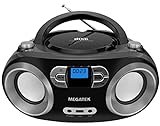
- [ 5-in-1 Functionality ] Experience unparalleled versatility with our FM Radio Bluetooth Speaker, allowing you to enjoy your favorite FM radio stations, stream music via Bluetooth, and play audio from USB drives, SD cards, or AUX inputs. It also features voice recording capabilities for USB/SD cards.
- [ Incredible Sound Quality ] Experience powerful, well-balanced sound with our Bluetooth Speaker FM Radio, featuring two built-in 5W drivers and advanced technology that minimizes distortion, allowing you to enjoy music in crystal-clear sound quality.
- [ Versatile FM Radio Functionality ] Tune into your favorite FM radio stations with enhanced reception capabilities (87.5-108MHz). Utilize numeric keys or the auto-scan feature to instantly find available stations, making it a truly user-friendly digital FM radio.
- [ Seamless Bluetooth Connectivity ] Equipped with Bluetooth 5.0 technology, our Bluetooth radio offers stable wireless connectivity up to 33 feet, ensuring quick pairing with smartphones, tablets, laptops, and other Bluetooth devices.
- [ Multiple Playback Options ] This MP3 player speaker supports music playback from various sources, including USB drives, SD cards and AUX input, giving you the flexibility to enjoy your favorite tunes on-the-go with ease.
A normal installation keeps this DLL with Musicmatch, commonly under a path similar to:
C:Program FilesMUSICMATCHMUSICMATCH Jukebox
An OEM installer may use a different folder. The file should not normally be placed in a Windows directory.
The strongest available file metadata identifies it as a 32-bit Win32 application DLL. Catalogs disagree about exact builds and version details, so do not assume that a file with a matching name is compatible with every Musicmatch installation.
Errors this file can produce
Depending on the damaged component and the way Musicmatch starts, Windows may display messages such as:
- “The program can’t start because portabledevice.dll is missing from your computer.”
- “This application failed to start because portabledevice.dll was not found.”
- “The file portabledevice.dll is missing or corrupted.”
- “Error loading portabledevice.dll. The specified module could not be found.”
- “Failed to load portabledevice.dll.”
- “Cannot find portabledevice.dll.”
These messages are usually seen when:
- Musicmatch Jukebox starts
- Musicmatch opens its portable-device or iPod features
- Part of Musicmatch was uninstalled
- Antivirus software quarantined an old program file
- A program folder was moved or cleaned
- Musicmatch is being launched on a newer Windows version
“The specified module could not be found” does not always mean that portabledevice.dll itself is absent. The DLL may exist while one of its dependencies is missing. Reinstalling the complete Musicmatch application is safer than guessing at individual dependencies.
Fix 1: Confirm which program is calling the DLL
Time needed: 2–5 minutes
Before changing Windows, identify the caller. This prevents you from repairing the wrong application.
- Read the entire error dialog.
- Note the application name shown in the title bar or message.
- Right-click the Musicmatch shortcut and select Properties.
- On the Shortcut tab, inspect Target and Start in.
- Open File Explorer and browse to the application folder.
- Search that folder for
portabledevice.dll.
If the error appears while starting Musicmatch or using its player-transfer features, the file belongs to that Musicmatch installation.
If another unrelated application reports the error, do not assume it uses the same file. Check that program’s installation directory and repair the application that actually issued the error.
Fix 2: Repair Musicmatch from Programs and Features
Time needed: 5–15 minutes
Use the built-in repair entry if the installer registered one.
- Press Windows key + R.
- Type:
text

   appwiz.cpl
- Press Enter.
- Select Musicmatch Jukebox.
- Click Change, Repair, or Modify, depending on what Windows displays.
- Follow the installer prompts.
- Restart Windows when the repair finishes.
- Launch Musicmatch before reconnecting a portable player.
A successful repair normally restores the missing file to the Musicmatch application directory and allows the program to start without the DLL message.
If there is no Repair option, or the repair fails with a missing-media message, continue with a clean reinstall.
Fix 3: Uninstall and reinstall the complete application
Time needed: 15–30 minutes
This is the most likely solution when the Musicmatch installation is incomplete, damaged, or missing dependencies.
What’s actually slowing this PC down?
Pick the symptom - the matching free tool is one click away.
Rank #2

- 🛫[USB MP3 Player with Bluetooth 5.3 & Clip] Enjoy smooth audio with the USB MP3 Player with Bluetooth 5.3. Pairs quickly and stays connected to wireless headphones or speakers. The USB MP3 player with clip Jam is easy to attach to clothes or bag, keeping hands free while running, hiking, or working out.💛 Note: The Bluetooth of the USB MP3 player clip on CAN'T connect to computers, cars, or smartphones
- 🚘[AUX and USB, Enjoy Music in Car] 3.5mm AUX port and standard USB plug, the USB MP3 player with Bluetooth seamlessly connects to your car's audio system. Whether you choose the clear, wired sound via AUX (AUX cable not included) or enjoy direct streaming through the USB port, your drives will be filled with crisp, uninterrupted tunes. The USB MP3 player for car is perfect for road trip or daily commute
- 📂[Phone File Transfer, 64GB Large Memory, Long Battery Life] USB & OTG function, easily transfer music from smartphone, laptop or PC. With 64GB of storage and rechargeable battery, enjoy up to 20 hours playtime after just 2 hours charging with the Bluetooth mp3 player USB stick.💝Note: Use an OTG cable or adapter, and make sure your phone supports OTG. For best results, transfer files in batches under 1GB
- 💽[HiFi Sound Quality & Multiple Play Modes] Enjoy clear, crisp sound for an immersive audio experience with this USB music player with Bluetooth. Choose from shuffle, playlist loop, sequential play, folder repeat, and more to customize your music experience. This Bluetooth MP3 player with clip is compatible with MP3, WMA, APE, FLAC, WAV, DRM, ACELP and OGG, providing the flexibility to meet all your music needs
- 🌈[USB MP3 Player with Voice Recorder, FM Radio, Line-in] All in one device for music lovers! Resume playback, Equalizer, bookmarks, file folder, volume limit, line-in function(record music directly from phone to the portable music player with Bluetooth), etc. Plus, the USB stick MP3 player can be used as a flash drive. The digital audio player USB is a great gift for seniors, father, mother or friends. Ideal exercise companion for jogging, riding, climbing, or outdoor activities
Save your music library first
Uninstalling Musicmatch should not delete ordinary music files, but make a backup before proceeding. Copy your music folders and any Musicmatch playlists you still need to another location.
Do not back up the damaged DLL as your repair source. Preserve personal media, not an unverified program component.
Remove Musicmatch
- Press Windows key + R.
- Enter:
text

   appwiz.cpl
- Press Enter.
- Select Musicmatch Jukebox.
- Click Uninstall.
- Complete the wizard.
- Restart Windows.
After restarting, check whether the old Musicmatch folder remains. If it does, do not delete it until you have confirmed that it contains no music, playlists, or other personal data. Remove only leftover application files after backing up anything you need.
Reinstall from trusted media
Use, in this order:
- The original Musicmatch CD
- The installation media supplied with the portable player
- Manufacturer recovery media
- A trustworthy installer preserved by your organization or household
Run the installer normally first. If Windows refuses to launch it:
Quick wins for a faster PC:
Scan for outdated or missing drivers - takes under a minuteDriver Scan →Clear out junk files and repair common Windows errorsFree Scan →- Right-click the installer.
- Select Properties.
- Open the Compatibility tab.
- Select an older Windows compatibility mode.
- Select Run this program as an administrator.
- Click Apply, then OK.
- Run the installer again.
Compatibility mode may help an old installer start, but it does not guarantee that Musicmatch works correctly on Windows 10 or Windows 11. There is no current official Musicmatch support matrix establishing modern Windows compatibility.
After installation:
- Restart Windows.
- Open Musicmatch without a player connected.
- Confirm that the DLL error is gone.
- Test the player-transfer feature separately.
- Reconnect the portable device only after Musicmatch opens successfully.
If reinstalling restores the file but Musicmatch still crashes, the remaining problem may be obsolete software compatibility rather than a missing DLL.
Fix 4: Check antivirus quarantine safely
Time needed: 5–10 minutes
An antivirus product may have removed an old application file. Do not restore it merely because the filename looks familiar.
For Microsoft Defender:
- Open Start.
- Type Windows Security.
- Open the app.
- Select Virus & threat protection.
- Click Protection history.
- Review recent detections involving the Musicmatch folder.
- Expand the relevant entry.
- Check the original path, detection name, and action taken.
Protection History keeps events for a limited period, so an older quarantine event may no longer be visible.
Windows Errors? Fix Them Before They Spread
Repair common Windows errors and clear accumulated junk for a smoother, more stable PC - no reinstall needed.Free scan · no reinstallCrashes, No Sound, or Screen Glitches?
Random freezes, missing sound and display glitches usually trace back to one bad driver. Find and replace yours safely.Free scan · under a minuteRestore the file only when all of these are true:
- The original path is inside the legitimate Musicmatch installation directory.
- You obtained Musicmatch from trusted original or manufacturer media.
- The antivirus detection has been reviewed rather than ignored.
- A current security scan does not identify the installation as malicious.
If the file was found in a temporary folder, a download directory, a Windows folder, or an unfamiliar application directory, do not restore it. Scan the computer and reinstall Musicmatch from trusted media instead.
A restored file may be detected again unless Windows Security explicitly allows it. That behavior does not prove the file is safe.
Fix 5: Repair broader Windows components only when symptoms are wider
Time needed: 15–30 minutes
DISM and System File Checker repair protected Windows components. They do not normally recreate a third-party Musicmatch DLL. Use them when Windows has other corruption symptoms, such as broken system tools, failed updates, or multiple unrelated Windows errors.
First install pending Windows updates:
- Open Start → Settings.
- Select Windows Update.
- Click Check for updates.
- Install available updates.
- Restart if requested.
Then run DISM and SFC from an elevated Command Prompt:
The Tool Desk
Outbyte Driver Updater FREEScan for outdated or missing drivers - takes under a minuteDriver Scan →Outbyte PC Repair FREERepair Windows errors before they cause bigger problemsFix Now →Rank #3
- Simple & Stylish – Large buttons, top dials, and backlit LCD for easy use. Portable, compact design fits any space—perfect for home, shop, or on-the-go music.
- Crisp Stereo Sound – Dual 3" front-firing speakers deliver clear, balanced stereo sound, with 5 EQ modes for customized audio effects.
- Top-Loading CD Player – Plays CDs, CD-R/RWs, CD-G, audiobooks, and MP3/WMA discs, with shuffle, repeat, and resume functions for flexible playback.
- FM Radio – Digital FM tuner with 30 station presets for news, talk, and music programming. Note: AM not supported.
- Bluetooth Wireless – Enjoy wireless playback from your smartphone, tablet, or laptop. Note: No transmitter function.
- Open Start.
- Type Command Prompt.
- Right-click Command Prompt.
- Select Run as administrator.
- Approve the User Account Control prompt.
- Run:
cmd

   DISM.exe /Online /Cleanup-image /Restorehealth
- Wait for it to finish.
- Then run:
cmd

   sfc /scannow
- Restart Windows.
- Test Musicmatch again.
Microsoft documents using DISM before SFC in its System File Checker instructions.
If you prefer not to keep hunting through component versions and repeating SFC/DISM without knowing what changed, Outbyte PC Repair can scan for issues and show what needs attention; its repair functions are provided by the full version. Reinstalling Musicmatch remains the definitive fix when this specific application DLL is missing.
If SFC reports that it repaired files but Musicmatch still reports portabledevice.dll, return to the Musicmatch repair or reinstall steps. Windows servicing did not replace the application DLL.
Do these 3 things before closing this tab:
1Scan for outdated or missing drivers - takes under a minute2Repair Windows errors before they cause bigger problems3Fix the driver behind crashes, sound loss and screen glitchesFix 6: Check device drivers only if the device itself also fails
Time needed: 10–20 minutes
portabledevice.dll is identified with Musicmatch, not as a Windows hardware driver. A driver update is therefore not the first repair. Check drivers only when the portable player also disappears from Windows or shows a Device Manager error.
- Disconnect the portable player.
- Right-click Start.
- Select Device Manager.
- Expand Portable Devices, Universal Serial Bus controllers, and Sound, video and game controllers.
- Look for a yellow warning icon.
- Right-click the affected device.
- Select Properties.
- Read the status on the General tab.
- Open the Driver tab.
- Select Update Driver.
- Choose Search automatically for drivers.
- Restart Windows if prompted.
If the device is listed but malfunctioning:
- Right-click it in Device Manager.
- Select Uninstall device.
- Disconnect the player.
- Restart Windows.
- Reconnect the player.
- Allow Windows to detect it again.
Do not remove an unknown device merely because its name contains “portable.” Confirm that it is the player involved in the Musicmatch error.
If manually identifying an old device driver means hunting through many hardware packages and guessing which version is stale, Outbyte Driver Updater can scan and identify driver issues; driver installation is performed by the full version. This does not replace reinstalling Musicmatch when the application DLL itself is missing.
Fix 7: Use System Restore after a recent change
Time needed: 15–30 minutes
System Restore is useful when the error began immediately after software removal, an update, or a cleanup operation and a suitable restore point exists.
- Press Windows key + R.
- Type:
text

   rstrui.exe
- Press Enter.
- Select Next.
- Choose a restore point created before the error began.
- Click Scan for affected programs if available.
- Review the programs and drivers that may be changed.
- Click Next, then Finish.
- Allow Windows to restart.
Microsoft explains that System Restore can revert system files, registry settings, and installed programs while preserving personal files. It cannot help when no suitable restore point exists, and it is not a substitute for reinstalling Musicmatch.
Independent reader supportYour contribution helps us test, update, and keep practical guides available for everyone.Do not use these DLL fixes
Do not download the file from a random DLL site
A downloaded DLL may contain malware, belong to a different Musicmatch build, use the wrong architecture, or require dependencies that are also missing. Copying it may silence one message while leaving the damaged installation unresolved.
There is no verified current official Musicmatch vendor download page for this DLL. Use original software media, manufacturer recovery media, or a trustworthy archived installer with a clear chain of ownership.
Do not copy it into System32 or SysWOW64
A 32-bit application normally loads its private DLL from its own installation directory or an appropriate application search path. Placing the file in a Windows directory can create search-path conflicts and architecture problems.
SysWOW64 is not a general-purpose folder for every 32-bit DLL, and System32 is not a safe storage location for application files.
Do not register it with regsvr32
regsvr32 is intended for DLLs that expose registration entry points such as DllRegisterServer. A private Musicmatch runtime DLL is not automatically fixed by registering it.
Microsoft documents the command’s scope in its regsvr32 reference. Unless the Musicmatch installer specifically requests registration, do not run:
Rank #4
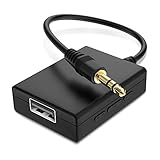
- IMPORTANT NOTES: The device must be connected to a power source during use (use the supplied USB-C cable); Not Compatible with USB Headphones; Does Not support reverse operation; It Does Not charge external devices; Is Not a signal converter; Not Compatible with Bluetooth speakers; Cannot be connected to mobile phones; Cannot be connected to laptops/PCs; Does Not allow connecting USB speakers to the TV; Does Not support iPods or devices requiring decoding
- NOTE: Only compatible with car audio systems (AUX connector) and with 3.5 mm connectors on older speaker systems. (Audio only, unidirectional use, does not support reverse operation)
- HOW TO USE IT: 1. Insert your USB flash drive containing MP3 music files into the USB port. 2. Connect the adapter to a USB power source. 3. Plug the AUX plug into the AUX input of your car
- ONLY SUPPORTS MP3 MUSIC FORMAT: This device only supports the MP3 music format. (No additional decoding by the car is required). USB MEMORY FORMAT: NTFS formatted USB drives are not supported. FAT32 and exFAT formats are supported (Recommended small capacity USB flash drive: 8G)
- ONLY SUPPORTS MP3 MUSIC FORMAT: This device only supports the MP3 music format. (No additional decoding by the car is required). PRODUCT SPECIFICATIONS: Length: 10.8 inch, Width: 1.65 inch (Not compatible with microphones, headphones, monitors)
regsvr32 portabledevice.dll
A registration error does not repair the missing dependency and can distract from the real problem.
Free tools Windows power users keep installed
One-click scans. No signup required.
Do not install unrelated runtimes automatically
Visual C++, DirectX, and .NET packages are not identified as the owner of this file. Install a runtime only if a separate error names a Microsoft runtime component or the Musicmatch installer explicitly requires it.
If Musicmatch still will not run
At this point, determine whether the problem is the DLL or the age of the application.
Try the following controlled checks:
- Confirm that
portabledevice.dllexists inside the Musicmatch folder. - Start Musicmatch with the portable player disconnected.
- Try the application under a newly created Windows user account.
- Check whether the error appears only during device synchronization.
- Reinstall Musicmatch again using the installer’s compatibility options.
- Review antivirus detections and the file’s location.
- Test the original player software in a supported older Windows environment if one is available.
If Musicmatch works under another Windows account, the installation may be intact and the original profile may contain damaged settings. If it fails for every account, obsolete compatibility or a damaged installation is more likely.
Musicmatch is legacy software rather than a maintained Windows runtime. If reinstalling it is no longer practical, preserve the music library and playlists, then migrate to a current media application or use an isolated older Windows environment. Do not weaken Windows security simply to keep an obsolete program installed.
Do these 3 things before closing this tab:
1Repair Windows errors before they cause bigger problems2Fix the driver behind crashes, sound loss and screen glitches3Clear out junk files and repair common Windows errorsLikely causes and the correct response
| Likely cause | Correct response |
|---|---|
| Incomplete or damaged Musicmatch installation | Repair or reinstall Musicmatch |
| Antivirus quarantine | Verify the detection and original path, then prefer reinstalling |
| Program folder moved or cleaned | Reinstall to the application directory |
| Missing dependency | Reinstall the complete application rather than guessing |
| Obsolete Windows compatibility | Use compatibility options or an older supported environment |
| Wrong DLL build or architecture | Obtain the matching application installer |
| Broader Windows corruption | Run DISM, then SFC |
| File outside the Musicmatch directory | Scan the system and remove the suspicious copy |
| Musicmatch no longer needed | Uninstall it and remove the obsolete dependency |
FAQ
Is portabledevice.dll a Windows file?
No. It is associated with MUSICMATCH JUKEBOX from MUSICMATCH, Inc. It is not the same as Microsoft’s Windows Portable Devices APIs.
Should I put portabledevice.dll in System32?
No. Restore it through the Musicmatch installer and keep it with the application.
Is portabledevice.dll 32-bit or 64-bit?
The strongest available metadata identifies it as a 32-bit Win32 application DLL. Exact builds may differ, so use the copy supplied by the matching Musicmatch installer.
Can SFC restore portabledevice.dll?
Normally no. SFC repairs protected Windows components, not ordinary third-party Musicmatch files.
Why does the error say the specified module could not be found when the file exists?
A dependency of portabledevice.dll may be missing, or the application may be loading from the wrong directory. Reinstalling Musicmatch repairs the complete application set more safely than adding individual DLLs.
Should I use regsvr32?
Usually no. Registration is appropriate only for DLLs designed to expose registration entry points. It is not a general fix for Musicmatch’s private application DLL.
What if I no longer use Musicmatch?
Uninstall Musicmatch after backing up your music and playlists. Removing the obsolete application is safer than restoring an unverified DLL globally.
Will this definitely work on Windows 10 or Windows 11?
The repair steps are appropriate for the missing-file condition, but Musicmatch itself is obsolete and modern Windows compatibility is not established by a current official support matrix. If reinstalling fails, use an older Windows environment or migrate the library.
Quick wins for a faster PC:
Fix the driver behind crashes, sound loss and screen glitchesFind Drivers →Clear out junk files and repair common Windows errorsFree Scan →Quick Recap
Product prices and availability are accurate as of the date/time indicated and are subject to change. Any price and availability information displayed on Amazon at the time of purchase will apply.




